
The final version, no question marks
Find the final version of every file without asking.
- Multilingual, LTR and RTL
- Free to start, no upfront payment
- Secure online payment
Problem and solution
How many minutes a day does your team spend hunting for files?
01 The problem
When files are scattered across messengers and personal drives, every handover starts with “send me the file”, and sometimes the wrong version goes to the client.
- The final version is unclear across several folders and messages.
- Access to an important attachment depends on one specific person being around.
- Files are cut off from their task and doc, with no context.
02 Taskie's answer
A project archive, not a personal gallery
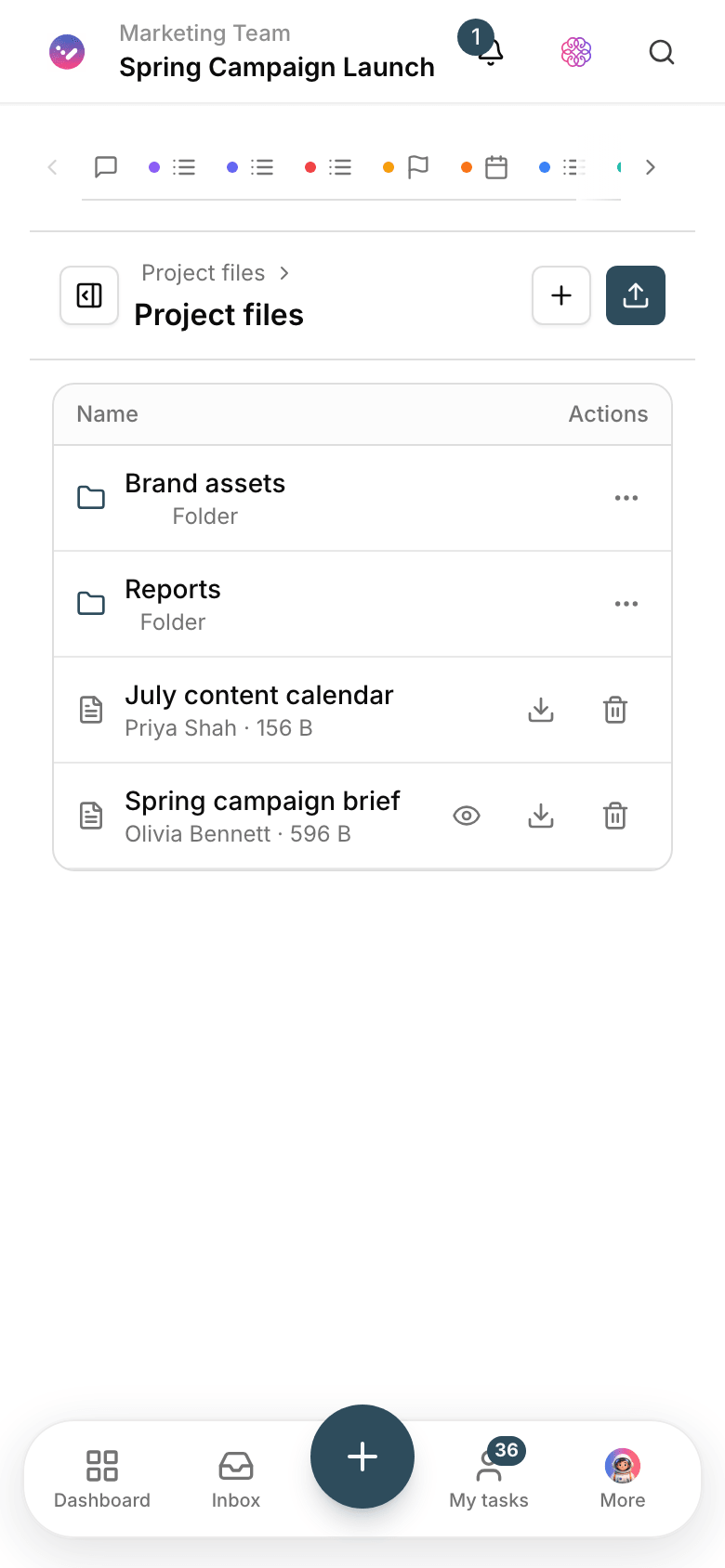
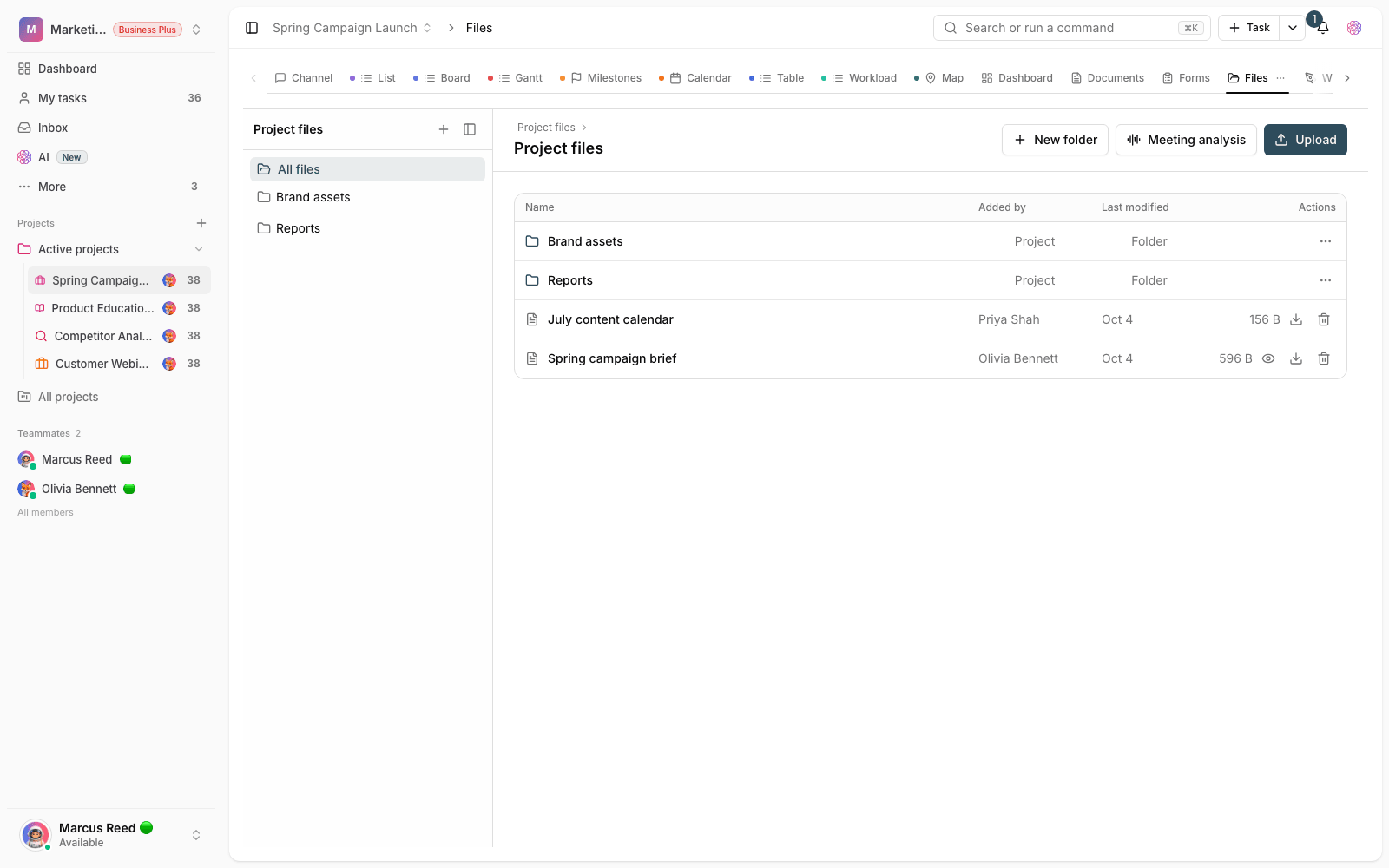
Files are uploaded to project or workspace folders, and attachments stick to their task and doc. Access follows roles and membership.
- Folders at the project and workspace level.
- Attach files to the related task, doc and form.
- Who can see and change files depends on each member’s role.
Workflow
A file’s path from upload to delivery
Upload
Put the file in a project folder or attach it straight to the related task.
Organize
Folders follow the project structure so everyone knows what’s where.
Use it at work
Open the file from inside its task or doc, without searching again.
Control access
Every member reaches the files in their own scope — no less, no more.
Outcome
File management in practice: what actually changes?
No more file hunting
Files are where you’d expect: in the project folder or attached to the task.
Tidy client handovers
Final deliverables are gathered in one place, and nobody gets sent the wrong version.
Not dependent on anyone’s memory
You don’t wait for someone to come online to get a file.
A safe boundary for assets
Work files stay inside the workspace, with access controlled by roles.
- Where files live
- Project folders
- Every file has a home in the project structure, not in last night’s chat.
- Attachments
- Stuck to the task
- A file sits next to the task and doc it came for.
- Access roles
- 4
- Owner, admin, member and guest decide who sees which file.
Use cases
Put Files to work in these situations
Design and brand files
Deliverables and brand assets stay in the project folder, with a clear final version.
Client documents
Files received from clients are archived next to the related form and task.
Project delivery package
Everything that needs to be delivered is gathered in one place, with nothing left behind.
FAQ
Questions about Files
How much storage do we get for files?
Storage depends on your workspace plan and is clearly listed on the pricing page. You can start working with files on the free plan too.
What kinds of files can we upload?
Common work files — images, documents, spreadsheets, archives and the like — are supported, and image previews open right there.
Can guests access all files?
No. Guests see only the files of projects they’re a member of. Workspace-level files and other projects stay hidden from them.
Related features
Alongside Files, explore these too
Docs
Guides and decisions sit in scattered files; nobody knows which version is the right one.
View detailsForms
Requests arrive by email and message; half are incomplete and the other half never get followed up.
View detailsPermissions
When roles are vague, everyone sees and changes more than they need to.
View detailsStarting today, move your team's work forward in one workspace
- Set up in minutes
- Start with no upfront payment
- Support from real people