
What a mind map is and why it helps
A mind map is a visual way to organize ideas and the structure of your work. Learn what it is, when it helps, and where it fits in Taskie.
A mind map is one of the simplest ways to get ideas out of your head. Instead of writing your thoughts in a long, linear list, you arrange them around a central topic and split each thought into branches and sub-branches. This radial layout makes the connections between ideas, priorities, and gaps in your work much easier to spot.
In Taskie, a mind map isn't a separate tool. It's part of the same project you already work in. You can lay out ideas on the canvas and then link those nodes to real project tasks, so raw thinking turns into work you can track. This guide explains what a mind map is, where it's most useful, and how it fits into your project.
What exactly is a mind map?
A mind map is a tree diagram that starts from a central node (the main topic) and grows into branches as you add "child" and "sibling" nodes. Each node holds an idea, heading, or step, and the lines between nodes show which idea belongs under which. Unlike a simple list, this hierarchy lets you see the big picture and the details at the same time: collapse branches to keep only the headings, or expand them to dig into the details.
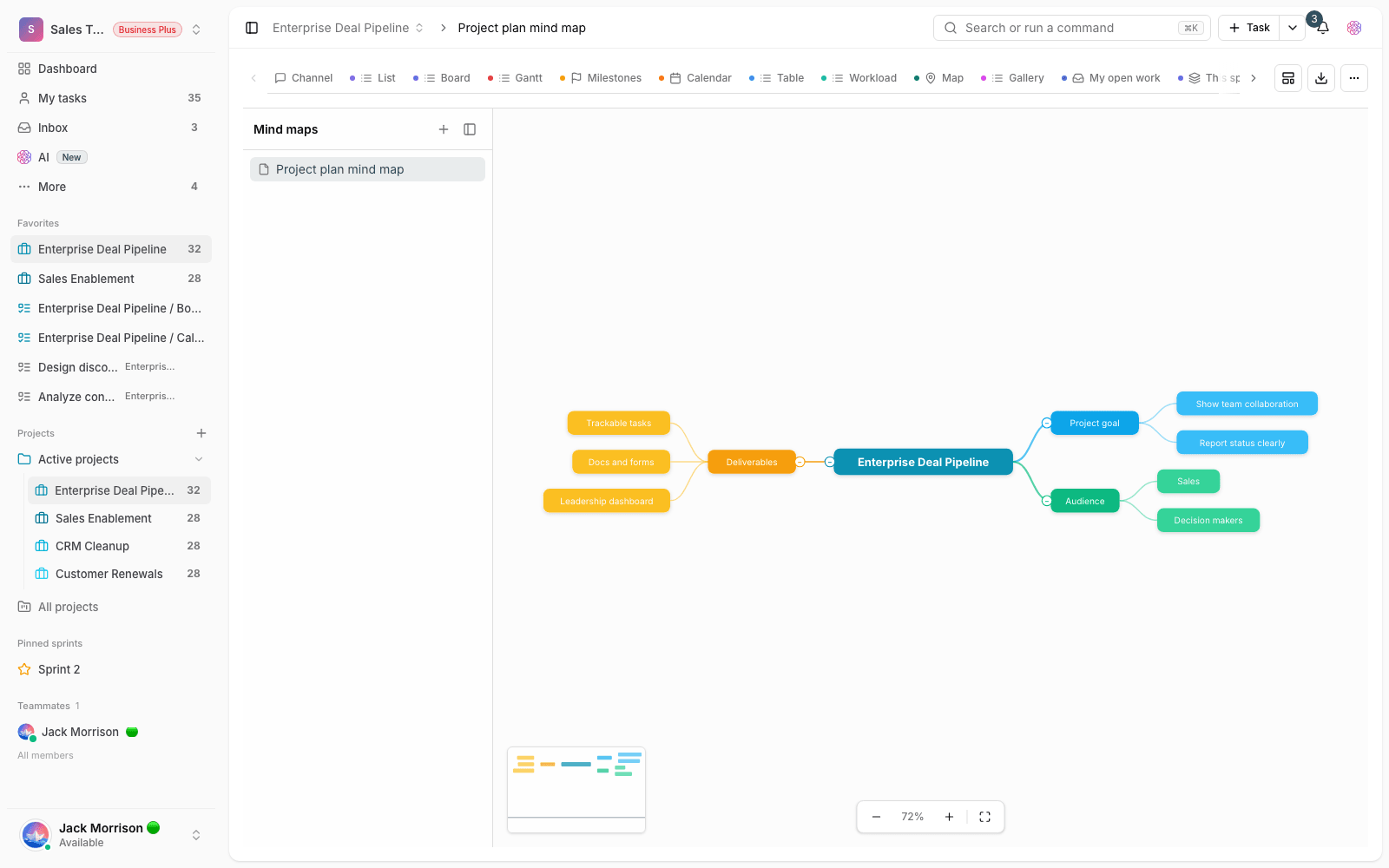
When is a mind map useful?
A mind map adds the most value wherever the structure of the work isn't clear yet, that is, in the thinking stage before execution. Some common uses:
- Early brainstorming, when you want to get every idea out without judging it and sort them later.
- Breaking a large project or goal down into smaller, manageable parts and steps.
- Drafting an outline for content, a product, or a campaign before you write the details.
- Summarizing a meeting or team discussion so the links between topics are visible.
- Reviewing a topic to find gaps or work nobody has thought about yet.
Where mind maps fit in Taskie
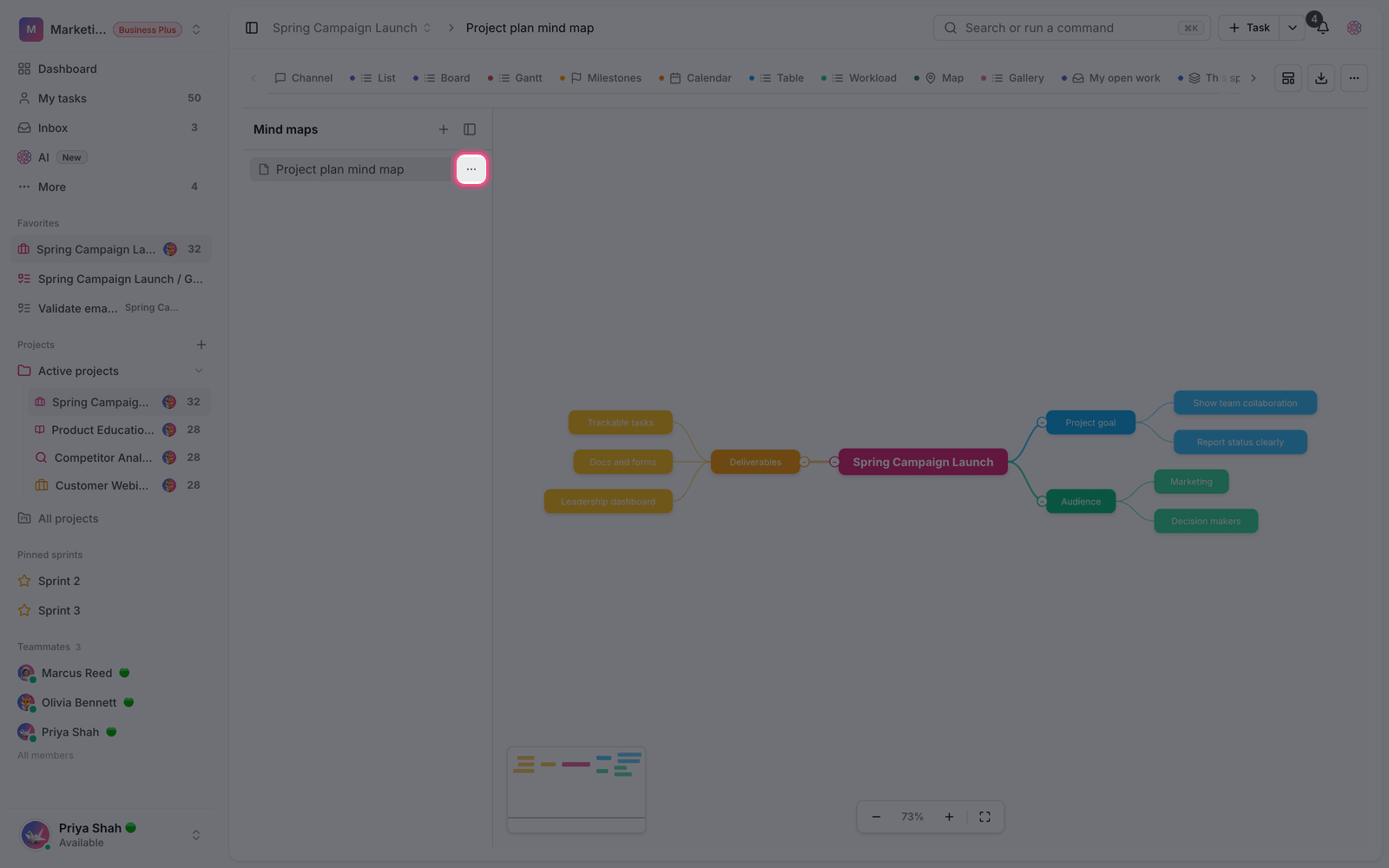
A mind map is one of your project views, alongside views like List, Board, and Calendar. Each project can have several mind maps, listed in a sidebar where you can nest and order them. To add this view to a project:
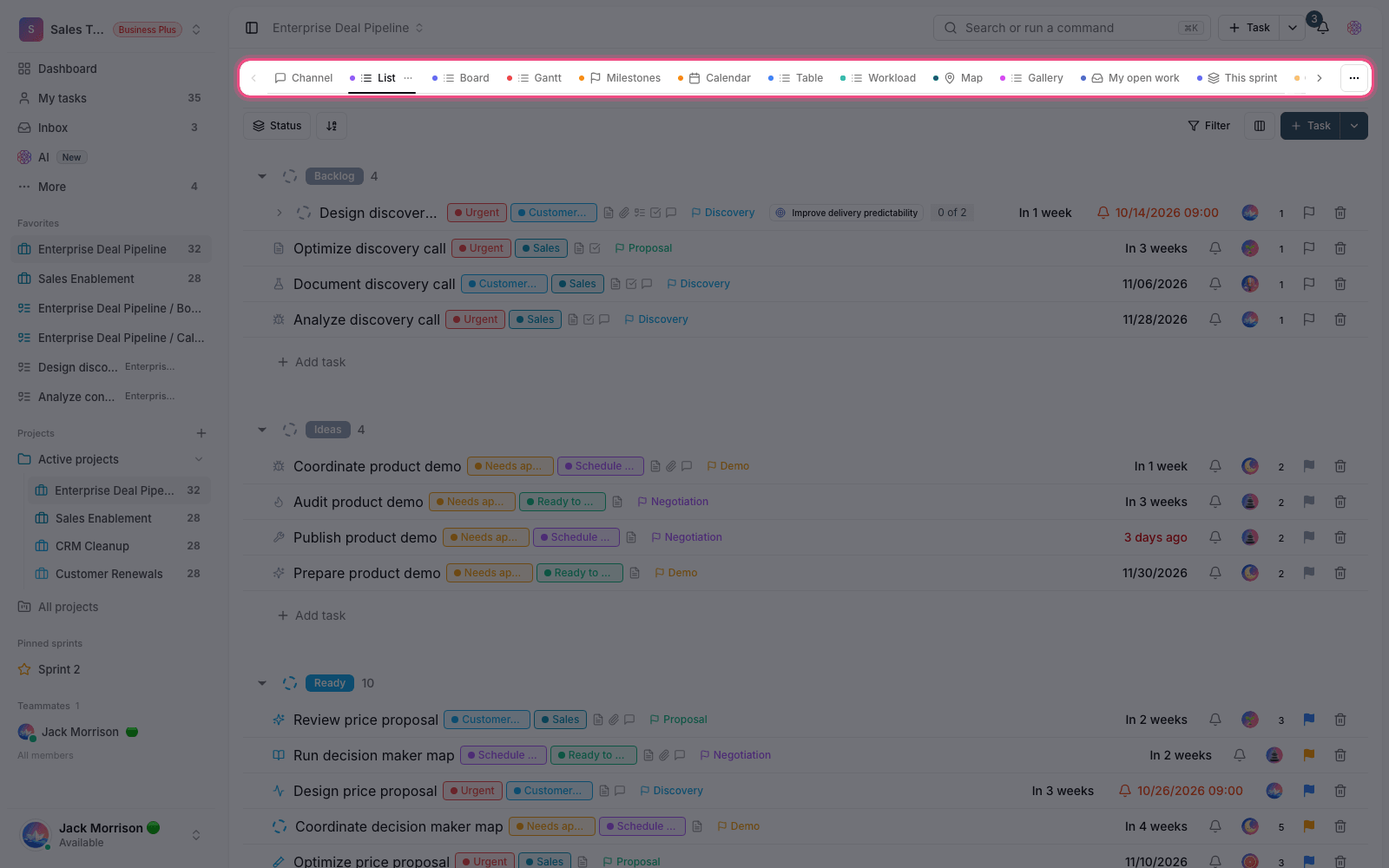
- Open the project and click Add view in the views bar.
- Under One-time views, choose Mind map to add its tab to the project.
- Open the mind map tab. If you don't have a map yet, you can start from a ready-made template or create a blank map.
- Give each map a name so you can find it easily in the sidebar later.
The project owner, admins, and members can add the view and create maps. Users with view-only access can see a map but can't edit it.
Real-time collaboration and AI
Mind maps are built for teamwork. When several people open the same map, each teammate's cursor and presence show on the canvas and changes update live, so you never need to refresh to see others' work. If you want a faster start, use Draw with AI to build a first draft of a map from a short description, then finish it by hand.
Plan limits
The mind map view is available on every plan, but the number of maps you can keep across the whole workspace depends on your plan:
- Free plan: one mind map.
- Pro plan: up to ten maps.
- Ultimate plan: up to fifty maps.
- Business plans: no limit on the number of maps.
This count covers the whole workspace, not each project. If you hit the limit, you can delete old, unused maps or upgrade your plan.
Tip: Mind maps are great for the thinking stage, but their real value shows when ideas leave the canvas and become work you can track. That's why you can link nodes to project tasks.
Next step: to build your first map and learn about nodes and shortcuts, see Build and organize a mind map. To turn ideas into actionable work, read Turn mind map nodes into tasks and projects.