
Turn mind map nodes into tasks and projects
See how to link mind map nodes to real project tasks so your ideas become work you can track.
A mind map is great for thinking, but an idea that stays on the canvas doesn't move the work forward. The decisive step is tying each idea to a specific, trackable piece of work. In Taskie you do this with Link task: you can link any node on the map to one or more real tasks in the same project.
With these links, your mind map is no longer a static picture. It becomes a live roadmap for the project that also shows the status of the work. This guide shows how to link a node to a task, follow status on the map, and turn a mind map into an actionable project structure.
Link a node to a task
Before you link, make sure the task you want already exists in the same project. You can only link to tasks in the map's own project. To link a node:
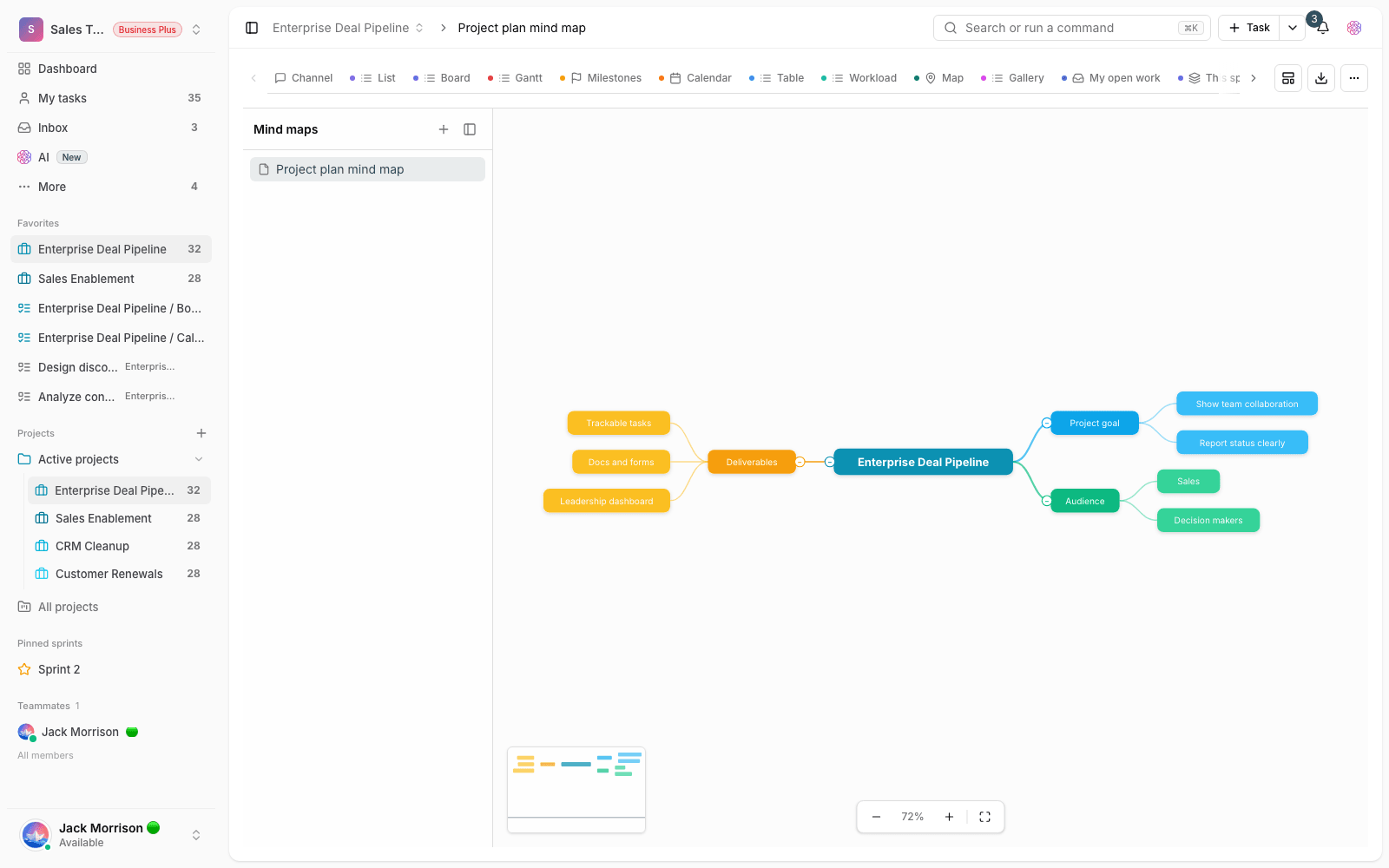
- Select the node and click Link task in the node's action bar (the same option is also in the right-click menu).
- In the window that opens, type the task name in the search box. Results appear once you've typed two characters.
- Pick the task from the list and it's linked to the node right away.
- You can link several tasks to one node if you need to. To remove a link, click the remove icon next to that task.
Note that the project owner, admins, and members can link tasks and edit the map. Someone with view-only access can see the map and its links but can't change them.
Track work status on the map
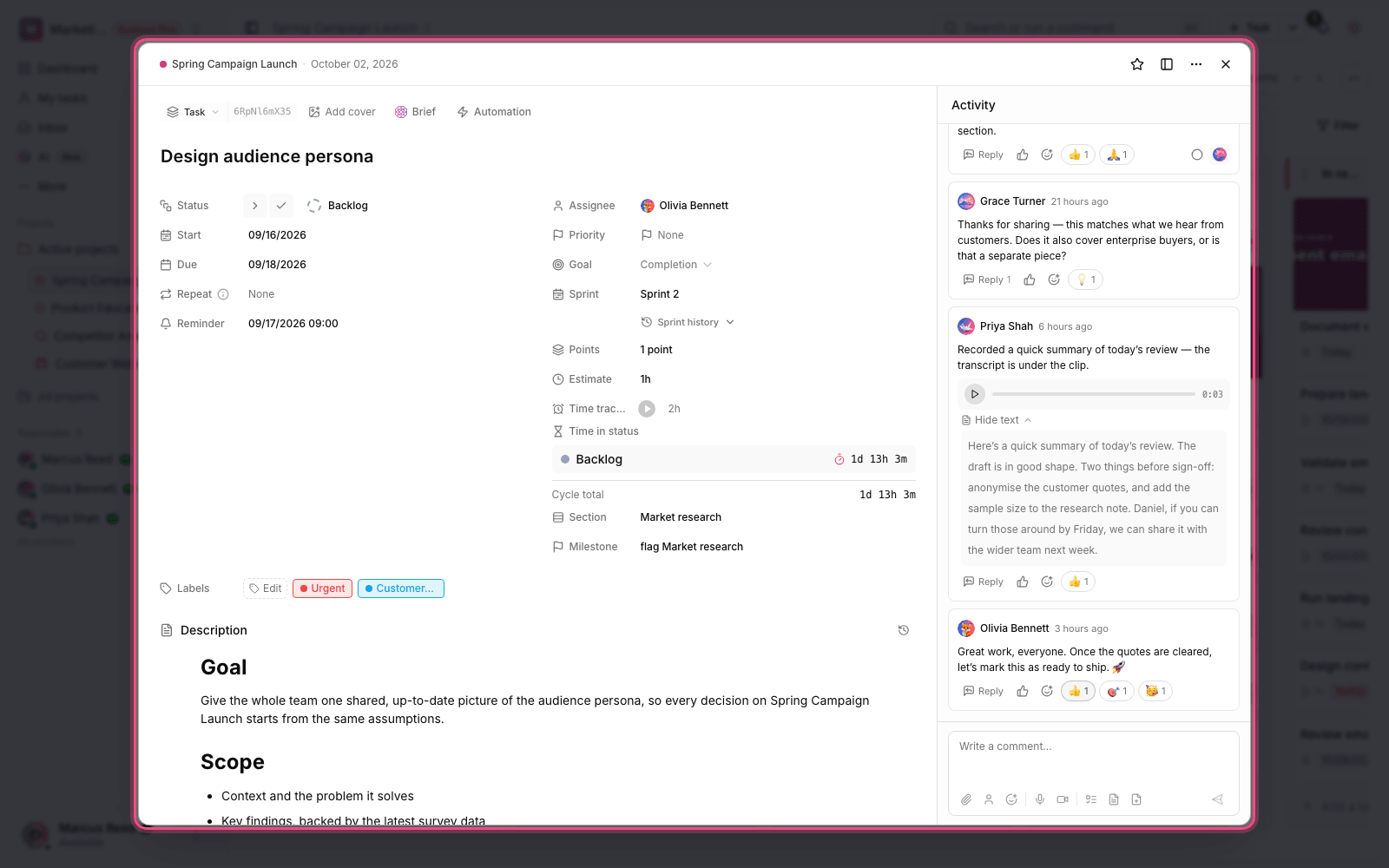
The main benefit of linking is that the map reports the status of the work back to you. When a node is linked to a task, a marker for that task appears next to the node in its status color, so at a glance you can tell which branches have moved forward and which haven't been touched. If a node has several tasks, their count is shown too. Because the status is read from the task itself, any change you make to that task in the List or Board view also shows on the map, so you never have to update anything twice.
From mind map to an actionable project structure
A mind map lives inside a project, so you can use it as that project's outline: turn the main branches into phases or areas of work, and the leaves into specific tasks. A simple, effective workflow looks like this:
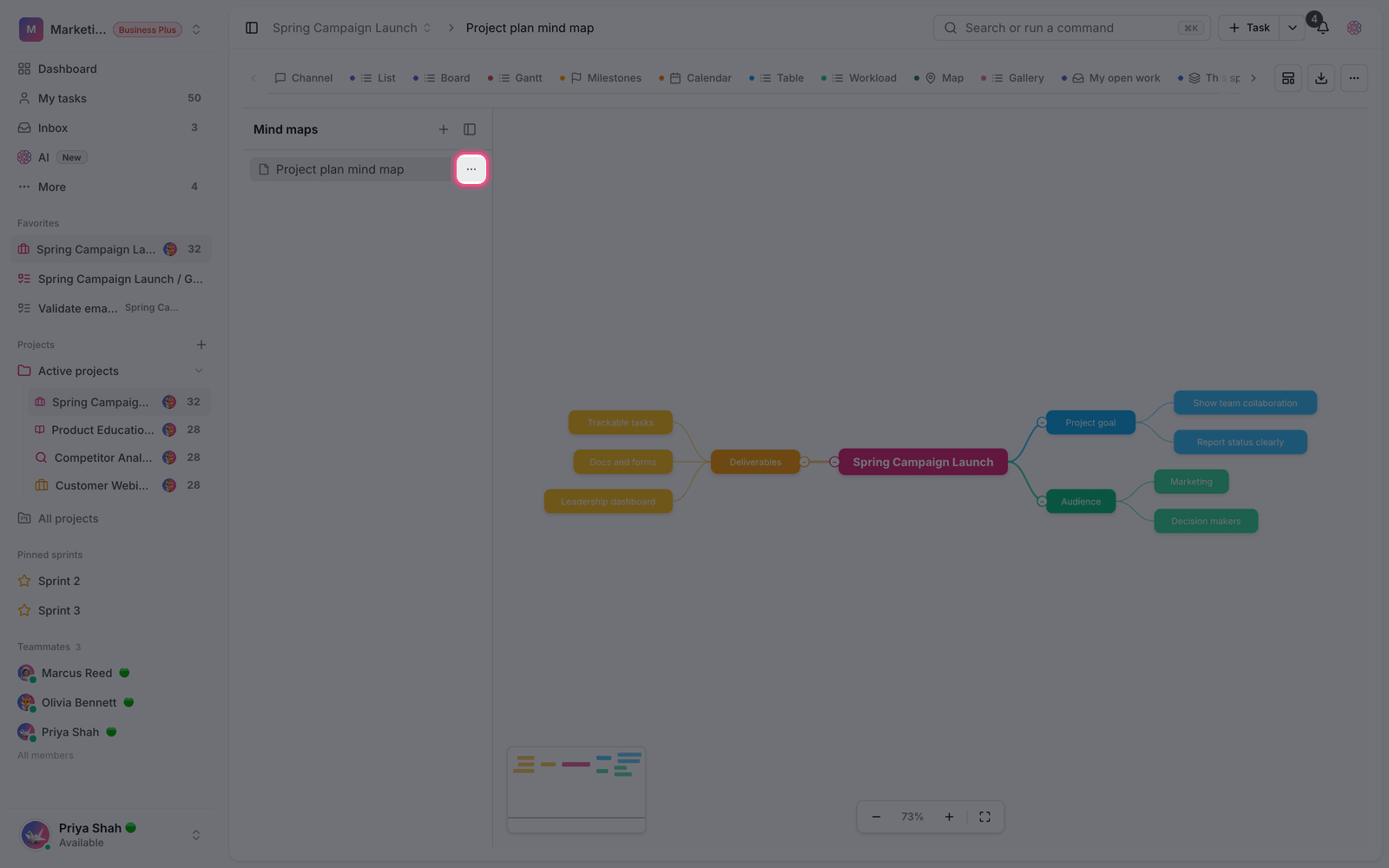
- Lay out the structure of the work in the mind map first so you can see the full picture.
- For each actionable idea, create a task in the same project's List or Board view.
- Link the matching node to that task so the idea and the work stay connected.
- Follow progress on the map, and whenever a new idea comes up, add a new node and link it too.
Taskie doesn't automatically turn a node into a new task or a new project. You create the task in the project and then link the node to it. This keeps you in full control of each task's details.
Common mistakes and tips
- If a task doesn't show up in search, make sure it was created in the same project as the map. Tasks from other projects can't be linked.
- Linking doesn't copy or move the task. It only connects the node and the task, so removing a link doesn't delete the task itself.
- If you can't see a task, it won't appear in the list of links either.
- Don't overload the map. Link each node only to work that's truly related so the map stays readable as a status view.
Tip: Keep the mind map as the project's bird's-eye view. The team can work through the details in the Board view while the project manager sees from the map what stage each branch is at.
Next step: if you haven't built a map yet, or want to arrange nodes more professionally, see Build and organize a mind map. To learn about the idea behind mind maps and how to use them, read What a mind map is and why it helps.