
Scheduled and recurring flows
Time- and date-based automations, the schedule trigger and its run modes, and recurring sprint flows in Taskie.
Not every automation runs in response to an immediate change. Some work needs to happen at a specific time or on a recurring basis: a daily stand-up reminder, a weekly report, following up on overdue work, or automatically closing out a work period. For this kind of work, Taskie provides time- and date-based automations.
These flows are different from recurring tasks. With a recurring task, a task is recreated on a fixed rhythm; here, an automation checks its conditions and runs its actions at a set time. Below are the three main time-based types.
Date-based triggers
These triggers fire when a date arrives rather than on a manual change. Taskie periodically (every hour) finds the matching tasks and runs the automation on them:
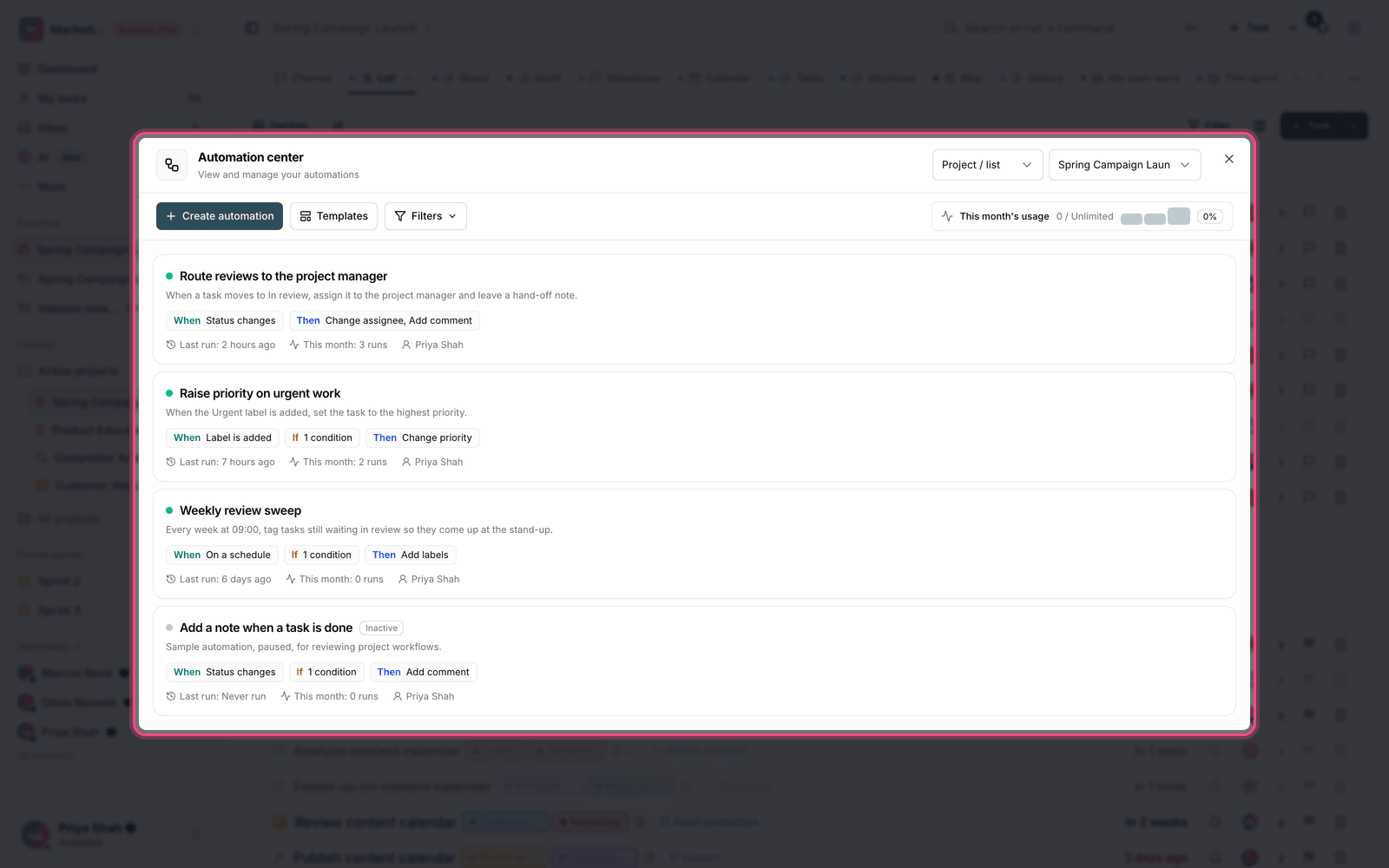
- Due date arrives: when a task's due date comes.
- Due date has passed: for following up on and flagging overdue work.
- Custom field date arrives: based on date fields you've created yourself, such as "Review date" or "Renewal date".
For example, you can build this: when Due date has passed and the status is still open, add an "Overdue" label and send a notification to the assignee.
The schedule trigger (On a schedule)
The On a schedule trigger lets you run an automation on a regular rhythm. The available rhythms are: every hour, every few hours, daily, weekly (picking days of the week, Saturday through Friday) and monthly. These automations run in their creator's time zone so the times land where you expect.
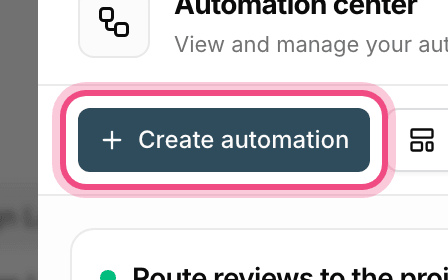
When you create a scheduled automation, you also choose its run mode:
- Set the trigger to On a schedule and choose its rhythm (daily, weekly, monthly and so on).
- Choose the run mode: On matching tasks, so the automation runs on every task that matches the conditions, or Once, without a task for a standalone run that doesn't depend on a task.
- Define conditions so only the tasks you want are in scope.
- Add the actions and save.
- In Once, without a task mode, since there's no task involved, only the Send notification and Webhook actions are available — a good fit for recurring reports and reminders.
- In On matching tasks mode, you can apply all the usual actions to the tasks, such as changing status or adding labels.
Recurring sprint flows
If you work in sprints, Taskie can also manage the sprint cycle on a schedule. These flows run periodically based on your sprints' start and end dates:
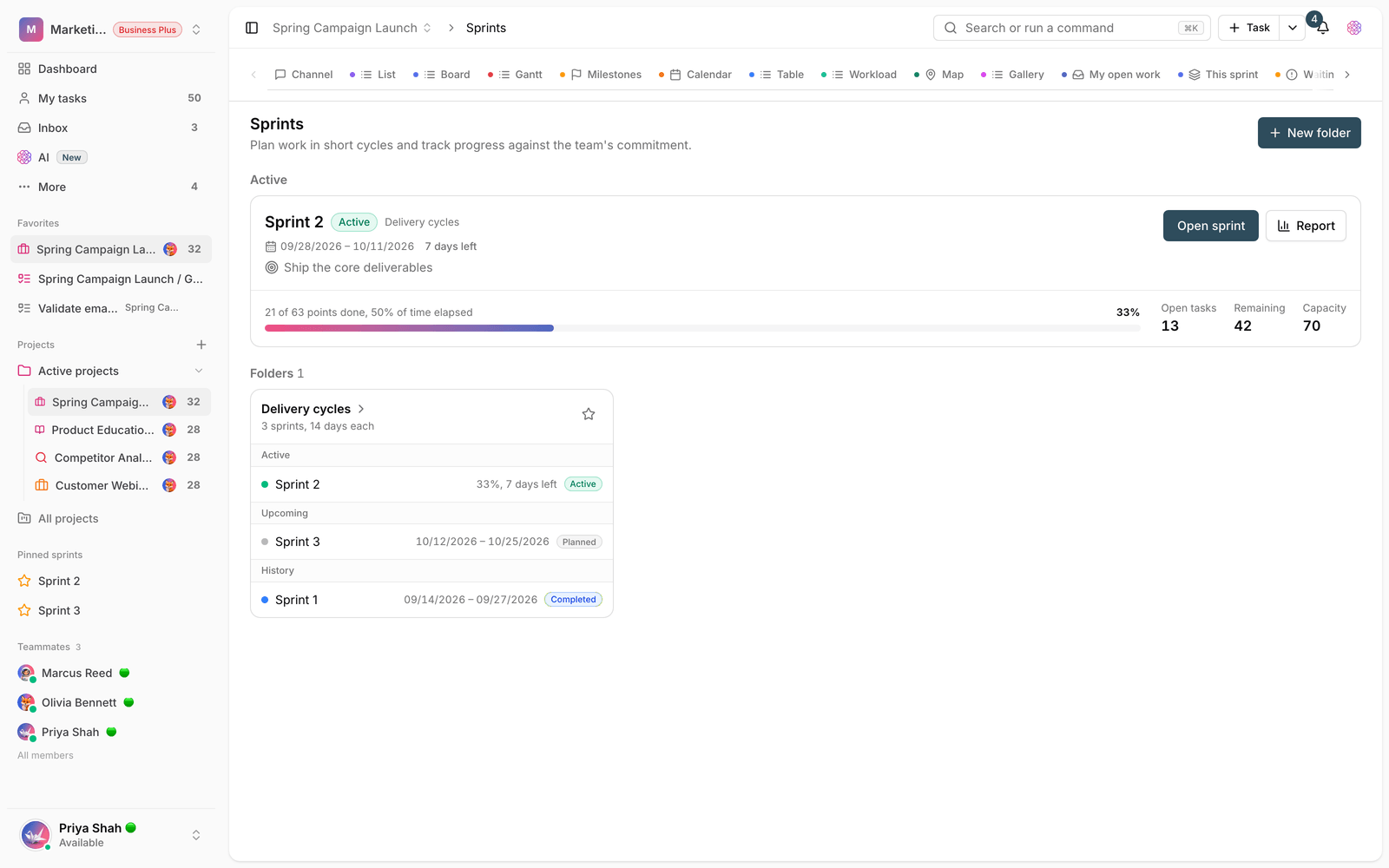
- Automatic start: when the start date arrives, the next planned sprint starts automatically (if no sprint is currently active).
- Automatic completion: when the end date passes, the active sprint is closed and unfinished work moves to the next sprint.
- Daily progress snapshots: for active and completed sprints, a daily snapshot of the state is kept for the progress chart.
Tip: scheduled runs count against your workspace's monthly usage limit just like other automations. If a frequent automation runs on many tasks, tighten its conditions so you don't hit the limit too soon.
Next step: for the overall trigger, condition and action structure, see Triggers, conditions and actions. To review the basics and build your first automation, read What automation is and how to build one.