
Triggers, conditions and actions
The "when, if, then" structure of Taskie automations, with the full list of triggers, conditions and actions plus tips for keeping them reliable.
Every automation in Taskie is built on a simple backbone: "when" something happens, "if" the conditions are met, "then" do one or more things. Understanding these three parts well helps you build automations that neither run too often nor fail to run where they should.
On this page we go through all three parts with their real options, look at a few practical examples, and finish with tips for keeping your automations reliable so you don't end up with loops or unwanted runs.
Trigger: the starting point
The trigger is the event that wakes the automation up. Every automation has exactly one trigger. Triggers come in a few families:
- Task lifecycle: Task is created, Task is completed, Task is deleted, Status changes and Priority changes.
- Dates: Due date is set, Due date changes, Due date arrives, Due date has passed and Custom field date arrives.
- Assignees and labels: Assignee is added, Assignee is removed, Label is added and Label is removed.
- Conversation and fields: Comment is added and Custom field changes.
- Approvals and scheduling: Approval is requested, Approval is granted, Approval is rejected, Approval deadline passes and On a schedule.
Condition: narrowing when it runs
Conditions are optional and help the automation run only in the right situation. Each condition works on one task property and has an operator:
- Available properties: Status, Priority, Assignee, Label, Due date, Custom field, Member attribute, Creator and Location.
- Common operators: Is, Is not, Is one of, Greater than, Less than, Is set, Is not set, Before, After, Contains and Is checked/Is unchecked.
- Combining conditions: you can put several conditions together with AND logic (all must be true) or OR logic (one is enough).
Action: what gets done
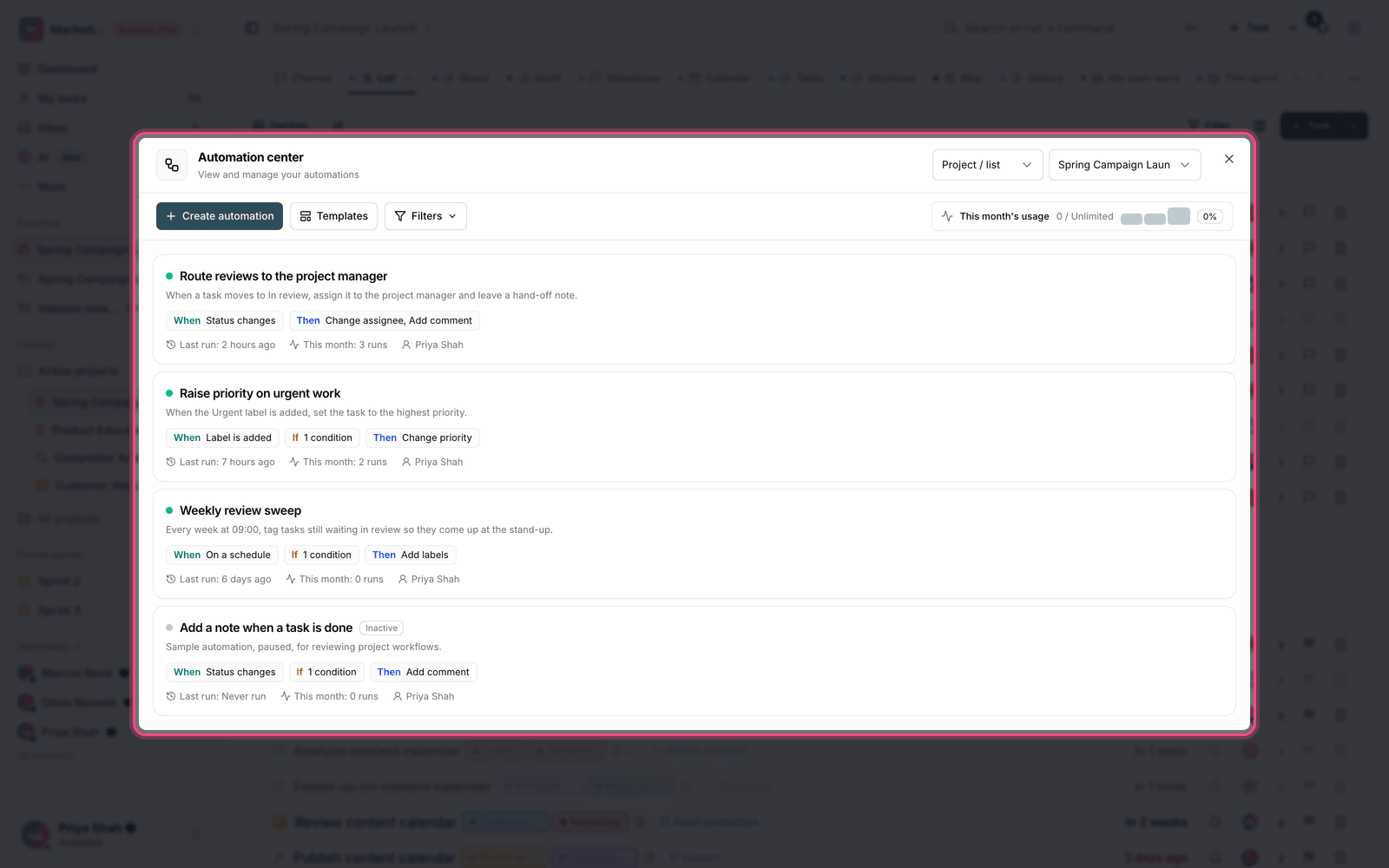
Actions are the real result of an automation. You can define several actions in a row and they run in order:
- Change the task's status, priority, assignee or due date.
- Add or remove labels, write a comment and set a custom field.
- Create a subtask, move or copy the task to another project/list, and send a notification.
- Request approval, call a Webhook to connect to external services, and Hand off to an AI agent to get work done with AI.
A few practical examples
The best way to understand this structure is to see a few real examples:
- Automatic assignment: when Task is created and the condition Priority Is Urgent is true, use the Change assignee action to assign it to the team lead.
- Handoff notification: when Status changes to "Awaiting review", run the Send notification action for the reviewer.
- Overdue follow-up: when Due date has passed and the task is still open, use Add labels to add an "Overdue" label and leave a reminder comment.
Tips for reliable automations
A few simple habits keep your automations dependable and trouble-free:
- Watch out for loops: Taskie doesn't call the same automation twice in one run chain, so infinite loops can't happen, but still arrange actions that are themselves triggers for another automation (such as changing status) carefully.
- Make conditions precise: the more specific your conditions, the less often the automation runs in the wrong place, and the less you waste your monthly usage limit.
- Test first: use a Test run on a sample task to see the result before you activate it, and check it in the Run history.
- Test your webhook: before saving, check the webhook URL with the test button. The external response only has a few seconds (about 8 seconds), and a slow destination service makes the action fail.
- Keep the agent's cost in mind: the Hand off to an AI agent action uses your workspace's AI credits.
Tip: if an automation runs too often, first tighten its conditions and change its trigger to the most precise event possible. That works better than turning it off completely.
Next step: for an overview of building and managing automations, see What automation is and how to build one. For time- and date-based triggers, read Scheduled and recurring flows.