
Automation template library
Instead of building a rule from scratch, start from a ready-made template, run a test and follow the run history.
Most of the automations teams build look alike: "When a task moves to review, notify the lead" or "When the due date passes, raise the priority". Instead of building them from scratch every time, start from a ready-made template.
Use a template
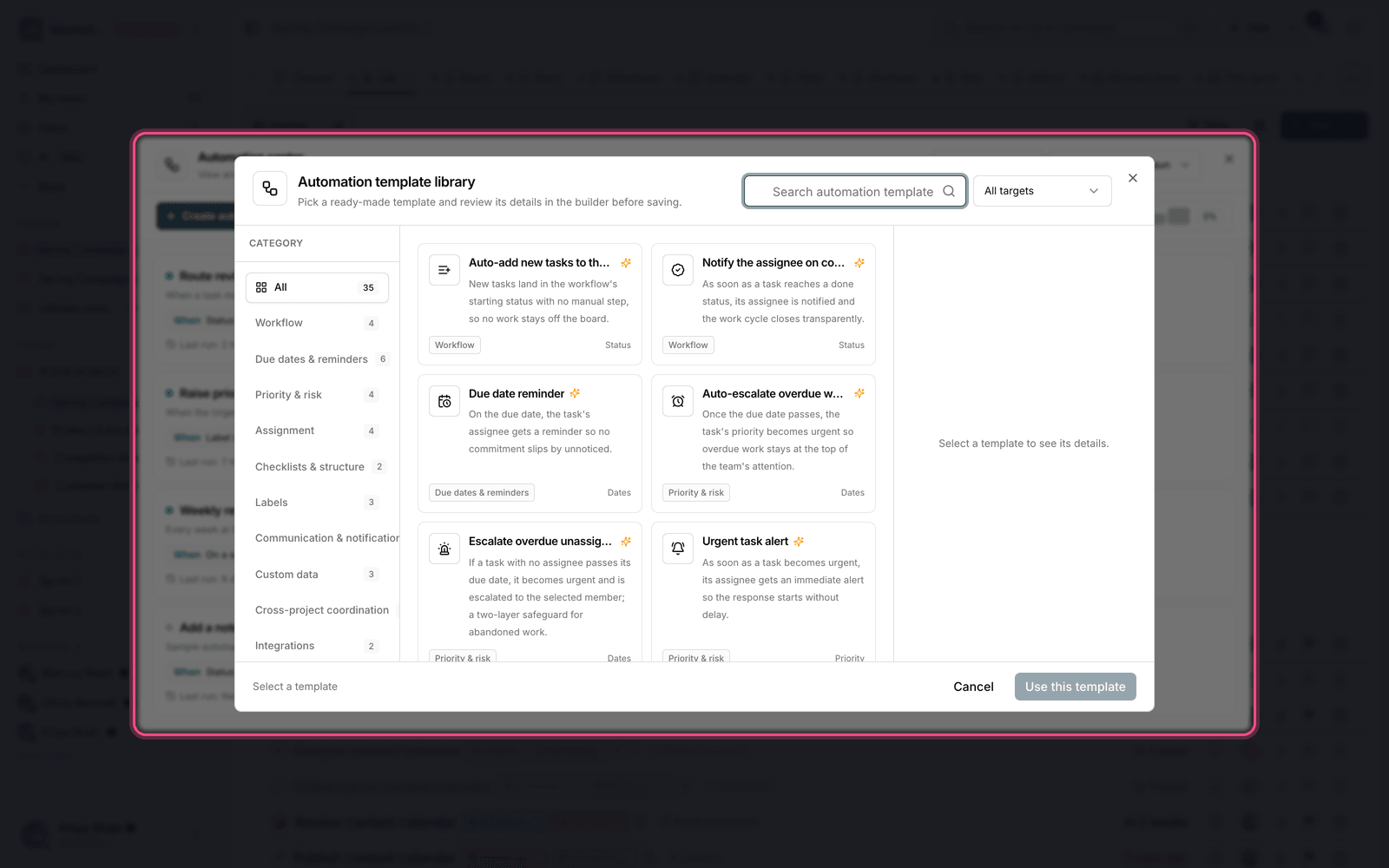
- Go to the Automations page.
- Open the template library and find a template that fits.
- Click Use this template.
- Adapt the trigger, conditions and actions to your own project and team.
- Save to create the automation.
A template is just a starting point. Once it's created, every part of it can be edited like any other automation.
Run a test before you activate it
Before you let a rule loose on a whole project, try it on one task. With Test run on a task, you pick a real task and see what the automation does.
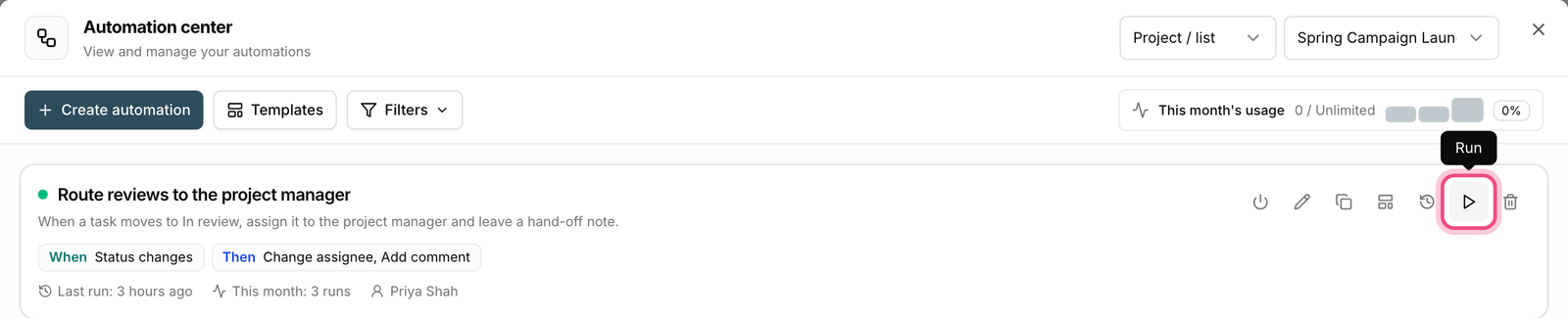
Note: in a test run, conditions are ignored and only the actions run. That means the actions happen even if the task doesn't meet the conditions, so choose a task you don't mind changing.
Run order and multiple actions
An automation can have several actions, and they run in sequence. Use Move up and Move down to set their order. The actions only run when the conditions are met.
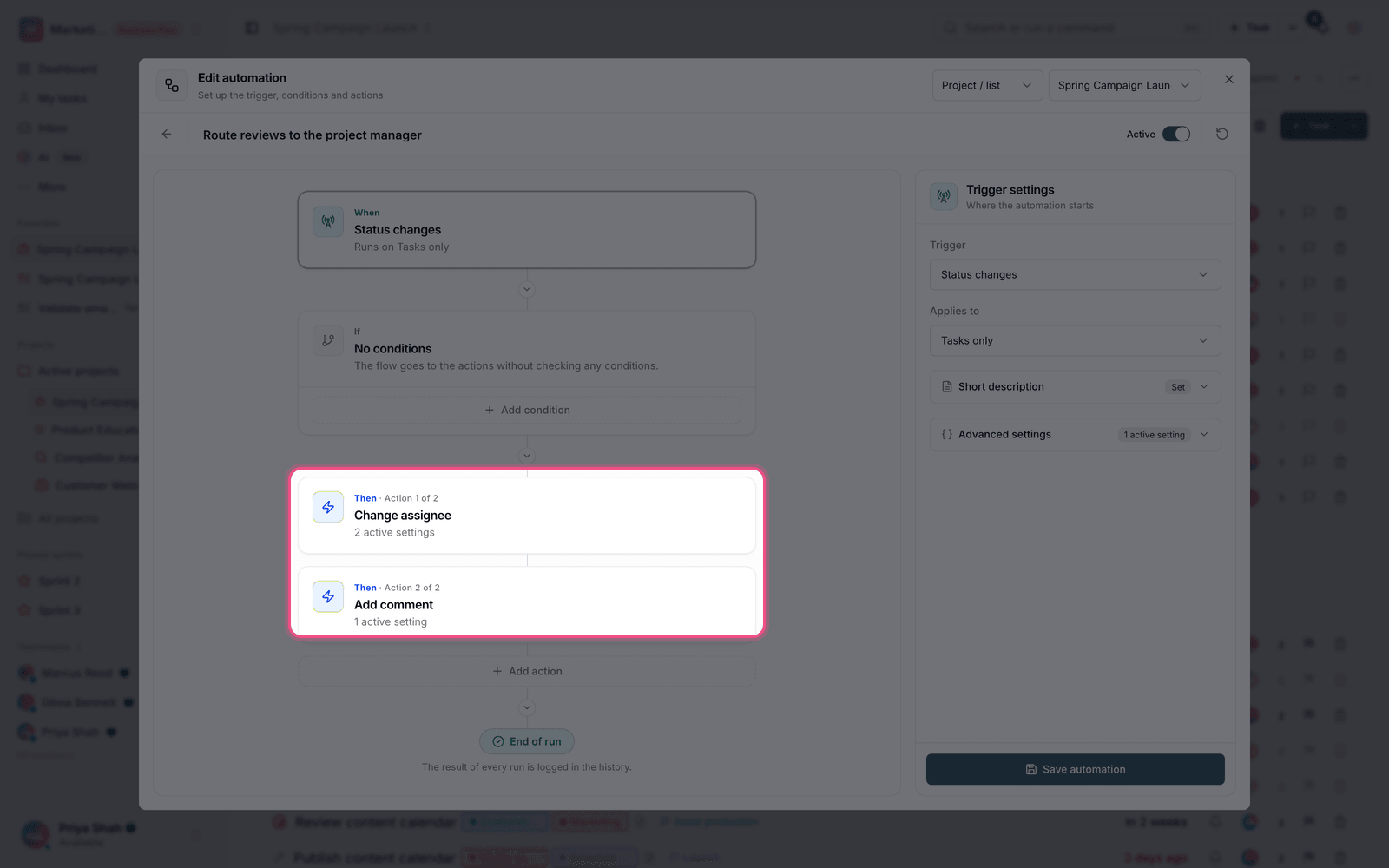
- Add condition: narrow the rule so it only runs on relevant items.
- Add action: do several things in a row — for example, change the status and send a notification.
- Applies to: choose which projects or members the rule runs on.
- Webhook: to connect to an external service, enter a webhook URL.
Track and manage
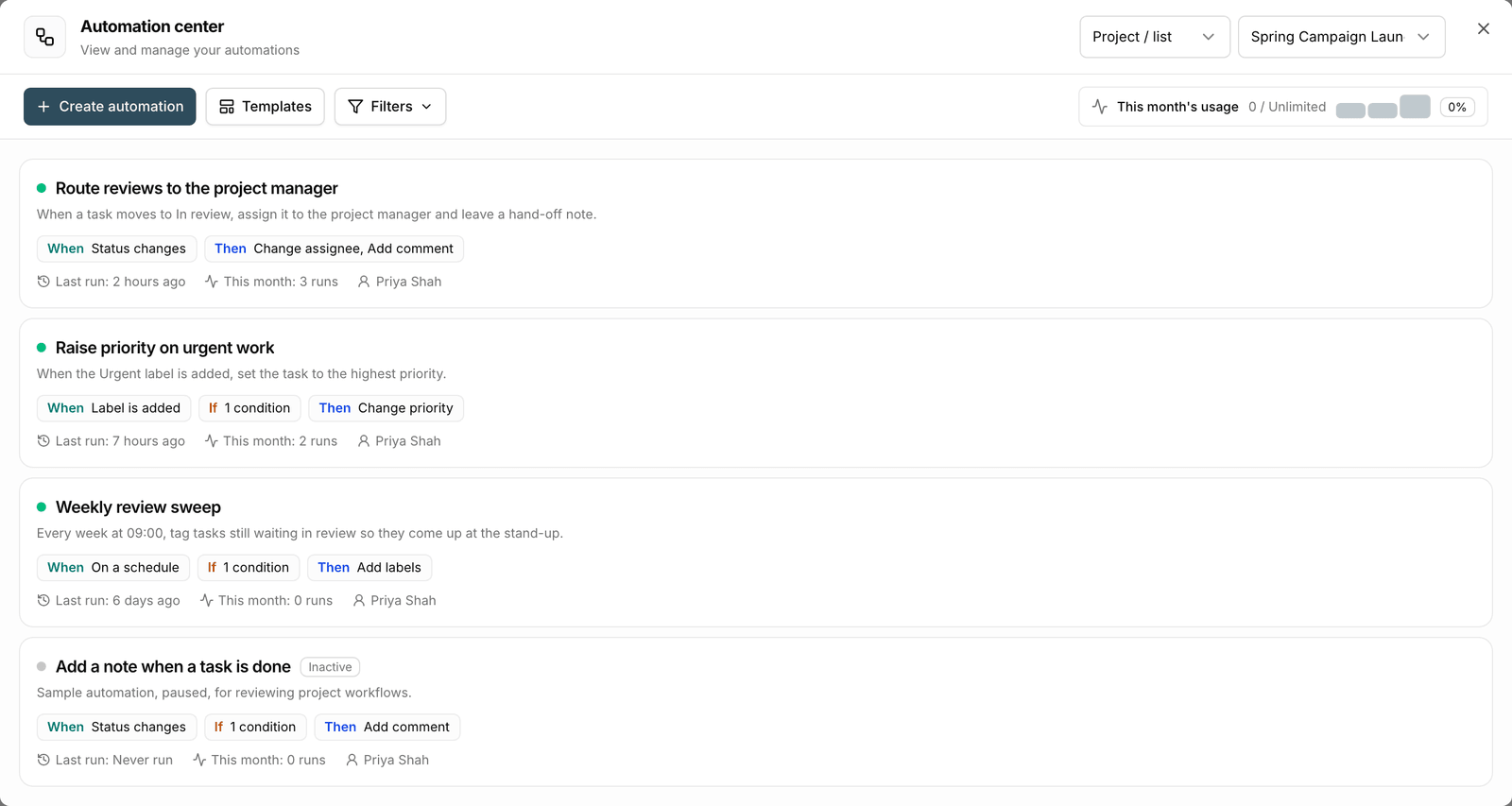
- Last run: each automation shows when it last ran.
- Active/Inactive: pause a rule temporarily without deleting it.
- Duplicate: copy a rule that works well and adjust it for another project.
- Last edited by: see who changed the rule most recently.
Plan required: the number of automation runs per month depends on your plan: Free 3, Pro 30, Ultimate 300, and unlimited on the Business plans.
Common examples
The library's templates are usually built around a few recurring patterns. If you're just getting started, pick one of these and adapt it to your project:
- When a task reaches a review status, add the reviewer and notify them.
- When a task's due date has passed and it's still open, raise the priority and post in the project channel.
- When a task is closed, remind the assignees of the tasks that depend on it.
- When a new task is created without an assignee, assign it to the team lead.
- Every Friday, send a summary of the week's remaining tasks to the project channel.
For the basics, read What automation is, and for the parts of a rule, read Triggers, conditions and actions.