
What a whiteboard is and when to use it
A whiteboard is an infinite canvas for drawing and notes inside every project, built for brainstorming, mapping workflows and team meetings.
Sometimes, before work makes it onto a task list or board, a team needs an open space: somewhere to put ideas side by side freely, connect them with arrows, cross things out and write them again. The Taskie whiteboard is exactly that space: an infinite canvas where, instead of neat rows, you think and sketch on a free surface.
This page explains what a whiteboard is, where it helps most, how it fits alongside the rest of your project, and how to create your first canvas. The goal is to know when to reach for a whiteboard and when to hand the work over to a task view.
What is a whiteboard in Taskie?
A whiteboard is an infinite canvas for drawing and notes that lives inside each project as one of that project's views. Unlike paper or a physical board, it has no edges or margins: you can zoom in as far as you need, zoom out to see the whole picture, or focus on one corner. Each project can have several whiteboards, and they sit together in a side list as a tree (with nesting) so the project's thinking space stays organized.
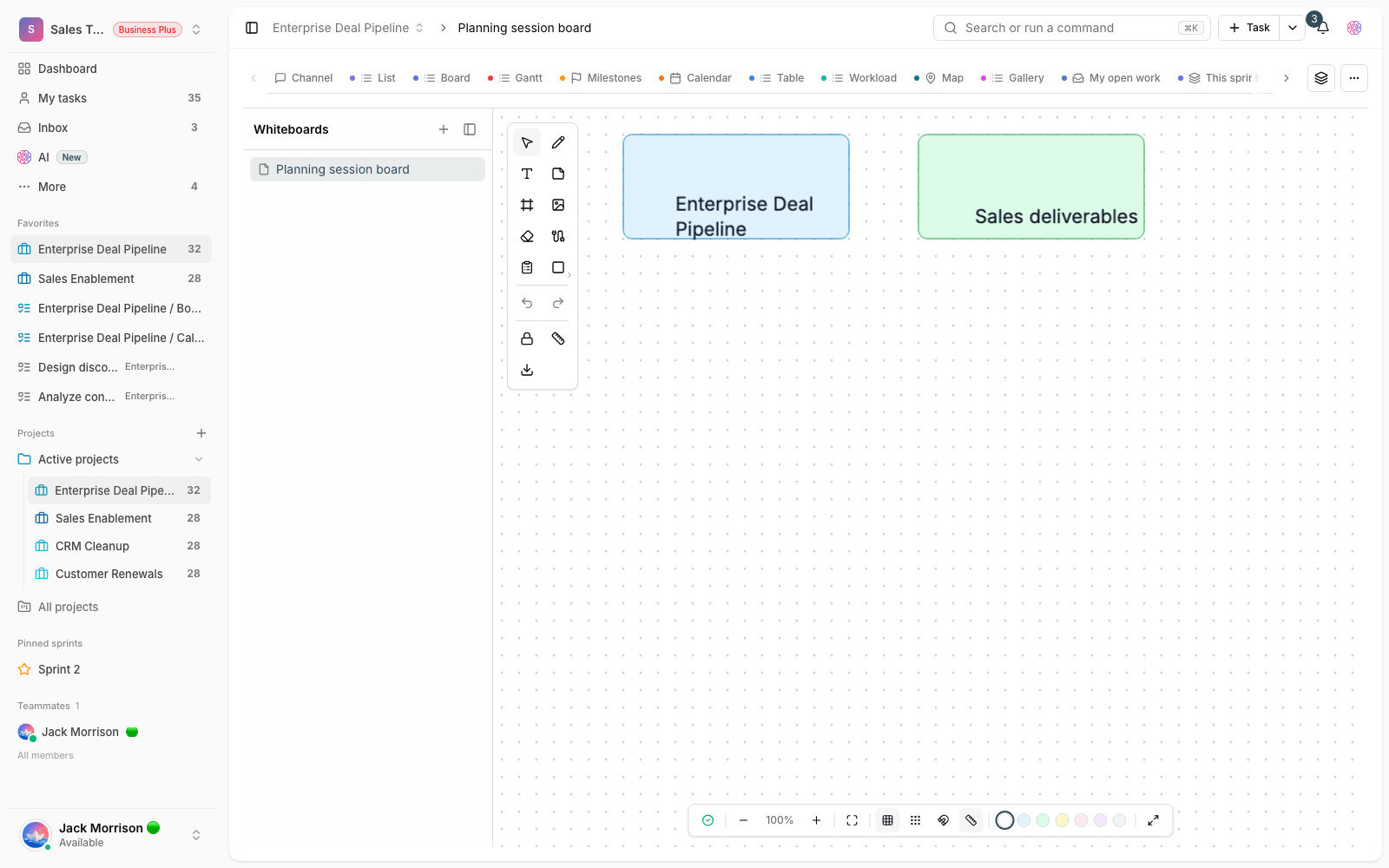
Everything you create on the canvas is saved automatically, and several people can work on the same canvas at once. That makes the whiteboard a good fit both for solo work, like sketching out an idea, and for live team meetings.
When should you use a whiteboard?
A whiteboard doesn't replace your task list; it complements it. Whenever the work hasn't taken shape yet and you need to think visually, the canvas is the best choice. Common examples:
- Brainstorming: quickly getting ideas down as colored notes and grouping them around a central topic.
- Mapping a workflow: drawing a flowchart and decision paths with shapes and arrows that connect to each other.
- Preparing and running a meeting: using the canvas as a shared meeting board that everyone sees and edits at the same time.
- Early product or UI sketches: drawing wireframes and page layouts before building starts.
- Mind maps and structure: drawing an org chart, a team structure or a map of an idea.
Where the whiteboard fits in your project
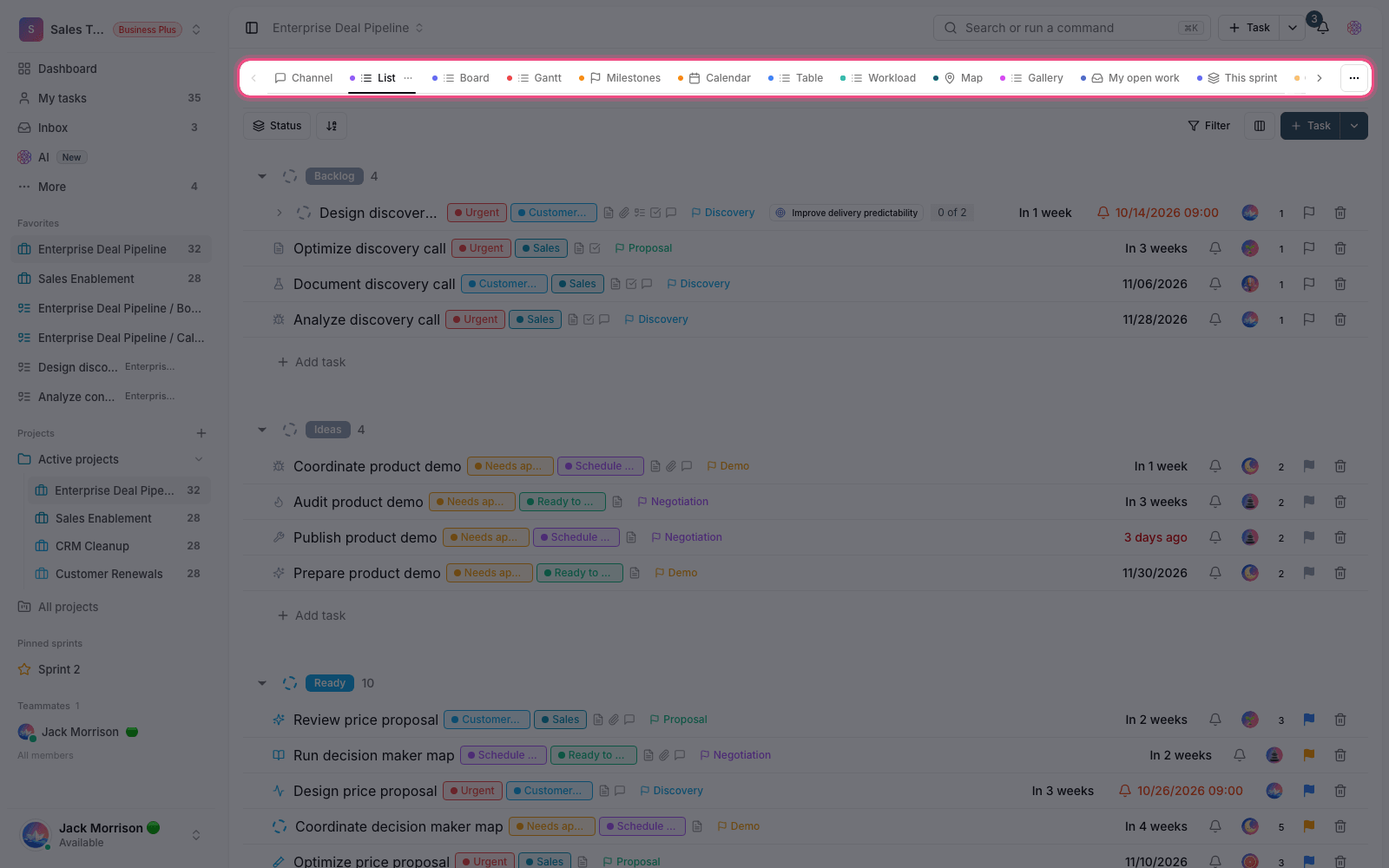
The whiteboard is one of a project's views and needs to be turned on for that project. Once it's on, you can open it from the views bar at the top of the project, and it lives under that project just like other parts such as tasks and boards. That means whatever you draw on the canvas stays in the context of the project and close to the team's real work. You can even bring the project's real tasks onto the canvas as Task card items, so your visual picture stays connected to trackable work.
Create your first whiteboard
If the project doesn't have a canvas yet, opening the whiteboard view shows an empty page with a few suggested templates. Creating a new canvas is simple:
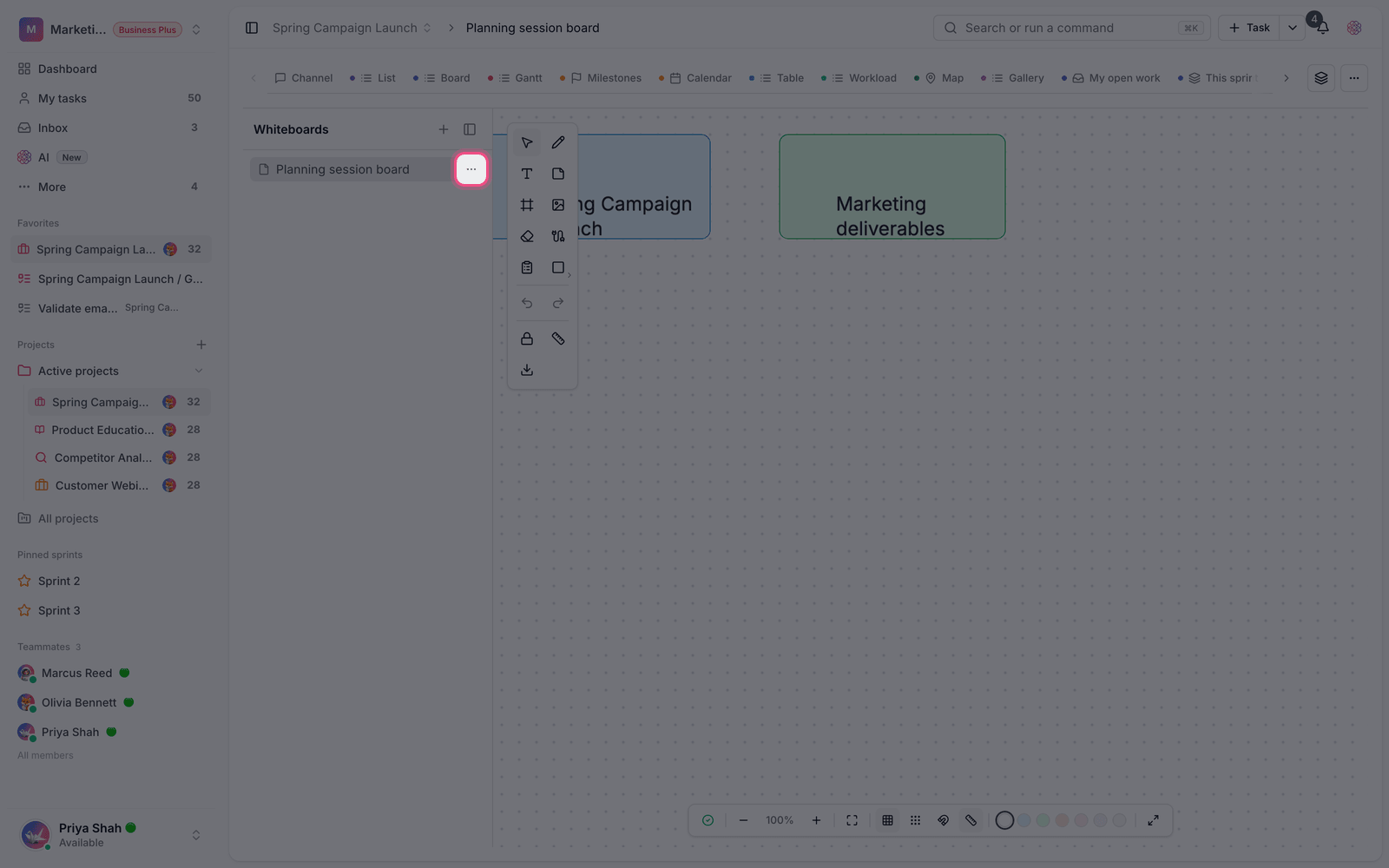
- Open the project and choose the Whiteboard view from the views bar.
- Click the create button, or pick one of the suggested templates.
- In the Create whiteboard window, enter a name and, if you like, an icon.
- Choose a starting point: Blank whiteboard to start from a free canvas, or a ready-made template to start with a pre-built layout.
- Click Create to create the canvas and go straight into it.
Ready-made templates
Templates save you from starting from scratch. Taskie includes several popular templates, each built for a specific purpose:
- Flowchart for showing workflows and decisions.
- Kanban as a simple board for sorting tasks.
- SWOT analysis for reviewing strengths, weaknesses, opportunities and threats.
- Wireframe for an early UI sketch.
- Org chart for showing your team's structure.
- Brainstorm for collecting ideas around a central topic.
Access and plan limits
Whether you can view and edit a whiteboard depends on your role in the project. Members who are allowed to manage whiteboards (such as owners, admins and members) can create and edit canvases; people with view-only access can see the canvas, but the editing toolbar isn't shown to them.
Whiteboards are available on every plan, including Free, but the number of whiteboards per workspace depends on your plan: one on the Free plan, up to ten on the Pro plan, and more on higher plans, up to unlimited on the Business plans. If you reach your plan's limit, you'll see a message that your workspace's current plan has reached its whiteboard limit when you try to create a new canvas.
- If you don't see the whiteboard view in a project, it probably hasn't been turned on for that project.
- A missing toolbar doesn't always mean something is broken. Usually it means your role doesn't allow editing the canvas.
- A whiteboard isn't a replacement for your task list. To track the work, eventually turn your ideas into tasks.
Tip: before you start, decide what the canvas is for — a meeting, a flowchart or a brainstorm — and put that in its name so it's easy to find later in the project's side list.
Next step: to learn the drawing tools and real-time collaboration, see Whiteboard tools and real-time collaboration, and to turn your meeting's output into trackable work, read Turn whiteboard ideas into tasks.