
Audit logs and activity tracking
The workspace audit log records sensitive security, membership and subscription events append-only, so they're available for compliance and investigation.
Every workspace is full of sensitive actions: someone invites a member, changes a role, adjusts a security setting or switches the subscription plan. The audit log is a permanent record of these events that captures, for every important action, who did what, when and from which address. These records are append-only, meaning that once recorded they're never edited or deleted, so there's always a reliable source to follow up on.
This page is written for admins and the people responsible for security and compliance in your organization. You'll see what the audit log records, how to view and filter it, how to export it and how its retention policy works. All of this is done from Workspace settings → Security → Audit log.
What is the audit log, and what's in each record?
The audit log is a time-ordered list of important workspace events. Every time a sensitive action happens, a new record is created and earlier records stay untouched. Each row has several parts:
- Actor: the user who performed the action, with their name and contact address.
- Action: the type of event, such as "Invite member" or "Change the two-factor requirement".
- Target: what the action was performed on.
- Details: data that comes with the event. Sensitive values such as passwords, keys, tokens and recovery codes are hidden (redacted) automatically.
- IP address and device: the network address and the browser or device the action came from.
- Time: the exact date and time the event was recorded.
Which events are recorded?
The log focuses on actions that matter for security, membership and compliance. These events are organized into a few categories so they're easy to find:
- Members: inviting, removing and leaving, member role changes, custom role assignments and member attribute changes.
- Permissions: creating, editing and deleting custom roles.
- Workspace: workspace settings changes and label management.
- Security: changes to the two-factor requirement, SSO connections, email domains, LDAP settings, member sign-ins through SSO and exports of this log.
- Subscription: changes to the workspace subscription plan.
- SCIM: creating and revoking connections, and provisioning, updating and deactivating users and groups.
Access and plan limits
The important point is that events are always recorded, on every plan. Only viewing the log depends on your plan. Viewing and exporting the audit log is available on the Business Plus plan, and the user also needs the workspace's Manage security permission. If your plan doesn't include this feature, a locked message with an upgrade button appears in the same security section.
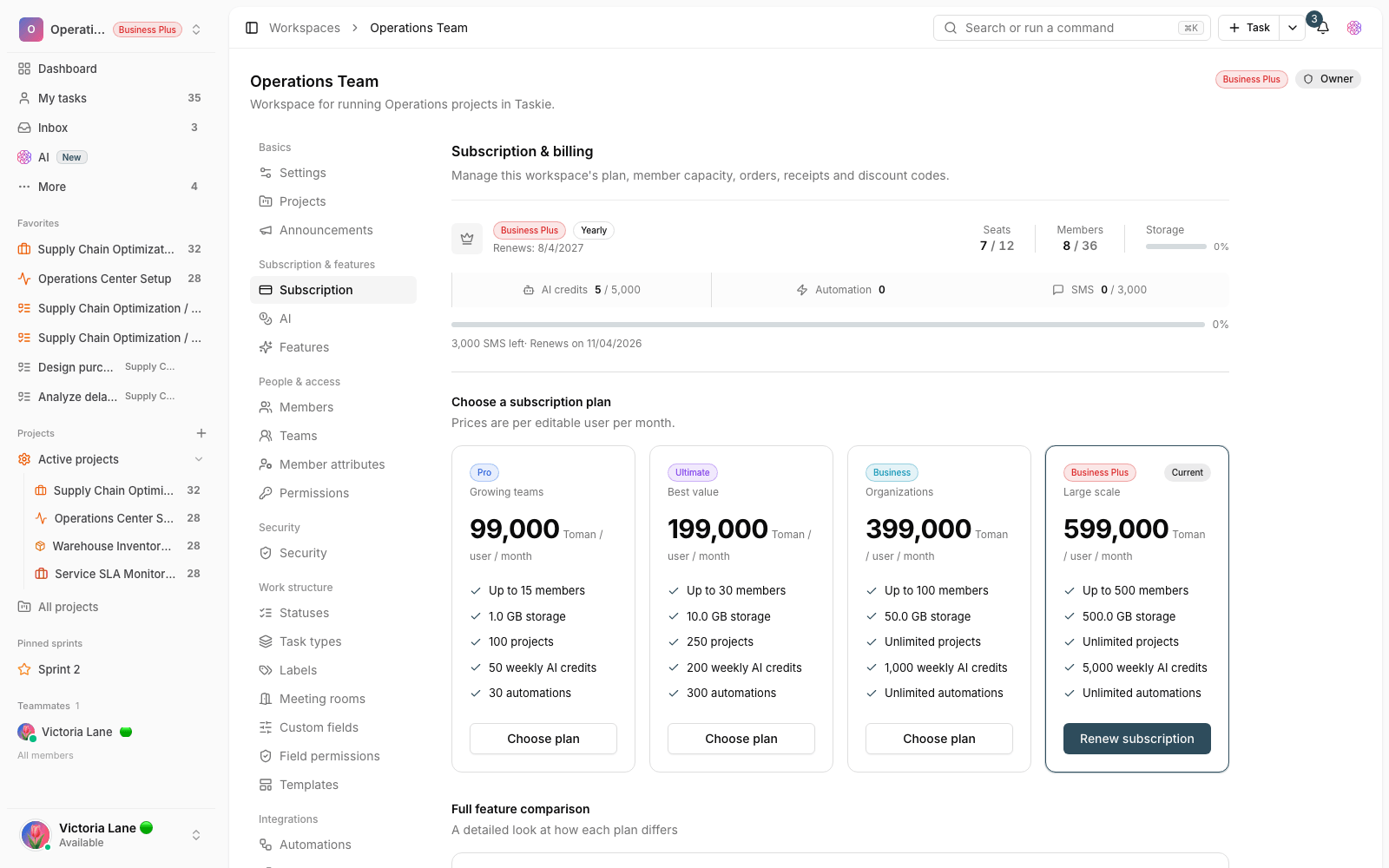
Good news: Because events are recorded regardless of plan, if you upgrade to Business Plus later, the history of earlier events will still be available, within the retention period.
View, filter and export
To work with the log, follow these steps:
- Go to Workspace settings → Security and find the Audit log section.
- Click Full audit log to open the list of events.
- Narrow the list with filters: by event type, the member who performed it, a date range or a text search.
- To archive the log or hand it to your compliance team, use Export CSV. The file keeps text in any language intact, including right-to-left scripts, and opens in spreadsheet apps.
- The export itself is recorded as an event in the log, so it's clear who took the data and when.
- The list is paginated, with newer events shown at the top.
- Use Taskie's date picker (it follows the calendar system in your date preference) to set the exact range you want.
Retention and compliance
Log records are kept for a set period (365 days by default) and are then cleaned up automatically every day. This period can be extended for organizations with compliance requirements. A few recommendations:
- If you need a longer history for periodic audits, export and archive the log before records reach the retention limit.
- The log is for investigating security incidents, not a real-time monitoring tool. For instant alerts on events, use notifications.
- Give the Manage security permission only to the people responsible, so the list of actors and addresses stays limited and trustworthy.
Next step: to see which security events get recorded, you can set up Single sign-on (SSO) and user sync with SCIM. Both record their events in this same log.