
Connect to LDAP
Connect your organization's LDAP directory to Taskie so member accounts and access are managed from one central source.
Many organizations keep their employees' user accounts in a central directory such as LDAP or Active Directory. Connecting Taskie to that directory means that instead of creating and maintaining accounts separately, everything is controlled from the same single source your IT team manages. User identities, their names and emails, and the criteria for who's allowed to sign in are all read from the directory.
The LDAP connection is part of Taskie's enterprise security suite and sits alongside single sign-on (SSO) connections. It's available on the Business Plus plan, and to configure it you must be the workspace owner or have the Manage security permission. Because LDAP connects directly to your organization's internal infrastructure, it's considered an advanced integration and is best done together with your technical or IT team.
Why centralize management with LDAP?
When there's one source of identity, things become both simpler and more secure. Managing accounts piecemeal across several services is exactly where mistakes and forgotten access creep in.
- One source of truth: user details are read from the directory, not from duplicated, manual data.
- Centralized access control: a user filter decides which group in the directory is allowed to use Taskie.
- Alignment with organizational policy: HR changes in the directory naturally carry over to access.
- Less admin work: you don't need to create an account for each person or keep their details up to date by hand.
Information you need to prepare
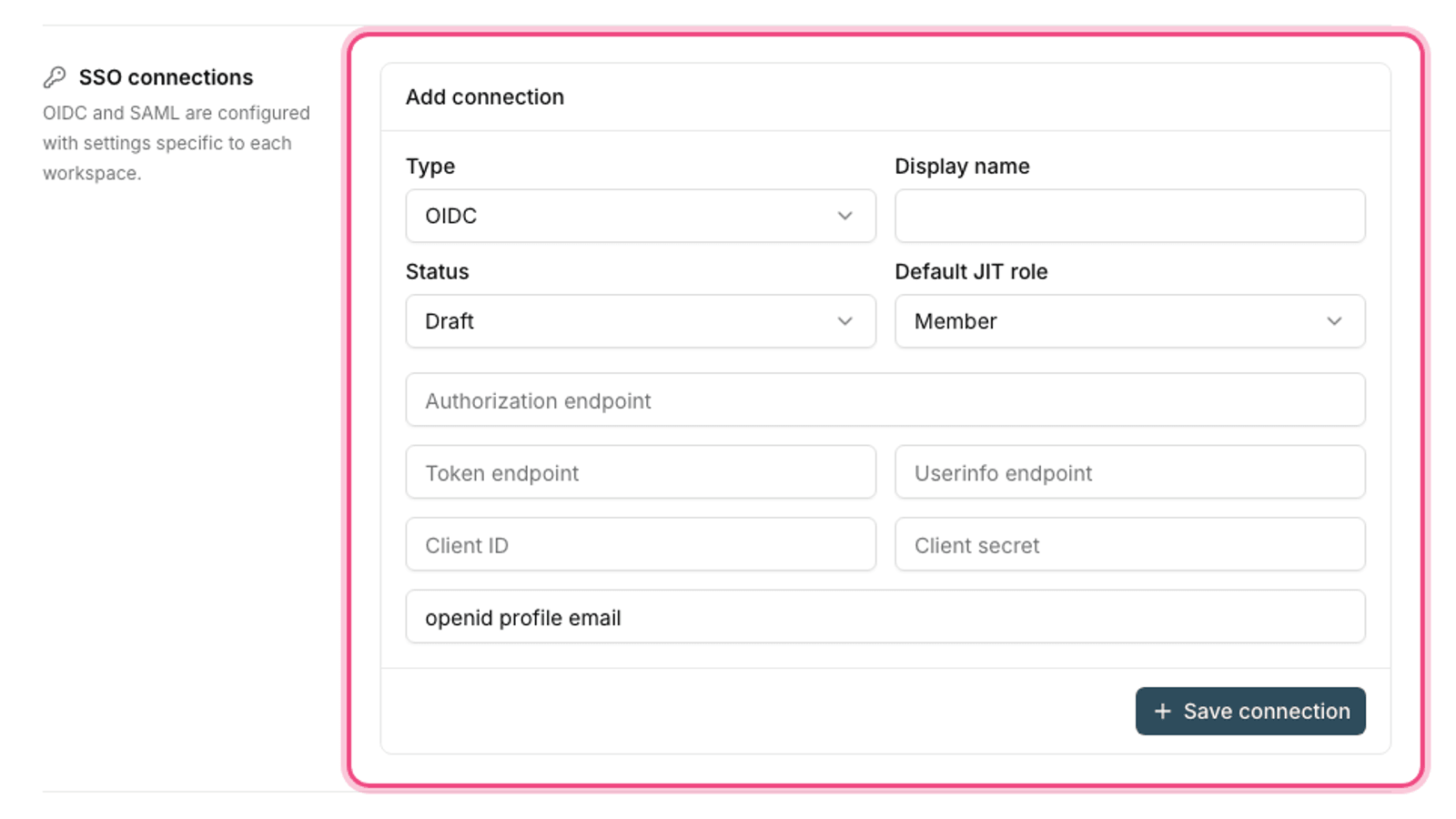
The LDAP connection is defined in the same workspace security section. Before you start, get this information from your IT team so the setup goes smoothly.
- Server address and port: one or more directory hosts and the connection port number.
- Secure connection type: SSL or TLS to encrypt communication with the server.
- Base DN: the starting point for searches in the directory tree, under which your users live.
- Bind account: a read-only account (Bind DN and its password) that Taskie uses to read the directory.
- User filter: the criteria that decide which directory entries count as users.
- Attribute mapping: which directory fields each person's username, email and display name are read from.
Secure connections and data protection
Taskie stores this connection's sensitive details carefully and has several safeguards against dangerous configurations.
- The bind account password is stored encrypted and is never shown again in the interface.
- For cloud deployments, connections to internal hosts, loopback addresses and private ranges are blocked by default to prevent SSRF attacks.
- Connecting to private hosts is only allowed on trusted self-hosted deployments, and only with an explicit setting.
- Using SSL or TLS is strongly recommended so identity information isn't sent as plain text.
An advanced integration: Because the LDAP connection depends on your organization's internal directory, depending on your deployment type (cloud or self-hosted) it may require coordination with your IT team or Taskie support. If your organization uses more modern protocols, single sign-on with SAML or OIDC is often the simpler route.
Tips and common mistakes
- Use a dedicated, read-only user for the bind account, not a real admin's account.
- Choose the Base DN carefully. A scope that's too broad also pulls in users you don't want.
- Write the user filter carefully so only authorized people are included.
- Before relying on the connection, check the attribute mapping so people's emails and names are read correctly.
Next step: if your organization uses a cloud identity provider, Single sign-on (SSO) with SAML and OIDC is usually simpler and faster to set up. To create and deactivate accounts automatically, also see Automatic user provisioning with SCIM.