
Approvals and workflow sign-offs
Before a task, project or document is finalized, choose the approvers and the decision rule (everyone, any one or a quorum).
Sometimes work shouldn't just quietly finish. A contract needs a manager's signature before it's sent, a design must be approved before it's published, or a financial document needs several people to agree before it's final. Approvals and signatures make this formal: for a task, project or document, you choose the approvers and the decision rule, and the work isn't formally approved until that rule is met.
This page shows how to turn the feature on for your workspace, how the three decision rules (everyone, any one and quorum) differ, and how the process moves from request to sign-off. At the end, you'll also get to know the approvals inbox and the signature certificate.
What is a workflow approval?
A workflow approval is a formal request tied to one resource: a task, a project or a document. The requester decides who needs to decide and by what rule. Then each approver can approve, reject, request changes or leave a note. The request's status moves between pending, approved, rejected, changes requested and cancelled.
Turn on approvals
Approvals is a two-step feature and won't work until both conditions are met:
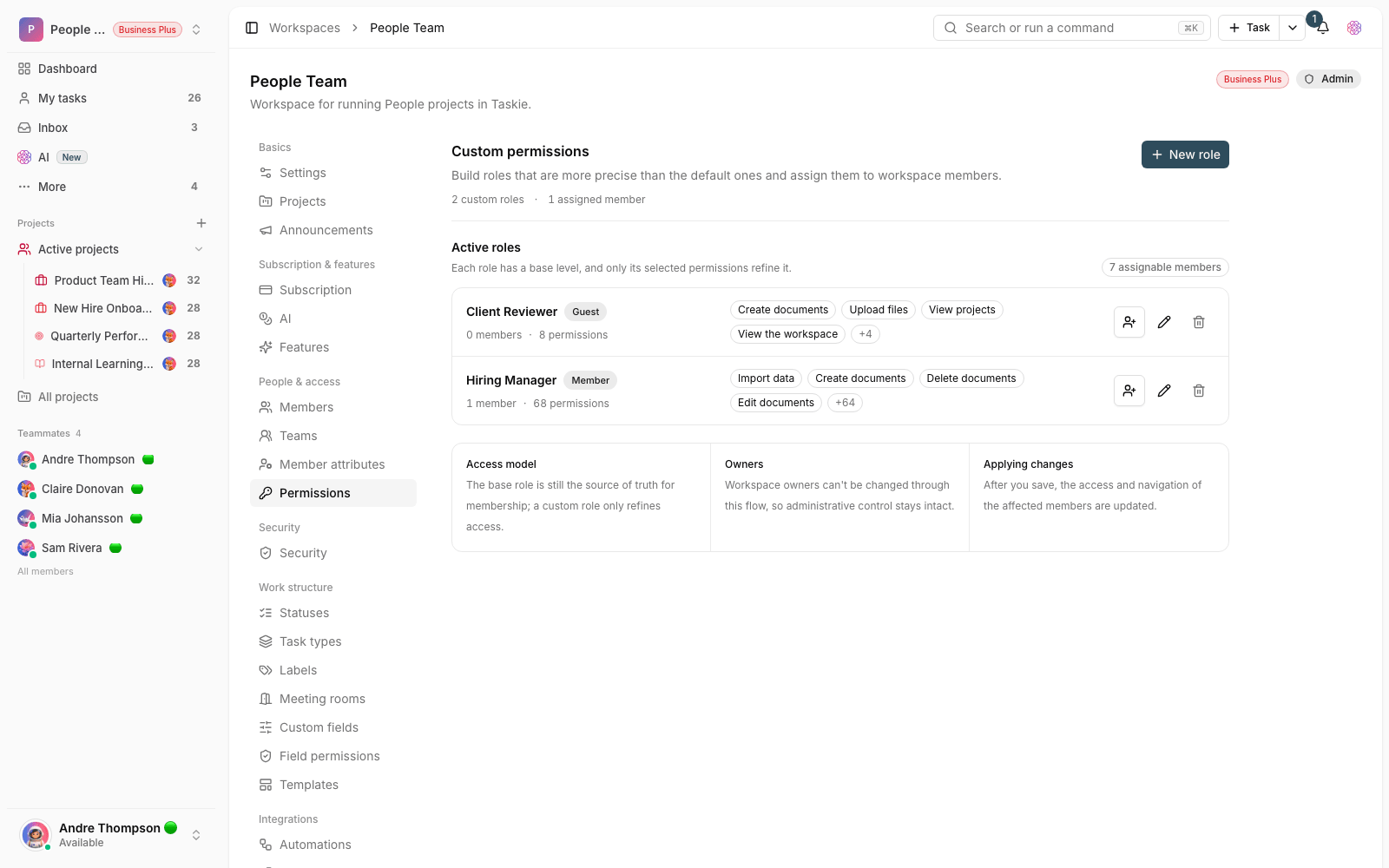
- The right plan: this feature is available on the Business and Business Plus plans (Business and above).
- Turned on in the workspace: the workspace owner or an admin must go to Workspace settings → Features and, in the approvals section, turn on Enable approvals.
While this toggle is off, the approvals section isn't shown in the workspace and nobody can submit a request. This lets you turn the feature on only when your team is ready to use it.
Decision rules
When you create a request, you choose one of these three rules. That choice decides when the request is approved or rejected:
- Everyone approves: the request is approved only when every approver approves it. The first rejection rejects the whole request.
- Any one approves: as soon as one person approves, the request is approved. A good fit when any of the people responsible has the authority to approve on their own.
- Quorum: you set a specific number (for example 2 of 3). As soon as the approvals reach that number, the request is approved. The number can't be higher than the number of approvers.
Submit an approval request
To start a request, follow these steps:
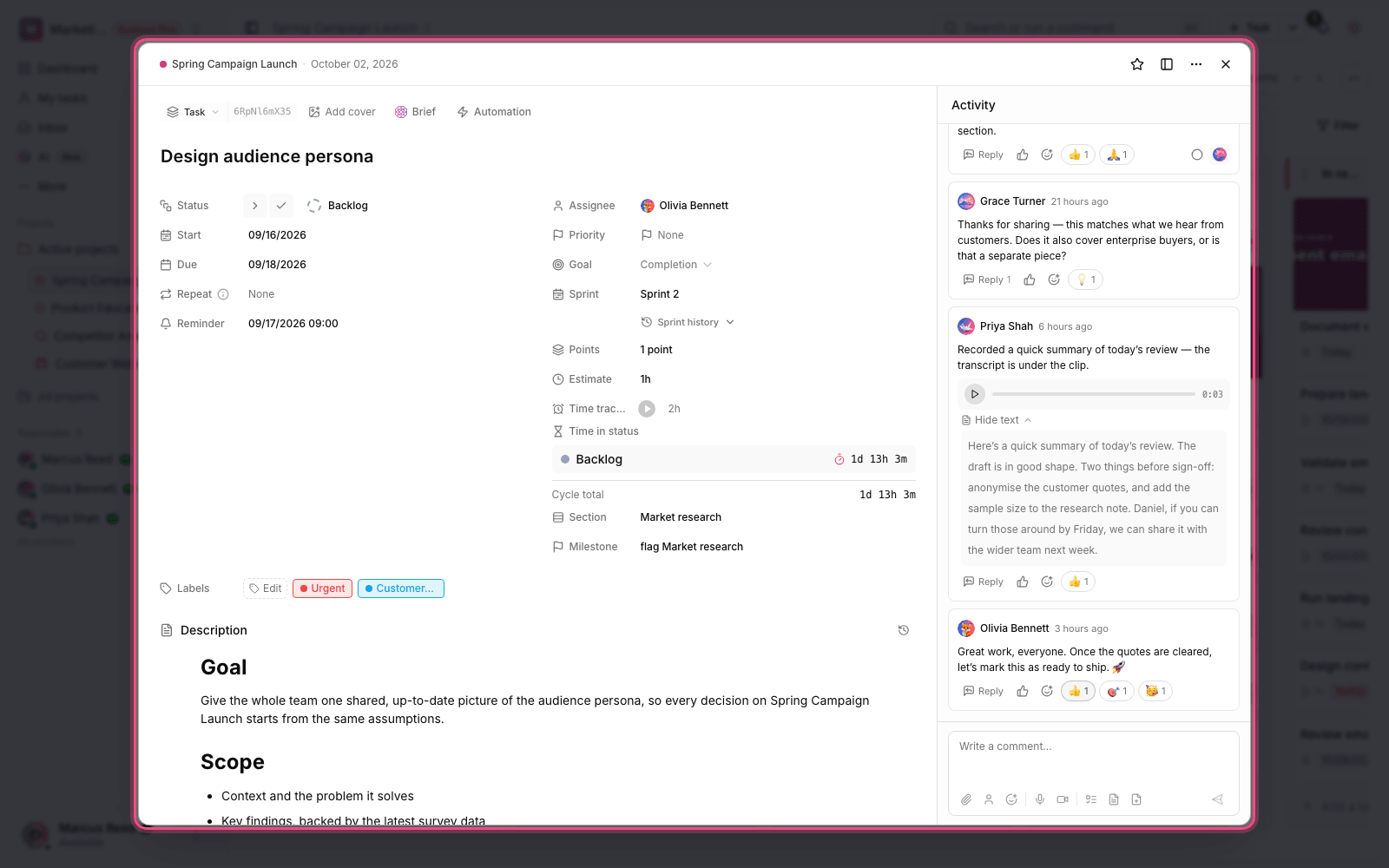
- Open the task, project or document and find the Approvals section.
- Click Request approval to open the request window.
- If you like, enter a Title, and add a Description if needed.
- Choose the Approvers from your members (at least one is required).
- Choose the Decision policy. If you picked Quorum, enter the number required.
- Click Submit request. The approvers are notified and the status is set to pending.
The sign-off and decision process
Once the request is submitted, each approver has these options in the approvals panel:
- Approve or Reject the request, with an optional note.
- Request changes: when the work needs changes. The status moves to changes requested, and the requester can Resubmit it after making the changes.
- Delegate: hand the decision to another member (you can't delegate to yourself or to someone who's already an approver).
- The requester can Cancel request at any point before it's finalized.
Each resubmission resets the earlier responses (except delegations) so decisions are made on the new version. If the request has a deadline, the system sends reminders and flags requests that are past due.
The approvals inbox and the signature certificate
All the requests waiting on your decision are gathered in one place. In the sidebar, Approvals takes you to the inbox, and the number next to it shows how many requests are waiting on you. Each request has a history that shows all its events (request, approval, rejection, changes and delegation) in order.
For requests that have been finalized (approved or rejected), you can download a signature certificate as a PDF file: a formal document that's useful for archiving, audits or sharing with stakeholders. The certificate is only available for finalized requests.
Tip: Approval events on tasks can be connected to automations, for example to move a task automatically after it's approved. Approvals on projects and documents have no effect in automations.
Next step: the history of decisions and sign-offs can also be tracked alongside other sensitive workspace events in Audit logs and activity tracking. To strengthen access for decision makers, you can also turn on Required two-factor authentication.