
Link goals to work and share progress
Link targets to tasks and projects so progress updates automatically, and manage which members can access each goal.
A goal nobody updates loses credibility within two weeks. The fix is to tie progress to the work that's actually getting done: when a task closes, the target moves forward too.
Link a target to a task
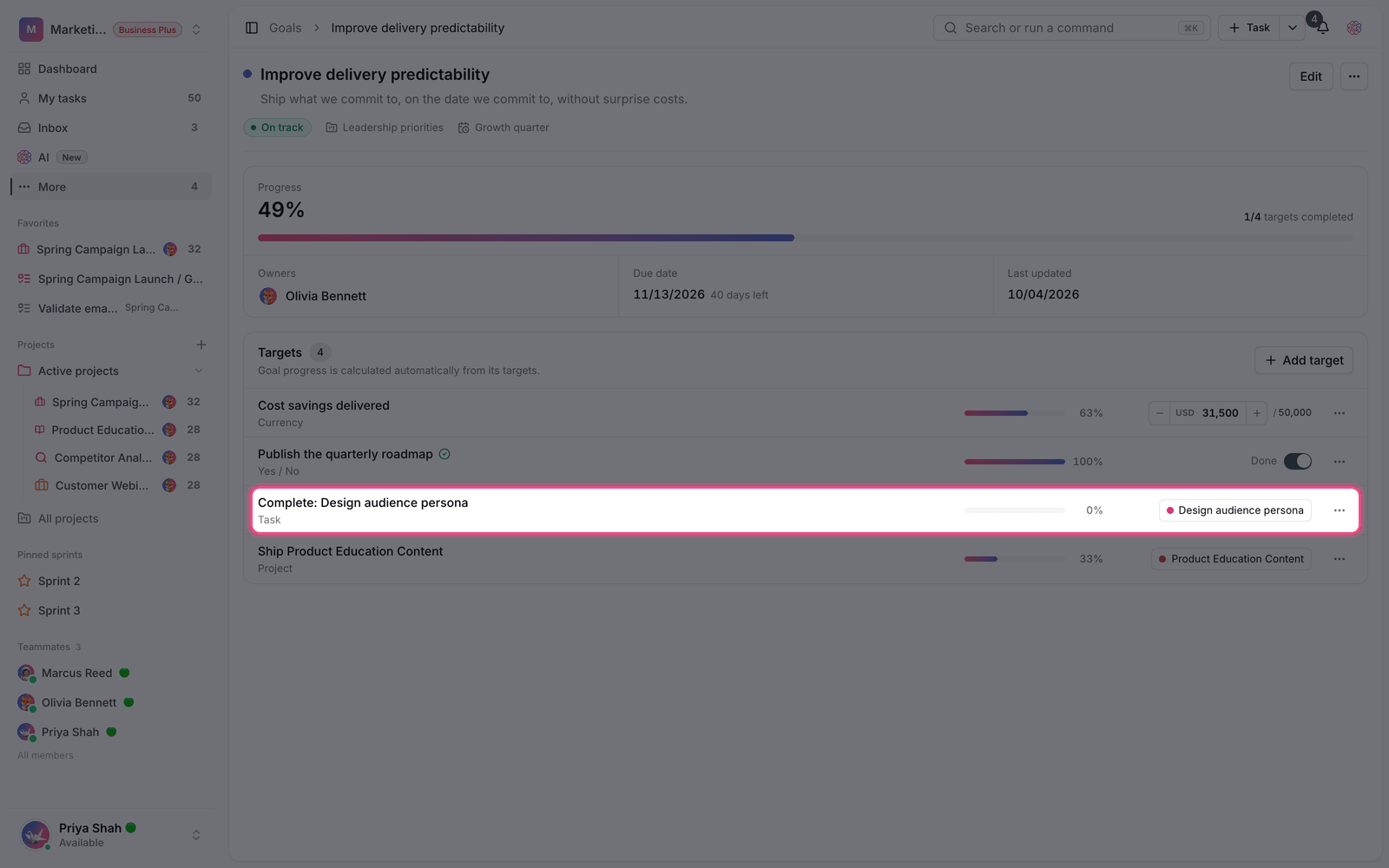
- Open the goal and click Add target.
- Set the target type to Task.
- In the Search tasks box, type at least two characters and pick the task you want.
- Save. From now on, when that task is completed, the target is completed too.
This approach works well for outcomes that depend on a few specific pieces of work: create several task targets and the goal moves forward as they close.
Link a target to a project
If the outcome depends on a whole project, instead of linking dozens of tasks, create a Project target and choose the project. This target's progress is calculated from the overall state of that project's tasks and stays up to date as the project moves forward.
Tip: a project target is a good measure of delivery, but not of impact. If you want to measure the real outcome, add a number target alongside it.
Access and sharing
Every goal or folder has its own access level. In the Access section, you decide who can view and who can edit:
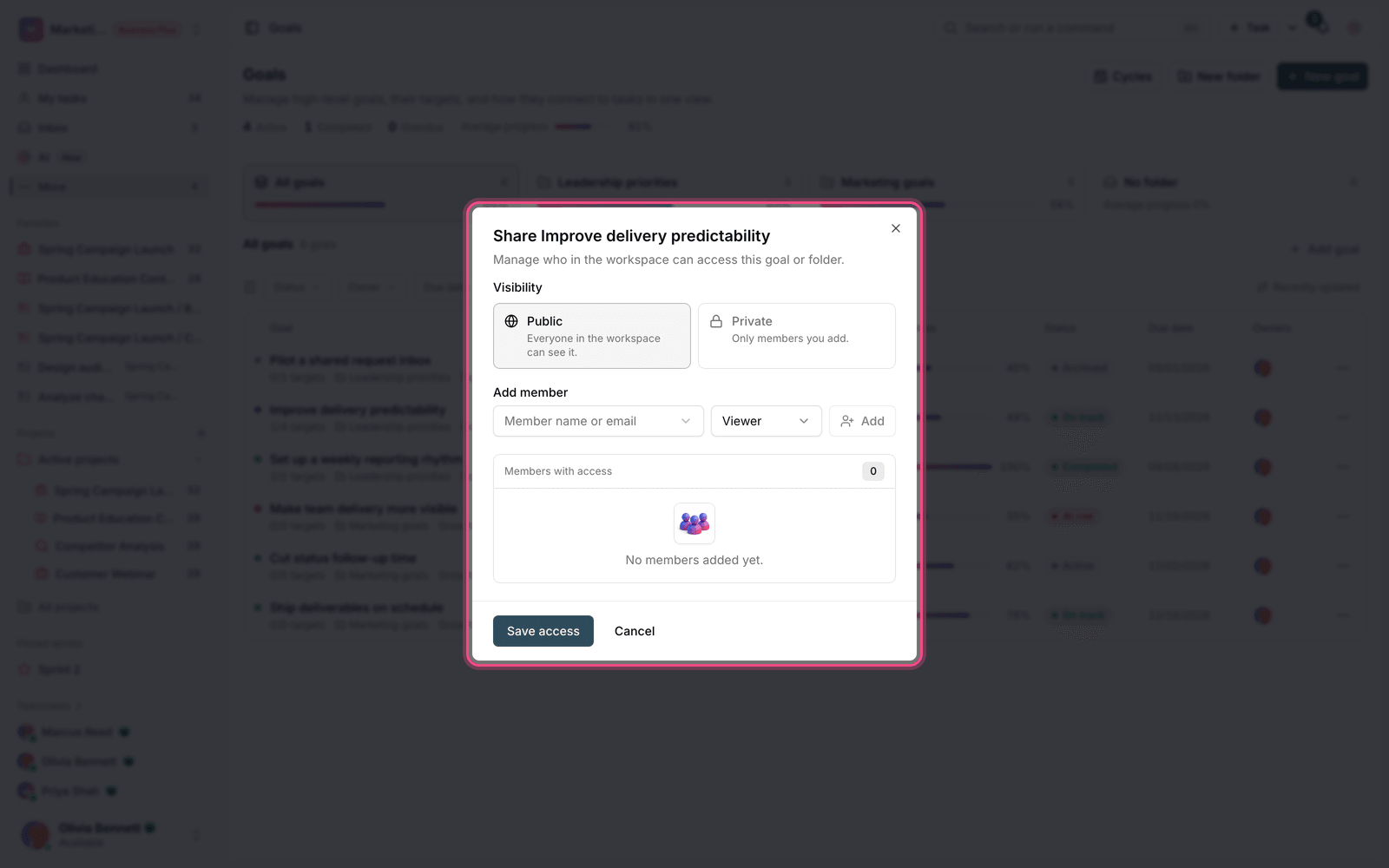
- Private: only members who've been explicitly added can access the goal.
- Public: everyone in the workspace can see the goal.
- Viewer: can only view progress.
- Editor: can update targets and values.
- Owner: accountable for the outcome. Every goal must have at least one owner.
To add a member, search for their name or email, choose an access level, and click Save access. You can also use Remove access to take away someone's access.
Report on and review progress
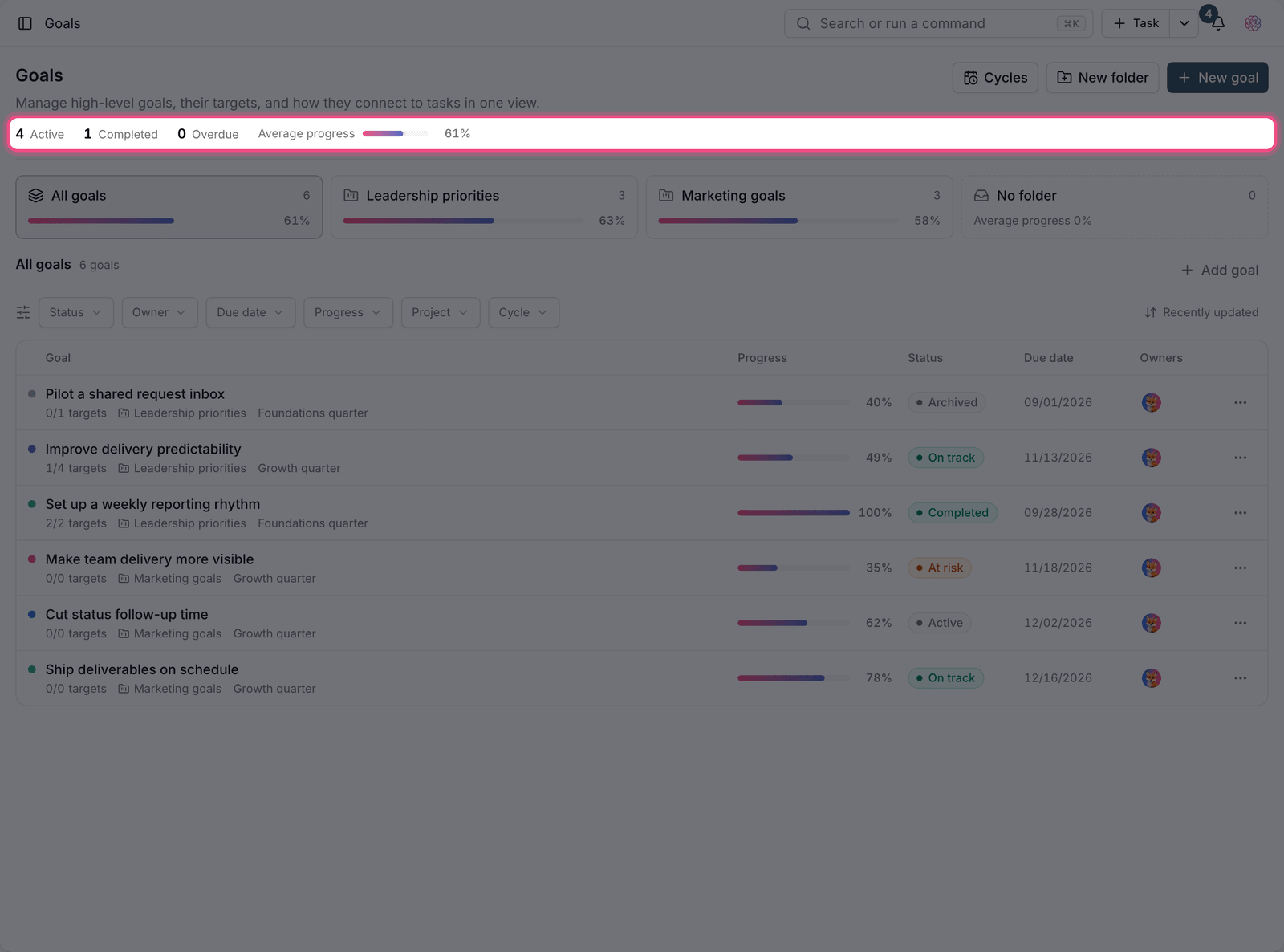
For periodic reviews, use the goal report: a summary of status, owner and timing at a glance. At the workspace level, the average progress and the number of active and completed goals are shown at the top of the Goals page.
If you want to see goal progress alongside your team's other metrics, add the related widgets to a dashboard.
Update rhythm
Even when some targets are automatic, a goal needs a review rhythm. Teams that review their goals once a week are rarely surprised at the end of a cycle.
- Weekly: update the values of number targets and note any blockers.
- Every two weeks: review the goal's status, and if it's behind, mark it At risk.
- End of cycle: record the outcome and close the goal or move it to the next cycle.
- If a goal hasn't changed for two weeks in a row, either its owner is unclear or its targets are poorly defined.
For target types, see Create a goal and its targets, and to build a dashboard, see Build a dashboard with widgets.