
Account and appearance settings
Manage your profile and account identity, choose dark or light mode, a theme color, your calendar and time zone, and display preferences in Taskie.
Account and appearance settings bring your Taskie workspace closer to your tastes and needs. In the profile section, you manage your account's identity and contact details, and in the appearance and preferences section, you set how the app looks and behaves day to day, from dark and light mode to the calendar type and how tasks are displayed.
These settings are personal and affect only your own account, not other team members. They're all available at Settings → Account, on two pages: Profile and Appearance & preferences.
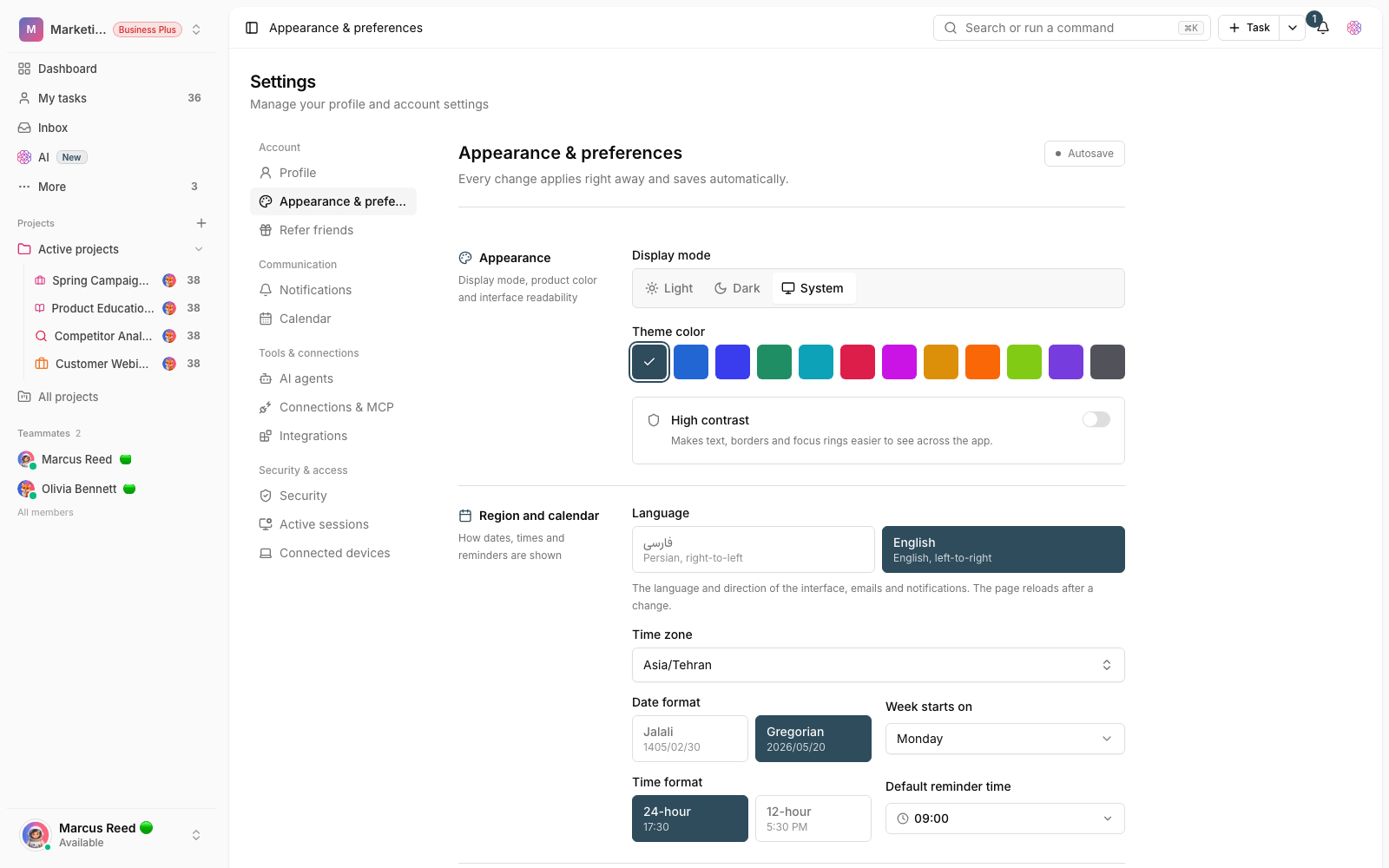
Profile and account identity
On the Profile page, you manage your account's identity details and contact information. This section is the basis of how you're identified in workspaces and on tasks.
- Display name: the name shown next to tasks, comments, and in member lists. You can edit it at any time.
- Email address: your account's primary email. Note that the email can't be changed after sign-up, so choose it carefully.
- Mobile number: once you verify it with an SMS code, you can use SMS sign-in and more secure account recovery.
- Work status: an emoji and a short text (for example, "Focusing") shown to your team next to your name.
- Profile photo: use the Change photo button to upload and crop your avatar.
Display mode and app color
On the Appearance & preferences page, you set how the app looks. The most important option is the display mode, which has three choices: Light, Dark, and System. System automatically follows your device's dark or light setting.
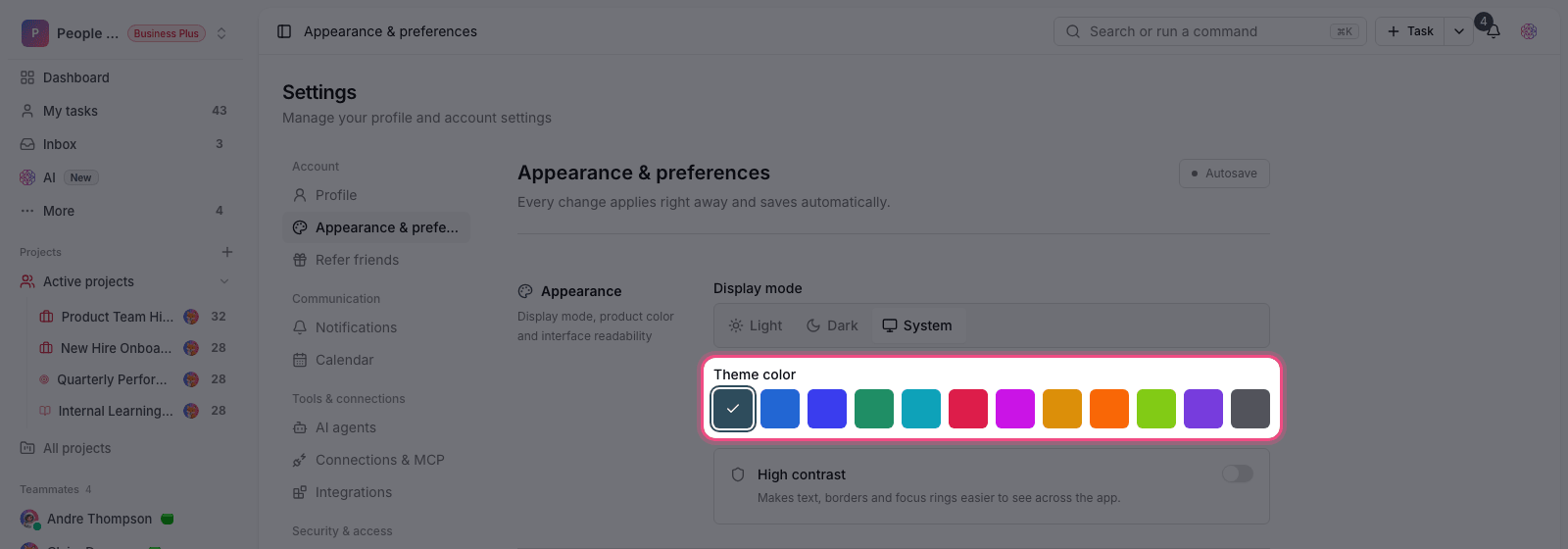
- Go to Settings → Account → Appearance & preferences.
- In the Appearance section, choose Light, Dark, or System as the display mode.
- From the Theme color swatches, pick your favorite main color to change the app's accent color.
- If needed, turn on High contrast to make text, borders, and focus rings easier to see.
Tip: On this page, every change applies immediately and saves automatically. There's no separate save button, and the save status is shown in the corner of the page.
Calendar, time zone, and date format
To make sure dates and times display correctly for where you are, the Region and calendar section has a few key settings. They affect every date, reminder, and calendar in the app.
- Time zone: the basis for calculating times and reminders. Set it to your real region (for example, Europe/London).
- Date format: choose the calendar system and date format your dates are shown in.
- Week starts on and Time format: the first day of the week, and whether times show in 24-hour or 12-hour format.
- Default reminder time: the time new reminders are set to by default.
Working style preferences
The Working style section sets how you interact with the app. These options are mostly a matter of taste, and you can adjust them until the experience feels right.
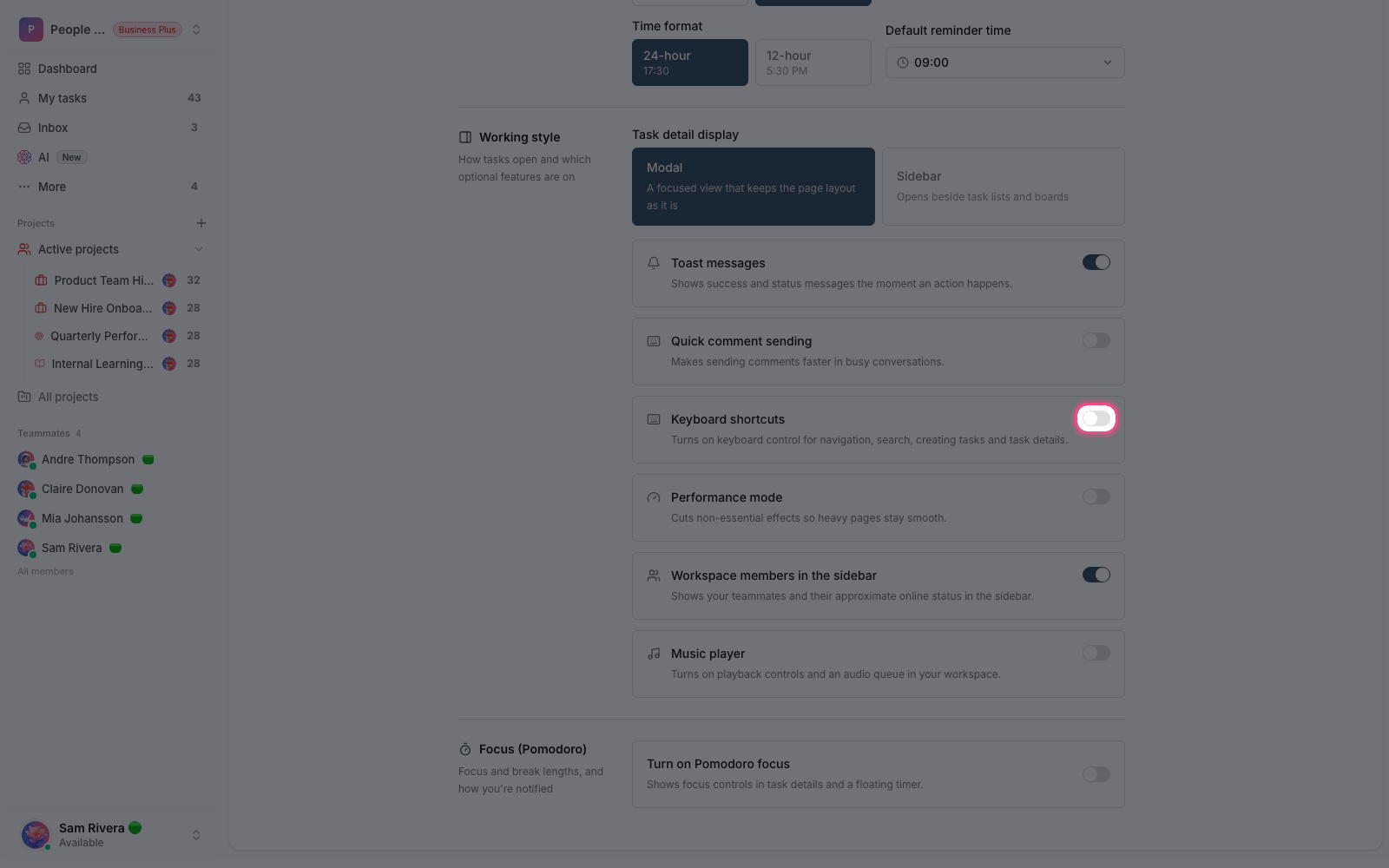
- Task details view: open task details as a focused Modal or in a Sidebar next to the list.
- Toast messages and Quick comment sending: control instant action notifications and how comments are sent.
- Keyboard shortcuts and Performance mode: turn on keyboard control, and reduce effects so heavy pages run more smoothly.
- Music player and Focus (Pomodoro) settings: optional tools to help you focus while you work.
Next step: to protect this account, go to Secure sign-in, sessions, and sign-in activity. To control your personal data and delete your account, see Privacy and data management.