
Passkeys and suspicious sign-in verification
Sign in securely without a password using a passkey, and learn what happens when a suspicious sign-in is detected.
A password is the weakest link in any account's security. A passkey replaces it: instead of a password, you sign in with your own device's fingerprint, face, or PIN, and no password is stored or sent anywhere.
Create a passkey
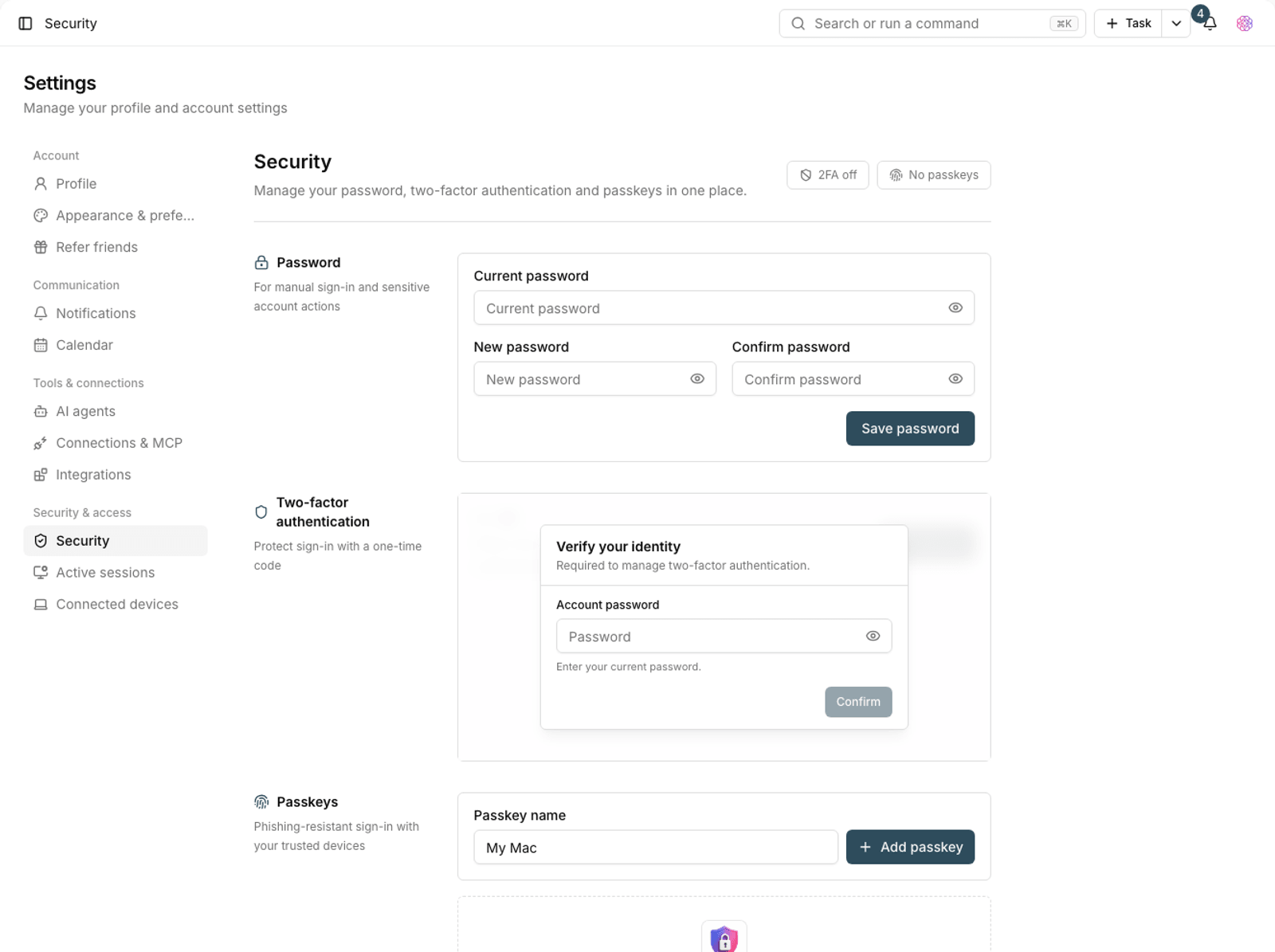
- Go to Settings and open the Security section.
- Choose Add passkey.
- Your device asks for your fingerprint, face, or PIN, the same method you use to unlock it.
- Give the passkey a name so you'll know later which device it belongs to.
- Create a separate passkey for each device you use regularly.
Sign in with a passkey
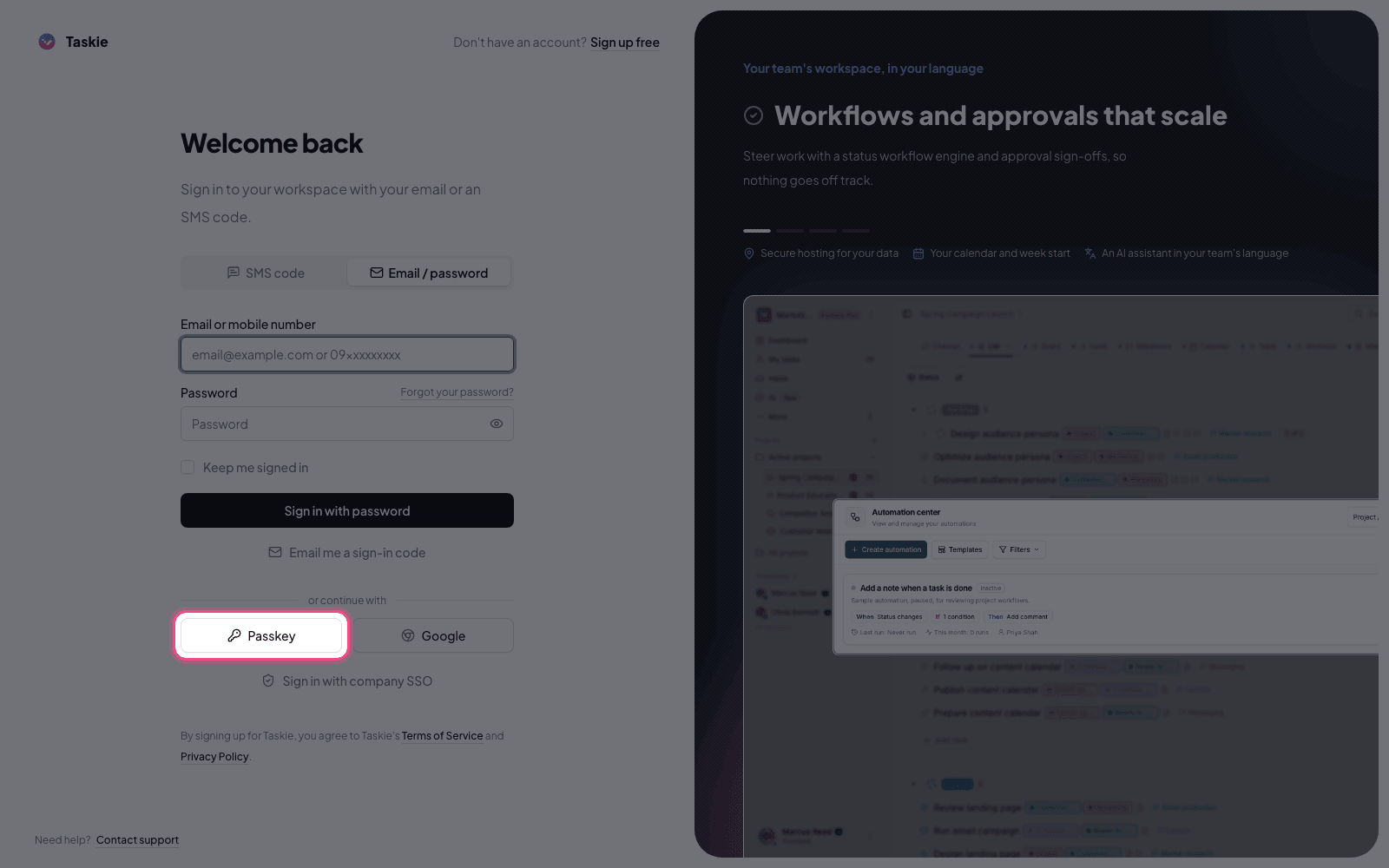
On the sign-in page, choose the Passkey option. Your device verifies your identity, and you're signed in without entering your email or password.
Tip: A passkey is tied to a device. If you switch devices, create a passkey on the new device before you retire the old one, so you have another way to sign in.
Verifying a suspicious sign-in
Taskie evaluates every sign-in, and if it sees unusual signs, such as an unknown device, an unusual location, or a suspicious pattern, it asks for an extra verification step.
- The message We noticed an unusual sign-in. appears.
- A verification code is sent to your email.
- Enter the code and click Verify and continue.
- If the code doesn't arrive, click Resend code once the countdown ends.
- Use Back to sign in to start over.
Warning: If you get a verification code when you didn't try to sign in, someone has your password. Don't enter the code; change your password right away, close your active sessions, and turn on two-factor authentication.
Use security layers together
- Passkey: the most secure everyday sign-in method.
- Two-factor sign-in: a second layer for when you sign in with a password.
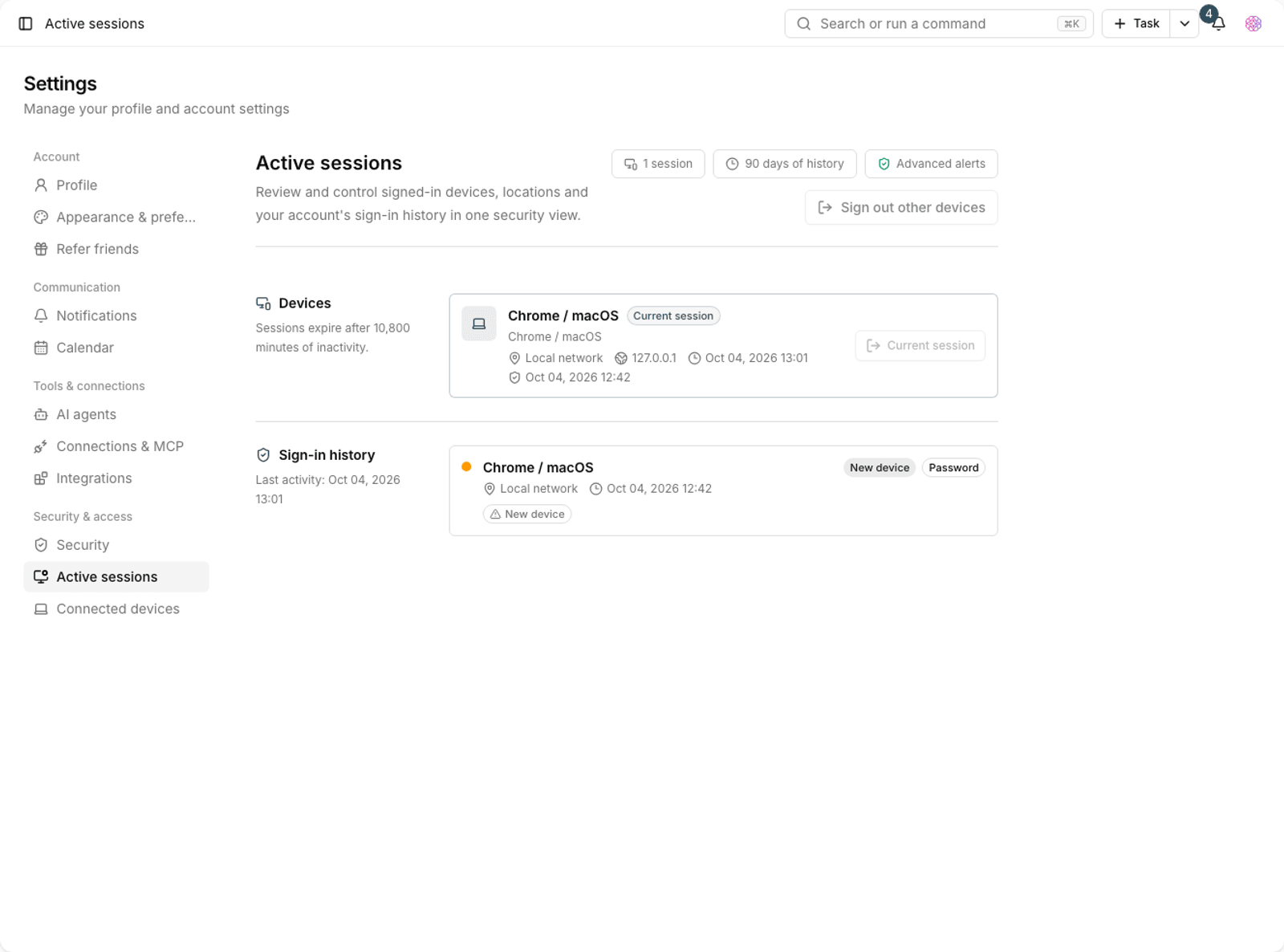
- Active sessions: review them regularly and sign out devices you don't recognize.
- Sign-in activity: look through your sign-in history to spot unusual behavior early.
If you lose access
If a passkey was your only way to sign in and you've lost the device, use one of the other methods: sign in with your email and password, sign in with an SMS code, or reset your password. That's why we recommend always keeping more than one sign-in method active.
- Create a passkey on every device you use regularly.
- Keep your account password active too, so you have a fallback.
- Keep your two-factor recovery codes somewhere safe.
- If you give a device away, remove its passkey and session.
For a second layer, see Two-factor authentication, and to manage sessions, see Secure sign-in, sessions, and sign-in activity.