
Privacy and data management
See which data is kept in your account, how to control it, and how to delete your account completely.
Privacy means you know what information is kept about your account and you stay in control of it. Taskie keeps only the data needed for your account to work and stay secure, and you can see and manage most of this information directly in your settings.
On this page, we go over which data relates to your account, how to control your identity and security information, and, if you decide to leave, how to delete your account and its data completely. This matters for every user, especially people with access to sensitive data.
What data relates to your account?
Your account data falls into a few categories. Knowing these categories helps you understand where to control each one.
- Identity information: display name, email, mobile number, work status, and profile photo.
- Security data: sign-in history, including the device, browser, IP address, and approximate location of each sign-in.
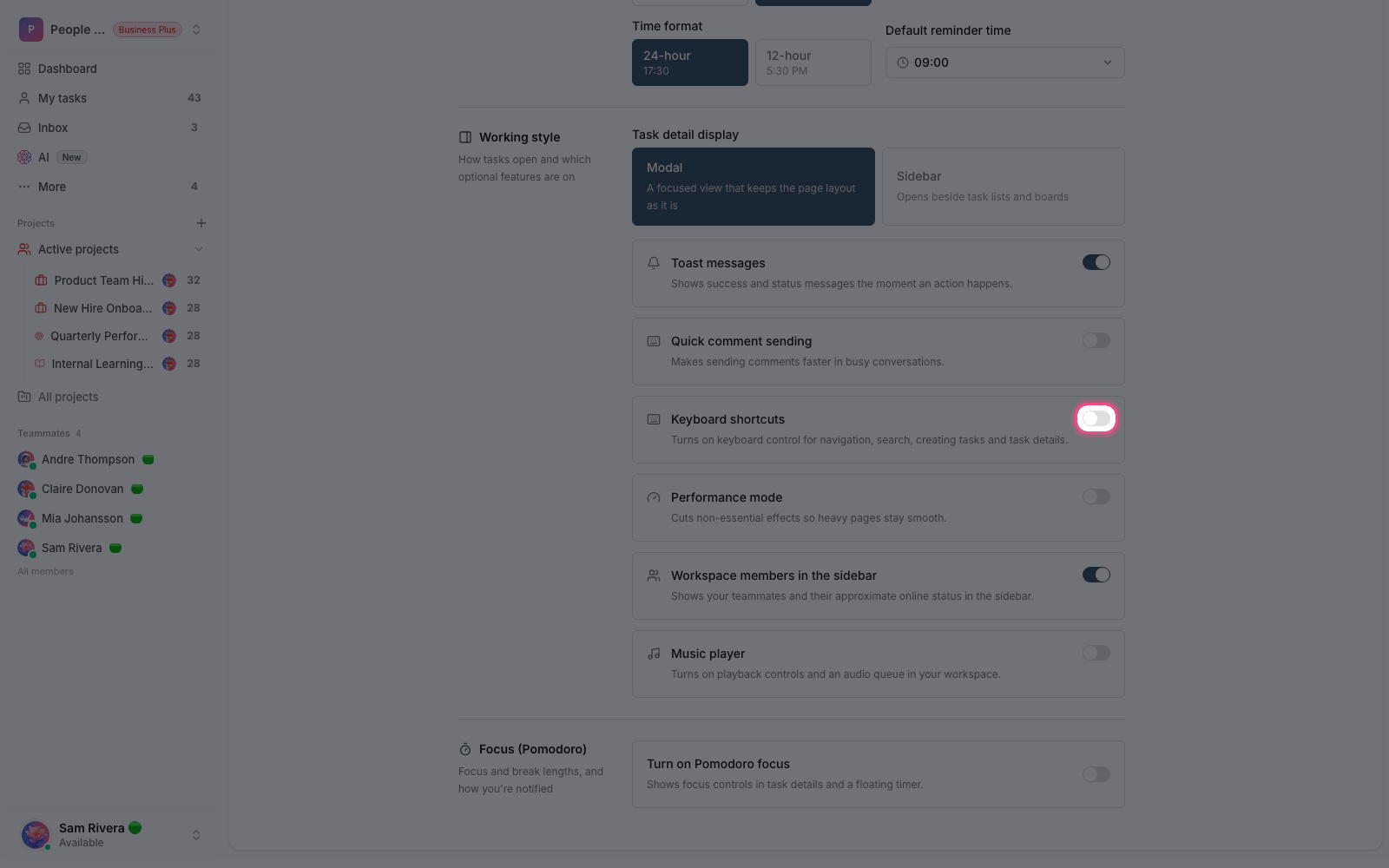
- Personal preferences: appearance, calendar, time zone, and working style settings that affect only your own account.
- Work content: the projects, tasks, documents, files, and comments you've created in workspaces.
Control your identity information
You manage your identity information on the Profile page. Your display name and work status can be edited at any time, but to keep the account consistent, your email address can't be changed after sign-up. Your mobile number is used only for SMS sign-in and more secure account recovery, and serves as a security contact method.
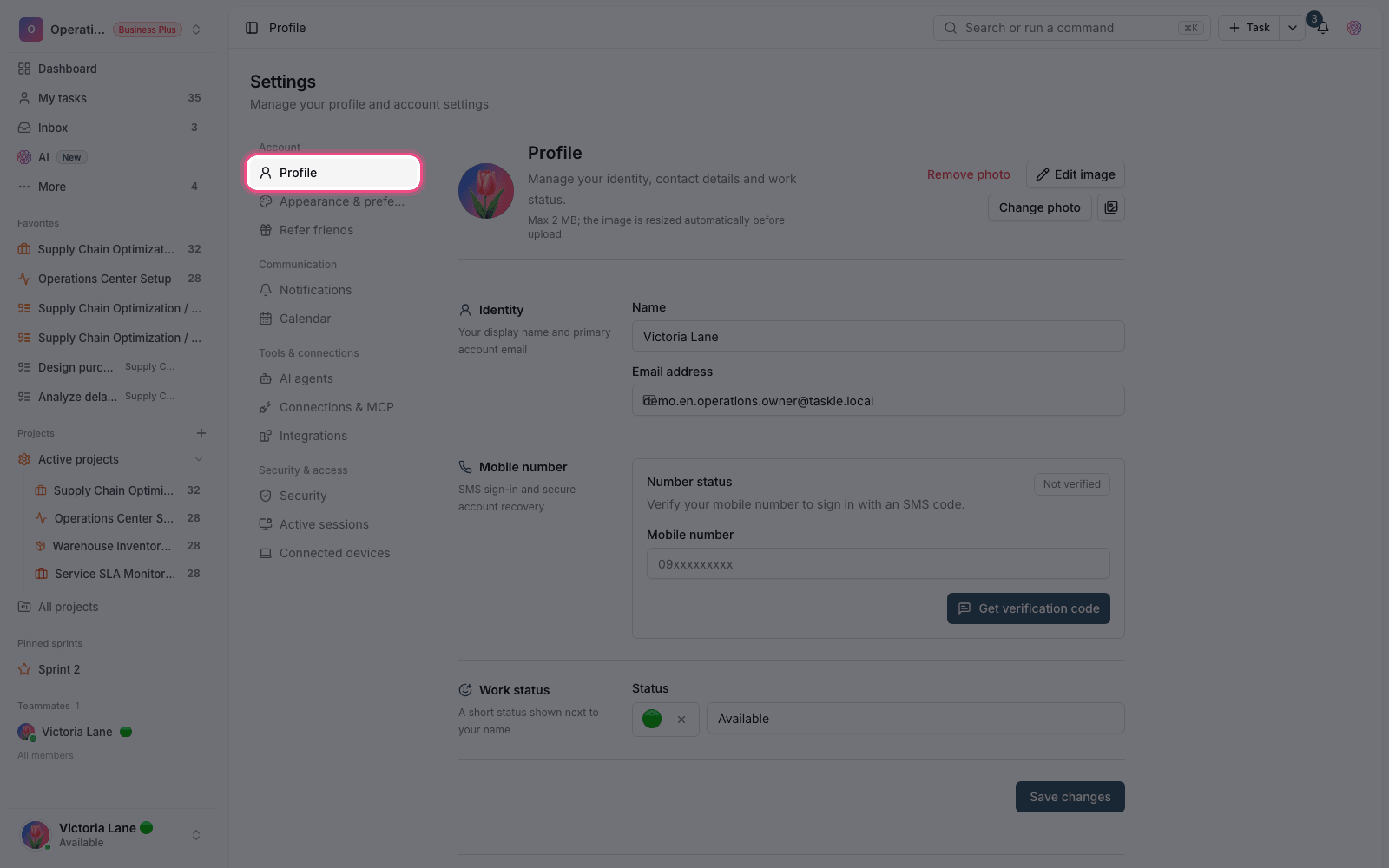
Keep in mind that some information, such as your name, profile photo, and work status, is visible to other members of your workspaces, so consider this when you set them. For more on this section, see Account and appearance settings.
Security data and history retention
To protect your account, Taskie keeps a history of sign-ins so it can detect suspicious activity and alert you. This history is kept for about 90 days and is then deleted automatically, so sign-in information doesn't pile up forever.
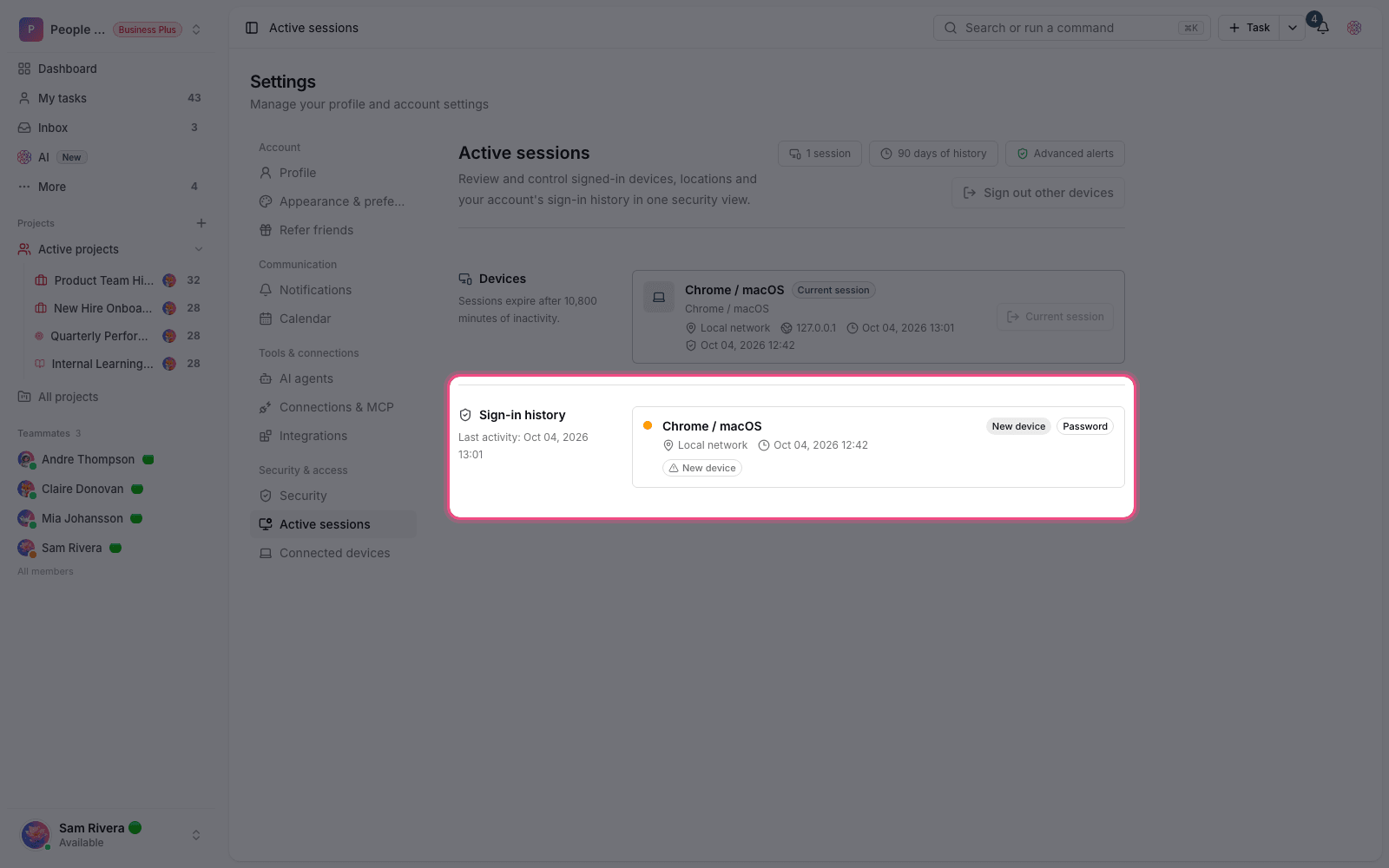
You can put this same data to work as a security control: review your active sessions, sign out unknown devices, and check suspicious events. How to do this is explained in Secure sign-in, sessions, and sign-in activity.
Delete your account
If you decide to close your account for good, Taskie provides a full account deletion option at the bottom of the Profile page. This is a sensitive, permanent action and should be done with care.
- Go to Settings → Account → Profile and scroll down to the Delete account section at the bottom of the page.
- Click Delete account to open the confirmation dialog.
- To confirm that it's really you, enter your account password.
- Give the final confirmation. You're then signed out, and the account is deleted along with all of its resources and data.
Warning: Deleting your account can't be undone. After deletion, the account and all of its related data are no longer accessible. Before you continue, make sure you've moved or saved anything you need.
If you own a workspace, it's best to sort out that workspace and its members before deleting your account, so your team's work isn't left in limbo without an owner.
Next step: to manage your identity information and preferences, see Account and appearance settings. To control devices and see your sign-in history, follow Secure sign-in, sessions, and sign-in activity.