
Secure sign-in, sessions, and sign-in activity
Secure ways to sign in to Taskie, reviewing your active sessions and sign-in history, and signing unknown devices out of your account.
Secure sign-in means only you, and nobody else, can access your account and work data. Taskie offers several secure ways to sign in and, alongside them, keeps a full view of every device that has signed in to your account and a history of sign-ins, so if something unusual happens, you notice quickly and can react.
On this page, you'll see where active sessions and sign-in history live, how to sign an unknown device out of your account, and which signs mean you should be concerned. All of these controls are available at Settings → Security & access → Active sessions.
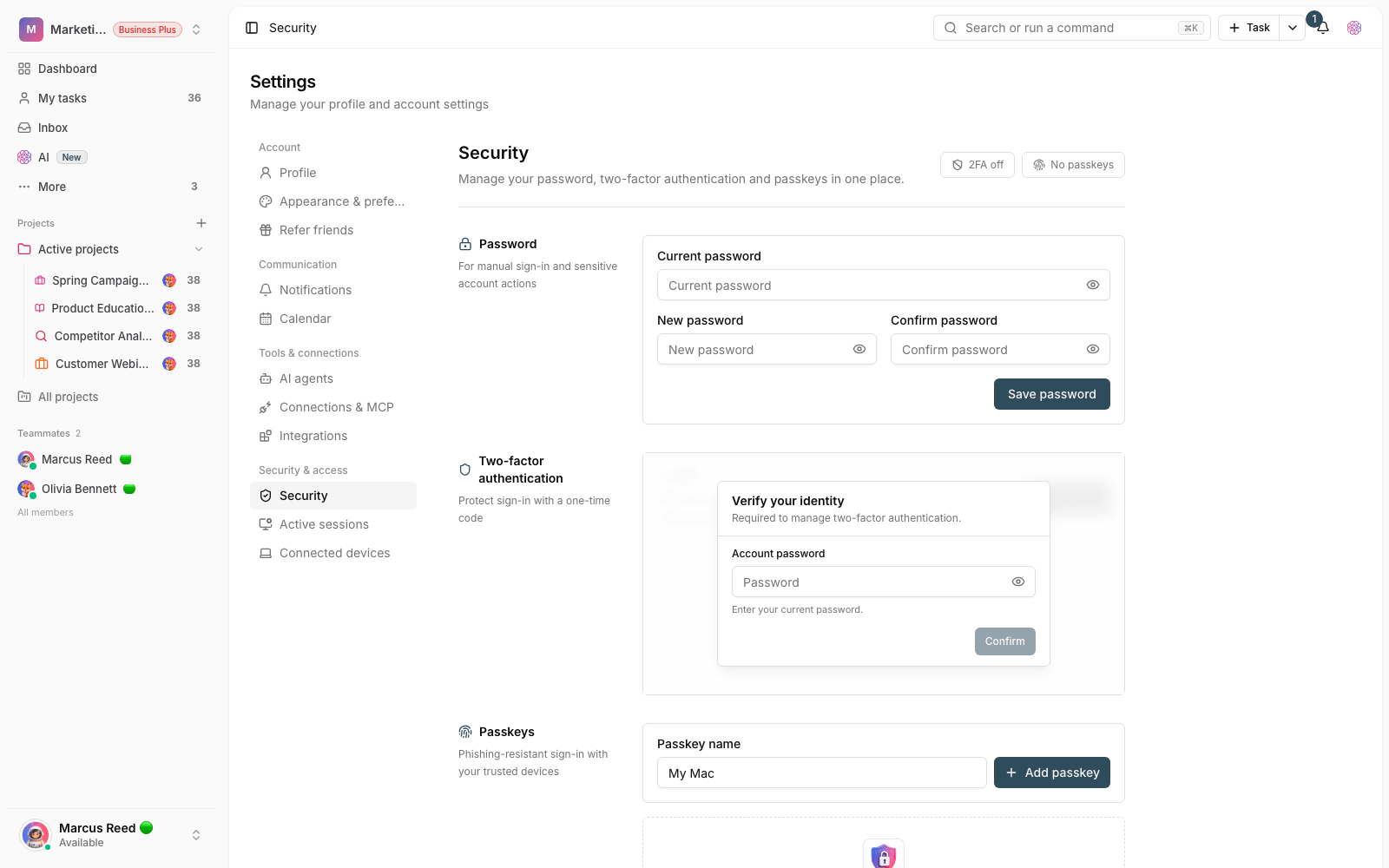
Secure sign-in methods
Taskie has more than one way to sign in, so you can choose a method that's both convenient and secure. The method you used each time is recorded next to that event in your sign-in history.
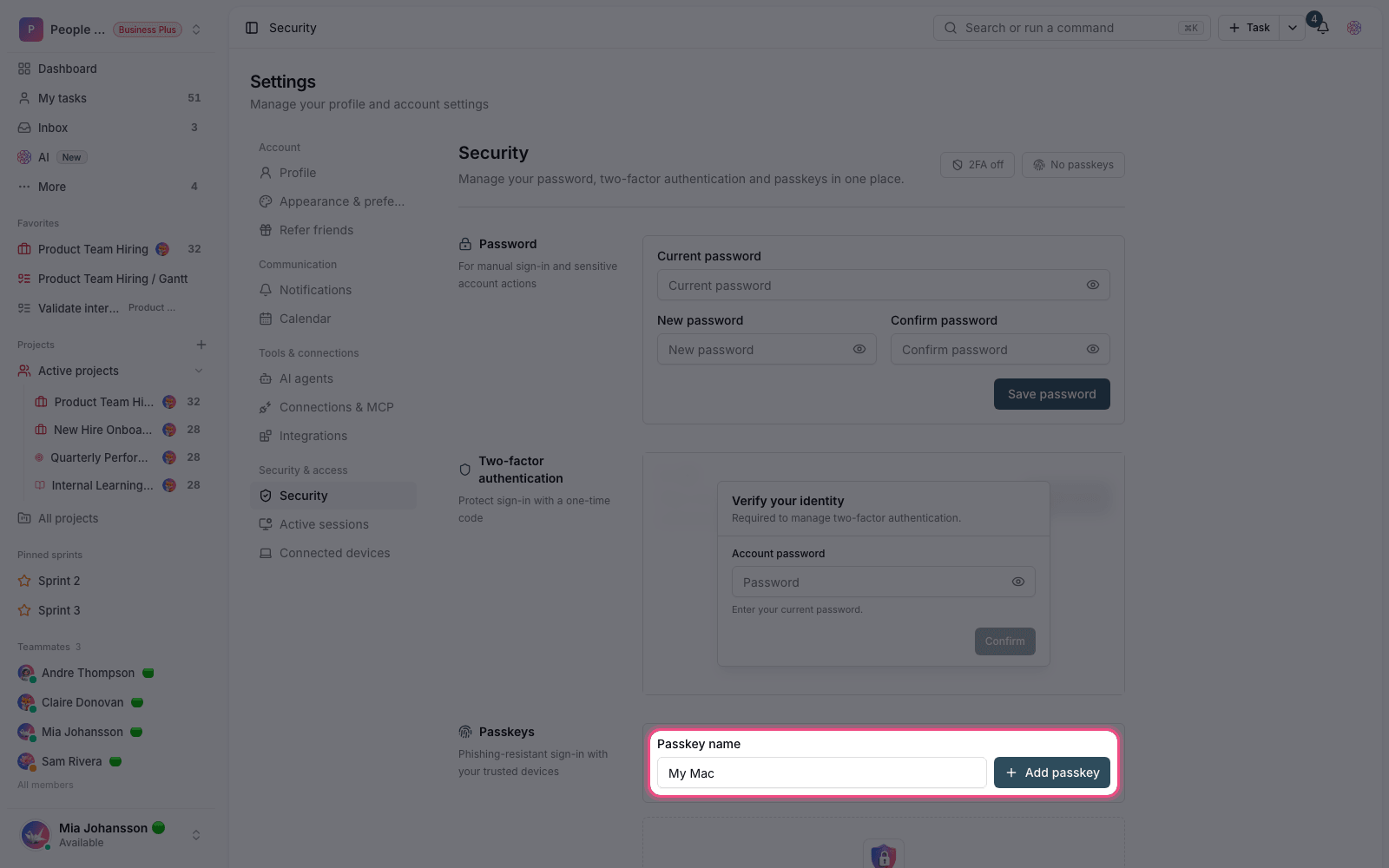
- Password: the basic sign-in method. Choose a strong, unique password and don't reuse it anywhere else.
- Sign in with Google: if you have a Google account, you can sign in with just Google's confirmation, without a separate password.
- Passkey: passwordless, phishing-resistant sign-in that works with your device's fingerprint, face, or PIN. You add and manage passkeys in the Security section.
- SMS code: after you verify your mobile number in your profile, you can sign in with a one-time code sent by text message.
For an extra layer of security, we recommend also turning on two-factor authentication alongside these methods, so your account stays protected even if your password leaks.
Review and manage active sessions
Every time you sign in with a browser or device, a session is created. On the Active sessions page, you see the devices that recently signed in to your account, along with the browser, operating system, approximate location, IP address, and time of last activity. The device you're using right now is labeled Current session. Each session expires automatically after about 120 minutes of inactivity.
- Go to Settings → Security & access → Active sessions.
- Review the list of devices and check each one's details (browser, operating system, location, IP, and last activity).
- If you don't recognize a device, click Sign out device next to it and confirm in the dialog.
- To clean up in one step, click Sign out other devices to close every session except your current one.
You can't sign out your current session, because it's the one you're working in. When you close other devices, their Keep me signed in token is reset too, so they no longer sign in automatically and have to sign in again with their credentials.
Sign-in history and suspicious events
The Sign-in history section shows your account's latest successful and failed sign-ins, with their status and sign-in method. If Taskie detects an unusual sign-in, it flags it with a colored label and a specific reason, and shows a Suspicious activity detected warning at the top of the page so you don't miss it.
- New device: a sign-in from a browser or device you haven't signed in with before.
- New location: a sign-in from a country you have no sign-in history from.
- Too many failed attempts: several failed attempts in a row to sign in to the account.
- Simultaneous locations: successful sign-ins from two different locations within a short time.
- Unusual time: a sign-in at an hour that doesn't match your usual activity pattern.
Alerts and history retention
When a high-risk sign-in is recorded, Taskie sends you a security notification in addition to the in-app warning, so you stay informed. Sign-in history is kept for about 90 days and is then deleted automatically, so to review older events, it's best to visit this page every so often.
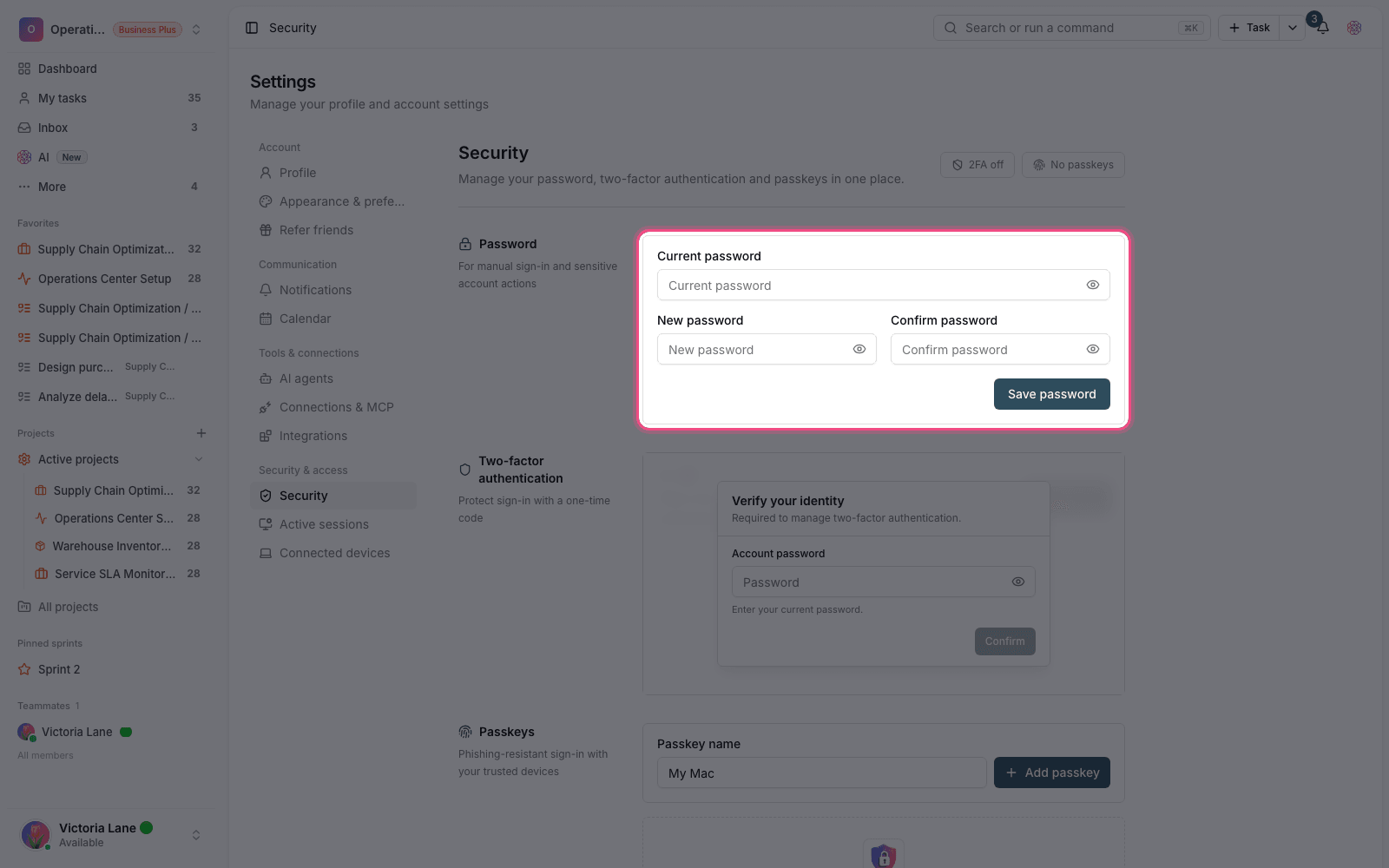
At the top of the page, you can see whether your account is covered by Basic alerts or Advanced alerts. More advanced security alerts are available on the Business plans and above; without them, basic alerts stay active for high-risk events.
Security tip: If you don't recognize a device or location in your history, first change your password, then sign out every other session, and finally turn on two-factor authentication.
Next step: to add a layer of protection to sign-in, go to Two-factor authentication. To manage your account data or delete it, see Privacy and data management.
For passwordless sign-in and verifying suspicious sign-ins, read Passkeys and suspicious sign-in verification.