
Two-factor authentication
Turn on two-factor authentication with an authenticator app, scan the QR code, keep your recovery codes safe, and manage it in Taskie.
Two-factor authentication (2FA) adds a layer of protection to your account. When it's on, signing in requires a one-time code from an authenticator app on your phone in addition to your password. That means even if someone gets your password, they can't sign in to your account without access to your phone.
This feature is available to every user, and setting it up takes just a few minutes. On this page, you'll see where and how to turn on two-factor authentication, where to keep your recovery codes, and how to manage or turn it off if you need to. You do all of this at Settings → Security & access → Security, in the Two-factor authentication section.
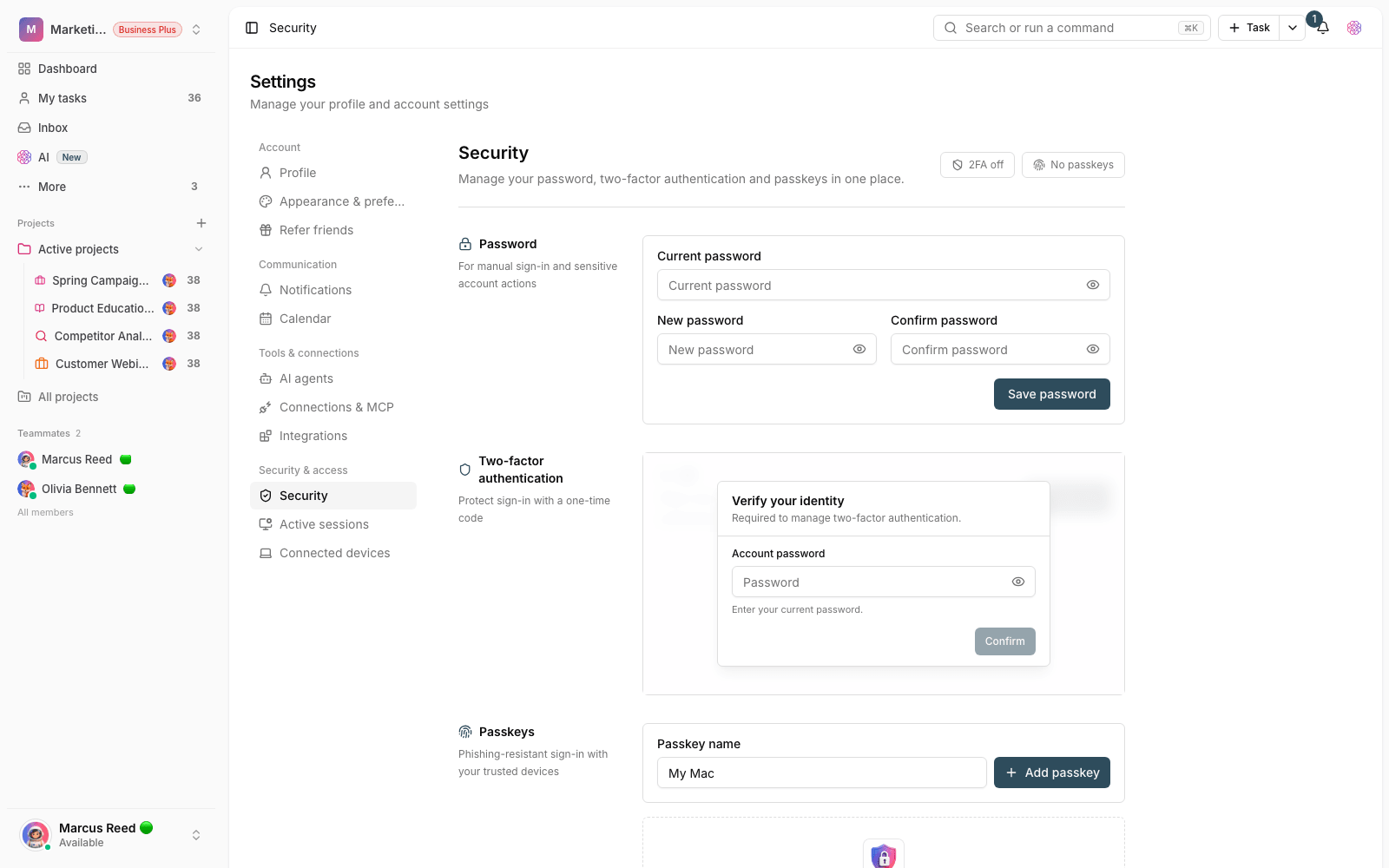
Why two-factor authentication matters
A password on its own can leak through phishing, reusing the same password across several services, or a data breach. Two-factor authentication greatly reduces this risk, because the second factor is always with you.
- If you have access to sensitive work data or team information, this layer of defense is even more essential for you.
- The second-factor code changes every 30 seconds and is generated only on your own device.
- Even with the right password, a sign-in without a valid code is stopped, and you can trace it in your sign-in history.
Turn it on step by step
To turn it on, you need an authenticator app on your phone (such as Google Authenticator, Microsoft Authenticator, or a similar app). Then follow these steps.
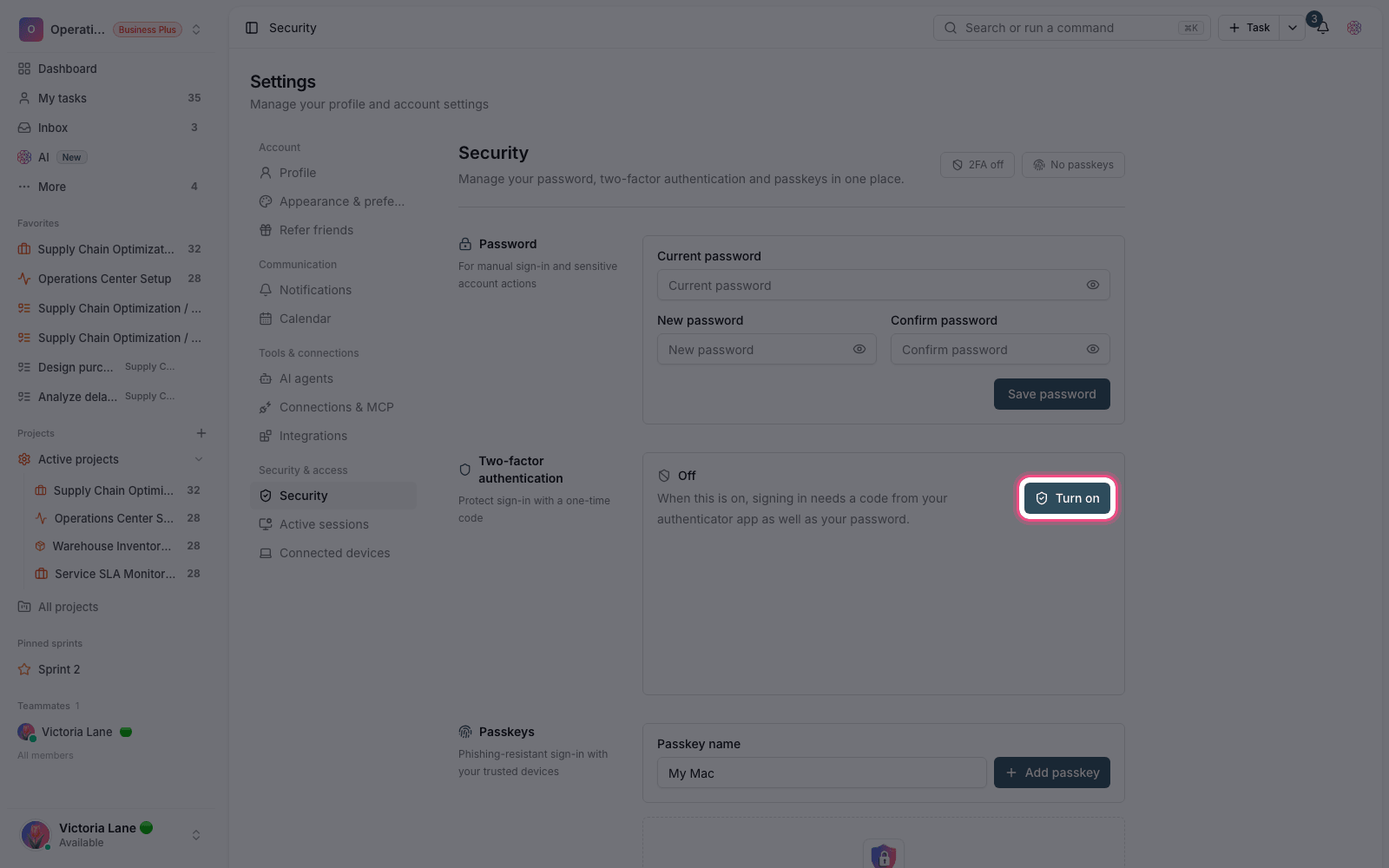
- Go to Settings → Security & access → Security and find the Two-factor authentication section.
- To begin, verify your identity. Depending on your account, use your Password or an SMS code (if you have a verified mobile number).
- Click Turn on to open the setup window with a QR code.
- Scan the QR code with your authenticator app. If you can't scan it, use or enter the code manually to copy the setup key and enter it in the app.
- Click Continue, enter the six-digit code shown in the app, and click Confirm to finish.
Note: Setup is complete only once you enter the six-digit code correctly. If you close the window before confirming, you can pick up where you left off later with Continue setup.
Keep your recovery codes safe
After you turn it on, Taskie gives you a set of recovery codes. These codes are your lifeline: if you lose your phone or authenticator app, you can still sign in to your account with one of them. In the same Security section, click Show recovery codes to see them.
- Each code can be used only once and is removed after it's used.
- Keep the codes in a secure password manager or another safe place, not in open, easily reached files.
- If you're worried the codes have leaked or you're running low, create a fresh set with Regenerate codes. This invalidates the previous codes.
Turning it off and workspace requirements
If you need to turn off two-factor authentication, click Turn off in the same Security section. You'll need to verify your identity first for this too. Keep in mind that once it's off, your account is protected by your password alone again.
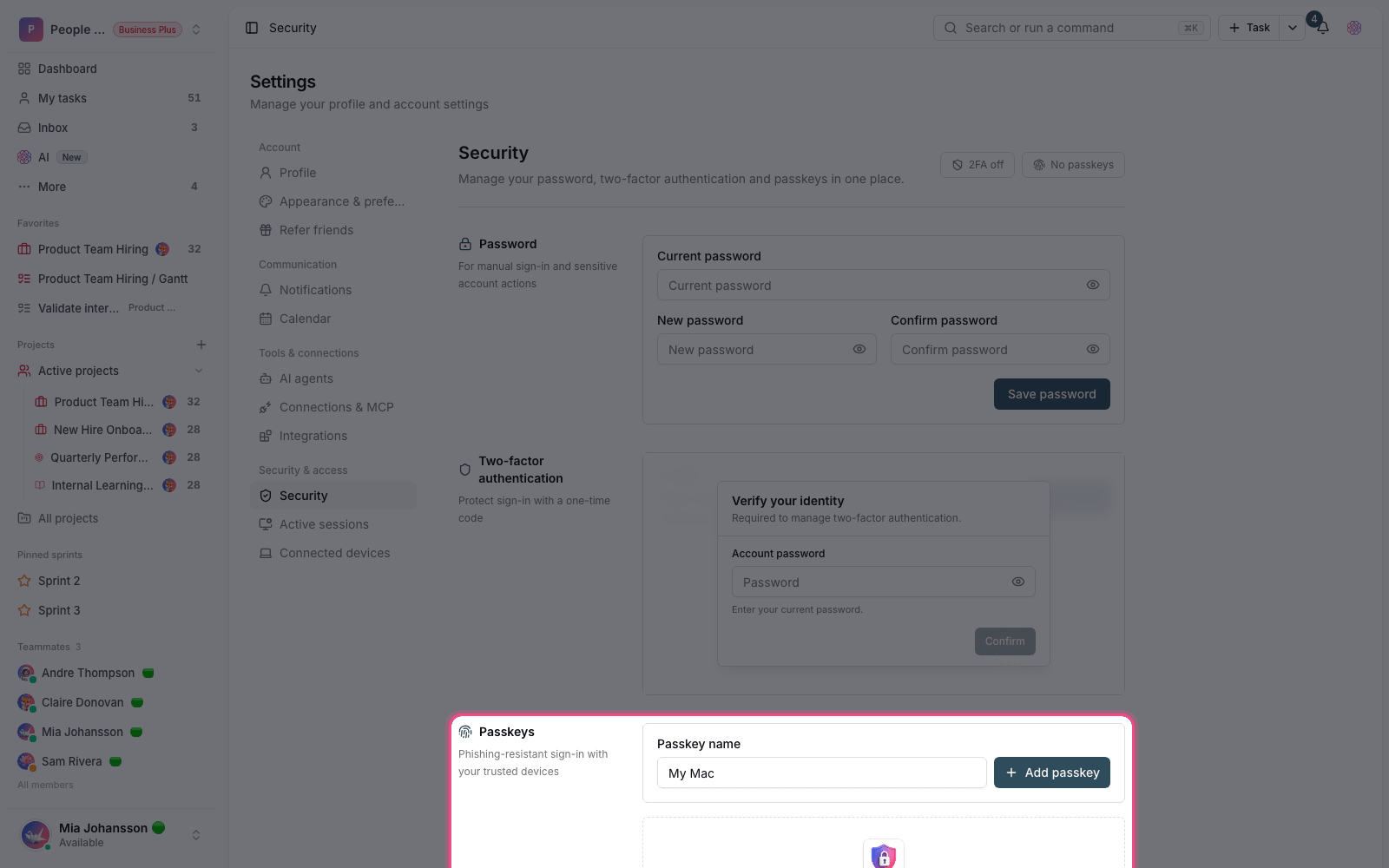
In workspaces on advanced plans, an admin can require two-factor authentication for all members. In that case, if you haven't set it up yet, you'll be asked to turn on two-factor authentication when you sign in before you can continue.
Next step: to see signed-in devices and control your sessions, go to Secure sign-in, sessions, and sign-in activity. If you want to connect a mobile number for SMS sign-in or identity verification, see Account and appearance settings.