
Multi-page forms and conditional logic
Split a long form into several steps, and show or hide fields and pages with simple conditions based on answers.
When a form gets long, filling it in feels tiring and daunting, and that's why many people abandon it halfway. Taskie gives you two tools to keep a form light and smart: splitting it into several steps, and showing each question only when it's actually needed.
With steps, questions are laid out across several pages in a row, and a progress bar shows respondents where they are. With conditional logic, you can show or hide fields, or even a whole page, depending on earlier answers. This page shows how both work.
Split a form into steps
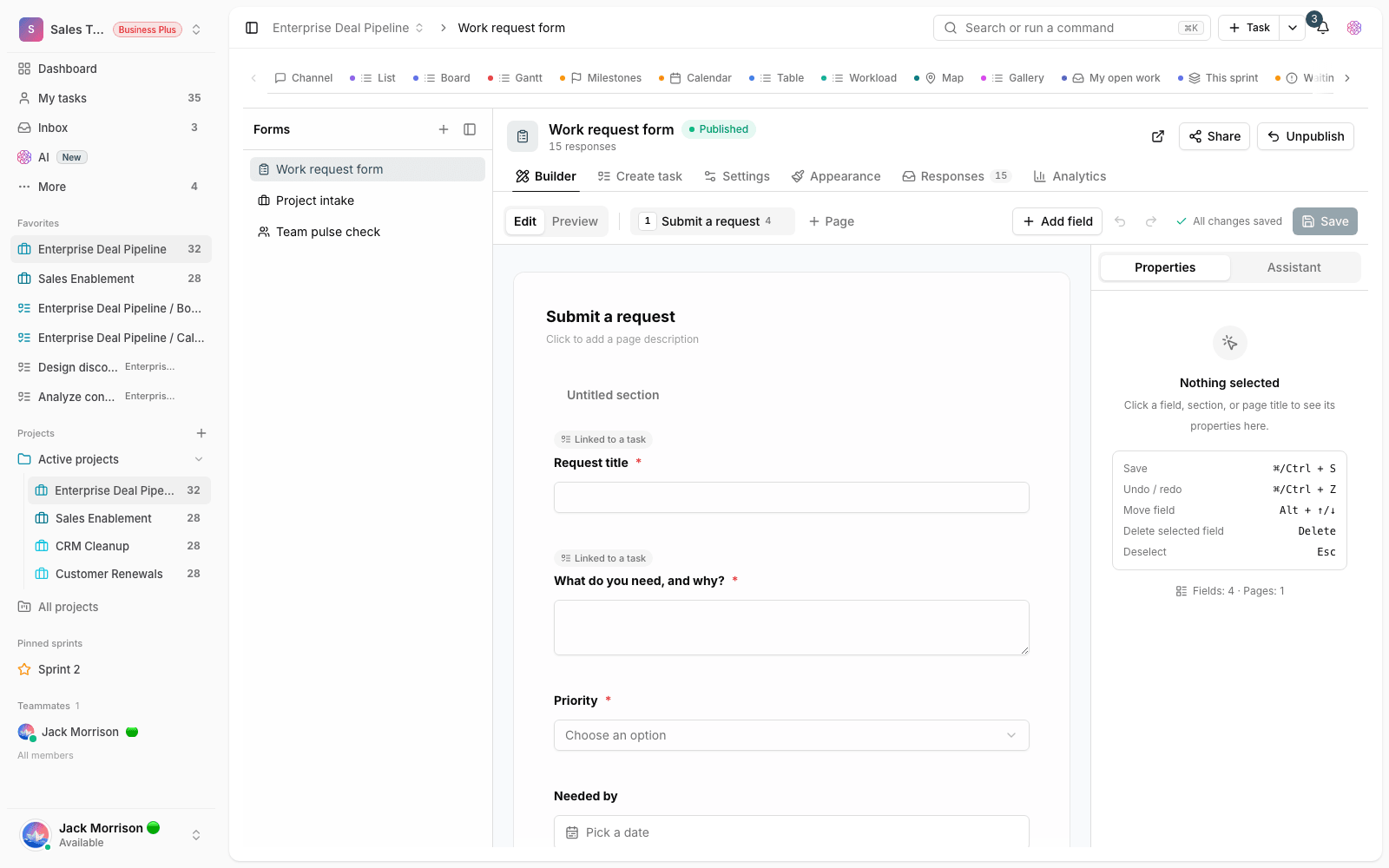
In the Builder tab, every form starts with one page. Use Add new page to create more pages. As soon as you have more than one page, the form appears as a multi-step wizard with a progress bar. You can reorder pages by dragging and dropping, and set each page's name, description, and even the text of its Next button.
Show or hide fields with conditions
Every question has a Show this question when… section, and every page has a Show this page when… section. Here you build one or more conditions. Each condition has three parts: a field, an operator, and a value. You can require All conditions to be met together, or let Any one of them be enough.
These operators are available for building conditions:
- equals and doesn't equal: for an exact match with a specific option or value.
- contains: to check whether the answer includes a particular text or option.
- greater than and less than: work only on numeric values.
- is empty and is not empty: to react to whether the field has been answered.
Jump between pages based on answers
Besides showing and hiding, each page can have a Jump to another page based on the answer setting. By adding a Jump rule, you decide that when its conditions are met, the respondent goes to a different page instead of the next one. The jump target can only be one of the later pages. This is great for building different paths through one form, for example a separate path for customers and for coworkers.
Build a condition, step by step
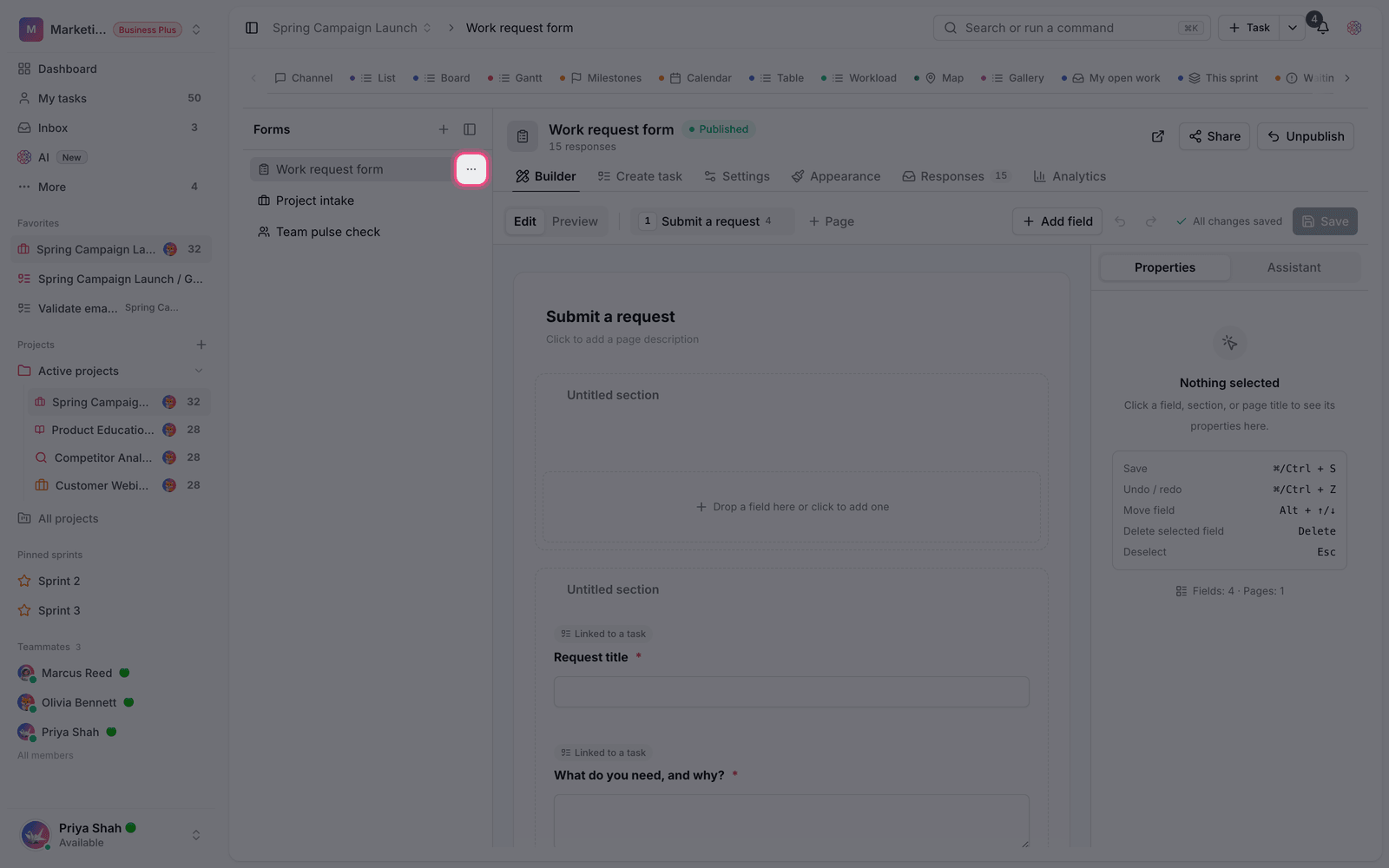
- In the builder, click the question or page you want to make conditional and open its condition section.
- Set the match mode to All conditions or Any.
- Use Add condition to create a rule: choose the reference field, the operator, and the value you want.
- Add more conditions if you need them, then click Save so the logic applies to the public version.
Important: The final decision about which fields are shown is always recalculated on the server from the real answers. That's why hidden fields are never treated as required and no answer is stored for them, even if someone tampers with the public version.
Tips and common mistakes
- A condition can only refer to fields that come before it in the form. You can't reference later fields.
- A question can't depend on its own answer.
- A page can't jump to itself, and the jump target must be one of the later pages; otherwise the form won't save.
- You can't use an Info block as the reference field for a condition, because it doesn't collect an answer.
- The greater than and less than operators have no effect on non-numeric fields. Use a Number or Slider field for those.
Next step: to pick the right fields for your conditions, see Form field types. To manage what this form collects, go to Collect responses and convert them to tasks.