
Build and refine forms with AI
Build a form from a plain-language description, refine it through conversation, let respondents answer by voice, and get a summary of the responses you've collected.
Building a good form is usually the most time-consuming part: you have to choose the questions, give each one the right type, and put them in a logical order. With the AI form builder, you just describe the form's purpose in plain words to get a ready draft, then fine-tune it.
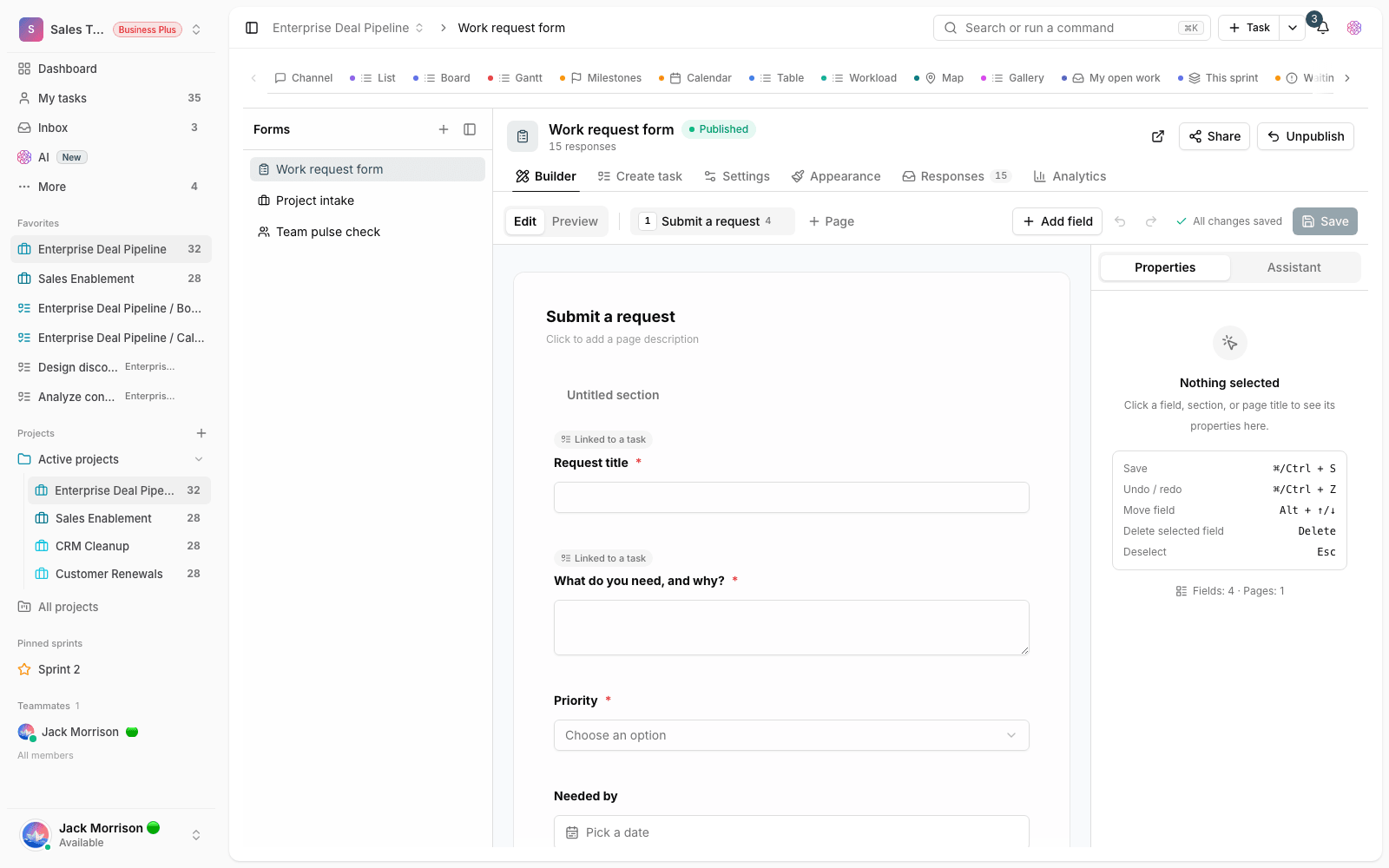
Build a form from a description
- In the project, go to the Forms section and choose to create a new form.
- Open the Build a form with AI option and describe the form's purpose in a few sentences, for example: "A leave request form with name, leave type, start and end date, and a description."
- Review the draft it builds: the questions, each question's type, and their order appear in the form builder.
- Change whatever you need, then save the form.
Important: The AI never saves anything directly to your form. What it builds is a suggestion that opens in the form builder. Until you save it yourself, your actual form stays untouched.
Refine an existing form through conversation
You can ask for changes on a form you already have, too. Just write what's missing or what should change, for example "Add a question for a phone number," "Put the address questions in a separate section," or "Complete the options for the department question."
- Questions that already have answers are kept, and submitted responses aren't lost.
- You can review a new suggestion before saving it. Keep part of it and change the rest by hand.
- If a suggestion doesn't fit the form's rules, it's corrected instead of being rejected entirely. For example, a choice question with no options becomes a text question.
Voice answers for respondents
For long text questions, you can turn on voice answers. Instead of typing, respondents speak, and the transcribed text goes into the same box, where they can edit it before submitting. This option is turned on separately for each form, works only on published forms, and has a daily cap to prevent abuse. Voice answers aren't available when the form is embedded on another website.
Summary of collected responses
Once a form has a few dozen responses, you can ask for a summary of them: recurring topics, key points, and responses worth following up on. The summary refers to response row numbers, so you can open the original response and convert it to a task from there.
Tips and limits
- A more precise description builds a better form: write who the form is for, what information you need, and which questions are required.
- Before publishing, preview the form once from the respondent's point of view.
- These features use your workspace's AI credits.
- Building and refining forms with AI is available on the Ultimate, Business, and Business Plus plans.
- Some advanced options, such as multi-column layouts or repeatable sections, depend on a separate plan. If your workspace doesn't have them, the suggestion is built without them.
To learn the question types, see Form field types. To group questions, see Sections and repeatable sections, and to work with responses, see Convert responses to tasks.