
Form sections and repeatable sections
Group questions into sections, use multi-column layouts, show sections conditionally, and build repeatable sections to collect several items in one form.
Previously, each form page was a simple list of questions, and the only way to separate topics was a divider line. Now there's a new level called a Section: a group of related questions with its own title and description, which can have its own layout, display condition, and even repeat.
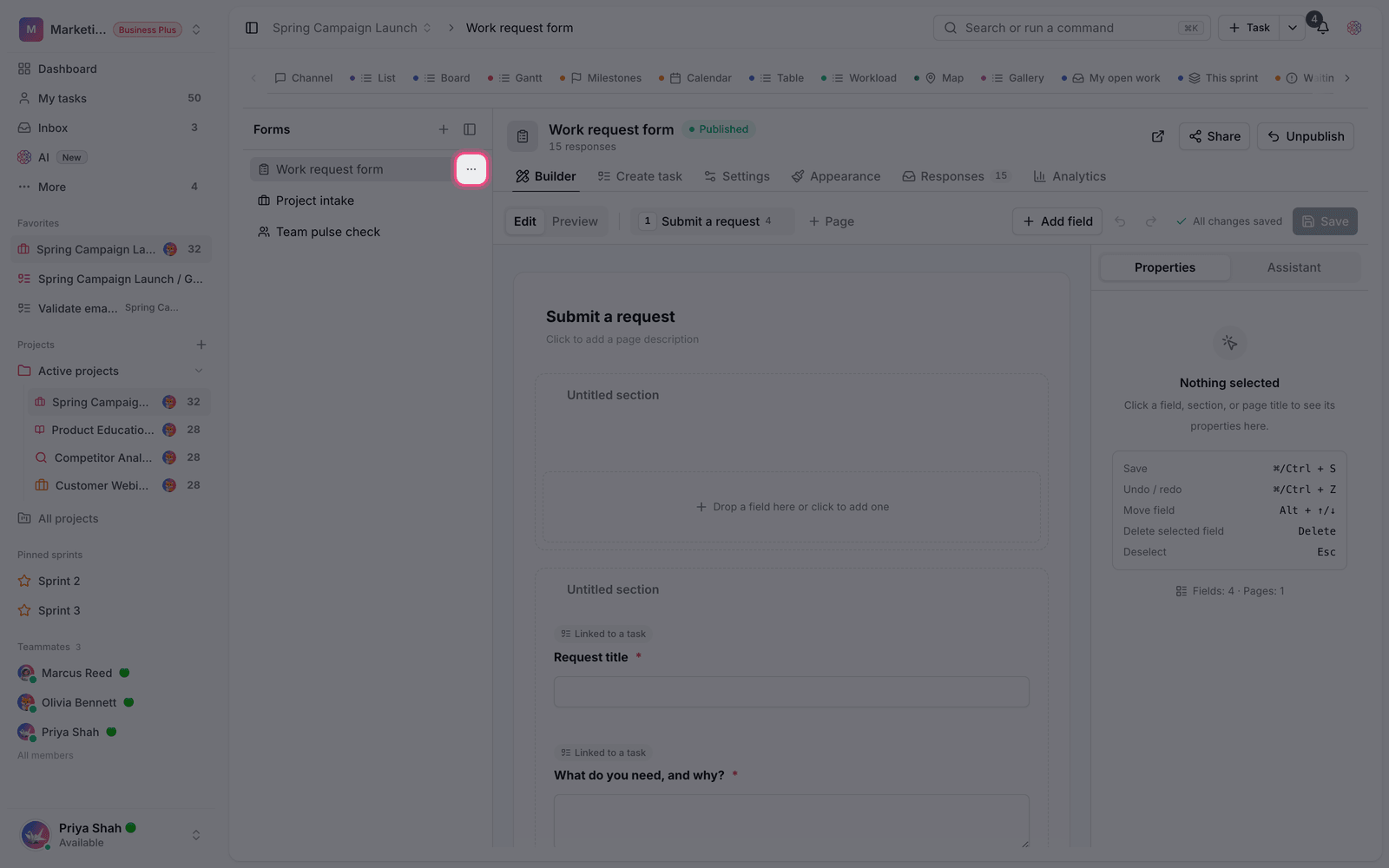
Create a section
- Open the form for editing and, on the page you want, choose to add a section.
- Give the section a clear title, for example Contact info or Order details.
- Add the related questions inside the section, or drag existing questions into it.
- If needed, add a short description so respondents know what information this section asks for.
Old dividers have been converted to sections automatically, and their titles and descriptions were kept. Your existing forms keep working correctly without you doing anything.
Layout and collapsing
- One- to three-column layout: place short questions such as first name, last name, and national ID side by side so the form looks shorter. On mobile, the columns stack automatically.
- Collapsible section: show optional or rarely used sections collapsed so the form doesn't feel cluttered, and respondents can expand them when needed.
- Conditional display: add a condition to any section so it appears only when a certain answer is given, for example a Shipping address section that appears only when Needs shipping is Yes.
Repeatable sections
Sometimes a group of questions needs to be filled in several times: several companions, several order items, several past jobs. That's exactly what a repeatable section is for. The respondent fills in one item and uses the add button to add the next one. Each item is a separate copy of the same questions.
- Set a minimum and maximum number of repeats so respondents don't enter fewer or more items than needed.
- Write the add button's text to match the content, for example Add an order item.
- Display conditions are evaluated separately inside each item, so one item can show an extra question while another doesn't.
- In CSV and Excel exports, each item gets its own numbered columns. In JSON exports, items are stored as nested data.
Limits: The Upload file question and hidden questions aren't supported inside a repeatable section, and answers from a repeatable section aren't mapped to task fields. For these cases, use a regular section.
Required plan
Basic grouping of questions into sections is available to every workspace. Multi-column layouts and repeatable sections depend on the advanced sections feature. If you don't see these options, ask your workspace admin to check the plan.
To learn about conditional logic, see Multi-page forms and conditional logic. For an overview of question types, see Form field types.