
Form field types
A tour of the form field families, from text, number, and slider to choice, image, email, file, and info block, and what each one is for.
Each field's type decides what the respondent enters, how that answer is validated, and how you can filter and report on it later. Choosing the right type from the start gives you clean, reliable data and blocks invalid answers.
Taskie has a full set of field types, available in the Builder tab from the type picker. Below we go through them in a few families so you know which one to pick for each kind of data.
Text, number, and date fields
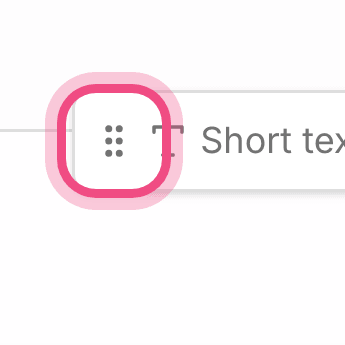
- Short text: for one-line answers such as a name, a title, or an order number.
- Long text: for multi-line explanations such as describing a problem or a suggestion.
- Number: for numeric values; non-numeric answers aren't accepted.
- Slider: for picking a number in a range by dragging a handle. You can set its minimum, maximum, step, and unit, and the answer must fall within that range.
- Date: for picking a specific date.
Choice fields
Use choice fields when you want respondents to pick from predefined options. They come in two main modes: Single choice, which accepts only one option, and Multiple choice, which lets people select several. The answer is always checked against the form's list of allowed options, so invalid values aren't stored.
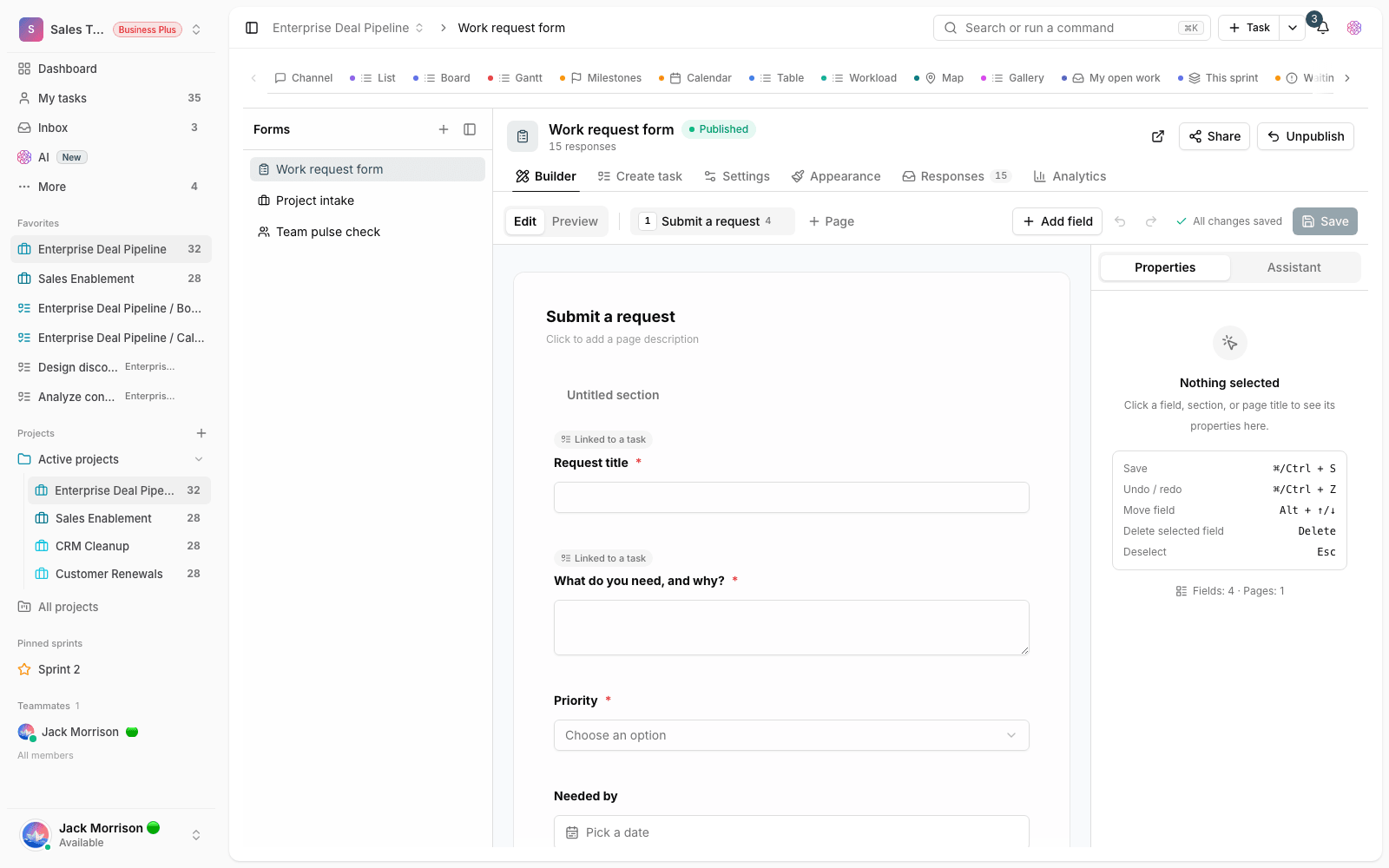
How the options are displayed is flexible too. Depending on your needs, you can show them as a dropdown, checkboxes, buttons, radio buttons, stars (rating), or in voting mode. If your options are visual, the Image choice (single) and Image choice (multiple) types let you add an image to each option. This image mode is available only for choice fields.
Contact and file fields
- Email: collects an email address and checks that its format is valid.
- Website: collects a valid web address.
- Phone: for collecting a phone number.
- File upload: lets respondents attach a file. Submitted files use your workspace's storage.
Info block
The Info block is a special type that doesn't collect an answer at all. Use it to show help text, explain a section, or add a note between questions. Because it isn't an input, it can't be made required, isn't stored in responses, can't be used as the basis of a condition, and isn't available in task creation mapping.
Change a field's type
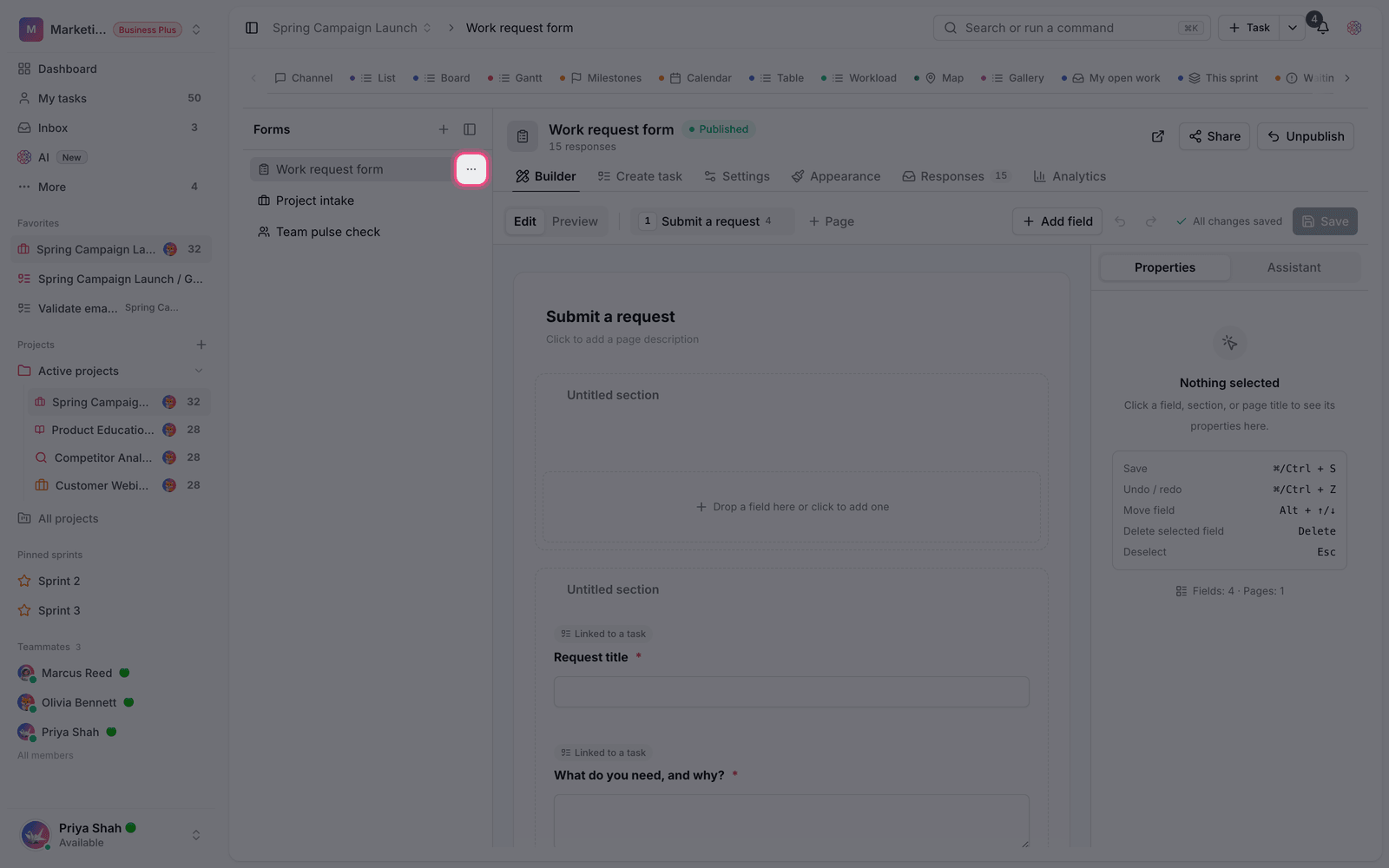
- In the Builder tab, click the field you want to open its settings.
- Pick the new type from the type picker.
- Complete the settings for that type, for example the options for a choice field or the minimum and maximum for a slider.
- Click Save so the change applies to the public version.
Tip: Choose field types carefully. The type decides how the answer is validated and how it's used later for creating tasks or reports. Changing the type after you've collected responses can leave earlier data inconsistent with the new format.
Next step: to see how these fields are used in a form's conditions and paths, go to Multi-page forms and conditional logic. To manage what respondents send you, see Collect responses and convert them to tasks.