
Pomodoro timer and focus mode
Manage focus and break sessions with the Pomodoro timer, and log your deep work time automatically.
Deep, uninterrupted work on one task often gets better results than hours of scattered effort. The Pomodoro technique makes this idea simple: you work with full focus for a while, take a short break, and repeat the cycle, so you stay focused without wearing yourself out.
Taskie has a Pomodoro timer that works right on your tasks. Besides managing the focus and break cycle, it can log your deep work time automatically on that same task. The timer is a personal tool, and each user has their own settings.
Turn on and configure Pomodoro
The Pomodoro timer is off by default. You turn it on in your account preferences and set the durations to match the way you work.
- Go to your user settings and open the Preferences page.
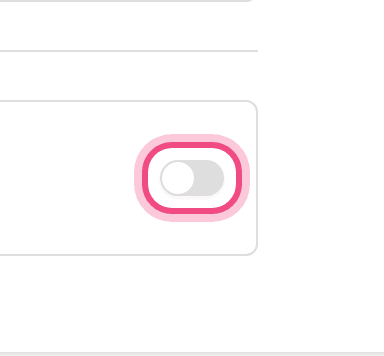
- Find the Pomodoro section and turn it on.
- Set the focus length, short break, long break, and number of cycles before a long break.
- If you like, set breaks or the next focus to start automatically, choose the sound and notification mode, and save your changes.
- Focus length is 25 minutes by default and can be set up to 180 minutes.
- Short break defaults to 5 minutes, and Long break defaults to 15 minutes.
- Cycles before a long break defaults to 4, meaning a long break comes after every four focus sessions.
Start a focus session on a task
When Pomodoro is on, you'll see a row called Focus on every task. That's where you start and control a session.
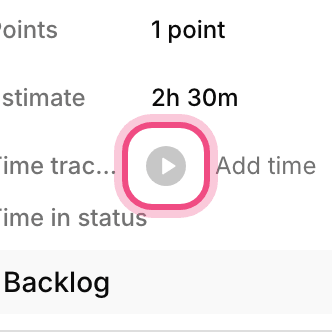
- Open the task you want to work on and, in the Focus row, click Start focus.
- The countdown begins. Stay on that task until the focus period ends.
- Open the timer to Pause or Continue the session, use Skip to move to the next phase, or click Finish to end the whole session.
- At the end of each focus period, Taskie invites you to take a break and then to start the next focus.
Automatic time logging while you focus
If the task you're focusing on belongs to a project, Taskie automatically saves the focus session's time as logged time on that task, so you don't need to start the time tracking timer separately. If the task isn't linked to any project, the focus session still runs, but you'll see Time isn't tracked.
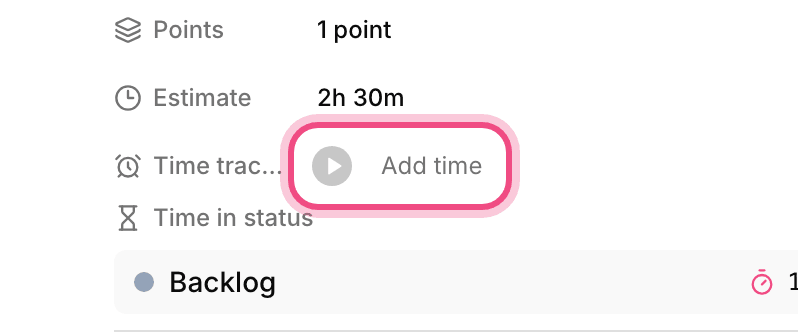
When you click Pause in the middle of a focus session, time logging pauses too, and Continue resumes it. That way, the total reflects only the time you were actually focused.
The always-visible timer and notifications
Once a session starts, a small timer stays with you in a corner of the app, even if you move between pages or refresh. That way, you always know how much time is left in your focus period or break. You can also choose how you're notified when each phase ends:
- In-app notification: a short message appears inside Taskie.
- Browser notification: your browser lets you know even when you've switched to another window (requires notification permission).
- Silent: no message or sound; the timer just switches phases.
Tip: If you've set up quiet hours, Taskie doesn't play sounds or show browser notifications during that window, so your focus or break isn't interrupted.
See your focus stats
To review your own performance, add the Pomodoro focus widget to your dashboard. It shows your focus time today and over the last seven days, the number of sessions, your daily streak, and the tasks that got the most focus.
Next step: to log time manually or with the regular timer, go to Track time on tasks. To see the focus widget alongside other reports, go to Project time reports and time widgets.
For background music during focus sessions, see Music player and focus.