
Project timesheet
See all the hours logged in a project over a period, filter by member, and check which time is billable.
When members log time on tasks, the timesheet brings all those entries together in one table. It's exactly what you need for billing a client or reviewing your team's capacity.
To open it, go to the project's timesheet section. If time tracking isn't turned on for the project, you'll see the message Time tracking isn't available for this project.
Choose a period and filters
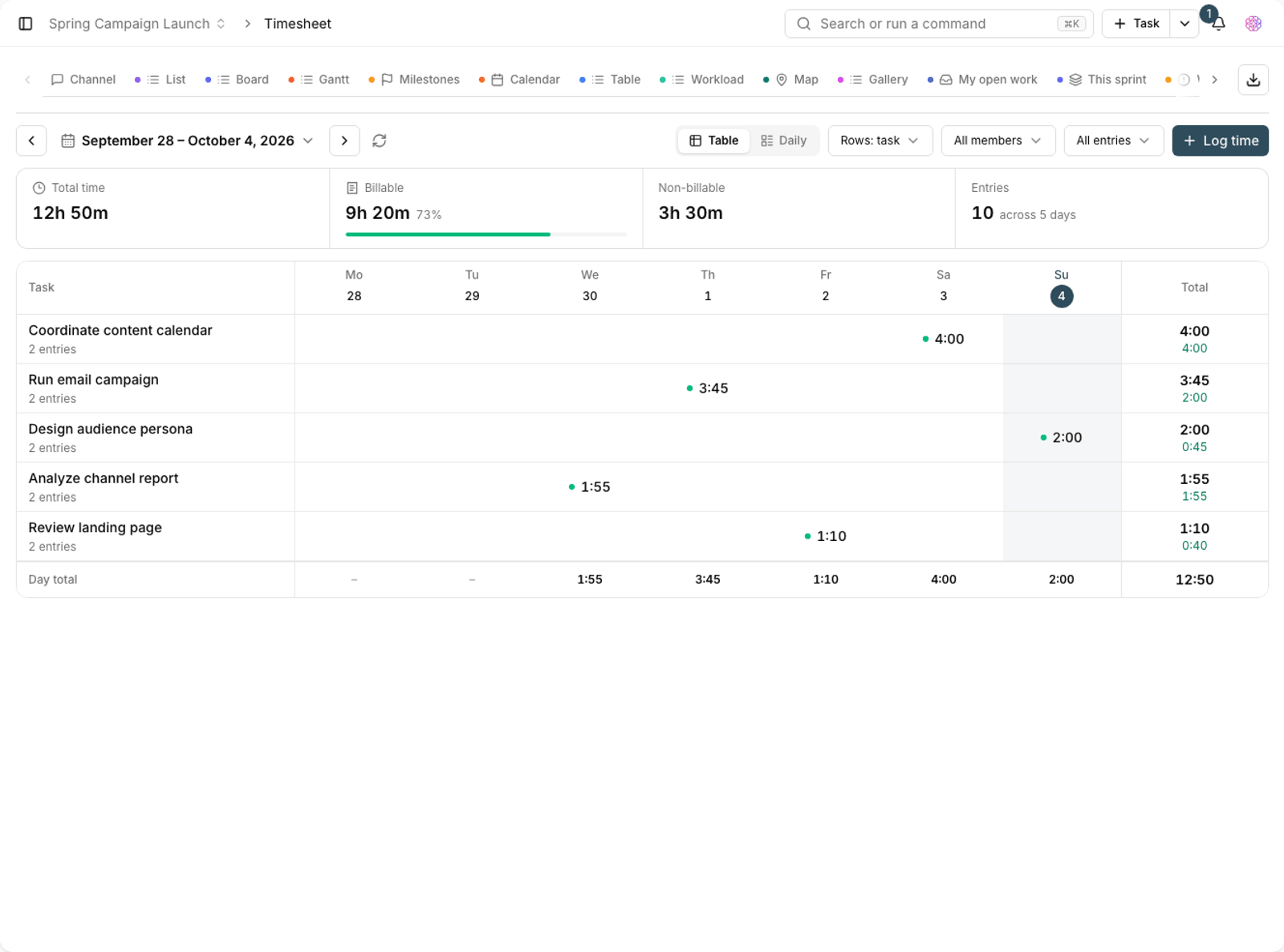
- Set the period with From date and To date.
- Use the member filter to pick one person, or leave it on All members.
- Set Billing status to separate billable and non-billable time.
- If there are no entries in that period, a message tells you so.
Read the table
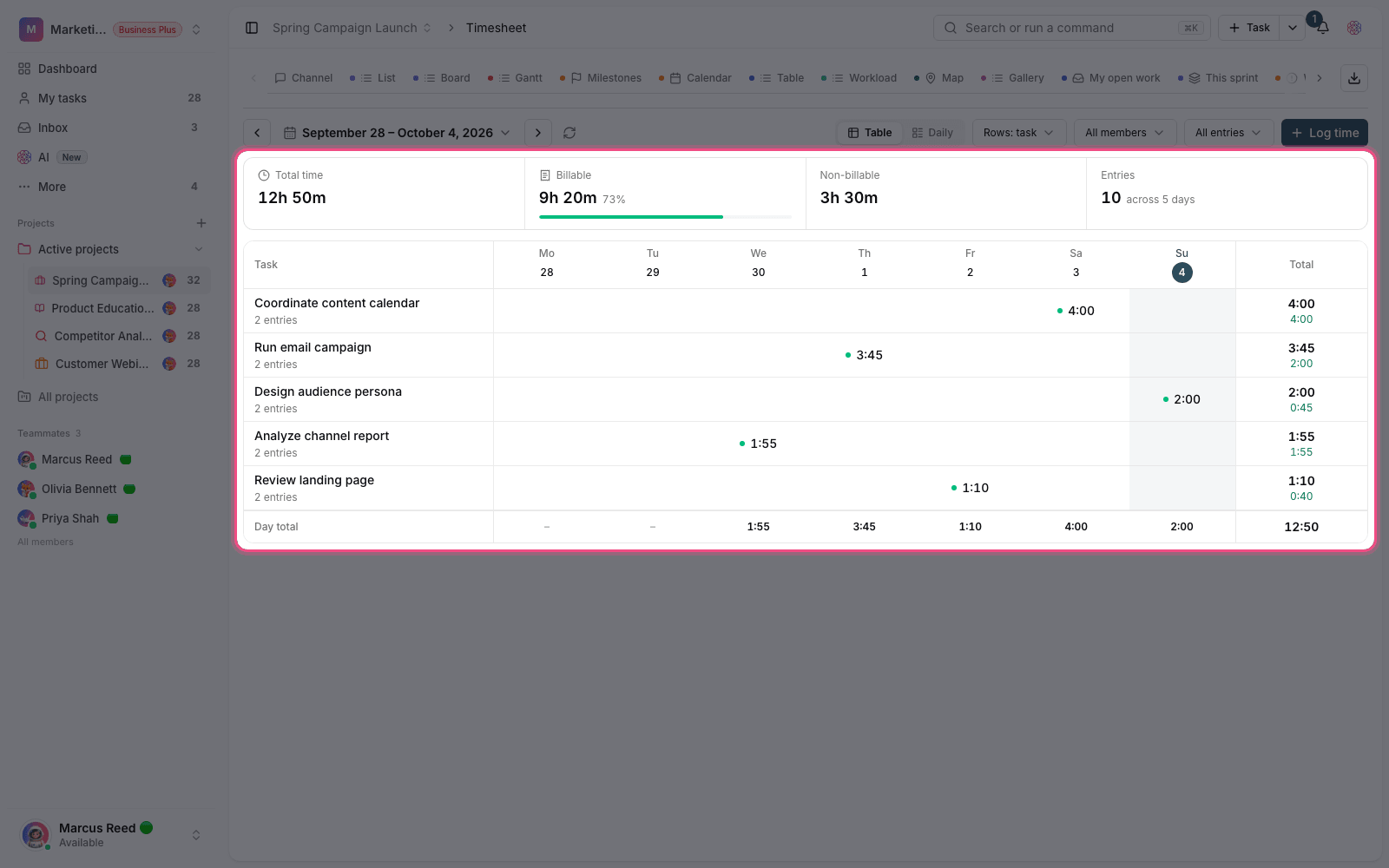
- Total time: the sum of the hours logged in the selected period.
- Billable time: the part of the time marked as billable.
- Non-billable: time spent on internal work that isn't passed on to the client.
- Entries: each row is one time entry, with its task, member, and duration.
Tip: Billable status is set on the time entry itself, not on the task. If the numbers don't match what you expect, check the entries in the period to see which ones weren't marked.
Common uses
- Client billing: choose the month as the period and take only the billable time.
- Capacity review: see how much time each member logged in the period.
- Comparing with estimates: compare actual time with the original estimates so your next estimates are more accurate.
- Weekly review: look at the week as the period to understand where your team's time went.
Plan required: Time tracking is available on the Pro plan and above. Besides the plan, the feature must also be turned on in the workspace settings.
Accurate time data
A time report is only as accurate as the data logged. If members log time late or as rough guesses, the timesheet shows those same errors.
- Don't put off logging time until the end of the week. Estimates made after the fact are usually far from reality.
- Use the live timer so the real time is logged, not a guess.
- Set the billable status when you log time, not later in bulk.
- If a task took a lot of time, write the reason in a comment on the task so the number doesn't stand without context.
Export and archive
For monthly reports, choose the period and export it. Keeping a copy outside the system is useful for your financial records.
- Set the period to exactly match the billing cycle so entries on the boundaries aren't missed.
- Before exporting, review the billable status of the entries once.
- If a member logged time late, remind them before you close the period.
- Save each period's export with the period's name so you can refer to it later.
To log time on a task, see Track time on tasks, and for broader reports, see Project time reports.