
How long tasks stay in each status
Measure how long each task spends in each status to find the bottlenecks in your workflow.
Sometimes work finishes late not because it's hard but because it gets stuck at one stage. For example, it sits in Waiting for review for days because nobody picks it up. Until these delays are visible, improving your workflow is hard.
The Time in status feature shines a light on exactly this: it measures how long each task spends in each status and lays it out side by side, so you can see which stage work spends the most time in. This data is a solid basis for finding bottlenecks and shortening cycle time.
Turn on time in status
This feature is a workspace-level setting and is off by default. Only the workspace owner and admins can turn it on.
- Go to your workspace settings and open the Features section.
- Find the Time in status section.
- Turn on the Enable time in status toggle. The change saves automatically.
- From then on, the duration of each status appears in task details.
Important: Tracking starts the moment you turn it on. Taskie doesn't reconstruct the time tasks spent in statuses before the feature was turned on, so reports fill in gradually over the first few days and become complete over time.
Read the report on a task
When you open a task, you'll see a section called Time in status with one row for each status. Reading this report is simple:
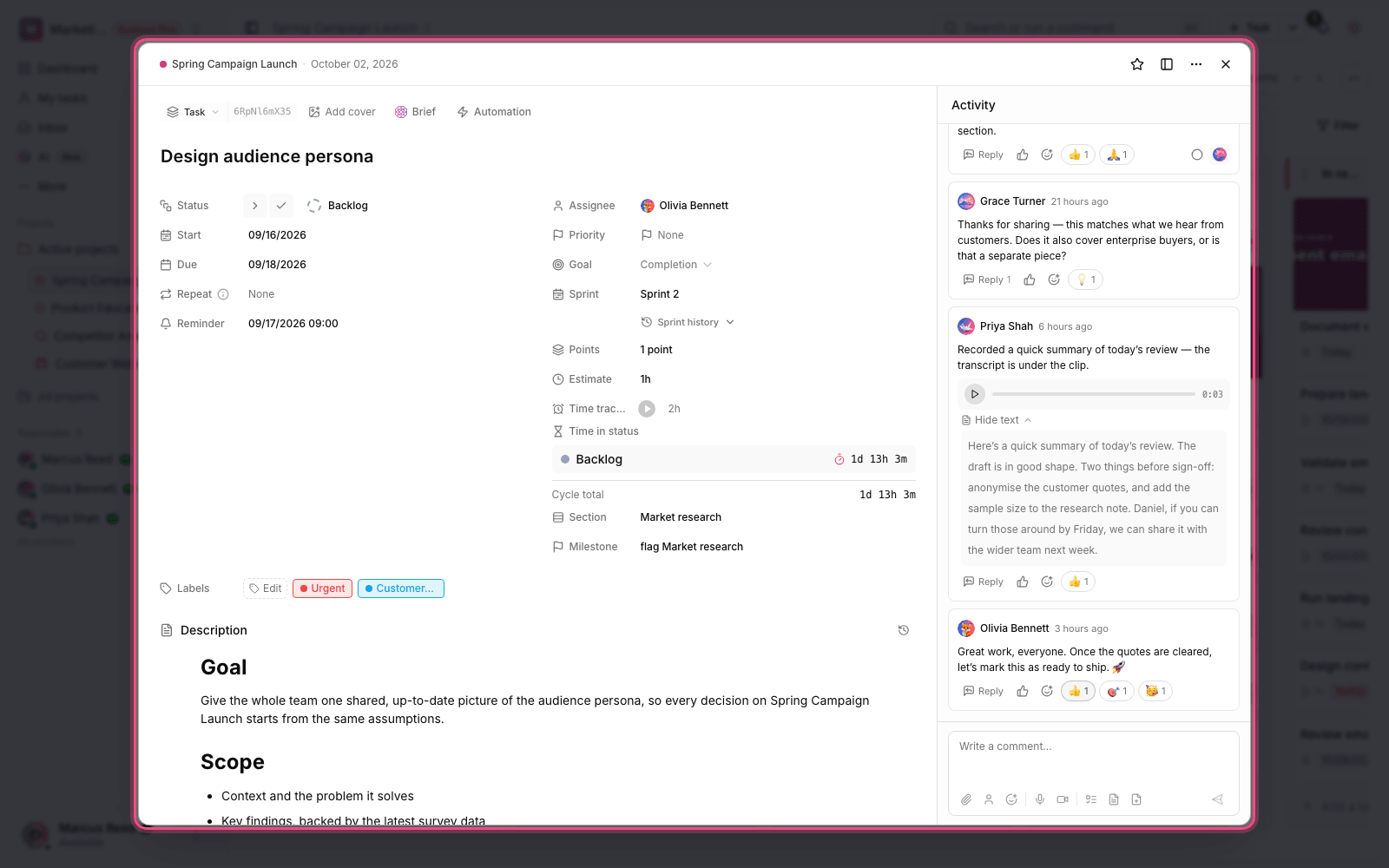
- Each row shows a colored dot, the status name, and the total time the task has spent in that status.
- The current status is highlighted with a timer badge, and its time counts up live.
- If the task has returned to a status several times, the number of times appears next to the status name with a marker such as 2×.
- The last row, Cycle total, shows the combined time across all statuses.
If no time has been recorded yet, you'll see the message No time has been recorded for statuses yet. That's normal: the rows appear with the first status change after the feature is turned on.
Which statuses are counted
Time in status focuses on the active stages of work, not the final ones. Final statuses such as Done or Closed aren't counted, because the goal is to measure time spent in the workflow, not how long finished work sits around. Another important point: you don't have to do anything for it to be measured. Even a task that just sits in one status keeps accumulating time, starting from the moment the feature was turned on or the task was created.
Find bottlenecks with this data
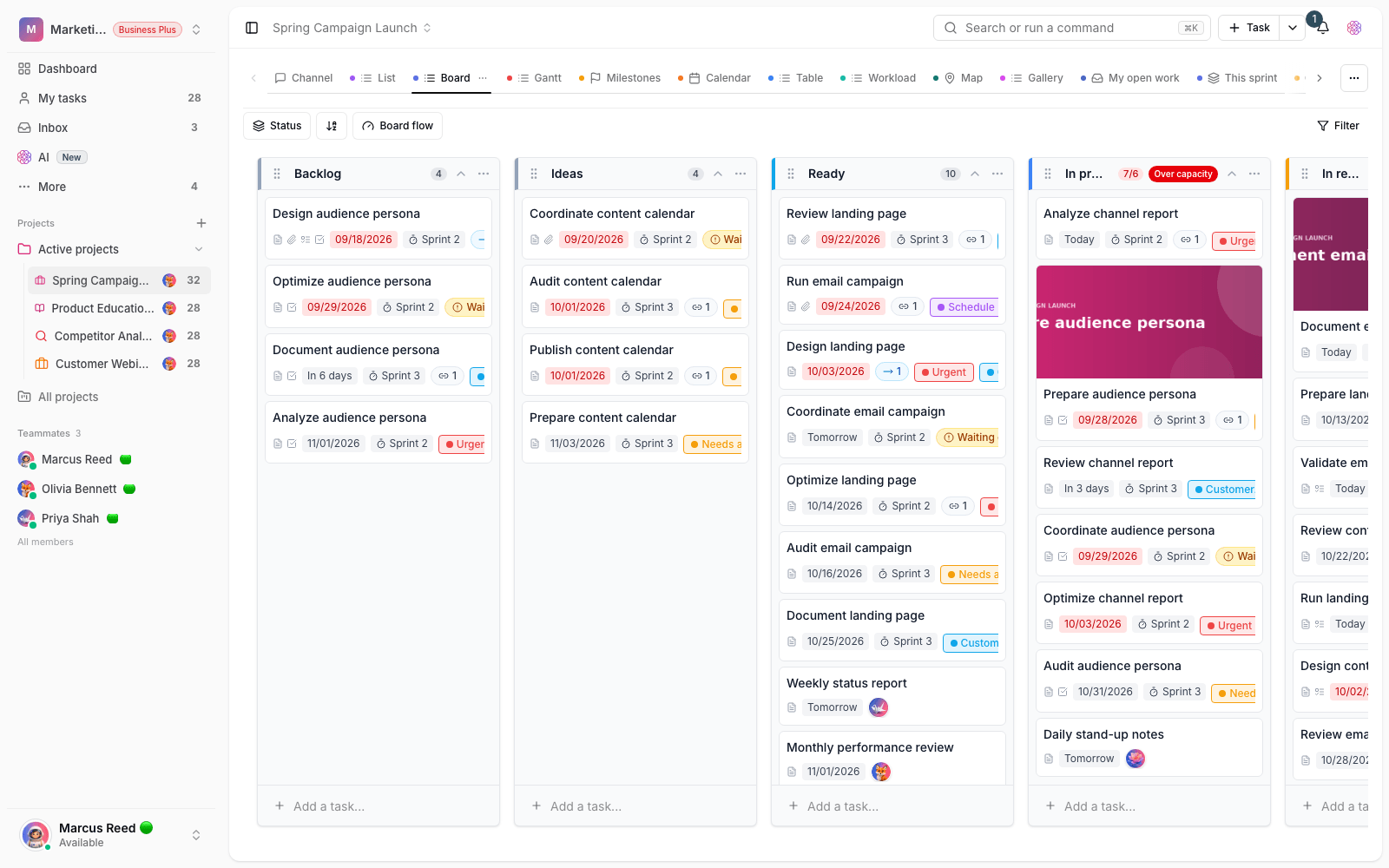
When you look at several tasks side by side, patterns reveal themselves. To put it to practical use:
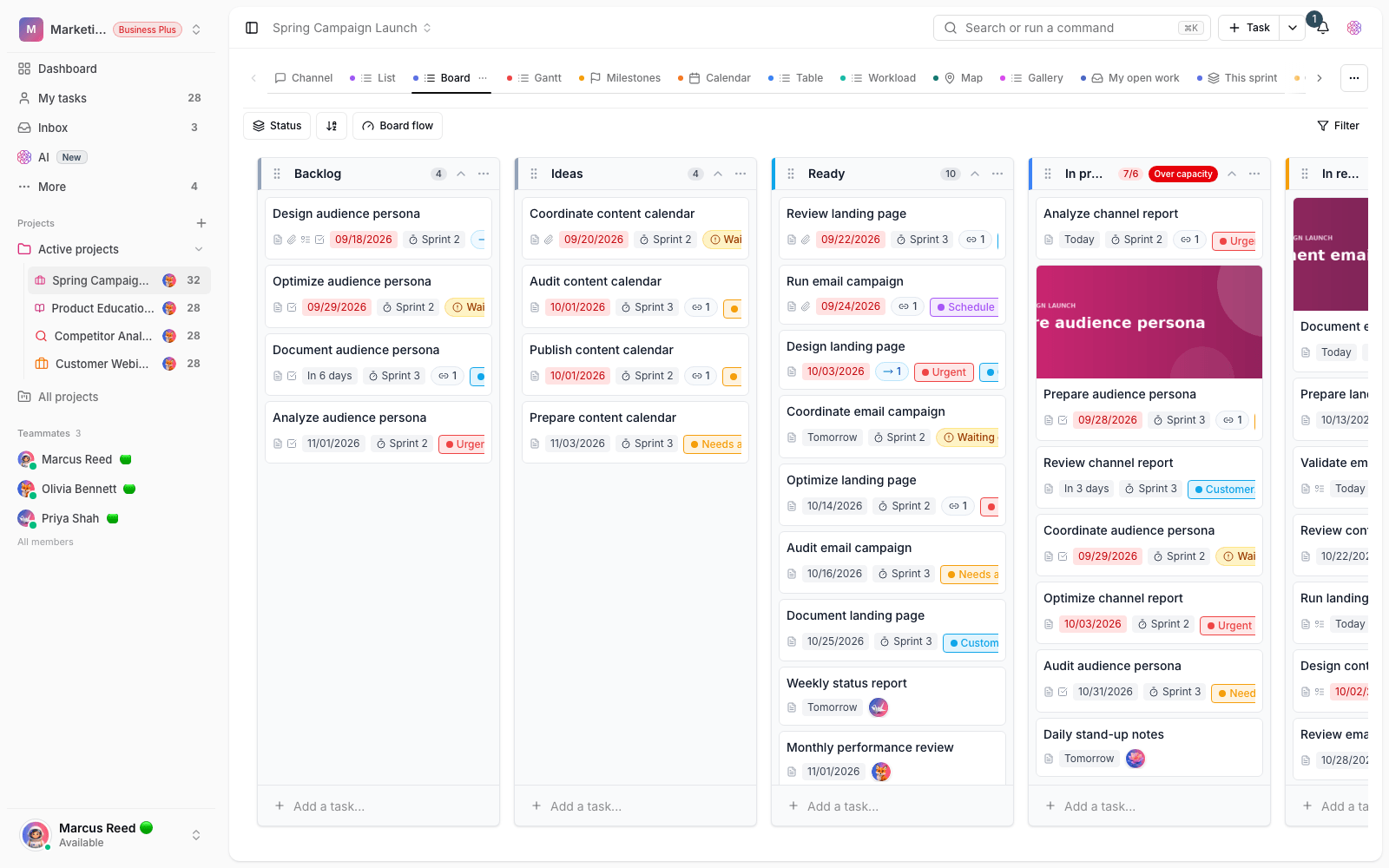
- The status with the longest duration across most tasks is your most likely bottleneck.
- Lots of back-and-forth to one status usually signals unclear acceptance criteria or a lot of rework.
- If a task has stayed unusually long at one stage, it may be waiting on a decision, an approval, or another dependent piece of work.
Next step: to log the actual effort spent on those same tasks, see Track time on tasks. For your team's time totals and charts, visit Project time reports and time widgets.