
Track time on tasks
Log and total the real time spent on each project task with the live timer, manual entries, or the agent.
When you know how many hours each piece of work really took, you can plan better, give more accurate estimates, and, when needed, bill clients fairly. In Taskie, you do this with Time tracking: a simple tool on every project task that records how long you work and keeps it in one total.
You have two ways to log time: a live timer that you start when you begin working and stop when you're done, or a manual entry, which suits times when you forgot to start the timer and want to enter the duration later. Both methods add up to the same single total on the task.
Where time tracking is and which tasks it works on
When you open a task, you'll see a row called Time tracking in its details. That row shows a play button for starting the timer and the total time logged so far. If no time has been logged yet, you'll see Add time instead of the total.
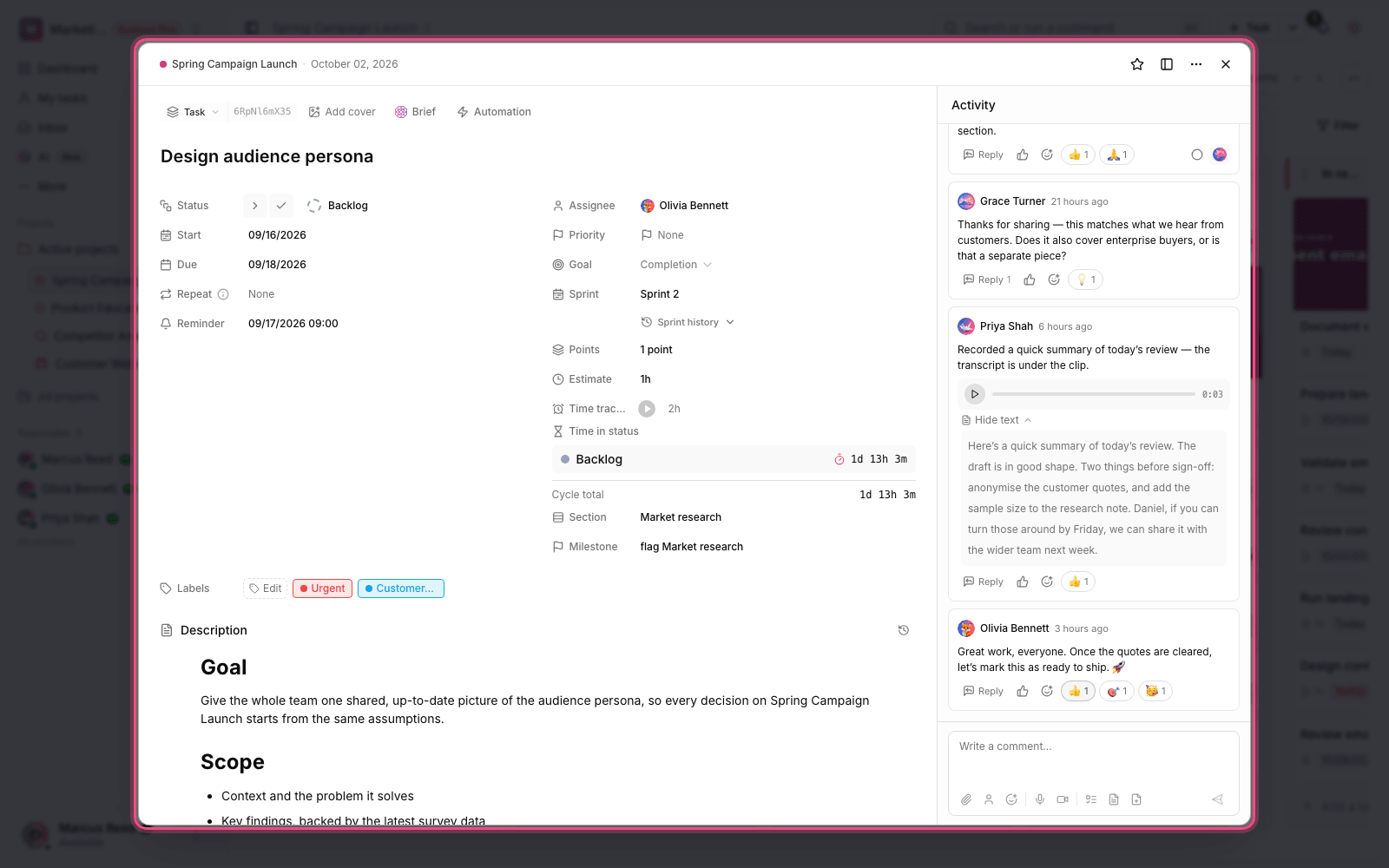
Time tracking works only on tasks that belong to a project; the section doesn't appear on tasks without a project. It's available on plans that include time tracking, and a workspace admin can turn it on or off in the workspace's Features settings.
- If your workspace's plan doesn't support time tracking, the timer stays locked in projects even when the setting is on.
- If an admin has turned off Enable time tracking, the time tracking section isn't shown to members.
- Each user can have only one active timer per workspace.
Use the live timer
The simplest way to log time is with the timer. Start it right before you begin working and stop it when you put the work down, so the exact duration is calculated.
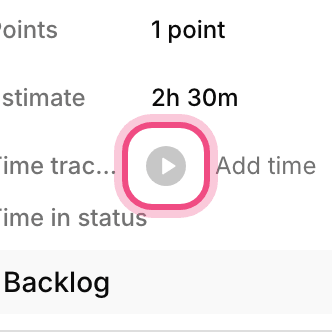
- Open the task and go to the Time tracking row.
- Click the play button to start the timer. The elapsed time counts up live.
- When you're finished or want to stop, click the stop button (the red square).
- Taskie adds that stretch of time to the task's total logged time.
Remember: Because each user has only one active timer at a time, Taskie warns you if another timer is running in the same workspace when you try to start a new one. Stop the previous timer first.
Log time manually
If you forgot to start the timer or did the work outside Taskie, you can enter the time manually.
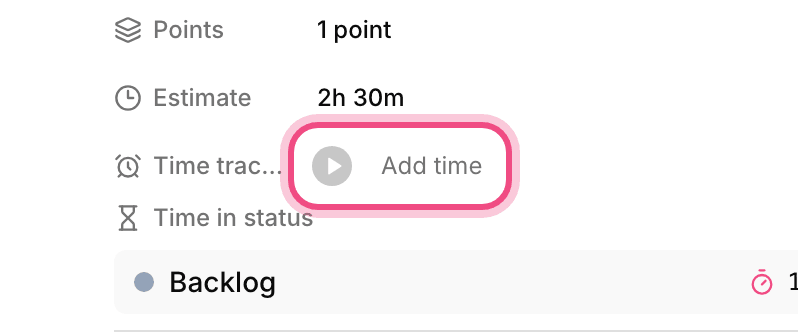
- Click Add time (or the displayed total) next to the timer button to open the form.
- Type the duration in the duration box. For example,
3h 20mmeans three hours and twenty minutes. - Choose the start date and time and, if you like, write a short note.
- If this time is billable, turn on the Billable toggle, then click Log.
A workspace admin sets the default state of the Billable toggle. If Billable by default is on, new time entries are treated as billable from the start. Billable time is kept separately from total time, so it's easy to break down and report on later.
Log time with the Taskie agent
In Agent mode, you can write directly: "Log two hours on the page design task," "Start the timer on this task," or "Stop the task timer." If the task's ID or name isn't clear, the agent asks you to pick the task.
- The agent logs time only for you and never attributes time to another teammate.
- For a manual entry, if you don't say a start time, the logged period ends at the current time. If you give a start time, the end of the period is calculated from the duration.
- Plan mode first proposes the time entry or timer start and stop for you to review. Ask mode only gives guidance and doesn't change anything.
Log time for teammates
The workspace owner and admins, plus members with permission to manage team time, can log or edit time for other project members as well as their own. In that case, the manual entry form shows a member picker so you can choose who the time is logged for. Regular members only see and manage their own time.
To edit or delete a time entry, open it in the task's list of entries. Note that if a timer is still running, you need to stop it before you can edit it.
Common time tracking mistakes
- Forgetting to stop the timer: a timer left running logs the wrong hours. Make a habit of stopping it at the end of each work session.
- Logging on the wrong task: make sure the timer is running on the work you're actually doing.
- Ignoring the billable status: if you bill clients, check that this toggle is set correctly when you log time.
- Entering an impossible duration: the end time must be after the start time, or the entry won't be saved.
Next step: to see your team's total time and its charts, go to Project time reports and time widgets. If you want time to be logged automatically during deep work, see Pomodoro timer and focus mode.
To see all the hours logged in a period, see the Project timesheet.