
Project time reports and time widgets
Total and analyze your team's logged time with dashboard time widgets and member contribution profiles.
Logging time on tasks becomes truly valuable when you can total it up and see where your team's time went. Taskie gives you that big picture with a set of time widgets on the dashboard, from total logged time to how it breaks down across projects and days of the week.
These widgets are built from the same time entries members log on tasks. So the more consistently your team logs time, the more complete and reliable the reports will be.
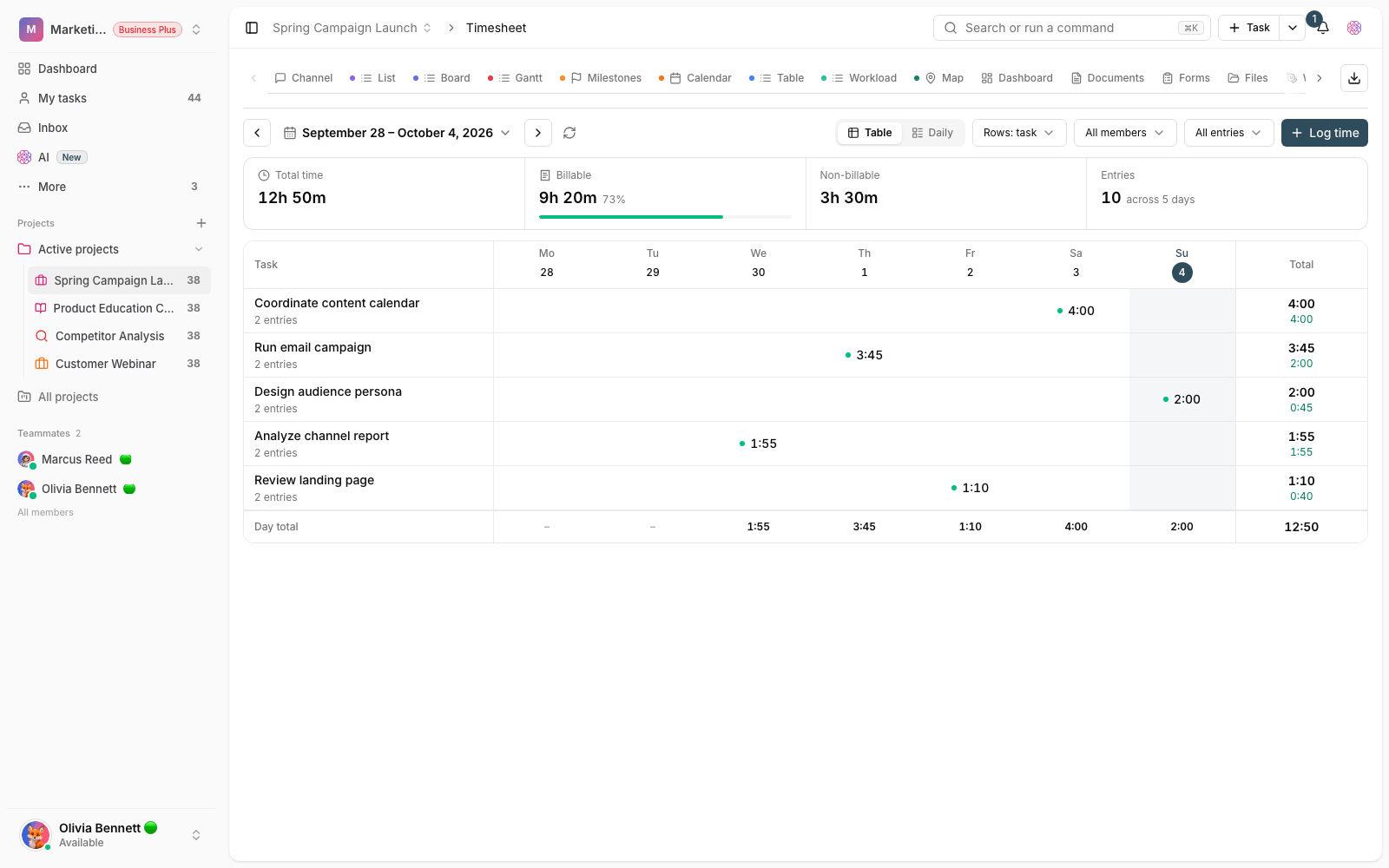
Time widgets on the dashboard
The dashboard widget library has a category called Time with several ready-made views for reviewing logged time. Each widget shows a different angle on the same data:
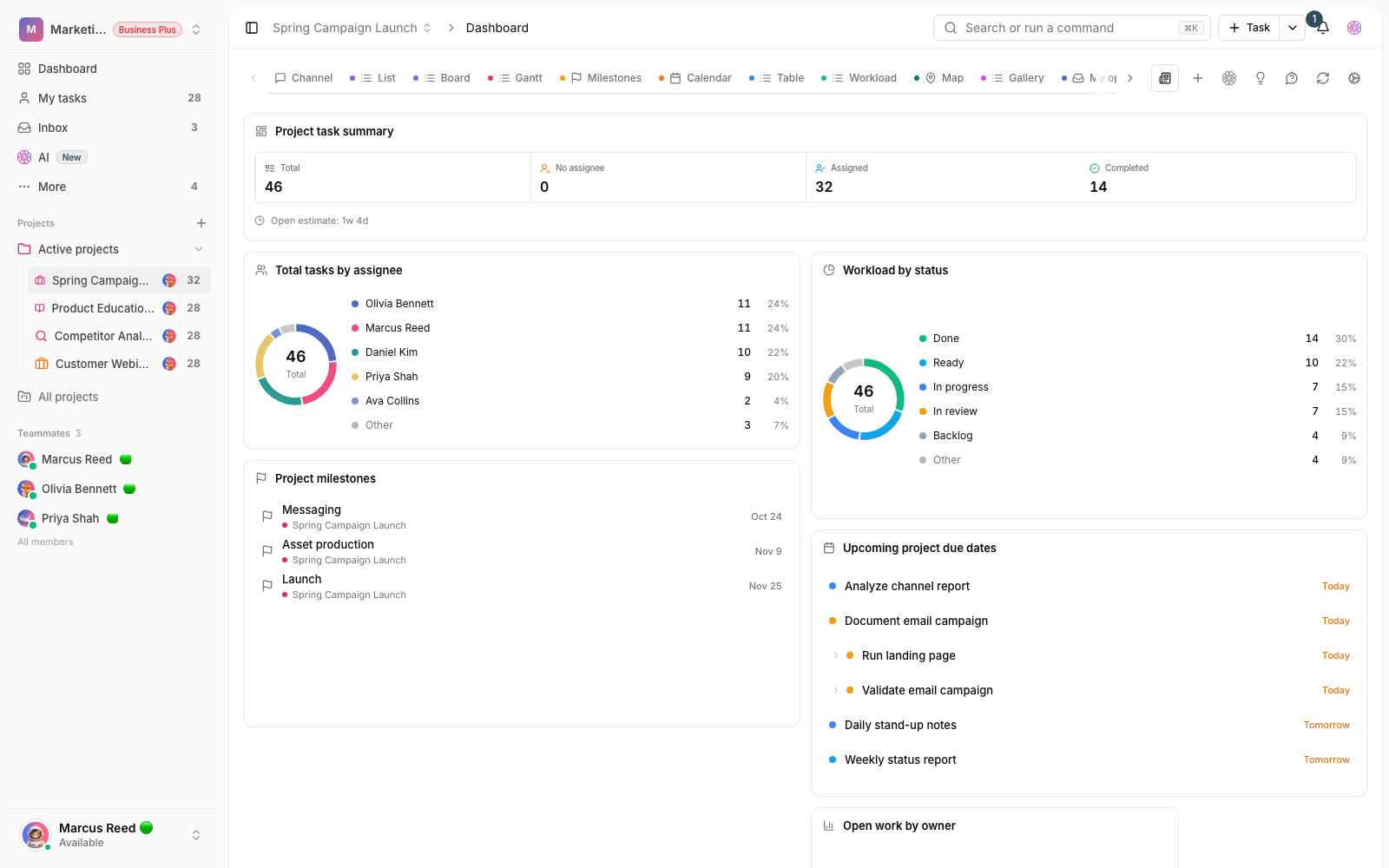
- Logged time summary: total time and the billable share at a glance, with a bar showing the billable percentage.
- Daily time: a bar chart of time logged on each day of the week, so you can see how work is trending.
- Time by project: how time breaks down across projects, so you know which project took the most time.
- Billable time breakdown: the ratio of billable to non-billable time.
- Pomodoro focus: your personal focus time, number of sessions, and daily streak (this widget shows your own stats, not the whole team's).
Add a time widget to the dashboard
You add time widgets to the dashboard from the widget library, just like any other widget.
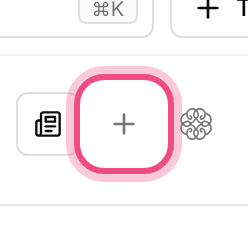
- Open the dashboard you want and turn on its edit or customize mode.
- Open the widget library and choose the Time category, or search for the widget's name.
- Add the widget you want, then move and resize it in the dashboard layout.
- Changes save automatically, and the widget shows time data right away.
Tip: If you've limited the dashboard to a specific project, the time widgets show only that project's time. To see the whole workspace, use a dashboard that isn't limited to one project.
Report period and scope
Dashboard time widgets work on the last seven days: they always show the most recent week, not a custom range. These views combine the time of every member who logged time on tasks in that scope, so they're great for seeing the team's share of work on a project.
- The time widgets' period is always the past seven days and updates on a rolling basis.
- Time widgets show the members' combined work, but Pomodoro focus covers only your own focus sessions.
- If a member hasn't logged any time yet, they won't have a share in the reports.
See each member's time
For a closer look at one person's work, open that member's contribution profile. There, the Time tracked card shows their total logged hours and billable share. Also, admins with the right permission can see the time entries of every project member on any task, while regular members only see their own entries.
Tips for more accurate reports
- Log time promptly: ask members to log time the same day so the daily chart stays accurate.
- Set the billable status correctly: the billable breakdown only means something if this toggle was set correctly when the time was logged.
- Pick the right dashboard for the goal: use that project's dashboard for a project report, and the workspace dashboard for the big picture.
Next step: if you're not yet familiar with logging time, read Track time on tasks first. To find out which stage your work gets stuck in, go to How long tasks stay in each status.