
Limits and plan upgrades
Each plan has its own limits and features. This guide explains the limits, the upgrade messages and the right time to upgrade your plan.
Every plan in Taskie has a set resource budget: the number of projects, storage space, an automation limit and a list of features that are either on or locked. These limits are designed to keep each team's cost in line with its size and needs, not to get in the way of your work.
Importantly, Taskie tells you about each limit clearly and at the moment it matters, and says exactly which plan you need to remove it. On this page you'll see the types of limits, what message appears when you reach a limit, how the upgrade window suggests the right plan and when the best time to upgrade is.
Two types of limits in Taskie
Plan limits fall into two simple categories, which are also shown this way in the Full feature comparison table:
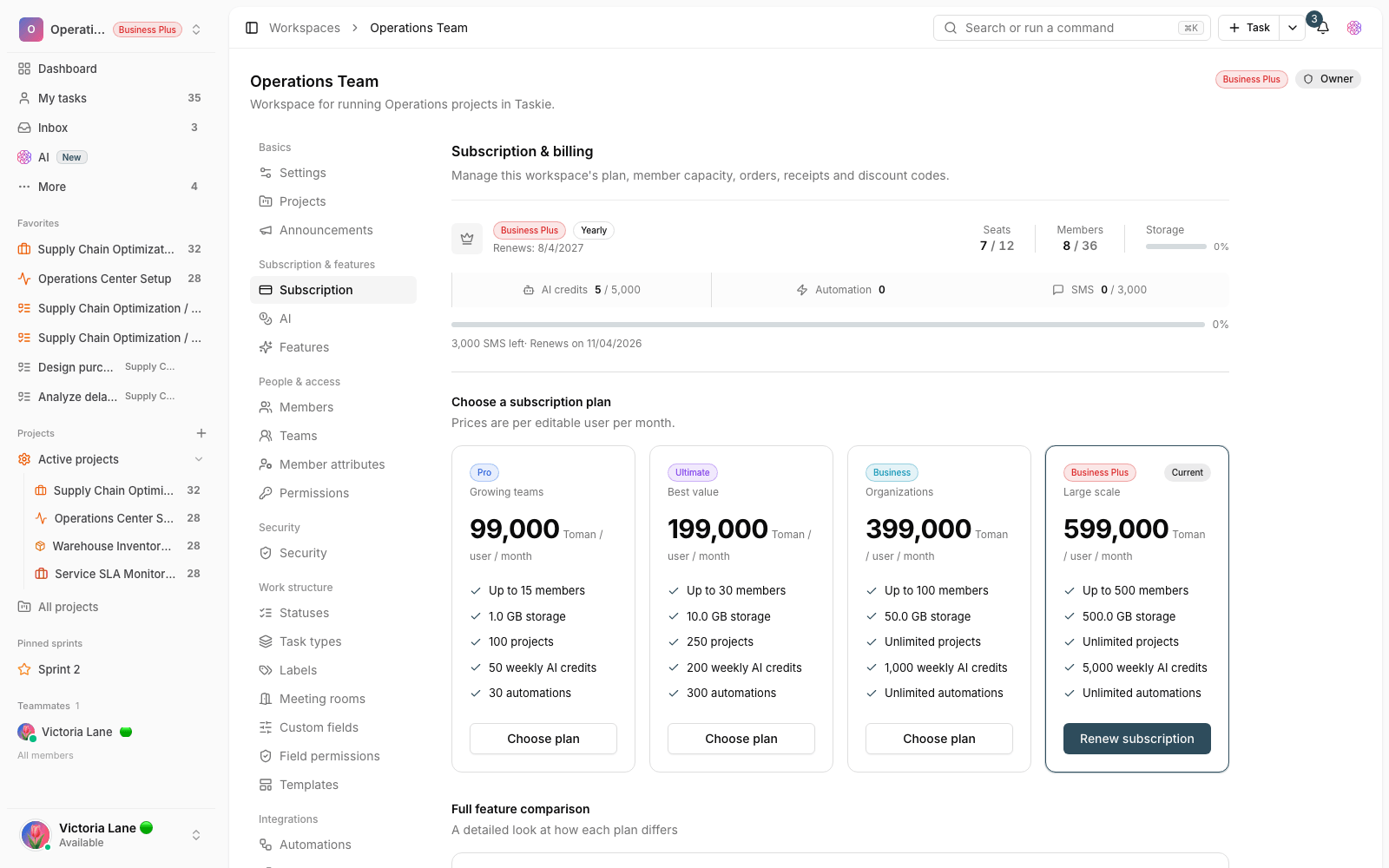
- Numeric limits: a set amount you can't go beyond, such as the number of projects, number of folders, storage space, custom fields per project, the monthly automation limit or AI credits. On higher plans many of these become unlimited and are shown with the infinity symbol.
- Locked features: features that are either on in a plan or not, such as the Gantt chart, project documents and files, sprint reports, and enterprise security features like single sign-on (SSO), LDAP connection, audit logs and custom roles and permissions.
- Member capacity: a special kind of limit tied to the number of seats in your subscription, which sets the total number of members allowed in the workspace.
What you see when you reach a limit
Instead of a vague error, Taskie shows a clear message that tells you which limit has been reached. The most common messages are:
- "This feature is not available on your workspace's current plan" for locked features.
- "The current workspace plan's limit has been reached" when you've hit the numeric limit for a resource.
- "The storage limit in the workspace's current subscription has been reached" when storage is full.
- "Daily quota" or "The workspace plan's monthly quota has been reached" for tools such as automations and the AI assistant.
- "The workspace's member capacity in the current subscription is full" when there's no room for a new member.
The upgrade window and choosing the right plan
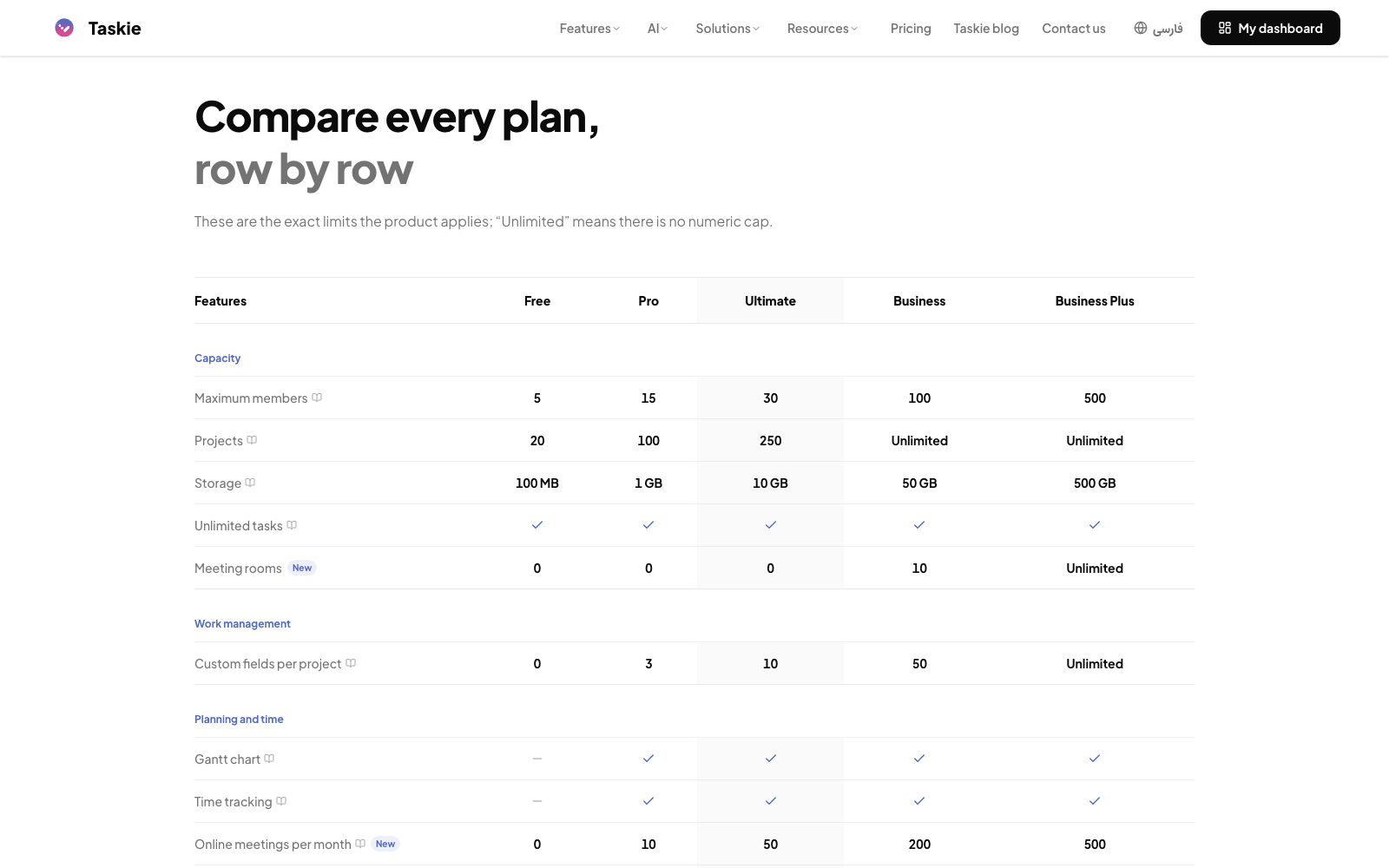
When you hit a limit, Taskie shows a message and also opens an upgrade window that places your current plan next to the higher plans and shows exactly which plan unlocks the feature or limit you need. That way you don't have to search the table yourself: the lowest-cost plan that meets your need is highlighted, and you can start the purchase right from there.
When and how to upgrade
Upgrading makes sense when the current limit gets in the way of your team's daily work, or when you need a feature that's locked on your current plan. To upgrade, follow these steps:
- Recognize the signs: storage filling up, reaching the project limit, running out of automation quota, or needing a feature such as project documents or enterprise security.
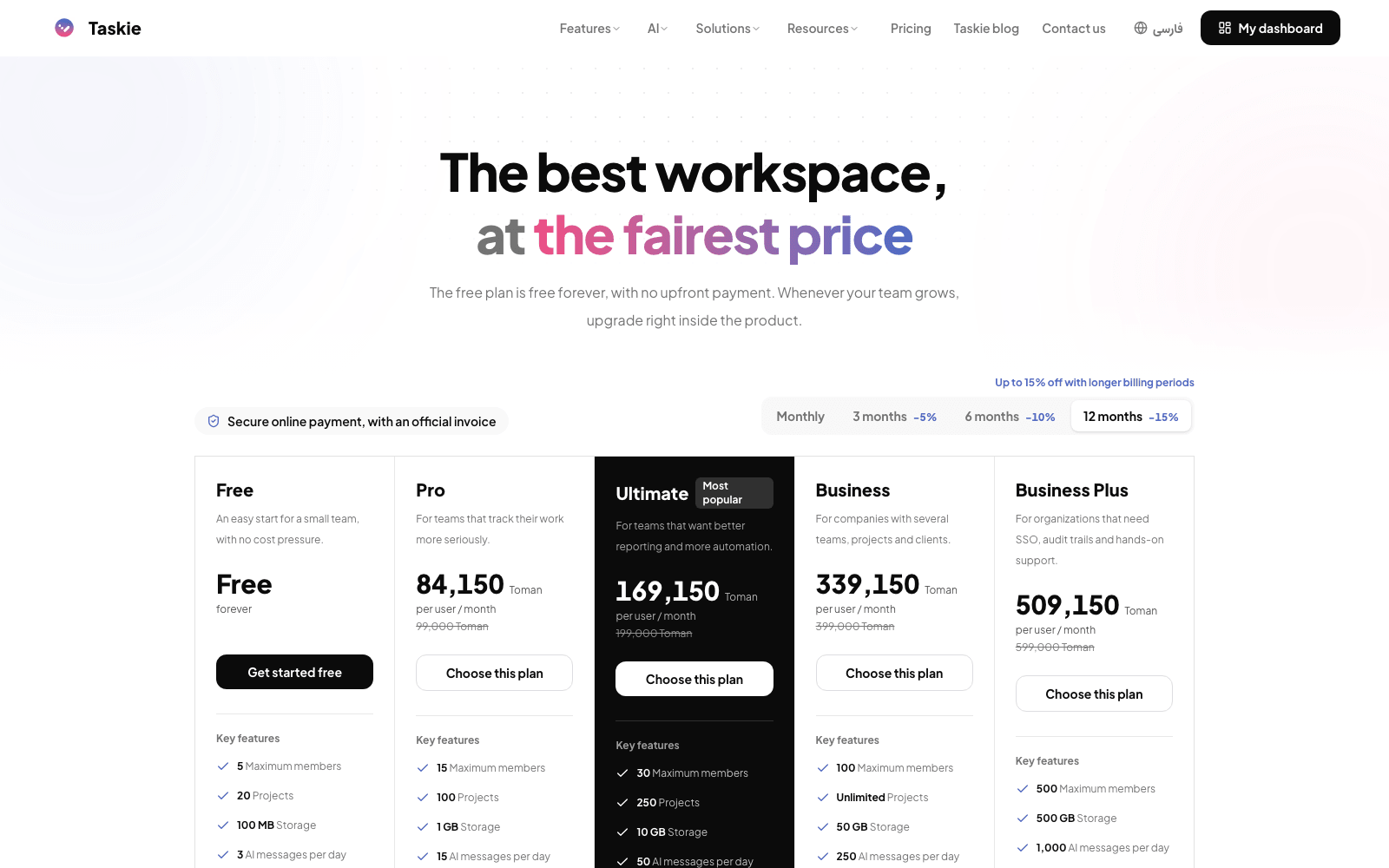
- Go to workspace settings, open the Subscription tab and check the status bar to see your current usage.
- In the comparison table or the upgrade window, find the plan that covers the feature or limit you need.
- Click Choose plan, set the number of seats and the billing period, and place the order.
- Because an upgrade is a change upward, it applies immediately, and only the difference for the remaining period is charged.
Common mistakes
- Waiting until the critical moment. It's better to upgrade before storage or member capacity is completely full so your team's work doesn't stop.
- Mistaking a locked feature for a technical error. A "not available on your current plan" message just means you need to upgrade.
- Assuming upgrades are delayed. Upgrades and downgrades both apply as soon as the order goes through.
- Ignoring the seat-to-member ratio when adding people. Sometimes you only need more seats, not a plan upgrade.
Tip: Always check the status bar in the subscription section before upgrading. Sometimes your problem is solved with a few more seats on the same plan, with no need to move to a higher plan.
Next step: for a detailed comparison of each plan's limits and features, visit Plans and feature comparison, and to set seats and member capacity before upgrading, read Managing your subscription and member capacity.