
Plan changes and downgrades
Upgrades, downgrades and seat changes apply as soon as the order goes through, and the unused credit on your current plan is never lost. Learn what each change does.
A plan change goes in one of two directions, and both apply as soon as the order goes through. What differs is the money: an upgrade uses your remaining credit to lower the price, and a downgrade turns that credit into extra time on the new plan.
Upgrading your plan
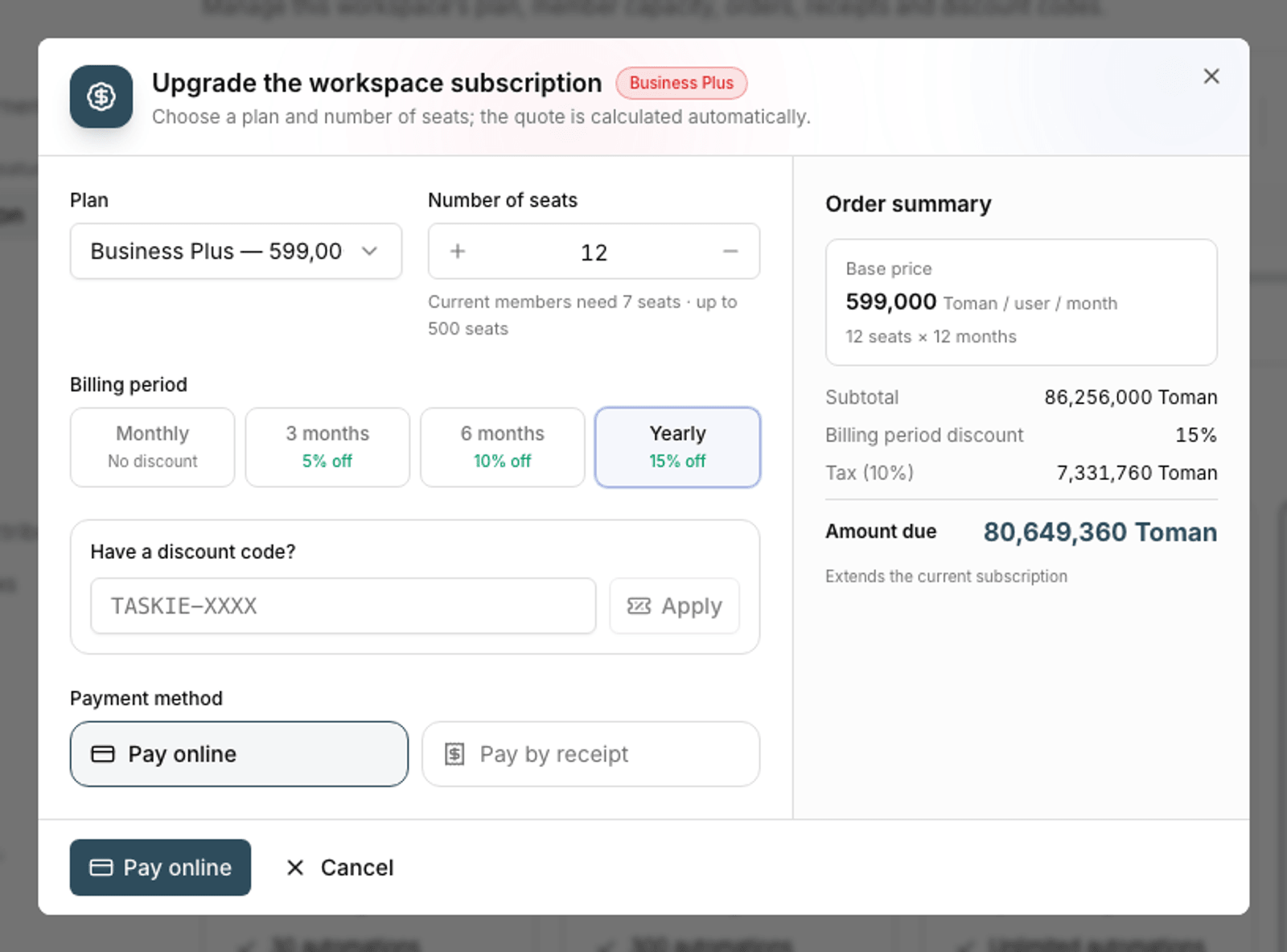
- Go to the subscription and billing section and open Choose plan.
- Choose the higher plan and the number of seats you need.
- Review the quote; your current plan's remaining credit is deducted from the amount.
- Click Apply plan change. If there's an amount left to pay, you're taken to the payment gateway.
- Once the payment is confirmed, the new plan's features are available immediately.
Downgrading your plan
When you choose a lower plan, the change applies right away. The unused value of your current plan, prorated by the days left, is credited toward the new plan. It usually covers the whole price, so no payment is needed, and whatever is left over pushes the new plan's end date further out.
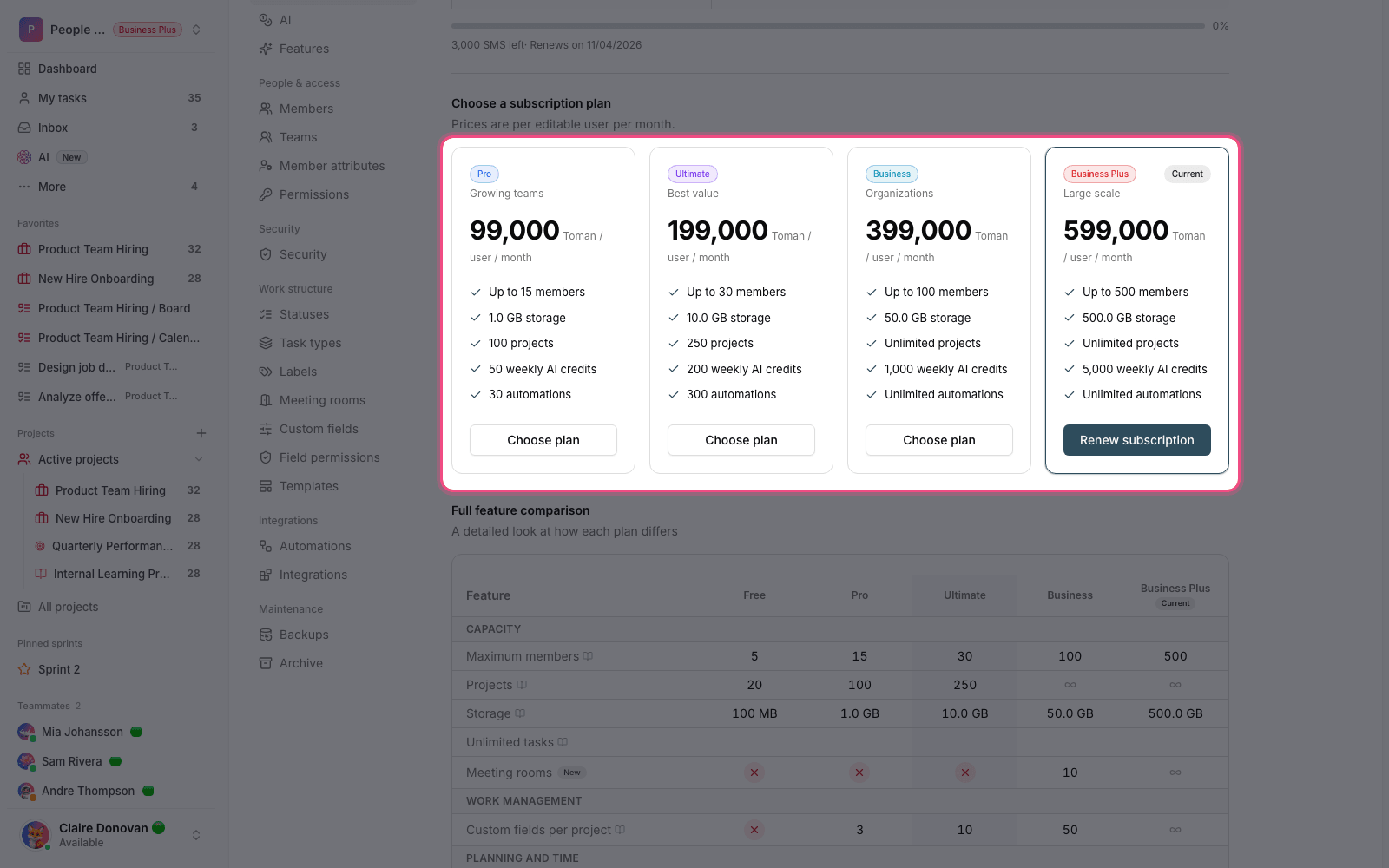
- Price: your remaining credit is deducted first; if it covers the new plan, the change applies without a payment.
- End date: leftover credit becomes extra days on the new plan, so nothing you paid for is lost.
- Scheduled changes: when Taskie support arranges a downgrade for you, it may be scheduled for the next renewal; the subscription page then shows a Scheduled change notice.
Check before you downgrade: The lower plan's limits apply as soon as the downgrade goes through. Compare your current projects, members and storage with the target plan's limits and clean up the extras first; the number of seats can't go below the members you already have.
Changing the number of seats
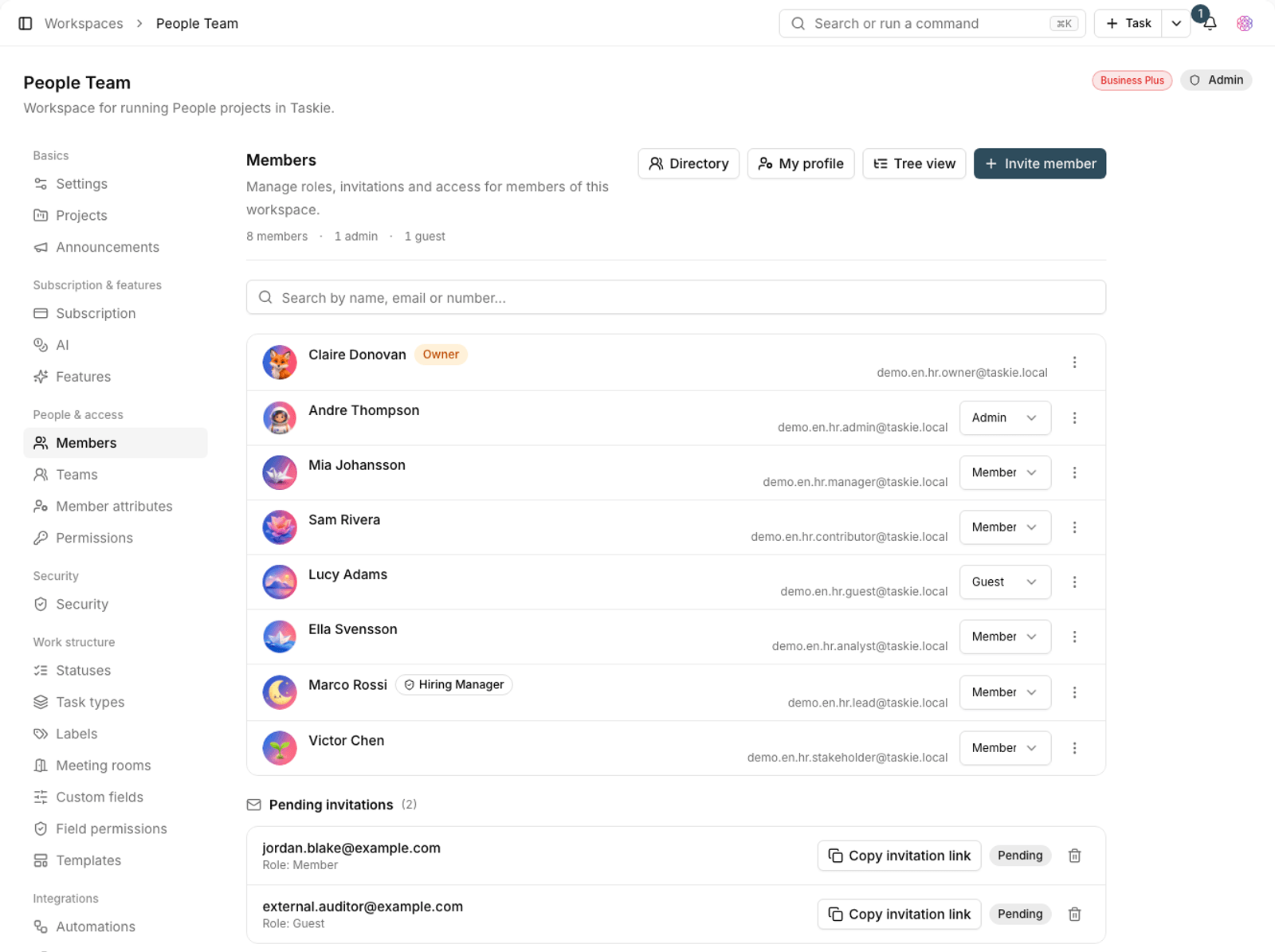
Member capacity can be changed independently of the plan, and the change applies right away. Adding seats costs the difference for the time left in the period. Removing seats works like a downgrade: the unused value becomes extra time, but you can't go below the number of members you already have.
Trial period
If your workspace is on a trial, the trial's end date is shown on this same page. After the trial ends, changing the plan or number of seats is done through a new order.
What you lose when you downgrade
Downgrading doesn't delete your data, but it closes off access to some features. Items above the new plan's limits usually become read-only so you can decide which ones to keep.
- Higher-plan features: features such as Gantt or agent workflows are turned off, but their data is kept.
- Items above the limit: extra projects, goals and boards aren't deleted; you just can't create new ones until you're back under the limit.
- Member capacity: if you have more members than the new plan allows, remove some before you downgrade.
- Storage: files aren't deleted, but you can't upload new files until you free up space.
Timing your plan change
Choosing the right time to change your plan lowers the cost. Because the calculation is based on the time left in the period, a change at the start of a period has a different financial effect than one at the end.
- Upgrades: the closer you are to the end of the period, the smaller the difference you pay.
- Downgrades: the unused value carries over as extra time whenever you downgrade, so the timing doesn't cost you anything; just get under the new plan's limits first.
- Adding capacity: increase capacity before inviting new members so the invitations aren't rejected.
- Renewal: buying the same plan and seats again adds the new period to the end of the current one.
To compare plans, see Plans and feature comparison, and for limits, see Limits and plan upgrades.