
Payments and invoices
This guide walks through paying in Taskie, from the automatic quote to paying online or by receipt and issuing a formal invoice.
Every subscription change, whether you're buying a new plan or adding seats, goes through a clear, transparent path where you see exactly how much you're paying and for what before any payment. This transparency lets the person handling your team's finances decide without worrying about hidden costs.
On this page we follow the whole path: how the quote is built and what it contains, which payment methods are available, what happens to an order after you place it, and finally how to issue and download a formal invoice for your workspace. All of these steps are available in workspace settings, on the Subscription tab.
The quote and what it includes
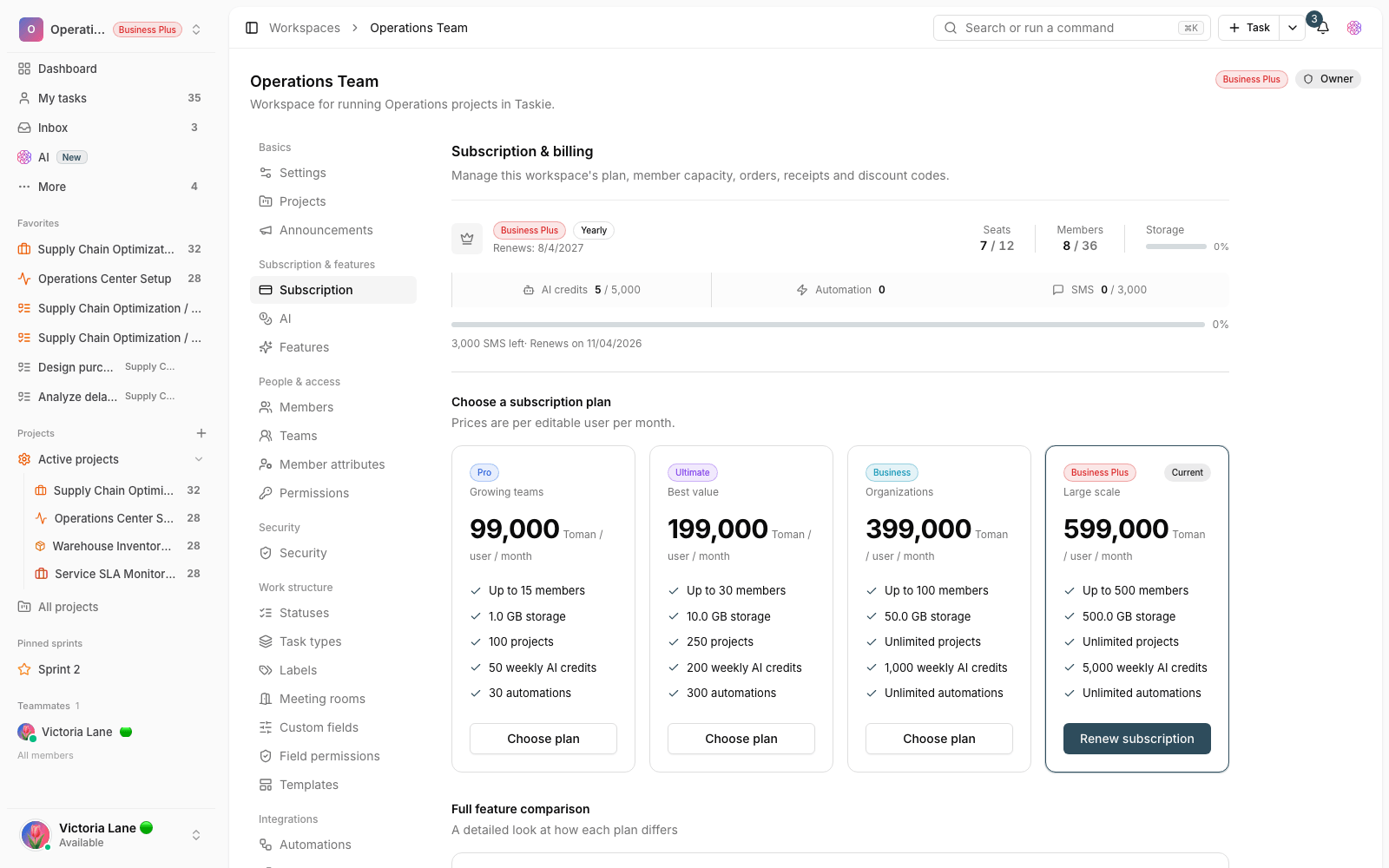
When you choose a plan, a number of seats and a billing period, Taskie instantly builds a quote and shows it in the Order summary column. The quote is made up of several parts:
- Subtotal: the price per user per month multiplied by the number of seats and the number of months in the billing period.
- Billing period discount: a discount applied based on the period: 5% for 3 months, 10% for 6 months and 15% for a year. Monthly billing has no discount.
- Discount code: if you enter a valid discount code, the amount it takes off is shown separately.
- Tax: value-added tax is added to the amount at the configured rate.
- Amount due: the final amount after discounts and tax, along with an Applies immediately or Applies at the next renewal label.
Payment methods
Depending on the workspace's settings, one or two payment methods are available. If online payment is turned on, you can choose between Pay online and Pay by receipt.

Paying online
With online payment, clicking Pay online takes you to the payment gateway, and after a successful payment the order is recorded automatically. This is the fastest way to activate a subscription, and you don't need to upload a receipt manually.
Paying by receipt
If you want to pay by card-to-card transfer or direct bank deposit, choose the receipt method. The steps are:
- Open the Transfer details section to see the account number and payment instructions.
- Transfer the Amount due to that account.
- Add an image or PDF of the receipt in the upload box.
- If needed, write a reference number or a note in the Notes box.
- Click Place order. The order is recorded with the Pending review status.
Order review and approval
After you place an order with a receipt, you'll see the message Purchase request submitted, and the order is sent to the admin team for review. Until it's approved, its status stays Pending review, and the subscription is only activated after approval. If the order is rejected, the reason is shown in the note column. Remember that each workspace can have only one order pending review at a time. All orders, with their status, number of seats, period, amount and tax, are recorded and kept in the Recent orders table.
Formal invoices and billing details
If you need a formal invoice, first fill in the Billing details for invoices. These are the buyer details printed on the invoice:
- The required fields are Buyer's legal name, Economic code, National ID, Postal code and Full address.
- Optional fields such as registration number, branch code, phone and email can also be filled in.
- After the order is approved, the Issue formal invoice button becomes available in that order's row.
- You can download the issued invoice as a PDF or as a PNG image.
Discount codes: You can enter and apply a discount code in the purchase window. The amount due is recalculated instantly, and the history of codes used is kept for the workspace on the same page.
Common mistakes
- Closing the window before clicking Place order. Until the order is placed, a receipt payment isn't complete.
- Trying to issue an invoice before the order is approved. The invoice button is only available on approved orders.
- Not completing the billing details. Without the required fields, the invoice can't be issued.
- Placing a new order while the previous one is still pending review.
Next step: to set the right number of seats before paying, see Managing your subscription and member capacity, and to understand limits and when to upgrade, read Limits and plan upgrades.