
Managing your subscription and member capacity
A Taskie subscription applies to the workspace. This guide shows how to set seats and member capacity and keep them in line with your team's size.
A workspace subscription isn't just a plan and a price. Behind it is a capacity model that determines how many people can work in your workspace and how many of them can edit. Understanding this model helps you set capacity to exactly what your team needs without paying extra.
All of these settings live in workspace settings, on the Subscription tab. On this page you'll see who is allowed to manage the subscription, the difference between editable seats and total member capacity, how to add or remove seats and what to do when capacity is full.
Who can manage the subscription?
Managing the subscription is a sensitive permission, and by default only the workspace Owner and Admins have it. If your workspace uses custom roles and permissions, the billing management permission can also be given to other roles. Other members can see this section, but they see the message "Only the workspace owner or an admin can place a subscription order." and the purchase buttons are disabled for them.

The seat model and member capacity
Taskie distinguishes between two concepts: a seat, which is an editable member, and total member capacity, which also includes viewers and guests. The rule is simple:
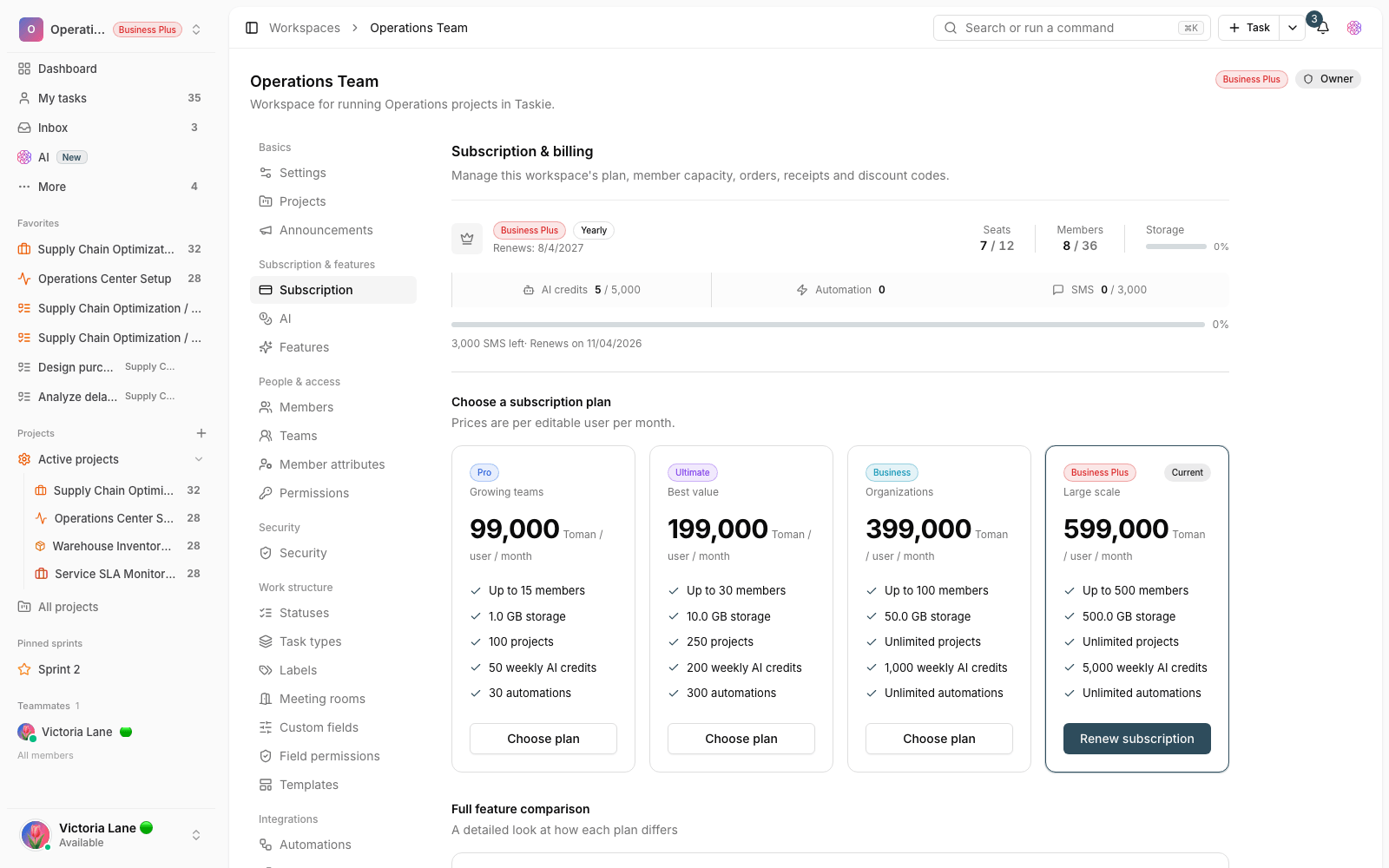
- Each seat covers one editable member, meaning someone who can create tasks and change work.
- Total member capacity is three times the number of seats. So if you have 5 seats, up to 15 members (including guests and viewers) fit.
- The status bar at the top of the subscription page shows two ratios: Seats (editable members out of total seats) and Members (total members used out of total capacity).
- The Seats and capacity section also shows the remaining Free seats and Guest capacity, so you know how much room you have.
Changing the number of seats
You don't have to wait for the end of the billing period to add or remove seats. You can do it any time from the purchase window:
- Go to workspace settings and open the Subscription tab.
- On the card for the plan you want, click Choose plan to open the purchase window.
- In the Number of seats box, set the number of seats with the plus and minus buttons or by typing it.
- The quote updates automatically. Apply a billing period and, if you have one, a discount code.
- Choose a payment method and place the order so it's sent for review and approval.
When a change takes effect
Every change applies as soon as the order goes through. If you move to a higher plan or add seats, your current plan's remaining credit is prorated by day and deducted in the quote. If you downgrade or remove seats, that credit usually covers the new price, so no payment is needed, and any leftover is added to the new plan's end date. A Scheduled change notice appears only when Taskie support has scheduled a change for your next renewal.
Keeping capacity in line with your members
You can't set the number of seats lower than your current members; Taskie calculates and shows the minimum required based on your existing members. When you add a member and capacity is full, you'll see one of these messages:
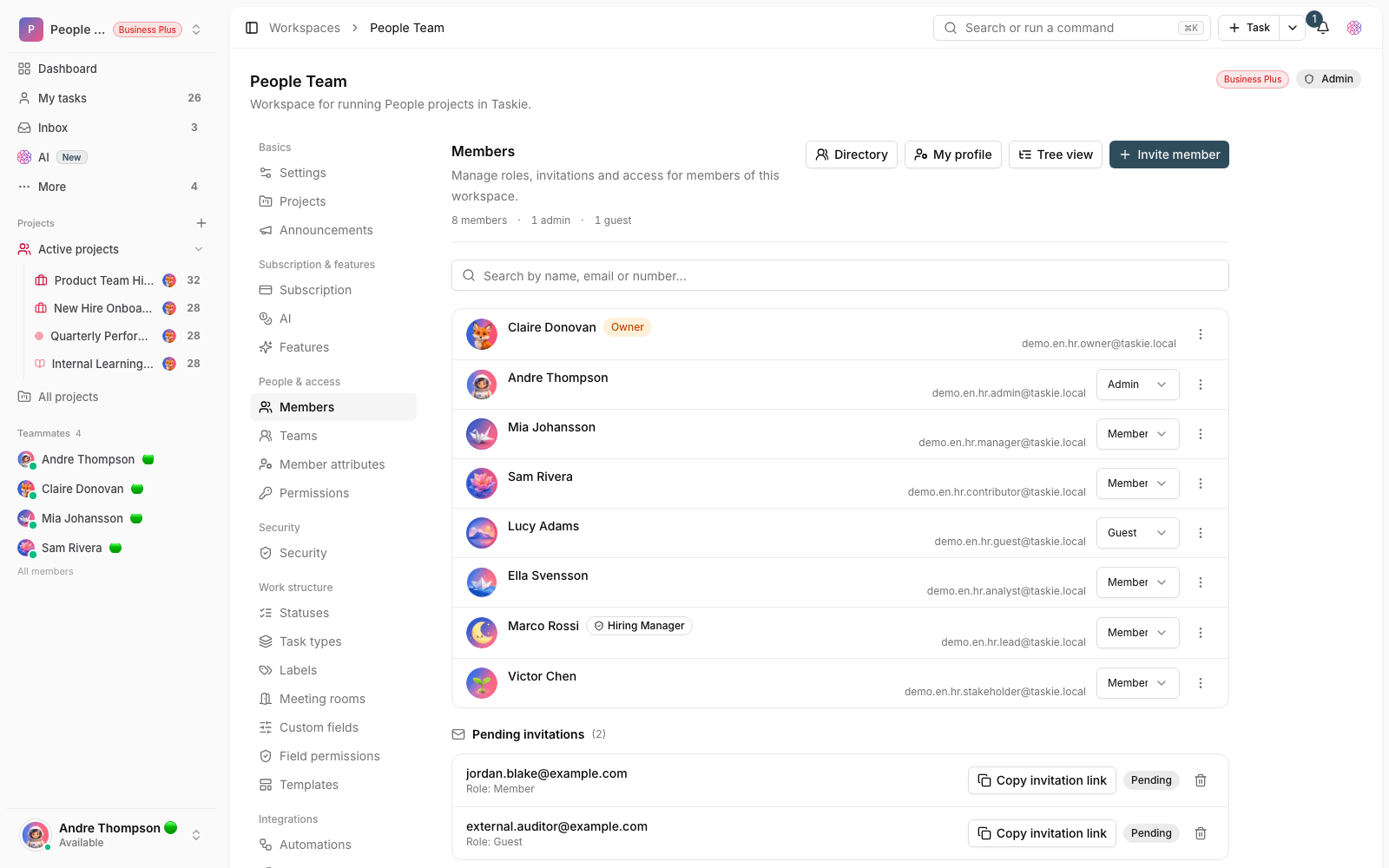
- "The workspace's member capacity in the current subscription is full" means you've reached the total member limit and need to add seats.
- "There's no free editable seat on this workspace plan" means all editable seats are taken, and to move a member to an editing role you first need to buy a seat.
- When you remove seats, if the number is lower than your current members, a message shows the minimum number of seats required.
- For a very large number of seats beyond the plan's limit, a message asks you to contact support.
Note: Each workspace can have only one order Pending review at a time. Until the previous order is approved or rejected, you can't place a new one, so choose the number of seats and the billing period carefully before placing an order.
Common mistakes
- Treating seats and total members as the same thing. Seats are only editable members, and total capacity is three times that.
- Trying to remove seats below your current number of members. You first need to remove members or change their roles.
- Expecting a downgrade to wait for the renewal. A downgrade applies right away, and so do the lower plan's limits.
- Placing a new order while another order is still pending review.
Next step: to learn about the payment steps, the quote and issuing a formal invoice, read Payments and invoices. To find out the limits of each plan, see Limits and plan upgrades.
For discount codes and remaining credit, see Discount codes and remaining credit, and for upgrades and downgrades, see Plan changes and downgrades.