
Plans and feature comparison
Taskie has five plans, from Free to Business Plus. This guide explains how their features differ and how to choose the right plan for your team.
Choosing a subscription plan is one of the decisions that directly affects your whole team's experience, from the number of projects and storage space to features such as the Gantt chart, project documents and security tools. In Taskie, the subscription applies to the workspace, which means the plan you choose sets the same access level and limits for every member of that workspace.
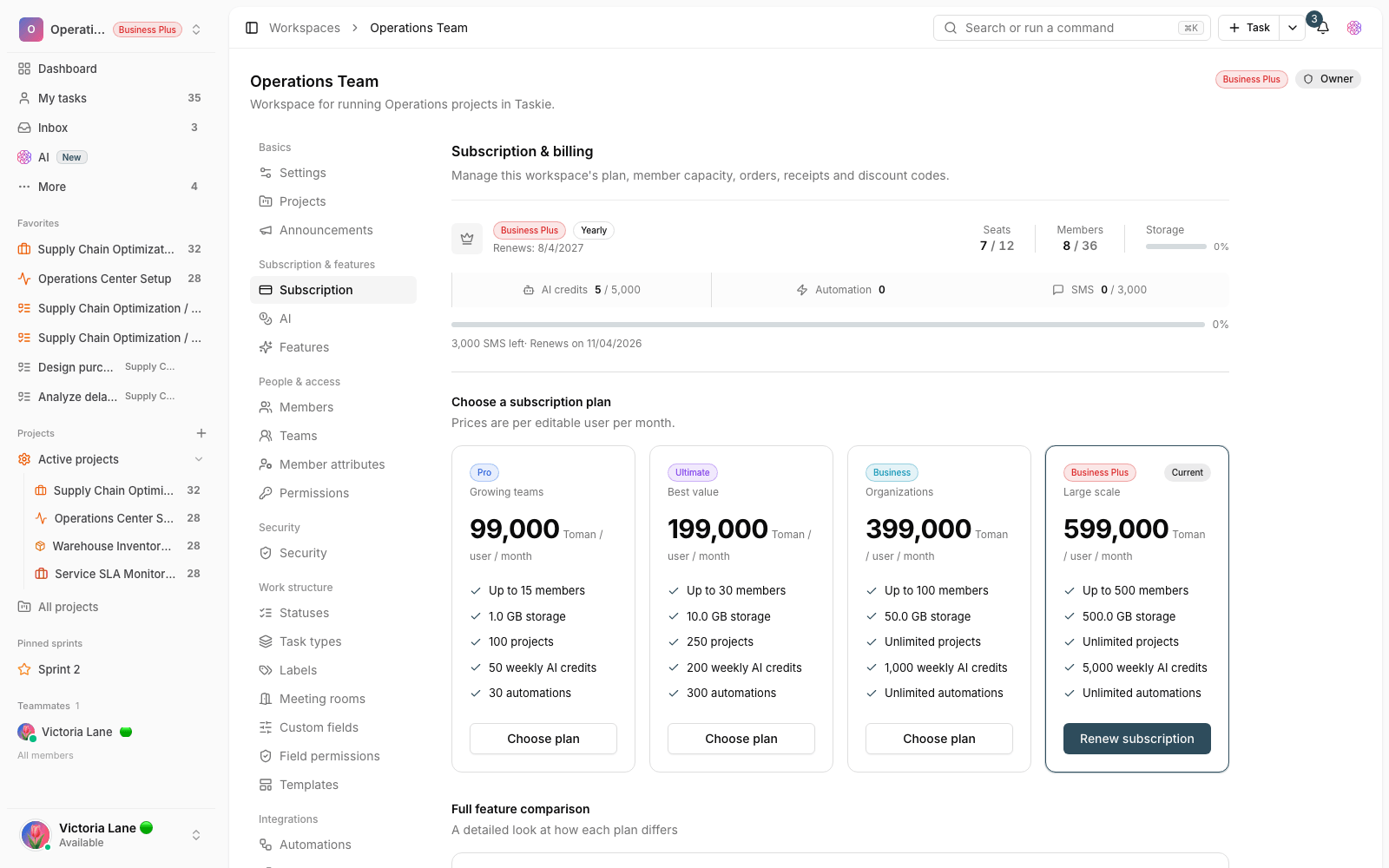
All plans and their differences are gathered in one place: go to workspace settings and open the Subscription tab to see both the plan cards and the Full feature comparison table. On this page we cover how many plans there are, how prices are calculated, how to read the comparison table and what to look at when choosing the right plan.
Plans at a glance
Taskie has five plans, arranged from the lightest to the most complete. The higher you go, the higher the resource limits and the more features are unlocked:
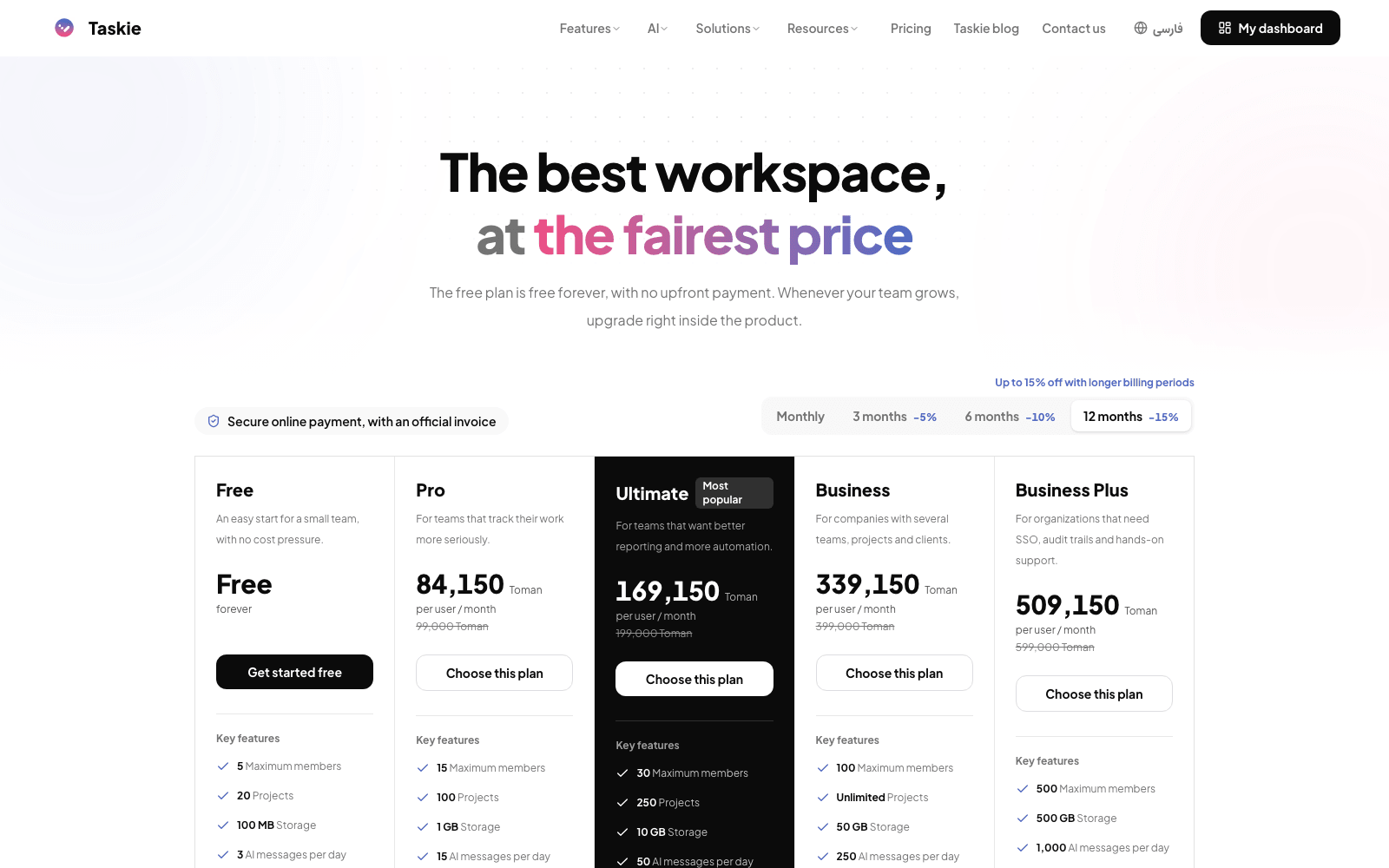
- Free: for getting started and small teams; core work management features with limited projects, folders and storage.
- Pro: for growing teams; the Gantt chart, more custom fields and higher limits.
- Ultimate: the recommended, best-value option; work calendars, sprint reports and advanced security alerts. It's the only plan with a free trial.
- Business: for organizations; project documents and files, unlimited projects and much more storage.
- Business Plus: for large-scale use; enterprise security features such as single sign-on (SSO), LDAP connection, audit logs, custom roles and permissions, and priority support.
How are prices calculated?
Each plan's price is set per editable user per month and is shown on that plan's card. The final amount depends on three things: the plan you choose, the number of seats (editable members) and the billing period. The longer the billing period, the bigger the discount: monthly billing has no discount, 3 months gets 5%, 6 months gets 10% and yearly gets 15% off. Value-added tax is added to this amount at the configured rate, and all of these parts are shown clearly in the quote.
How to read the feature comparison table
Below the plan cards is the Full feature comparison table, which lines features up side by side in several categories so you can see the differences precisely. The column for your current plan is marked with the Current label.
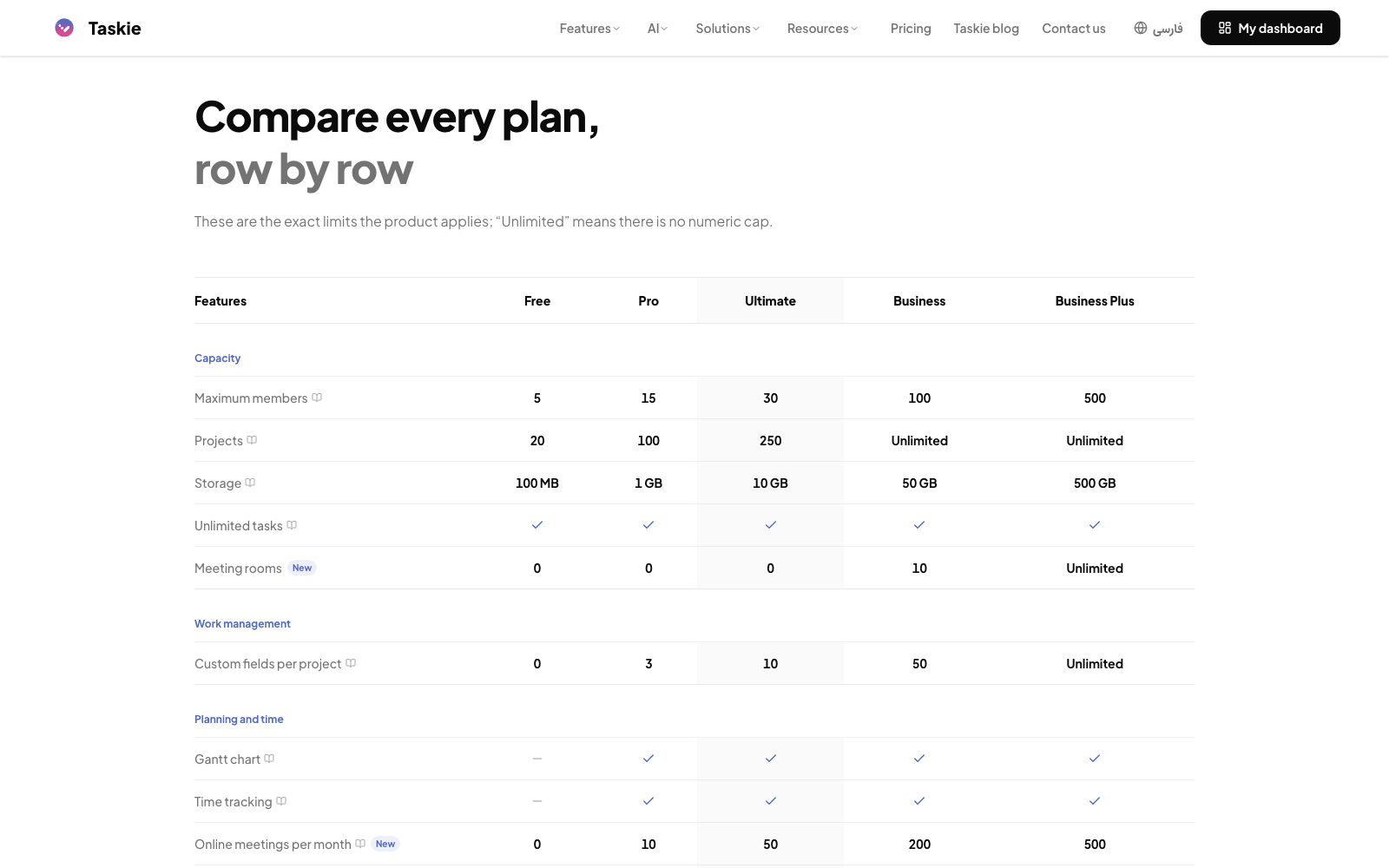
- The categories include Pricing, Capacity and resources, Work management, Planning and reporting, Collaboration and content, Security, API and support and AI and agents.
- A green check mark means the feature is supported on that plan, and a red cross means it isn't available.
- The infinity symbol means that resource is unlimited, for example unlimited projects or storage on the higher plans.
- Numeric values such as the number of projects, storage or the monthly automation limit are written right in the cell.
How to choose the right plan for your team
To choose well, start from your team's real needs instead of looking only at the price, and follow these steps:
- Estimate your team size: how many people need to edit work, and how many are only viewers or guests. This number sets how many seats you need.
- List the key features you need, such as the Gantt chart, project documents and files, sprint reports or enterprise security tools.
- In the comparison table, find the lowest plan that covers all of those features and limits.
- If you're considering the Ultimate plan, you can start its free trial before buying so you can decide with confidence.
- Choose a billing period. A longer period comes with a bigger discount but also a bigger financial commitment.
Common mistakes
- Choosing a plan on price alone: sometimes a more expensive plan ends up cheaper in practice because of its higher limits and unlocked features.
- Forgetting that a plan is activated for the whole workspace, not for one specific user.
- Ignoring the ratio of seats to members: total member capacity is a multiple of your editable seats, as explained on the subscription management page.
- Assuming every plan has a trial: only the Ultimate plan has a free trial.
Tip: If you're not sure where to start, try the features with the Ultimate plan and its free trial. You can change plans whenever you need to, and upgrading to a higher plan takes effect immediately.
Next step: once you've found the right plan, see Managing your subscription and member capacity to set the number of seats and coordinate with your team, and read Limits and plan upgrades to learn about limits and upgrade messages.