
Folders and file organization
Keep your workspace files tidy and easy to find by creating folders, nesting them, and reordering them with drag and drop.
Once you have lots of files, one long, jumbled list is practically useless. Folders are what turn the file center from a crowded storeroom into a tidy shelf. With the right structure, every team member reaches the file they need in seconds, and nobody wastes time hunting around.
In Taskie, you can create folders, nest them, move and reorder them by dragging, and collapse busy branches so the side list stays clean. This guide shows all of these tools step by step so you can build a lasting structure for your team.
Create a new folder
A folder is always created in the space (shared or personal) and the location you're currently in. To create a folder:
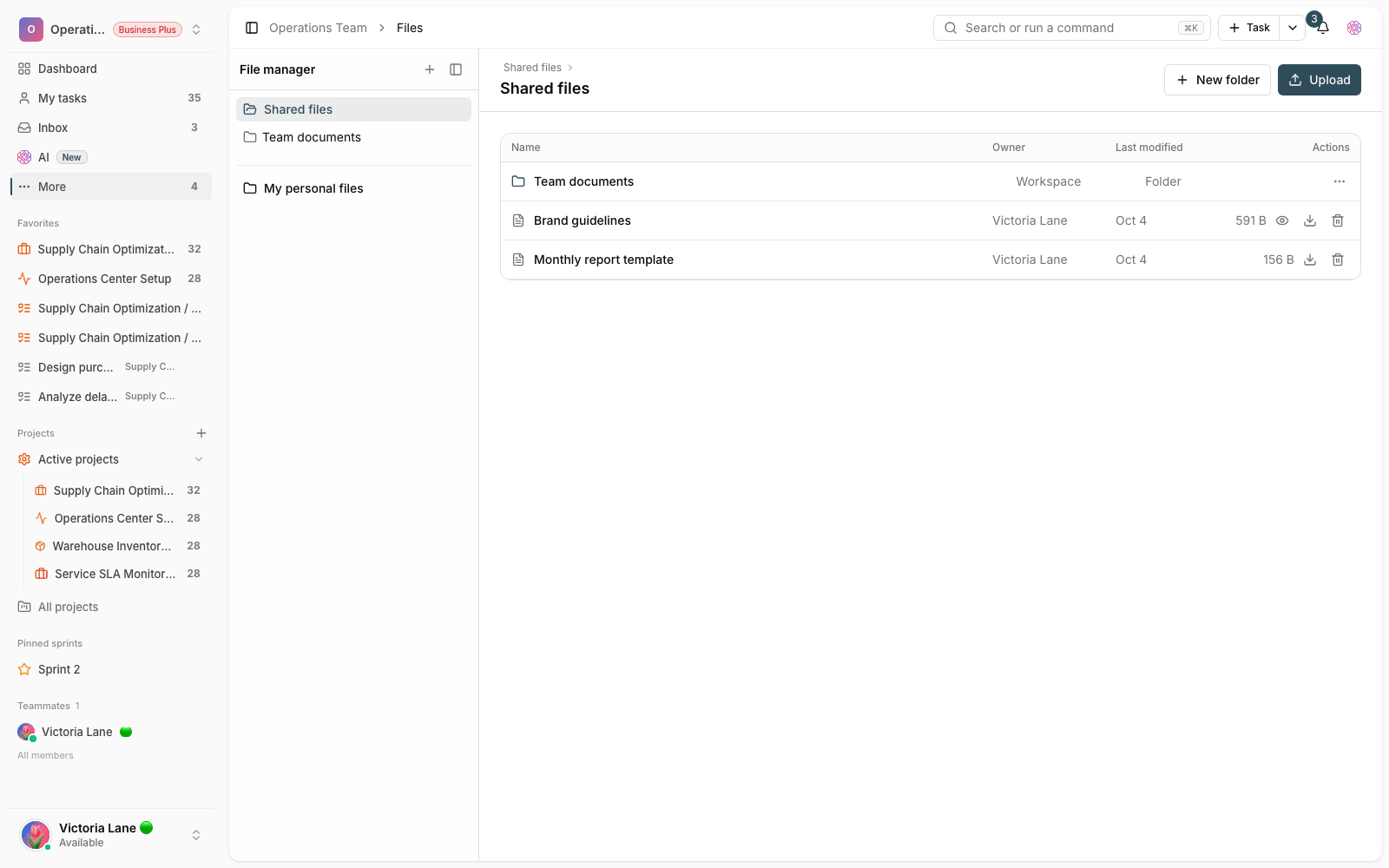
- First, go to the space and parent folder you want the new folder to live in.
- Click New folder in the top bar or next to the list title.
- In the box that opens, enter a descriptive name for the folder.
- Click Create. You'll see the Folder created. message, and the folder appears in the list right away.
Clear naming is half of good organization. Names such as "Design files," "Contracts," or "Meeting outputs" work much better than vague names and make visual scanning easier.
Nest and reorder by dragging
The folder list on the side of the page works like a tree and is fully movable. You can build whatever hierarchy you want:
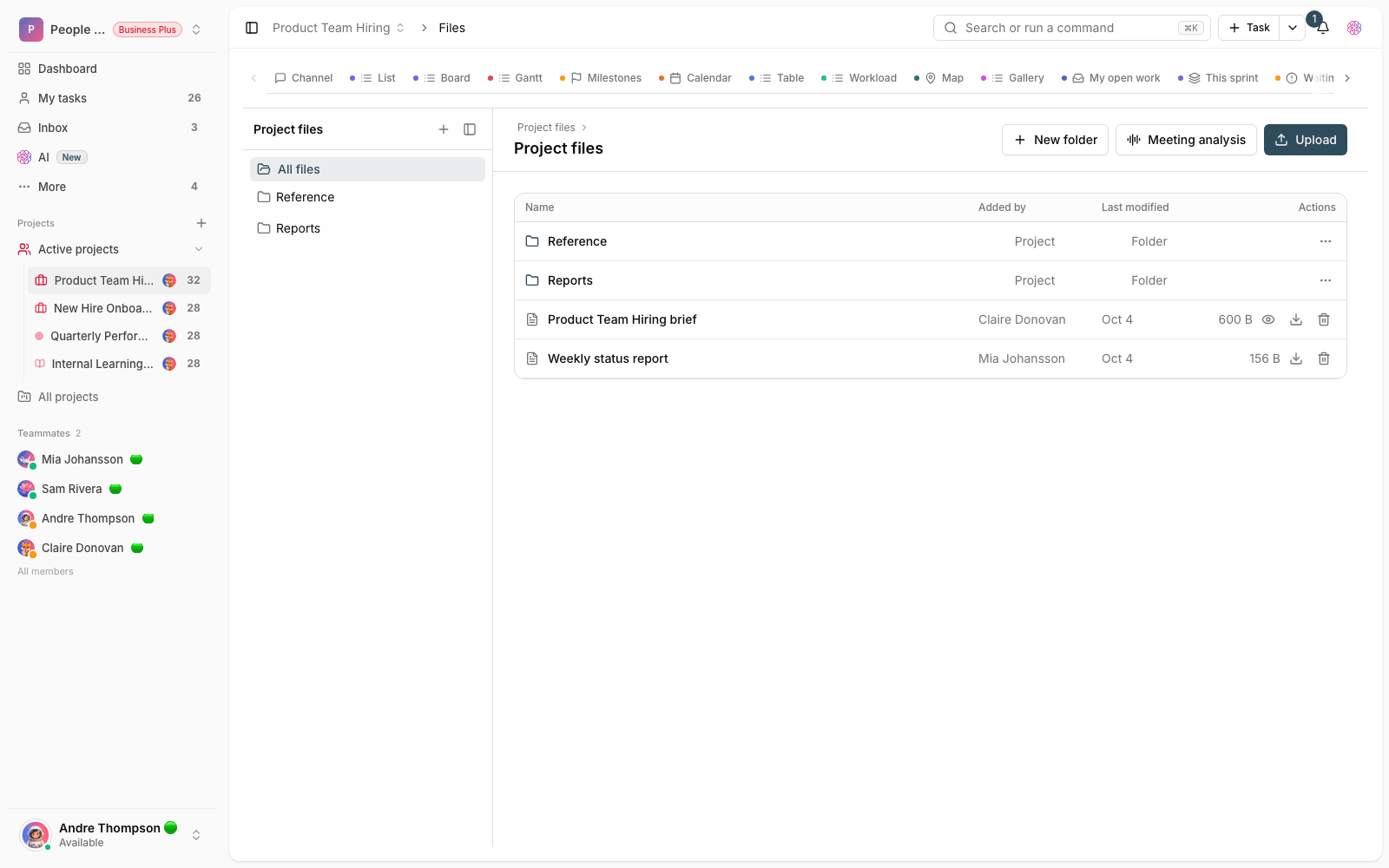
- Drag a folder and drop it on another folder to make it a subfolder.
- Drag folders up and down to set their display order exactly the way you want.
- Next to every folder that has subfolders, a number shows how many subfolders it contains, so you can gauge each branch at a glance.
- The new order is saved automatically and stays the same for every member of the shared space.
Each space (shared and personal) has its own independent folder tree, so you can set up completely different structures for your team work and your private work.
Expand and collapse branches
When a folder has subfolders, click the arrow next to it to collapse or expand the branch. Collapsing busy branches makes the side list shorter and easier to read. Taskie remembers whether each folder is expanded or collapsed, so next time you get the same tidy view and don't have to fold the branches up again.
Upload a folder and keep its structure
If you already have a well-organized folder structure on your computer, you don't need to rebuild it by hand. Just drag the whole folder and drop it on the list. Taskie recreates the exact same folder tree and puts the files in their proper places. This is a very fast way to move old archives or project exports into Taskie, and it saves you time.
Rename and delete folders
Your file structure is alive and changes as your team grows. To edit or clean up a folder, click the options menu (three dots) next to it:
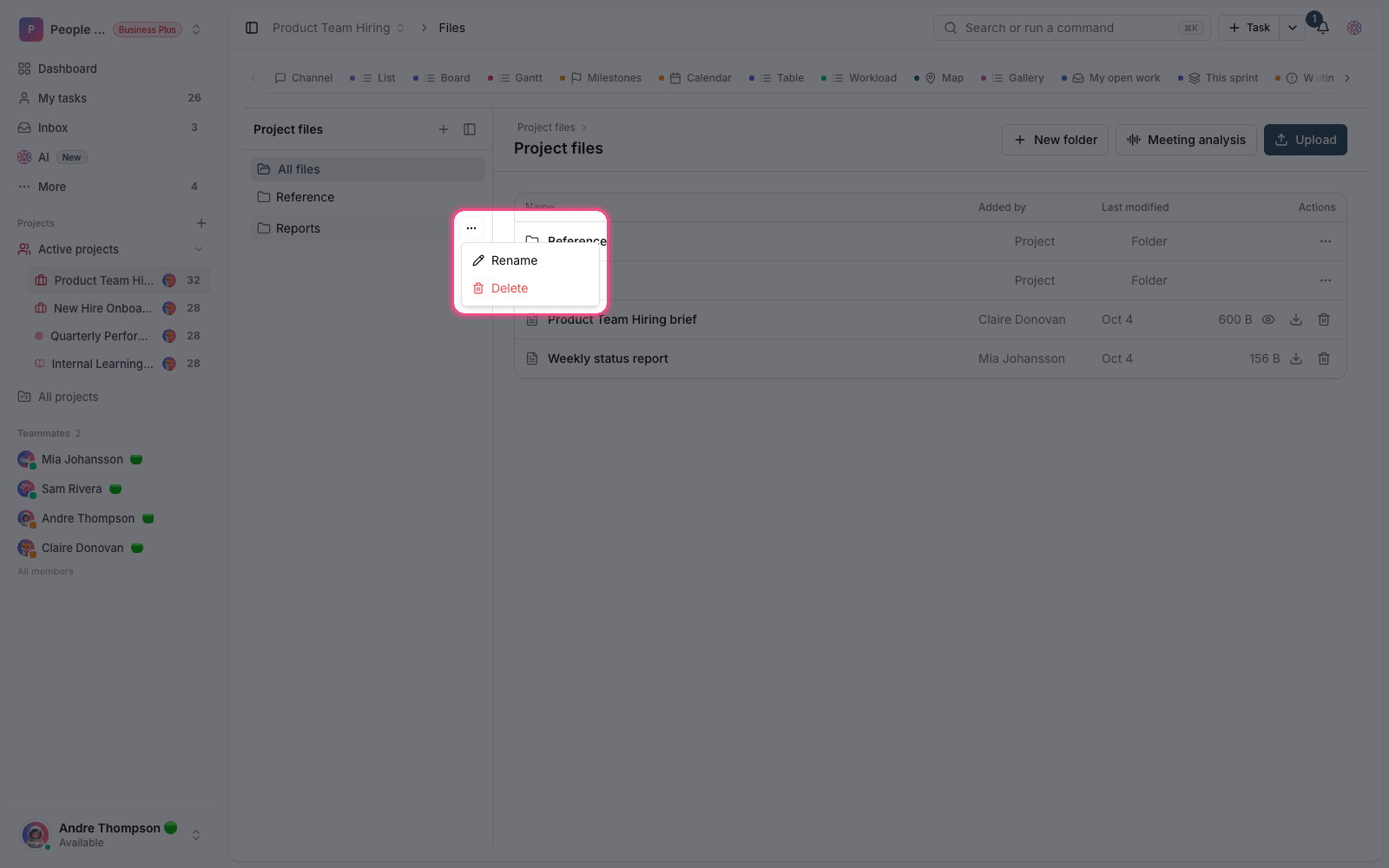
- Rename: update the folder's name so it matches its new purpose.
- Delete: remove the folder. A confirmation message appears first.
- These options are available only to people who have permission to manage that folder.
Rest assured: Deleting a folder doesn't destroy the files and subfolders inside it. They move to the root of that space and stay intact, so you can rearrange your structure without fear of losing content.
Common mistakes
- Nesting folders too deeply: two or three levels are usually enough for finding things quickly.
- Creating a folder in the wrong space: before clicking New folder, make sure you're in the right shared or personal space.
- Generic names such as "Miscellaneous" that turn back into a jumbled storeroom as they fill up.
- Expecting the manual folder order to affect the file order too: files are sorted by name.
Next step: now that your structure is ready, place files in these folders with Upload and manage files. To attach files to your work, go to Task attachments and file preview.