
Voice clips and automatic transcription
Record a voice message and see its automatic transcript, so voice clips are readable and searchable too.
Sometimes explaining something out loud is much faster than typing it. But voice messages have one big drawback: you can't search them, and listening takes time. Taskie solves both problems with automatic transcription.
Record a voice clip
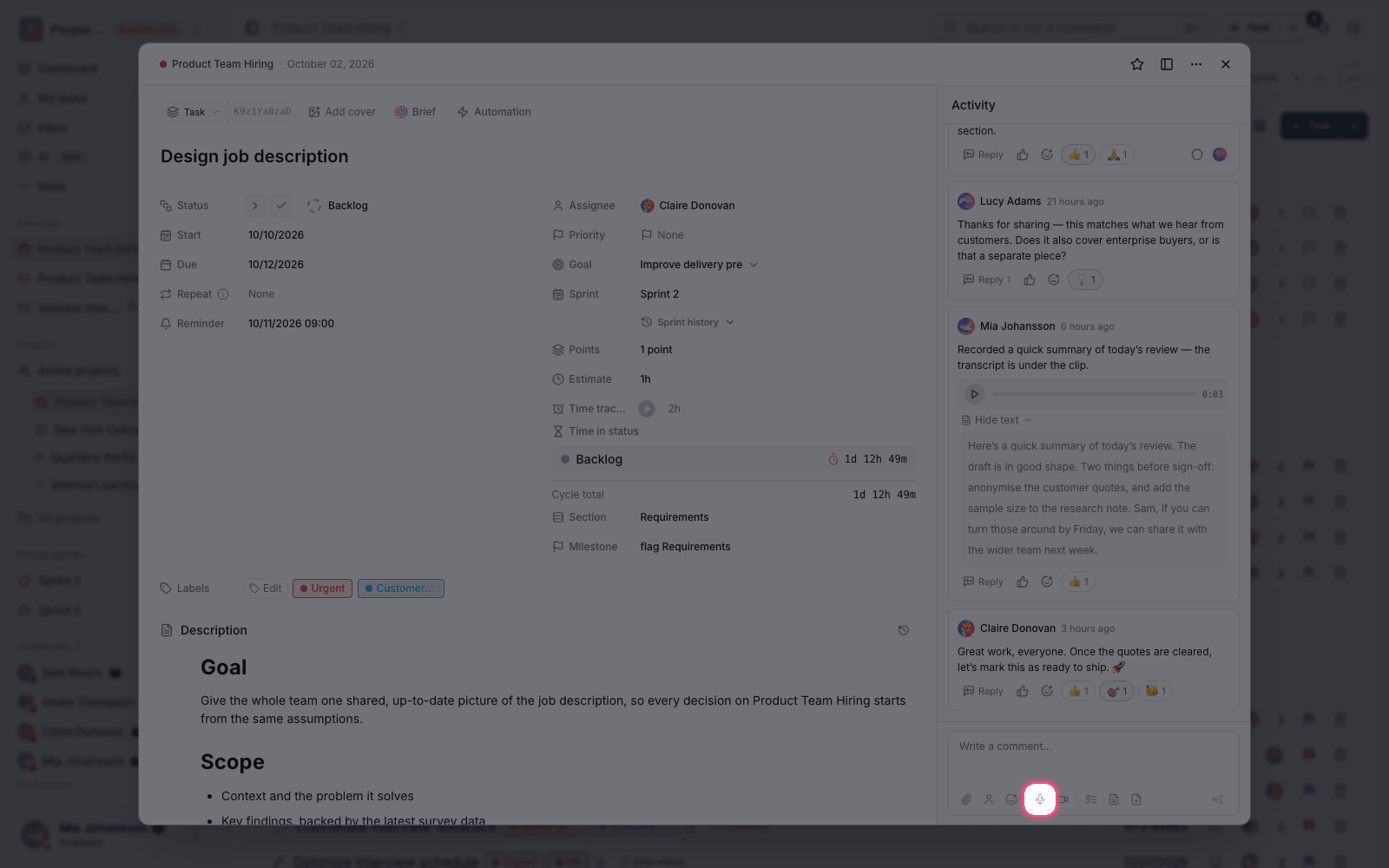
- In the comment or message box, press and hold the voice record button.
- Speak. The Listening indicator confirms that recording has started.
- For a long recording, Swipe up for hands-free so you don't have to keep holding the button.
- Click Stop recording to finish.
- Before sending, you can listen to the clip or delete it.
Automatic transcription
After you send it, the clip is transcribed in the background. Until the text is ready, you'll see the Transcribing… indicator, and then the text appears under the clip.
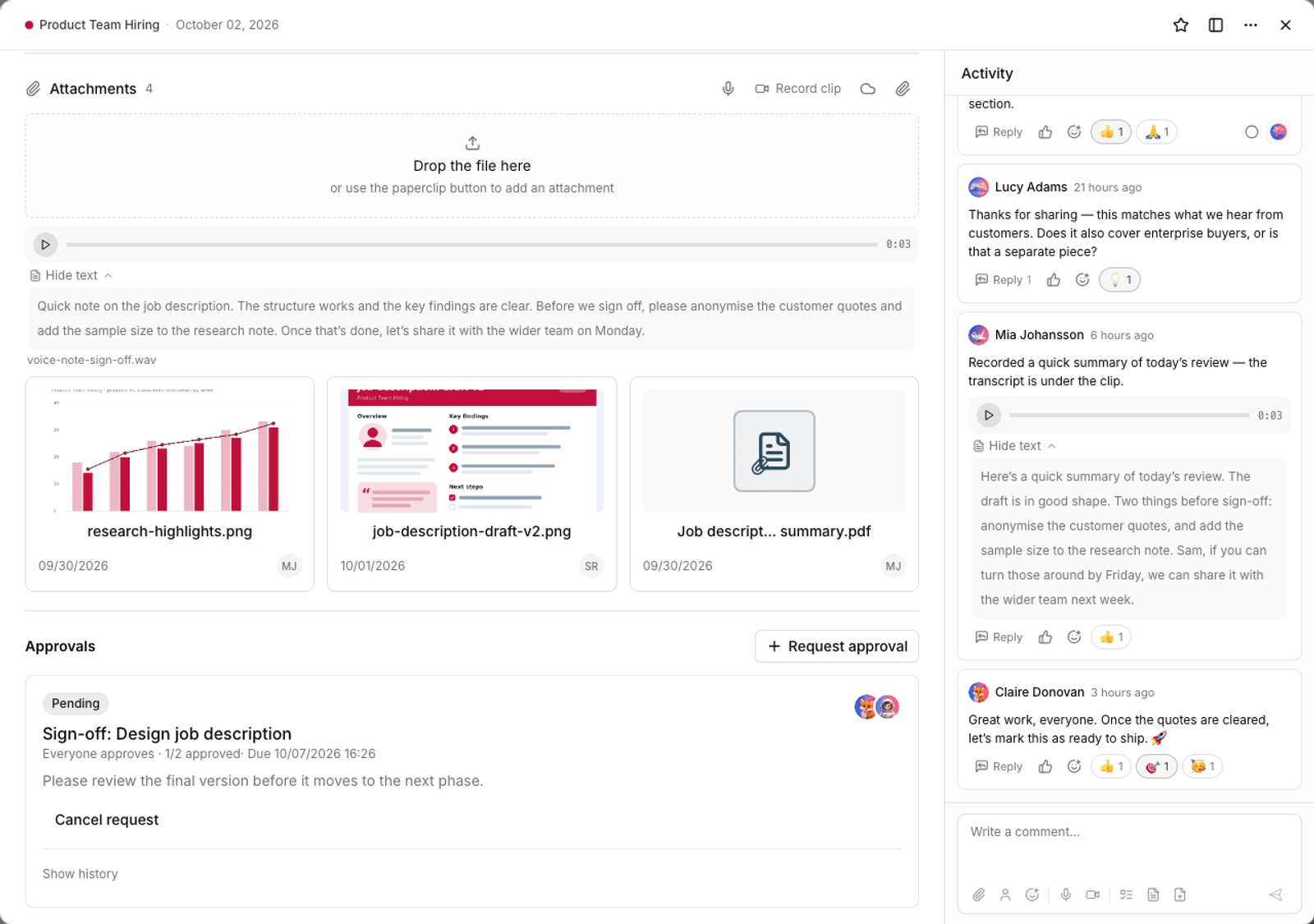
- Show text: open the transcribed text.
- Hide text: collapse the text if you only want to listen.
- Search: transcribed text also shows up in workspace search, so old clips never get lost.
Tip: Transcription works in the language your team speaks, so nobody needs to switch to English just to record a clip. If transcription fails, the message This audio could not be transcribed. appears, and the audio file itself stays where it is.
Create tasks with your voice
A special use for voice is creating tasks. When you say something like "Schedule a meeting with the design team tomorrow at 10," Taskie pulls the subject, date, time, and assignee out of what you said and prepares a draft task for you to confirm.
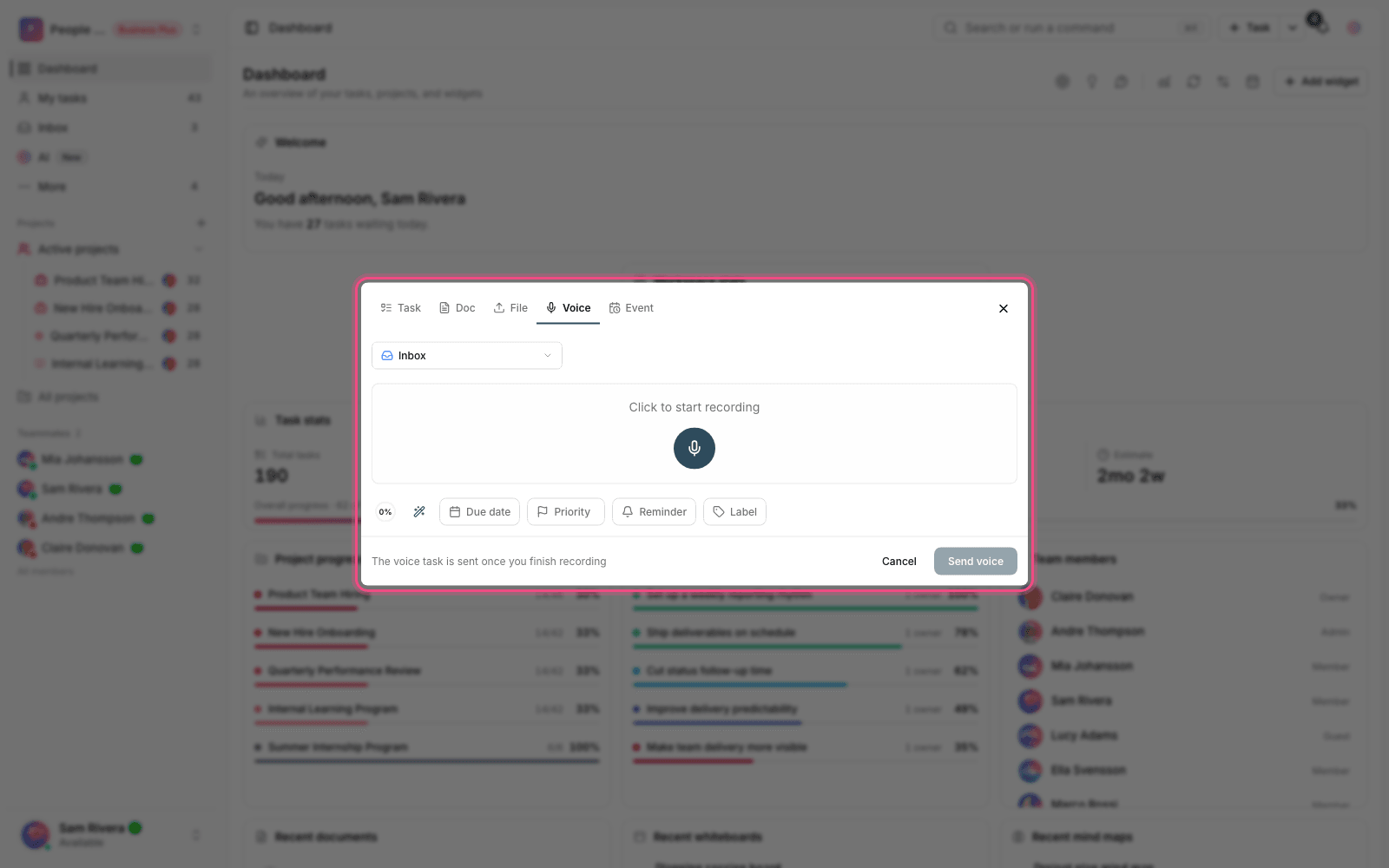
Always take a look at the draft before you save it. If the date or assignee wasn't recognized correctly, fix it right there.
When to use voice
- Good for: explaining a complex point that would take long to type, or quick feedback while you're on the move.
- Good for: capturing a task quickly when you don't have time to type.
- Not good for: formal decisions and information you'll need to reference precisely later. Write those in a document.
- Not good for: sensitive information. A clip can be played by every member who has access.
Transcription quality
Transcription accuracy depends more than anything on audio quality. A few simple habits make a big difference:
- Record somewhere fairly quiet. Background noise causes the most errors.
- Speak at a natural, measured pace, not too fast.
- Pronounce technical terms and proper names more clearly.
- Keep clips short. Several one-minute clips work better than one ten-minute clip.
- If the transcript is wrong somewhere, write the correct explanation in a comment next to it.
To create tasks by voice, see Voice assistant, and for comments, see Comments, mentions, and reactions.