
Image editor
Crop and rotate images, annotate them, and cover sensitive areas without leaving Taskie.
An image you share in a project usually needs a little work: cropping extra margins, drawing an arrow at an important detail, or covering an account number. The Taskie image editor does all of this right inside the app.
The editor is available everywhere you upload images: task attachments, project files, workspace files, and images inside documents.
Editing tools
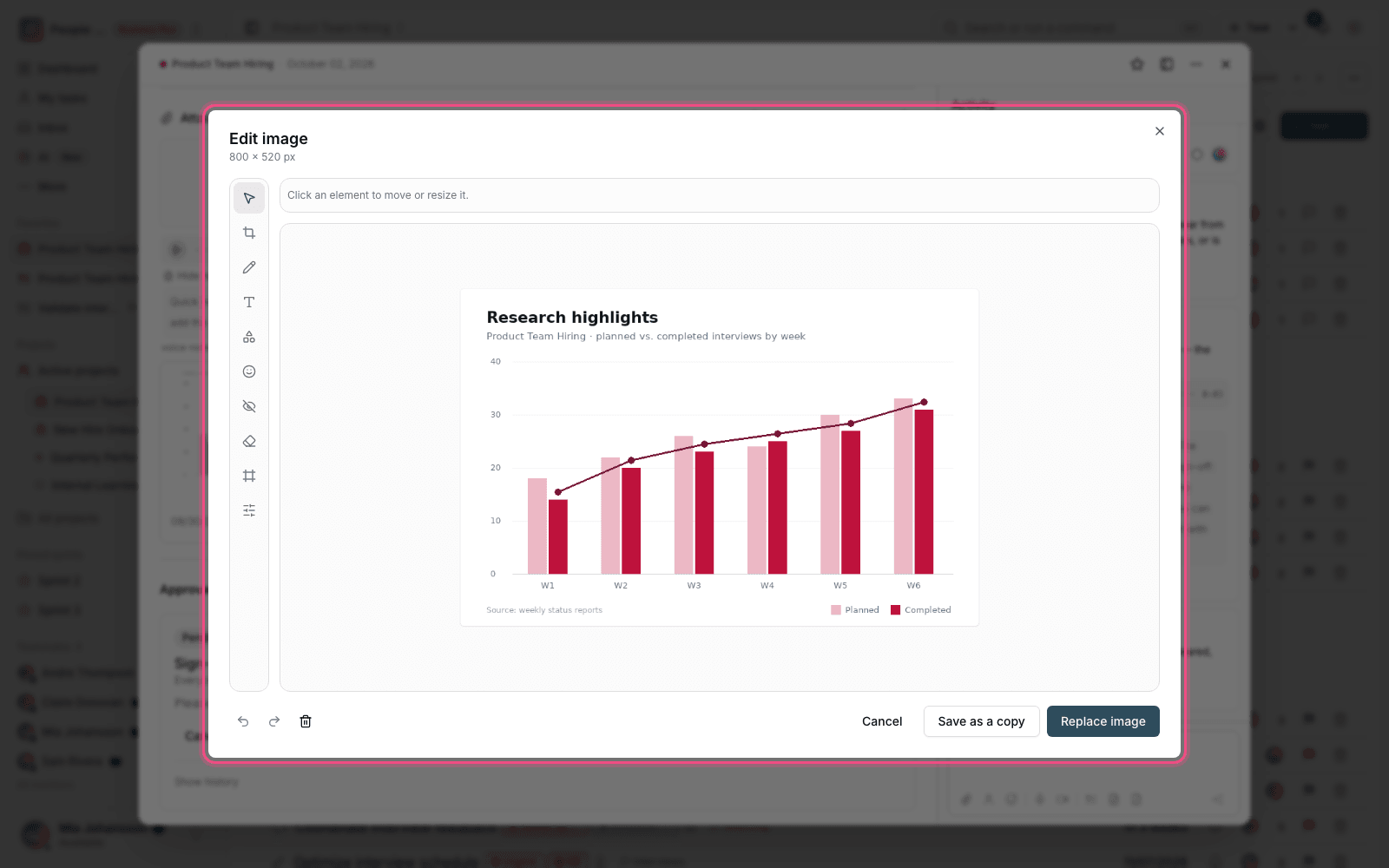
- Crop: drag over the area you want and click Apply crop.
- Rotate and flip: rotate clockwise, flip horizontally, and flip vertically.
- Color adjustment: change brightness and saturation with Fine-tune.
- Annotation: draw lines, arrows, and shapes in any thickness and color.
- Numbered marker: number the steps on the image. This is very useful for guides.
- Cover: hide sensitive areas with pixelation or a solid color.
- Frame: add a frame in any color around the image.
To move or resize any element, click it and adjust it with the handles. Delete the selected element removes an unwanted element, and Undo and Redo step back and forward through your latest changes.
Save the result
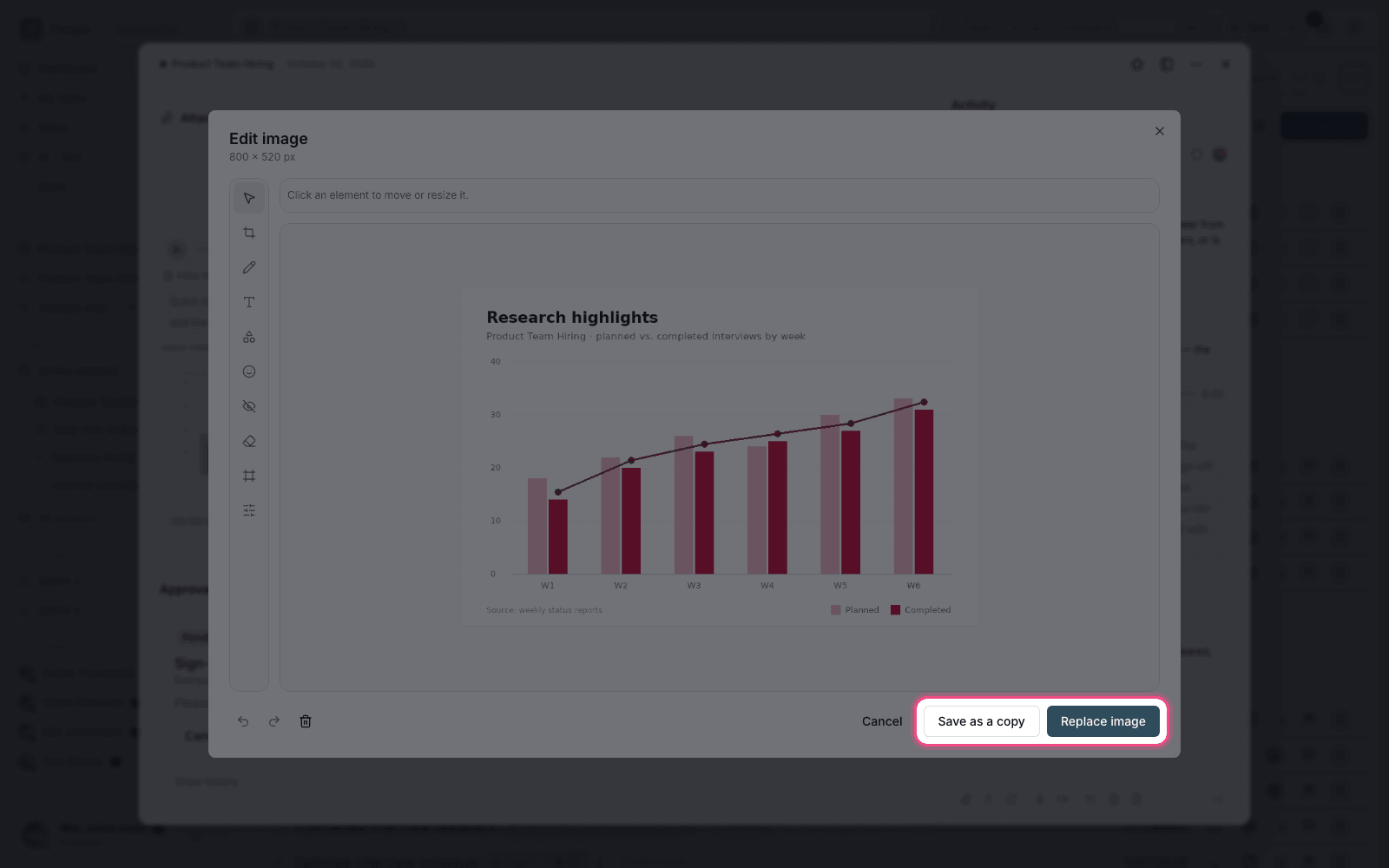
- Save: the edited image replaces the original.
- Save as a copy: the edited version is added as a new file, and the original stays untouched.
Important: The edit is saved flattened and can't be undone; annotation elements can't be edited later. If you might need to change it later, choose Save as a copy.
Common uses
- Bug reports: crop the screenshot and point out the problem with arrows and numbers.
- Design feedback: mark your points on the image itself so you don't need a long written explanation.
- Privacy: before sharing, cover personal and financial information with pixelation.
- Documentation: add numbered markers and refer to those numbers in your text.
Output format and quality
The editor's output is a flattened image, and its quality depends on the input image. Cropping a small part of a low-quality image won't make it sharper. If the image will be used in a document or guide, capture it at a suitable quality from the start.
Editing several images and versions
The editor works on one image at a time. If you have several similar images that all need the same change, edit each one separately and click Save as a copy to keep the original. That way, both the original and the marked-up version stay in the attachments, and you can compare them later.
Access and the effect of edits
Editing an image follows the same access rules as the original file: anyone allowed to edit the file can also change the image. If you replace the image, every place that references it shows the new version.
- If the image is used in several documents, replacing it affects all of them.
- For a change you need in only one place, click Save as a copy.
- Review covered images once more before sharing them outside your team.
For pinpoint feedback on files, see Visual proofing, and to manage attachments, see Task attachments and file preview.