
Upload and manage files
In the Taskie file center, you upload, preview, move, and safely delete your team's shared files and your own personal files.
Every team produces a pile of files as it works: design images, contract documents, spreadsheets, and all kinds of exports. If these files end up scattered across email and messaging apps, finding the right version becomes a nightmare. The Taskie file center is a tidy, always-available home for all of these assets, so every file stays in its place and the whole team has access to the latest version.
You reach the file center from Files in the sidebar. The page has two parts: a list of folders on the side, and the files and folders of the current location in the middle. In this guide, you'll learn how to upload files, follow the upload progress, move and copy files, and finally delete them without worry.
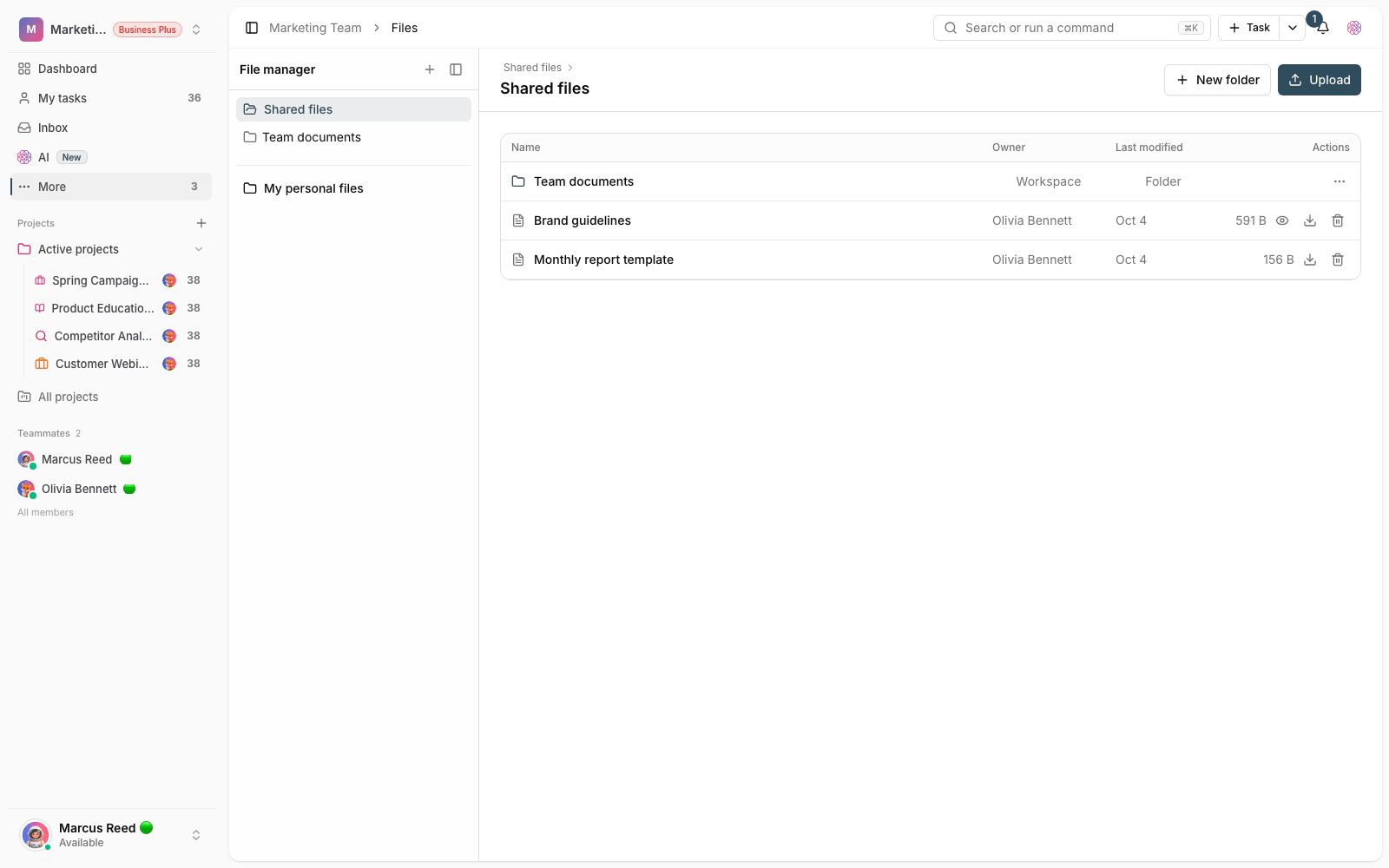
Two separate spaces: shared files and personal files
Before you upload, decide which space the file belongs in. Taskie has two separate roots, and this separation draws a clear line between your team work and your private work:
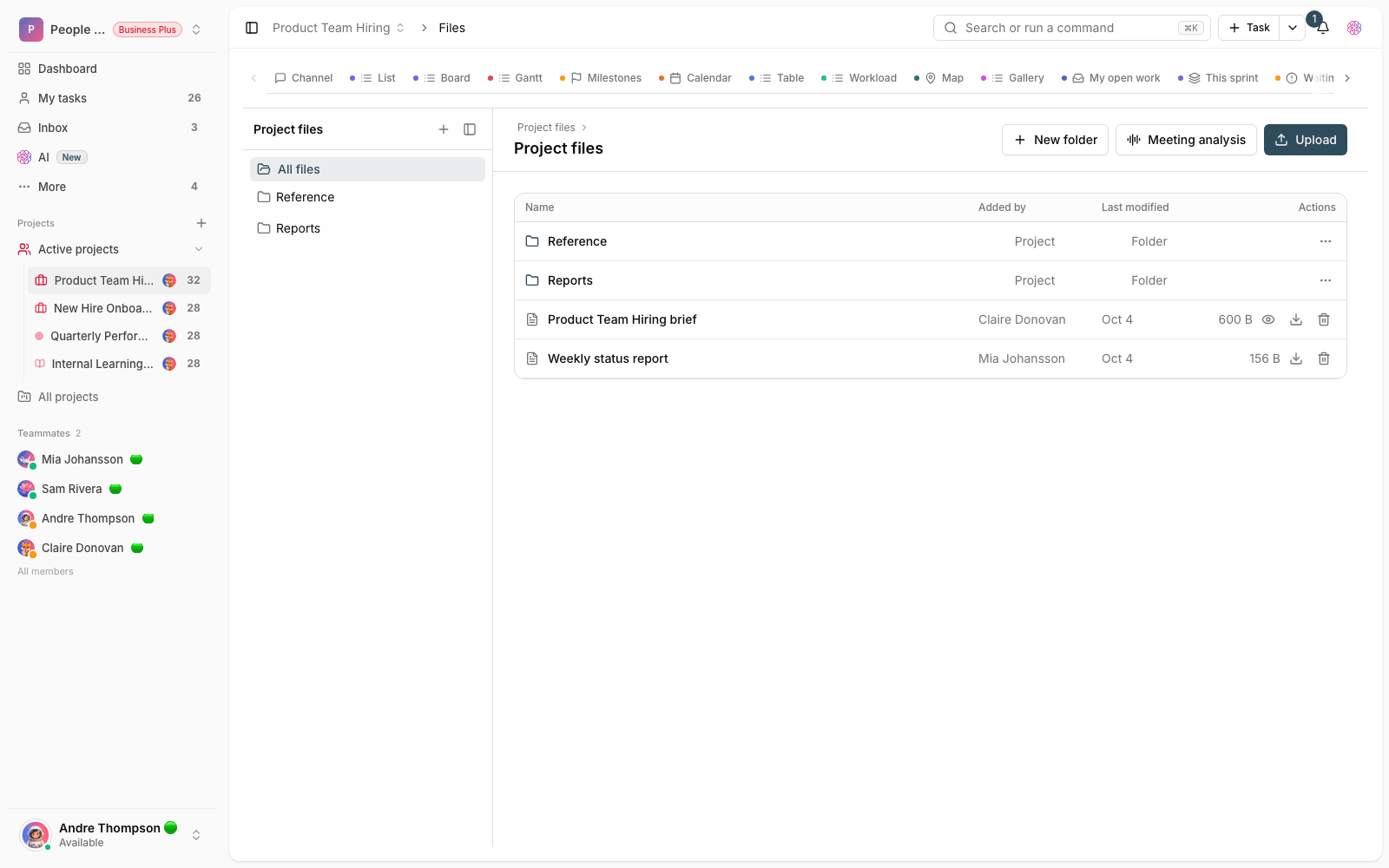
- Shared files: visible to every workspace member and used for team resources such as brand guidelines, templates, and project attachments.
- My personal files: only you can see these. Good for drafts, notes, and files that aren't ready to share yet.
Each space has its own independent folder list, and the path bar at the top of the page always shows which space and folder you're in. To switch between the two, just click Shared files or My personal files in the side list.
Upload files and follow the progress bar
Uploading in Taskie works both with a button and with drag and drop. To add files to the current location, follow these steps:
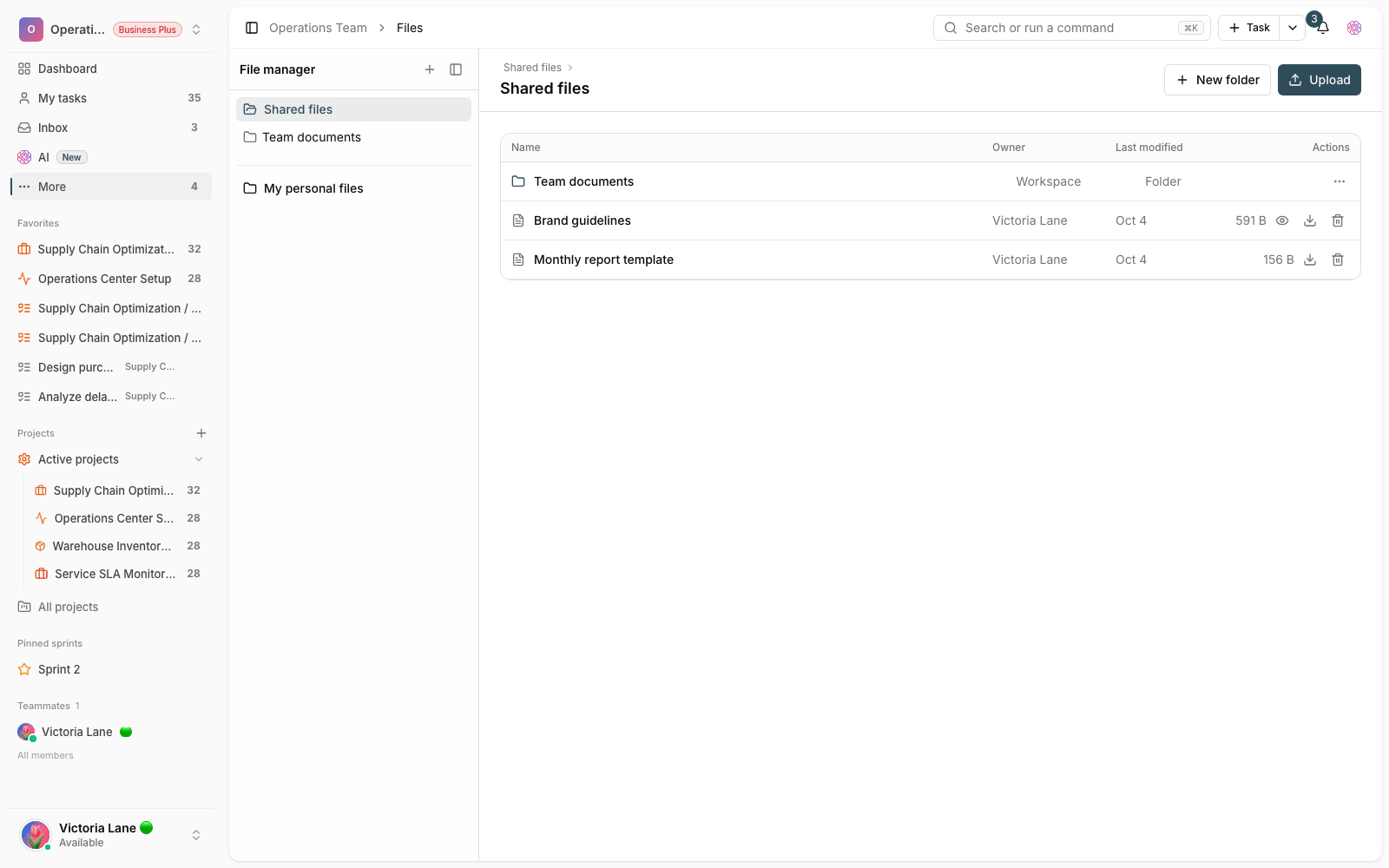
- Make sure you're in the right space and folder. The current path is shown above the list.
- Click Upload and choose one or more files.
- Or, instead, drag files straight from your computer and drop them on the list. The Drop files or folders to upload them here box appears.
- While the upload runs, a thin progress bar under the top bar shows how far along it is.
- When it finishes, you'll see the File uploaded. message and the files appear in the list right away.
If you drop an entire folder on the list, Taskie keeps its internal structure and creates the subfolders automatically. Each file can be up to 100 MB, and common image formats, PDF, Office documents and spreadsheets, compressed archives, audio, and video are supported.
Preview, download, and move files
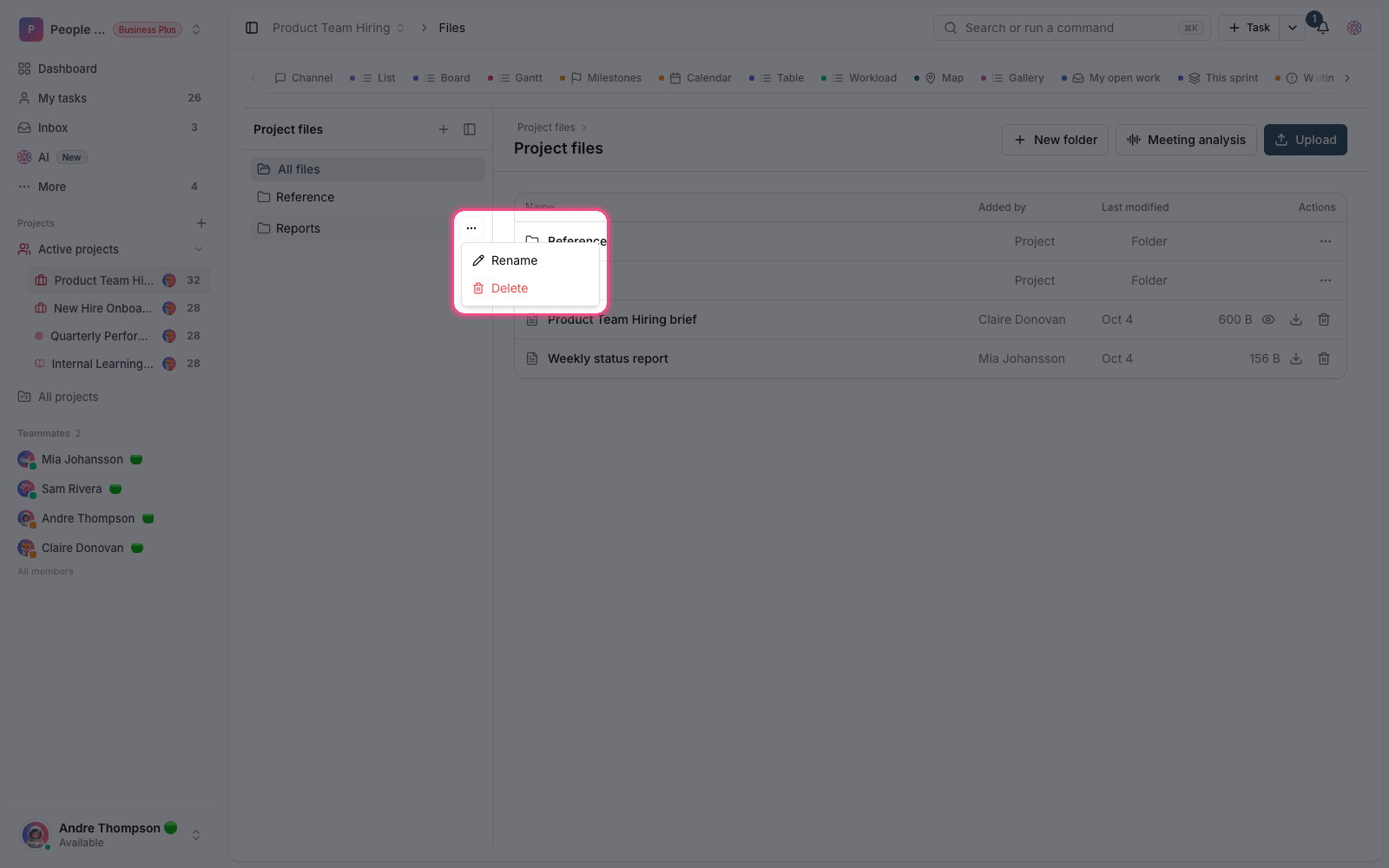
Hover over a file's row to reveal its shortcut buttons, or right-click it to open the full menu. The main actions are:
- Preview: images, PDFs, and videos open and display right there, without downloading.
- Download: saves the original file to your device.
- Copy or Cut, then Paste: move a file to another folder or space, or make a copy of it there.
- Copy private link: creates a direct URL for the file to share in team conversations (only people with access can open it).
- Rename: edits the file's display name.
The list's columns show each file's name, owner, and last modified time, so you can quickly find the right version even in busy folders.
Safe deletion and the storage limit
Taskie deliberately designs deletion to be safe, so one wrong click doesn't wipe out your team's work. Before every deletion, a confirmation titled Delete item opens, and only people with the necessary permission can delete a file; for everyone else, the delete button is disabled. Keep these key points in mind:
- Deleting a file is permanent: the file is removed from storage, so make sure before you confirm.
- Deleting a folder doesn't delete the files inside it: its files and subfolders move to the root of that space and aren't lost.
- If the delete button is disabled, your role doesn't allow you to delete that file.
- The combined size of all files in the workspace counts against your plan's storage limit. If it's full, new uploads stop.
How much storage do I get? Storage depends on your workspace's plan, from about 100 MB on the Free plan to tens or hundreds of gigabytes on the Business plans. If you see a storage-full message while uploading, delete old files or upgrade your plan.
Common mistakes
- Uploading a team file to My personal files: your teammates won't see it there. To share it, choose the shared space.
- Assuming that deleting a folder destroys its contents too: in fact, the contents move to the root and stay there.
- Trying to upload a file larger than 100 MB or in an unsupported format: the upload is rejected and you see an error message.
- Confusing Project files with the workspace file center: project files live in each project's own tab and are available on the Business plans and above.
Next step: to bring order to these files, go to Folders and file organization. If you want to leave precise feedback on images and PDFs, read Visual proofing and feedback pins on files.