
Task attachments and file preview
Attach files directly to any task, follow the upload progress, and preview them without leaving the task.
A lot of work is incomplete without the files that go with it: a design that needs review, a document that needs signing, or a screenshot that shows the context of a bug. When these files are attached directly to the task, nobody has to dig through email and messaging apps for them. Everything is right where the work happens.
In Taskie, every task has an Attachments section where you can upload files, record screen clips, and preview attachment contents without opening another app. Below, you'll see how to add attachments, follow the upload progress, and browse or delete files.
Add an attachment to a task
Open the Attachments section in the task details. You have two ways to add a file:
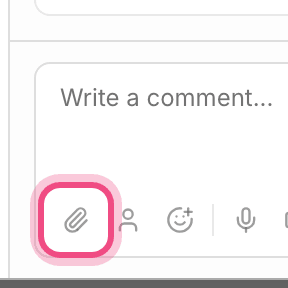
- Click the paperclip button (Add attachment) and choose one or more files from your device.
- Or drag a file and drop it inside the dashed Drop the file here box.
- Each file appears in the attachment list with a progress bar.
- When the upload finishes, the attachment shows its name, the avatar of the person who added it, and when it was added.
If your device supports it, a Record clip button is also available. With it, you can record your screen and save the result directly as an attachment on that task. For explaining an error or showing a step, it's much faster than writing a long message.
Allowed formats and size
The attachment section is optimized for common work files: images, PDFs, and Office documents and spreadsheets are accepted easily. Each file can be up to 100 MB, and attachments count against your workspace's storage limit just like any other file. If a file isn't accepted, its format usually isn't supported or it's over the size limit.
Follow the upload progress
With large files, it helps to know how far along the upload is. Taskie shows the status of each file separately:
- Uploading: the progress bar shows each file's percentage in real time.
- Done: once complete, the attachment is added to the list and the progress bar goes away.
- Error: if the upload fails, the Upload failed message appears and you can try again.
- You can send several files at once and see each one's progress separately.
Because attachments update in real time, when a teammate adds a file, it appears for you too without refreshing the page.
Preview attachments
You don't need to download an attachment to see what's in it. Taskie displays most common formats right there:
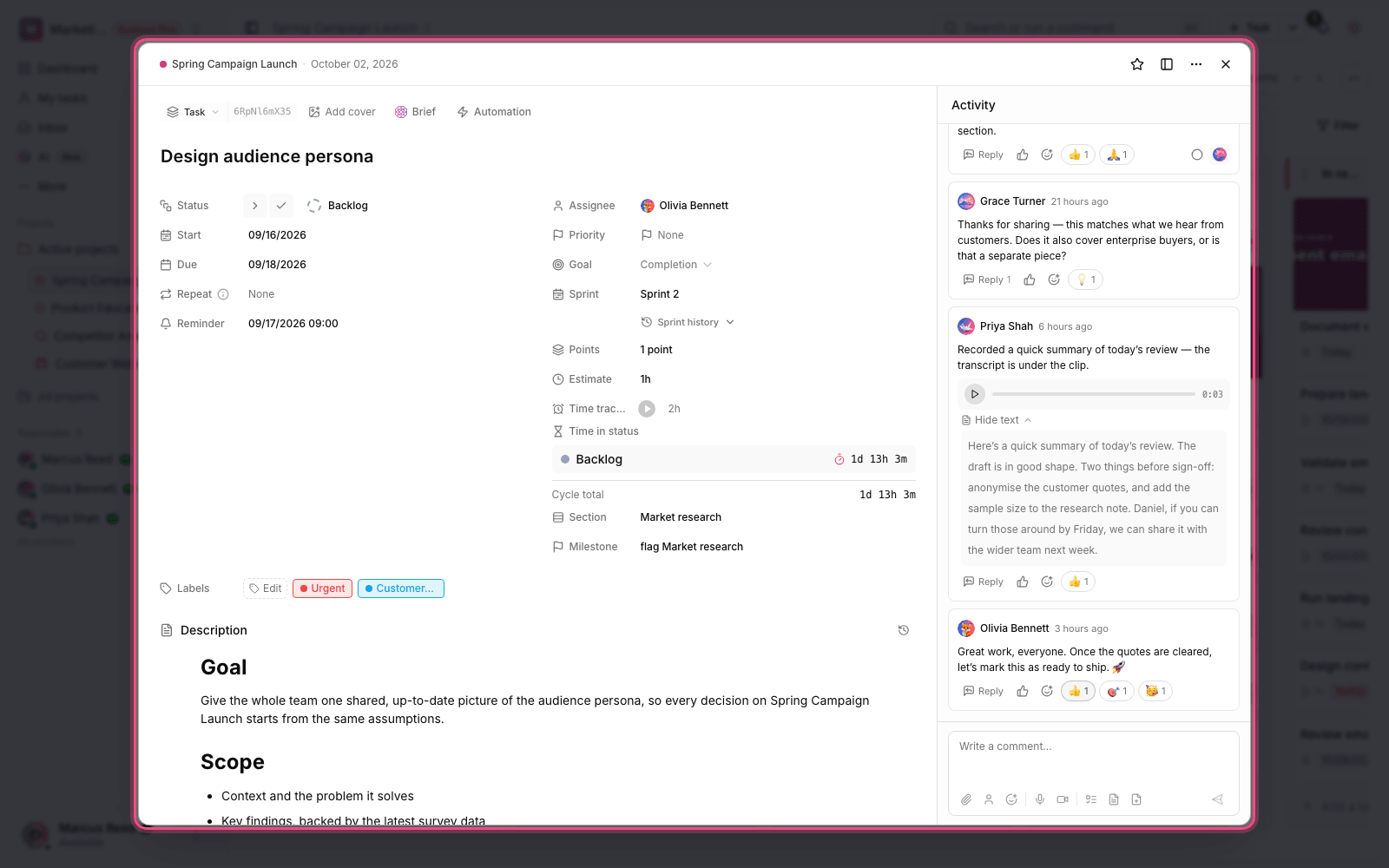
- Images: open in a large view with one click, and you can move between the images on that task.
- Videos: play in the built-in player.
- Audio files: play directly in the attachment list.
- Other documents: open or download with a click.
On images and PDF files, a Review button also appears, where you can place a feedback pin on a specific spot in the file. We cover this feature in detail in the visual proofing guide.
Delete an attachment
To remove an attachment, click the trash icon on that file. This button is enabled only for people who are allowed to delete, usually the person who added the attachment and admins.
Double-check before you delete: deleting an attachment can't be undone. If you might still need a file, keep it in the workspace file center instead of deleting it, so it's separate from the task but still available.
Common mistakes
- Closing the task in the middle of an upload: let the progress bar finish so the file isn't lost.
- Trying to attach a file that's over the size limit or in an unsupported format.
- Deleting an attachment instead of moving it: use the file center for files you want to keep.
- Expecting a preview for every format: some documents can only be downloaded or opened.
Next step: to leave precise feedback on images and PDFs, go to Visual proofing and feedback pins on files. To store your team's shared files, see Upload and manage files.
To edit an image before sharing it, see the Image editor, and for voice messages and transcription, see Voice clips and automatic transcription.