
The command palette: search and run anything with Ctrl+K
A complete guide to Taskie's command palette: unified search across tasks, documents, projects and comments, running commands with "/", filtering and sorting results, recent items and power-user shortcuts.
The command palette is the fastest way to do anything in Taskie: a single window that's a global search, a command runner and a shortcut to any page. Just press Ctrl+K (⌘+K on Mac) anywhere in the app to open it. Without leaving your keyboard, you can create a task, find a document, jump to a project or ask AI.
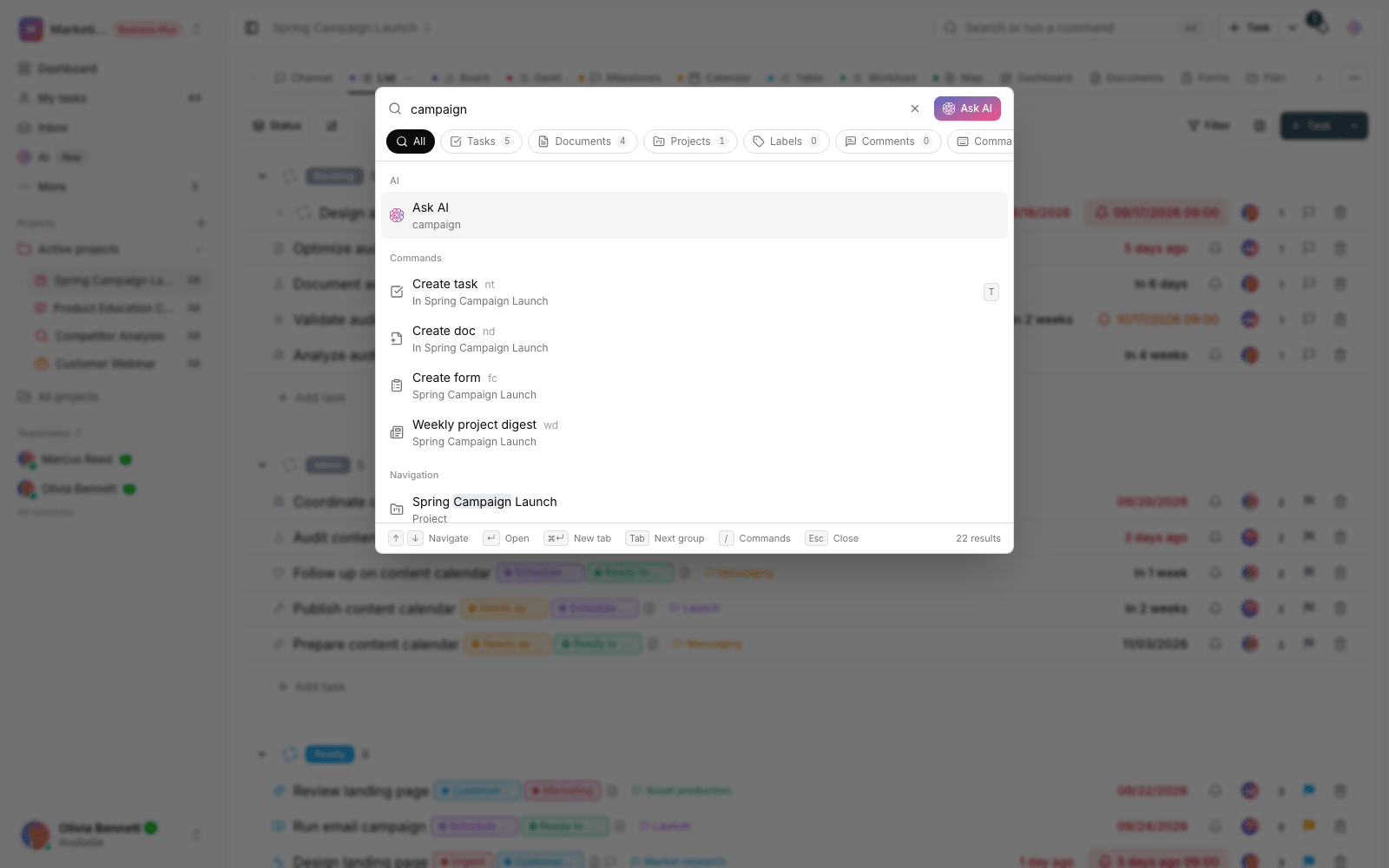
Opening the palette and finding your way around
When the palette opens, you'll see these parts from top to bottom:
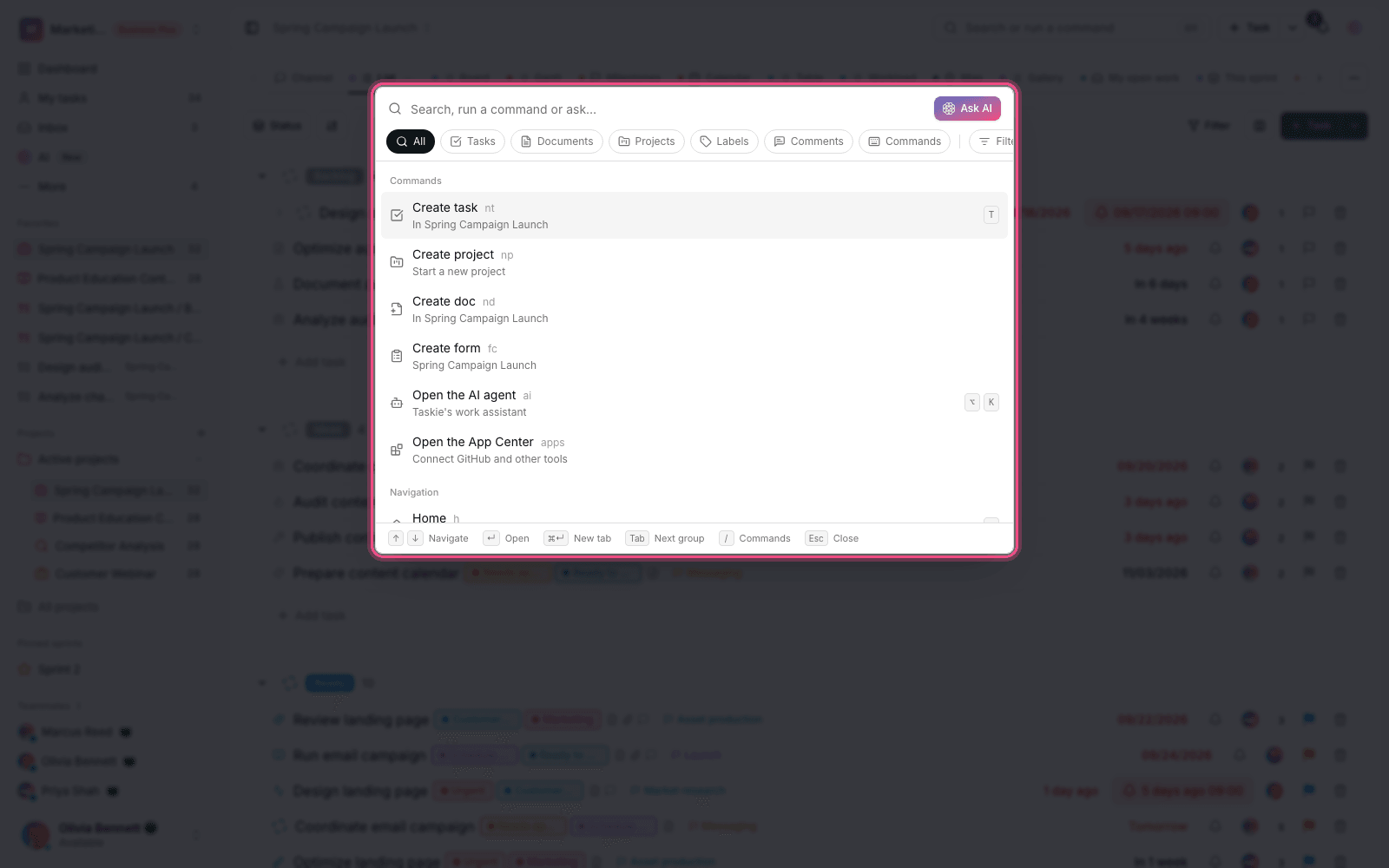
- Search box: type anything here, from a task name to a command name. Next to the box is the Ask AI button.
- Result categories: a row of buttons (All, Tasks, Docs, Projects, Labels, Comments and Commands) that narrows results to one type. While you search, each category shows how many results of that type there are.
- Filter and search scope buttons: further along the same row, the Filter button refines task results, and when you're inside a project, the This project only button limits the search to the current project.
- Result list: results are grouped by type, and you move between them with the arrow keys.
- Hint bar: at the bottom of the window, the active shortcuts and the number of results are shown.
Tip: Until you type something, the palette suggests your Recent items (things you previously opened from the palette), your recent searches and your most-used commands. Getting back to your everyday work is usually just two keys away: Ctrl+K and Enter.
Unified search across every section
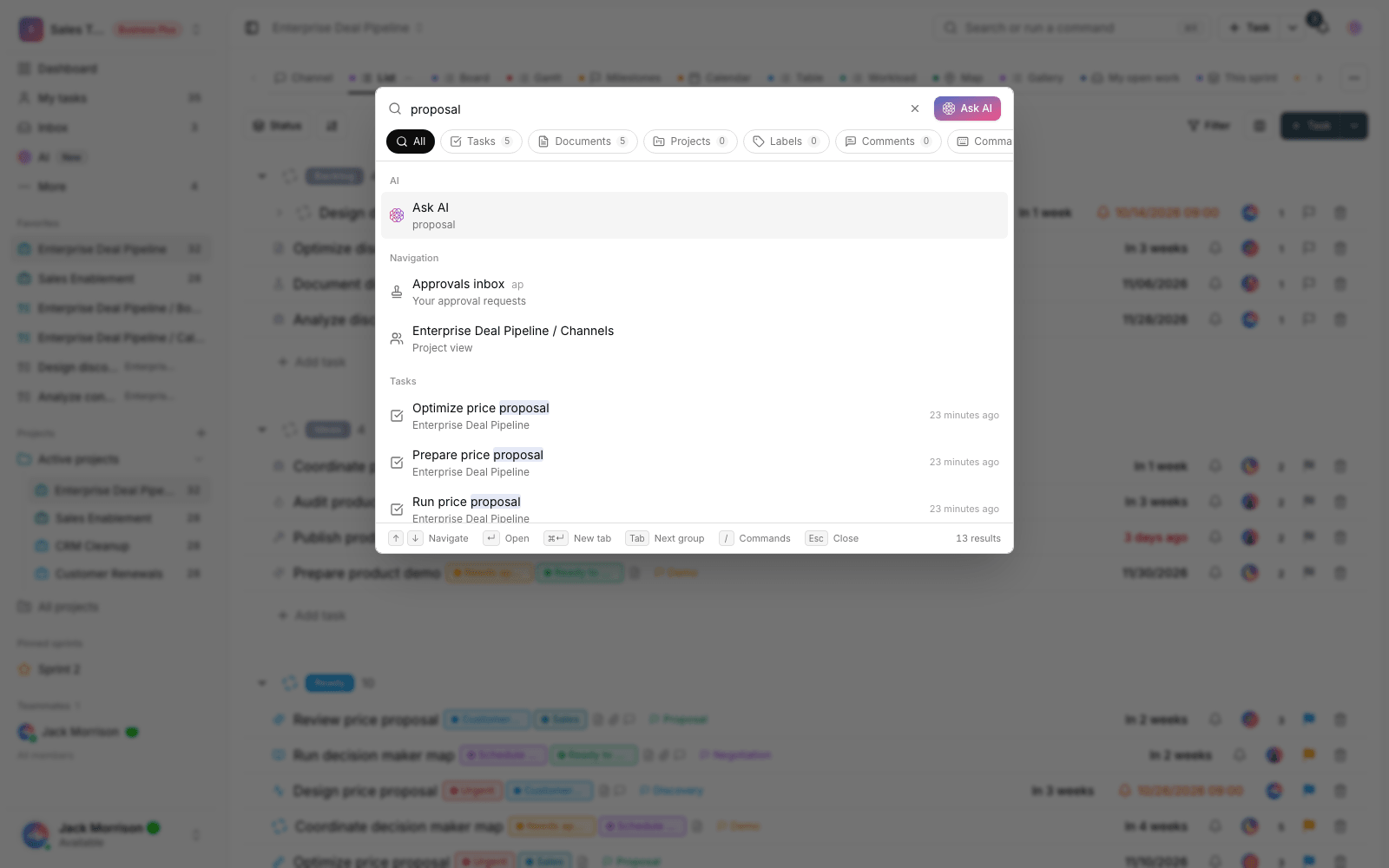
Once you type at least two characters, Taskie searches tasks, documents, projects, labels and comments at the same time and shows the best results in each group. Small spelling differences, such as equivalent letter forms and zero-width non-joiners in right-to-left scripts, are ignored, and the matching part of each title is highlighted so it's clear why a result appeared.
- Press Ctrl+K or ⌘+K.
- Type part of the name of a task, document, project or label, or the text of a comment.
- To see more results of one type, click its category (for example, Docs) or click the Show all button next to that group's heading.
- Press Tab to move between categories without leaving the keyboard (Shift+Tab moves backward).
- Press Enter to open the selected result.
Opening results your way
- Enter: opens the result on the same page (tasks open in the details window).
- Ctrl+Enter or ⌘+Enter: opens the result in a new browser tab so you don't lose the current page.
- Copy link: hover over any result to reveal the Copy link button, so you can send its direct URL to teammates.
Commands mode with "/"
If you type "/" as the first character in the search box, the palette switches to commands-only mode and lists every action and navigation destination; whatever you type next searches only among commands. The same list is also available from the Commands category. The most important commands are:
- Create task (alias: nt), Create doc (nd), Create project (np) and, when a project is open, Create form (fc).
- Start timer (ts) for the open task and Stop the running timer (tx).
- Open the AI agent (ai) to chat with Taskie's work assistant.
- Open the App Center (apps or ac) to connect tools such as GitHub.
- Change theme (th) to cycle between light, dark and system modes.
- Copy link to this page (cl) to quickly share the page you're on.
- Weekly project digest (wd), Keyboard shortcuts (ks) and Toggle the sidebar (sb).
Each command's alias appears in a muted color next to its name, and its behavior is guaranteed: if you type exactly those few letters (for example, nd), that command is selected as the first result and you're just one Enter away from running it. The palette also learns: the commands and destinations you use most move higher in later results.
Quick navigation to any section
Every main destination in the app is also available from the palette, each with its own alias: Home (h), Inbox (i), My day (md or g), Dashboards (d), Notifications (nf), Document center (dc), Workspace files (fl), Goals (gl), Approvals inbox (ap), Workspaces (ws), Account settings (st), Preferences and appearance (pr), Notification settings (sn), Account security (sec), App Center (int), Agents (ag), Help center (help or hc) and What's new in Taskie (wn). All projects, each project's active views (documents, forms, channels, sprints and more) and labels can also be found by typing part of their name.
Filtering and sorting task results
When you're looking for a specific task among many results, click the Filter button in the categories row to open the filter bar. These filters apply to Tasks results:
- Status: one or more statuses, such as In progress or Completed.
- Priority and Assignee.
- Project: limit results to a specific project.
- Labels: one or more labels.
- Due date and Created: a from/to range using your preferred calendar.
- Sort: Most relevant, Newest, Oldest or Due soonest.
Active filters appear as small chips below the bar and can be removed with one click; the Clear all button removes every filter. The number of active filters is shown on the Filter button itself so you don't forget about them.
Limiting the search to the current project
When you're inside a project, the This project only button appears in the categories row. Turn it on to search only within that project; to go back to searching the whole workspace, click the same button again. Your choice is remembered for next time.
Asking AI
Whenever a regular search isn't enough, type your question and click the Ask AI button at the top of the palette, or the Ask AI option at the start of the results, to open Taskie's AI agent and get an answer right there. To learn more about what the agent can do, see Automation and AI.
Palette shortcuts at a glance
- Ctrl/⌘ + K: open the command palette.
- ↑ and ↓: move between results (wraps from the end of the list back to the start).
- Enter: open the selected result or run the selected command.
- Ctrl/⌘ + Enter: open the result in a new tab.
- Tab and Shift+Tab: move between result categories.
- / at the start of the text: show only commands.
- Esc: close the palette.
Tip: To clear your history, click Clear next to Recent searches, or remove individual searches one by one. Recent items and command usage stats are stored only in your own browser.
If you're not yet familiar with Taskie's overall layout, first read Navigating the app and keyboard shortcuts. To understand core concepts such as workspaces and projects, visit Taskie's core concepts.