
Create your first workspace
The workspace is the main boundary for teamwork in Taskie. See how it's created, why it matters and what to do once it's set up.
The workspace is the top, outermost layer in Taskie: the home that holds your whole team, your projects, members, permissions and subscription. Everything you do in Taskie, from creating a project to inviting a colleague and choosing a plan, happens inside a workspace.
The good news is that you don't have to create a workspace by hand to get started. Taskie creates your first workspace for you during the first setup steps. On this page you'll see how that workspace is created, why it's the main boundary for your work, how to name and manage it, and what steps to take next.
What a workspace is and why it's the main boundary
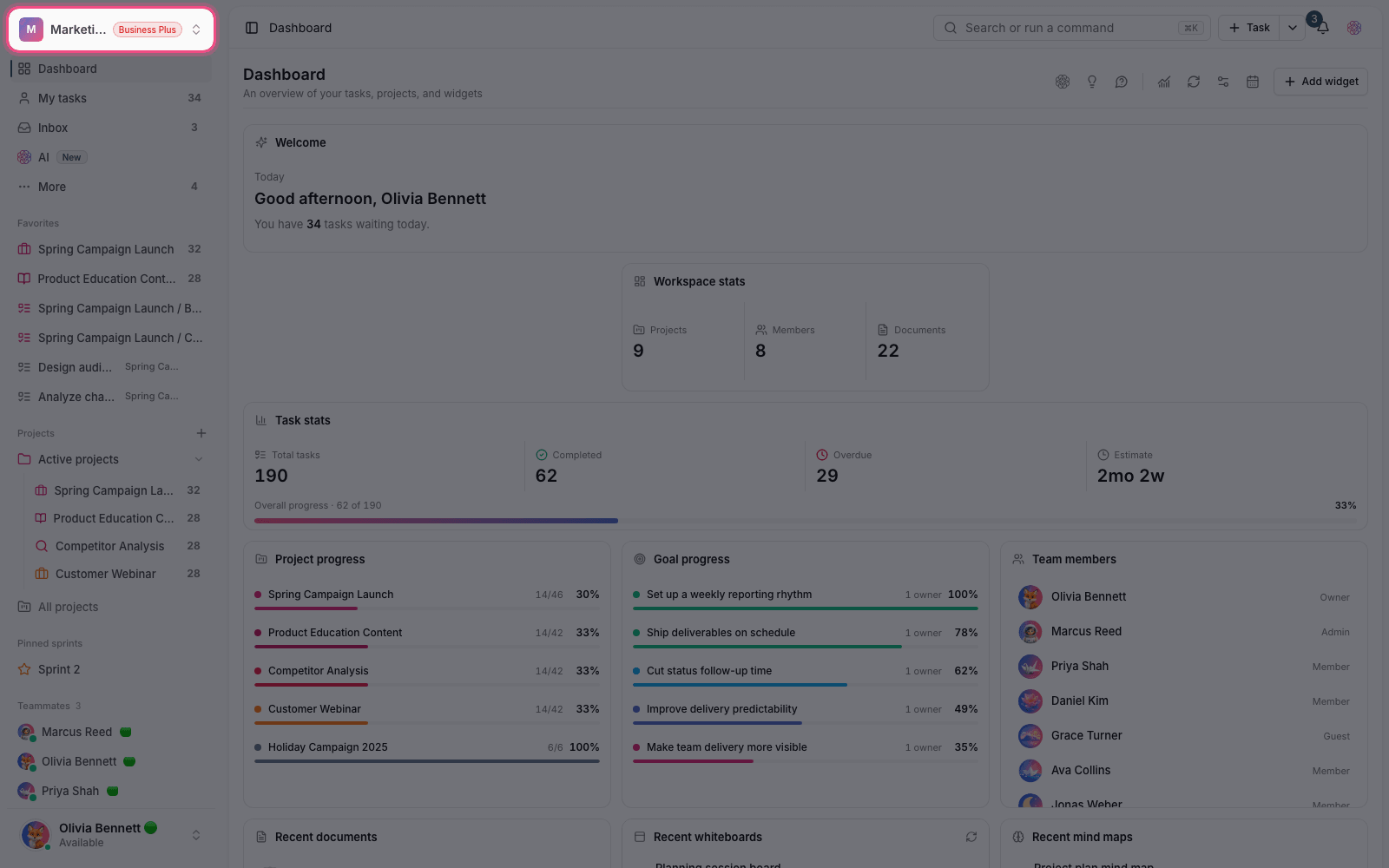
A workspace is the boundary that everything lives inside: your team members and their roles, projects and folders, default statuses and task types, and most importantly, your plan and subscription. In Taskie, the subscription and billing apply to the workspace, not to individual users. In other words, each workspace's plan determines which features are available to that workspace and its members. That's why it's best to have a separate workspace for each independent team or organization.
How your first workspace is created
When you sign in for the first time, Taskie shows a few short setup steps. Along the way, it creates your first workspace with a default name based on your first name and makes you its owner. The usual setup steps are:
- Enter your first and last name. Your first workspace is created automatically at this step.
- Create a first project or skip it for now. You can add projects any time later.
- Answer a few short questions about your role and how you heard about Taskie.
- Choose a plan. Eligible paid plans start with a 7-day trial.
- Setup is complete and you land on your workspace dashboard.
Naming and ownership
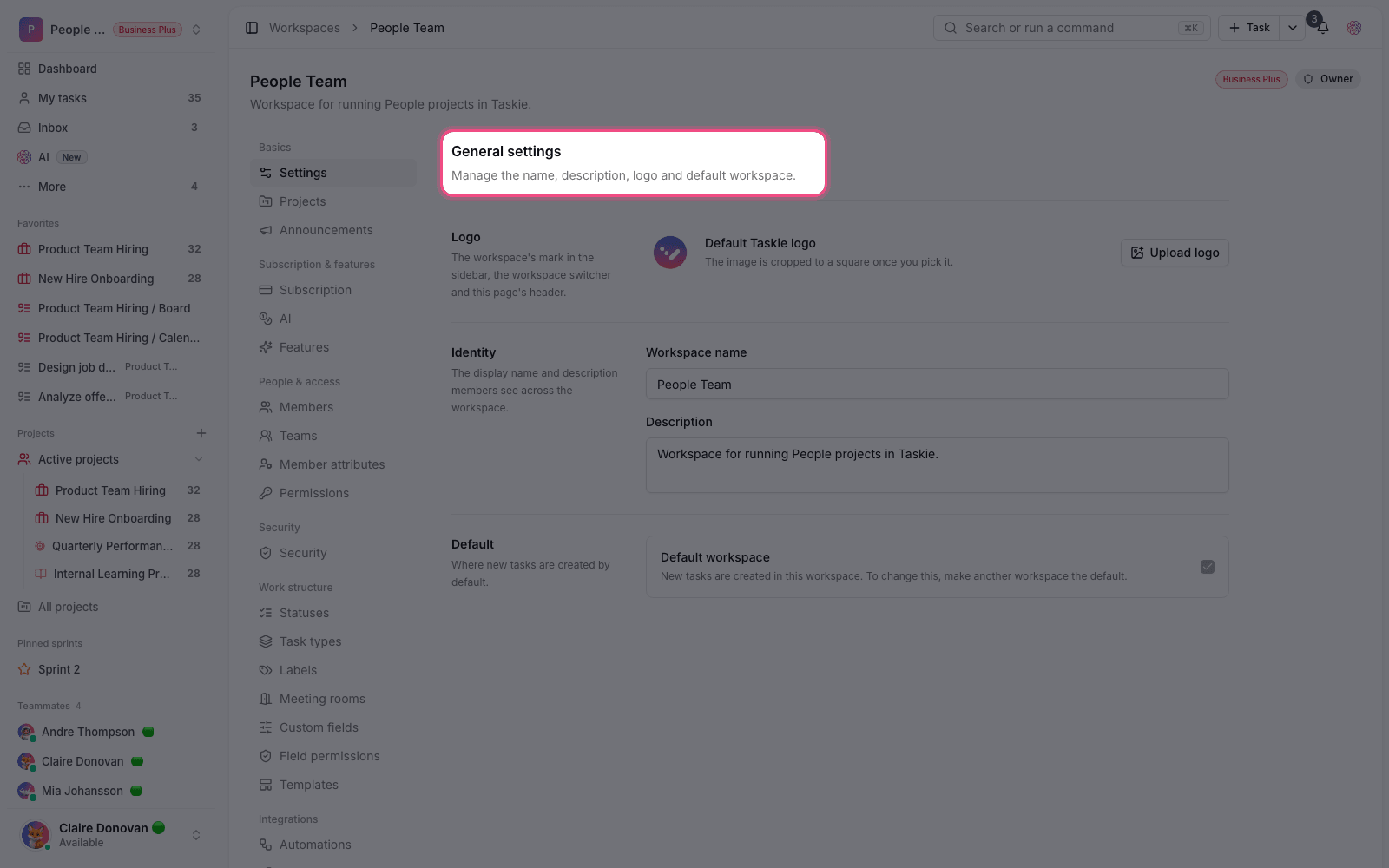
It's best to name your workspace after your team or organization so invited members recognize it right away. You can change the default name later in workspace settings. The person who creates the workspace automatically becomes its Owner and has the highest level of access. The owner can invite members, assign roles and manage the subscription. Your first workspace is marked as your default workspace, and when you sign in, Taskie takes you there.
First steps after setup
When a workspace is created, Taskie automatically prepares a few things so you can start working right away: a default task type, a set of basic statuses, a personal Inbox and a getting started guide document. After that, we recommend these steps:
- Create a small, real project and add a few day-to-day tasks with an assignee and a date.
- Invite your team members by email or mobile number and give each one the right role.
- If needed, choose or upgrade the workspace plan to match your team's size and needs.
- Complete the workspace name and details in settings so everyone recognizes it.
Creating more workspaces
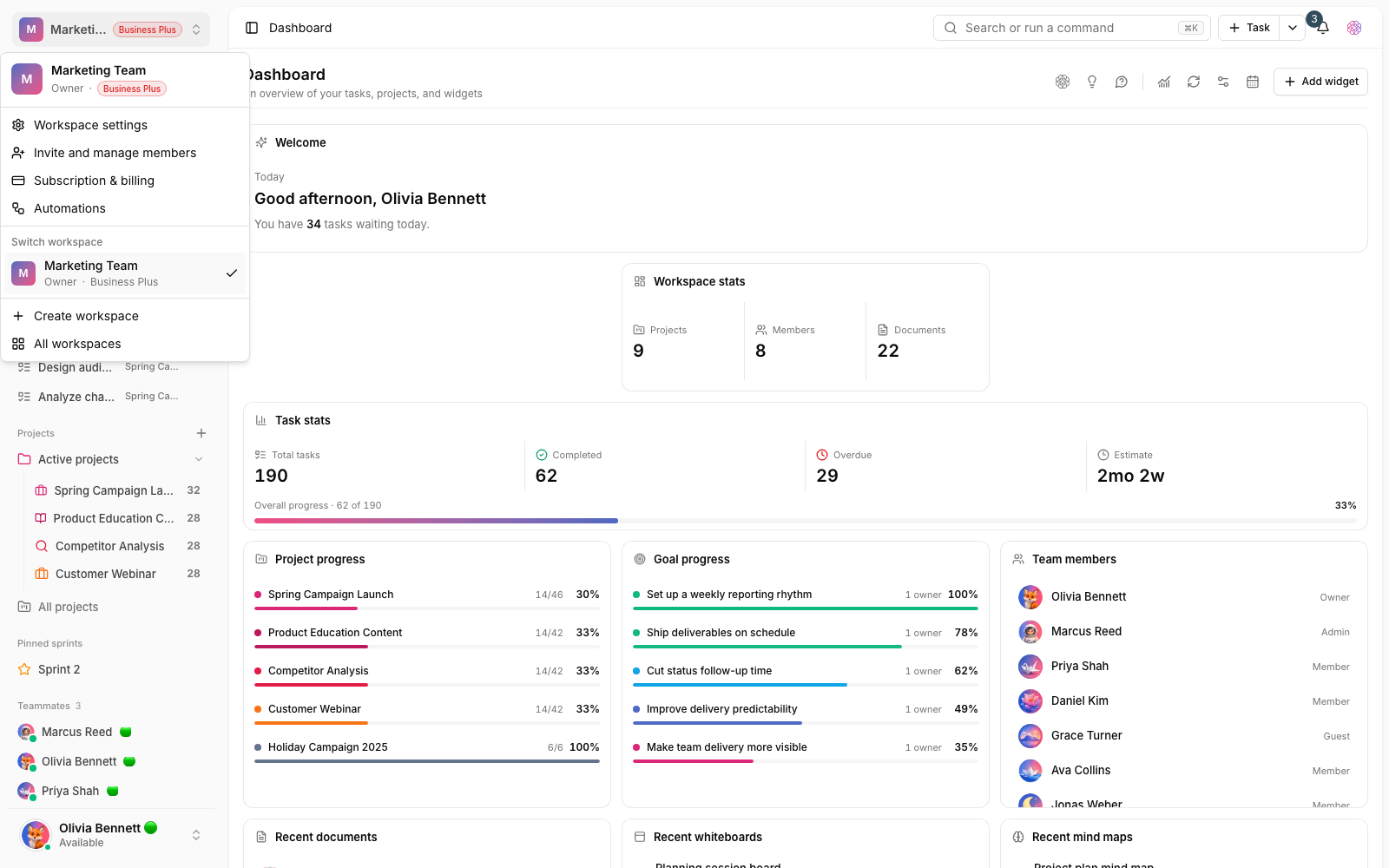
If you have more than one team or organization, you can create several workspaces and switch between them. Add a new workspace from the Workspaces section, and use the workspace switcher at the top of the sidebar to move between them quickly. Each workspace has its own members, projects and subscription, so you can keep the boundaries of your work clean.
Tip: Don't mix the work and people of two different organizations in one workspace. Clear boundaries between workspaces make reports more accurate and keep permission and billing management simple.
To learn exactly how projects, tasks and views relate to the workspace, see Taskie's core concepts, then speed up your work with Navigating the app and shortcuts.