
Create an account and sign in to Taskie
How to create a Taskie account and sign in with your mobile number, email or Google account, plus email verification and security tips.
To use Taskie, you first create an account and then sign in with that same account each time. Taskie gives you several simple, secure ways to do this, so you can sign in the way that suits you: with your mobile number, with an email and password, or with your Google account. The goal is to make signing in fast while keeping your account protected.
On this page you'll see how to sign up for the first time, how the sign-in methods differ, how to verify your email and recover a forgotten password, and which settings make your account more secure. None of these steps take more than a few minutes.
Ways to create an account
The simplest way to create an account is to sign up with your mobile number. On the sign-up page you enter your number, a one-time code is sent to you by SMS, and once you enter that code your account is created with no password needed. Your first and last name are asked for in the first setup step, so you don't have to fill in everything right away. If a colleague invited you to a workspace or project by email, the sign-up page asks for your name, the invited email address and a password so the account is created with that email.
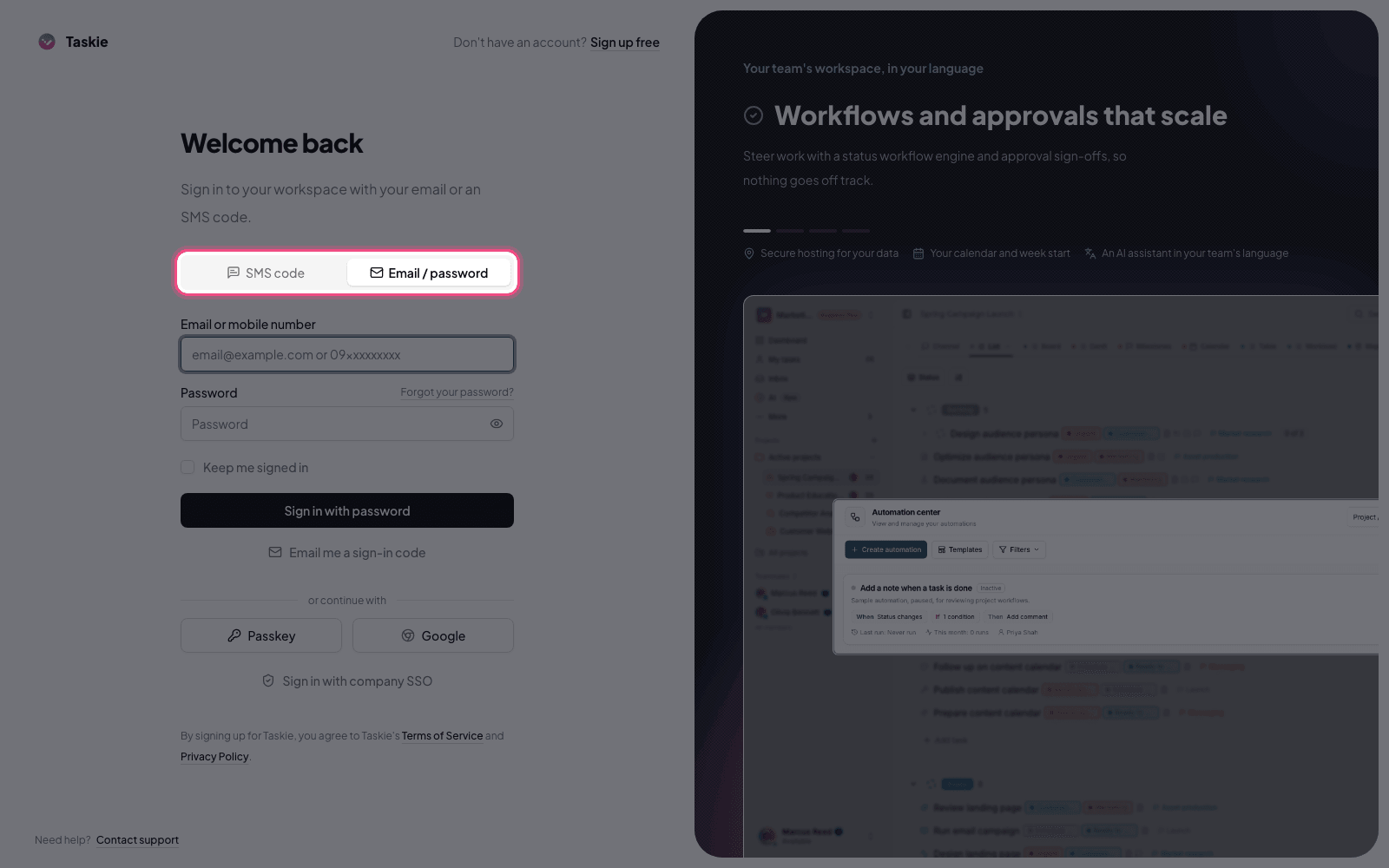
- On the sign-in page, click Sign up free to open the sign-up form.
- Enter your mobile number in the correct format (11 digits starting with 09) and click Get verification code.
- Enter the 6-digit code you received by SMS. The code is valid for about 10 minutes.
- Click Verify and create account to continue to the initial setup steps.
- If the SMS doesn't arrive, the Resend code option becomes available after about 2 minutes.
Signing in to your account
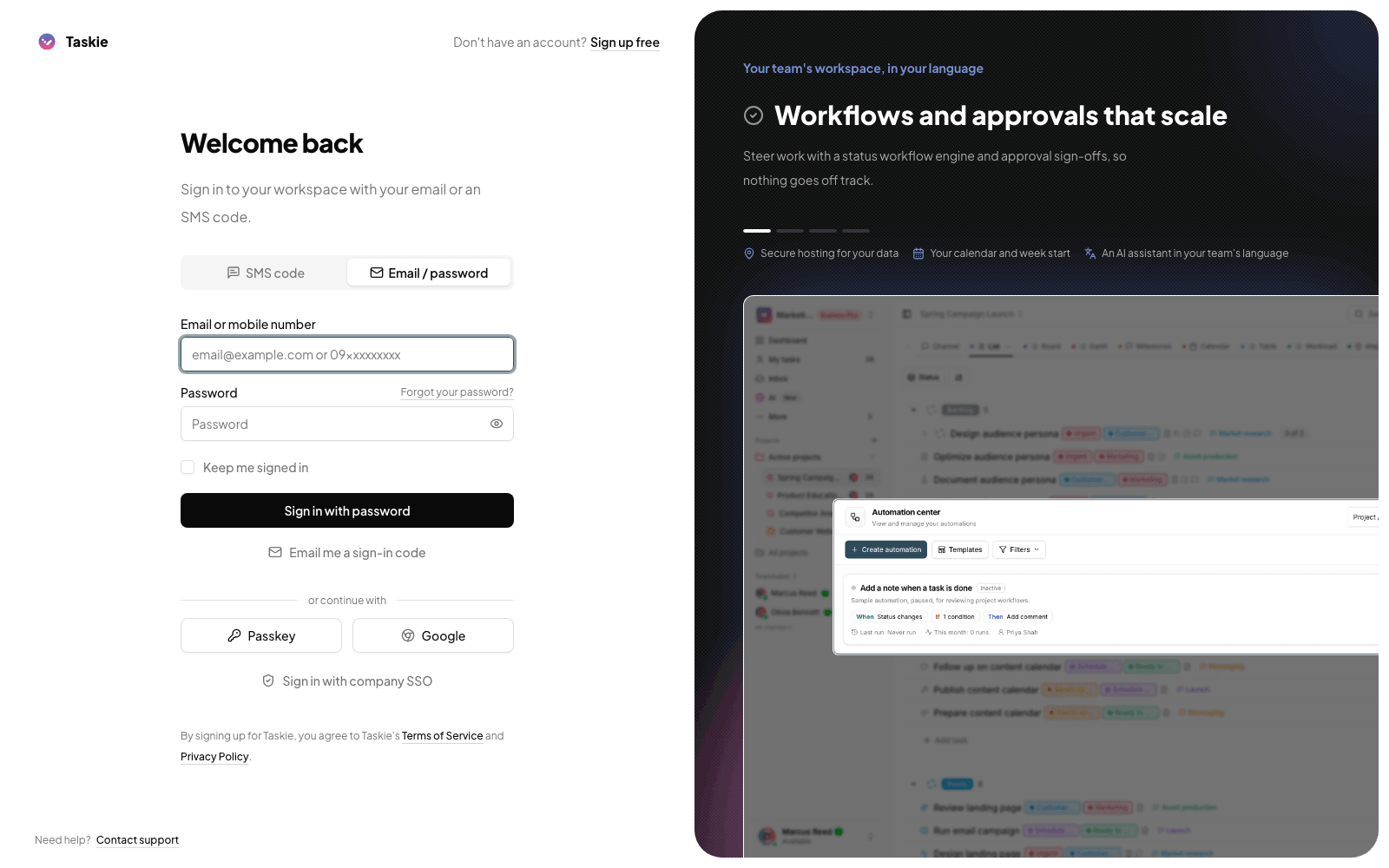
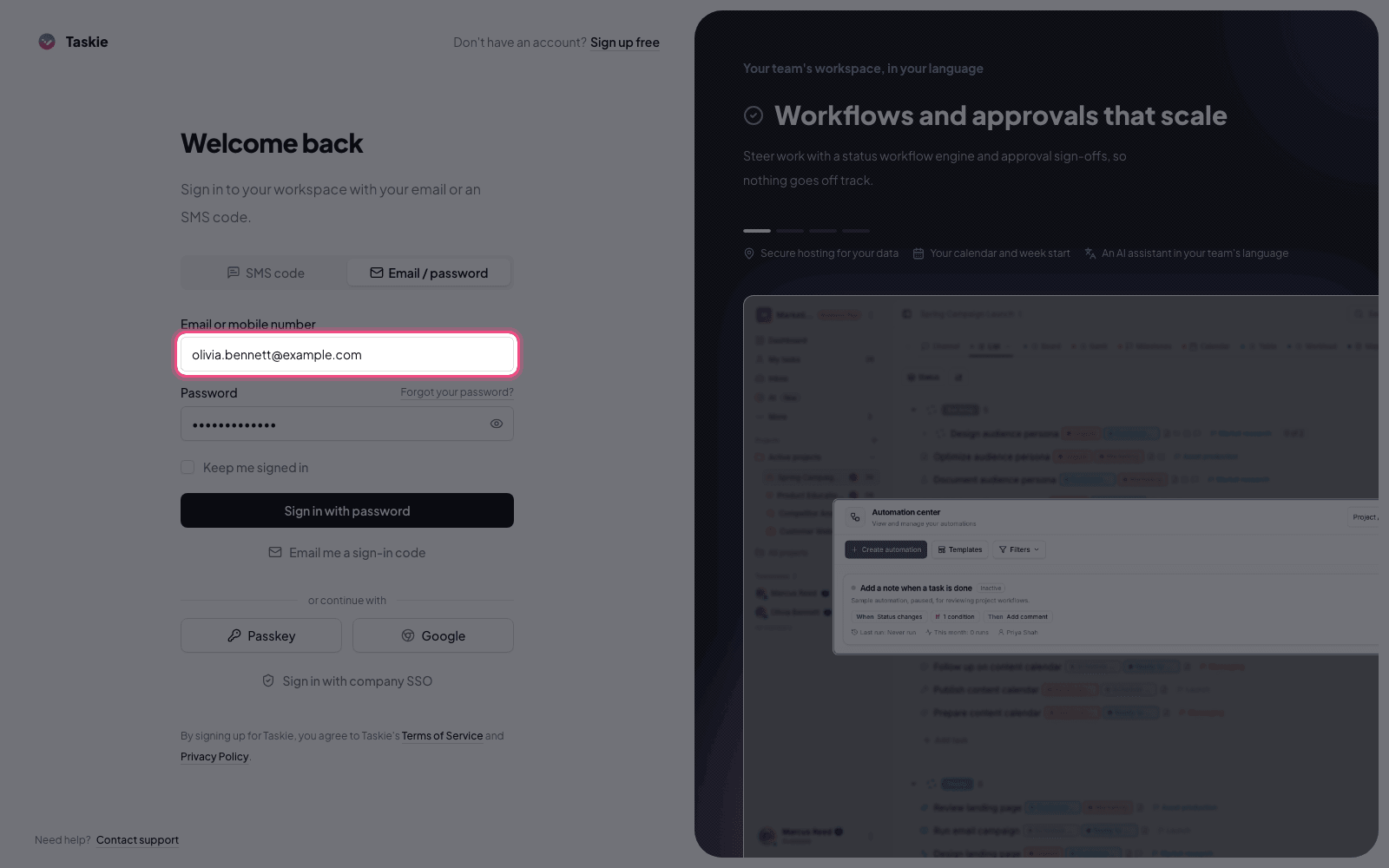
The sign-in page has two tabs: SMS code and Email / password. On the SMS code tab, you enter your mobile number just like when you signed up and sign in with a one-time code; this is the method shown by default. On the Email / password tab, you can sign in with your email or mobile number plus your password, and the Keep me signed in option and the Forgot your password? link are available right there.
Quick sign-in
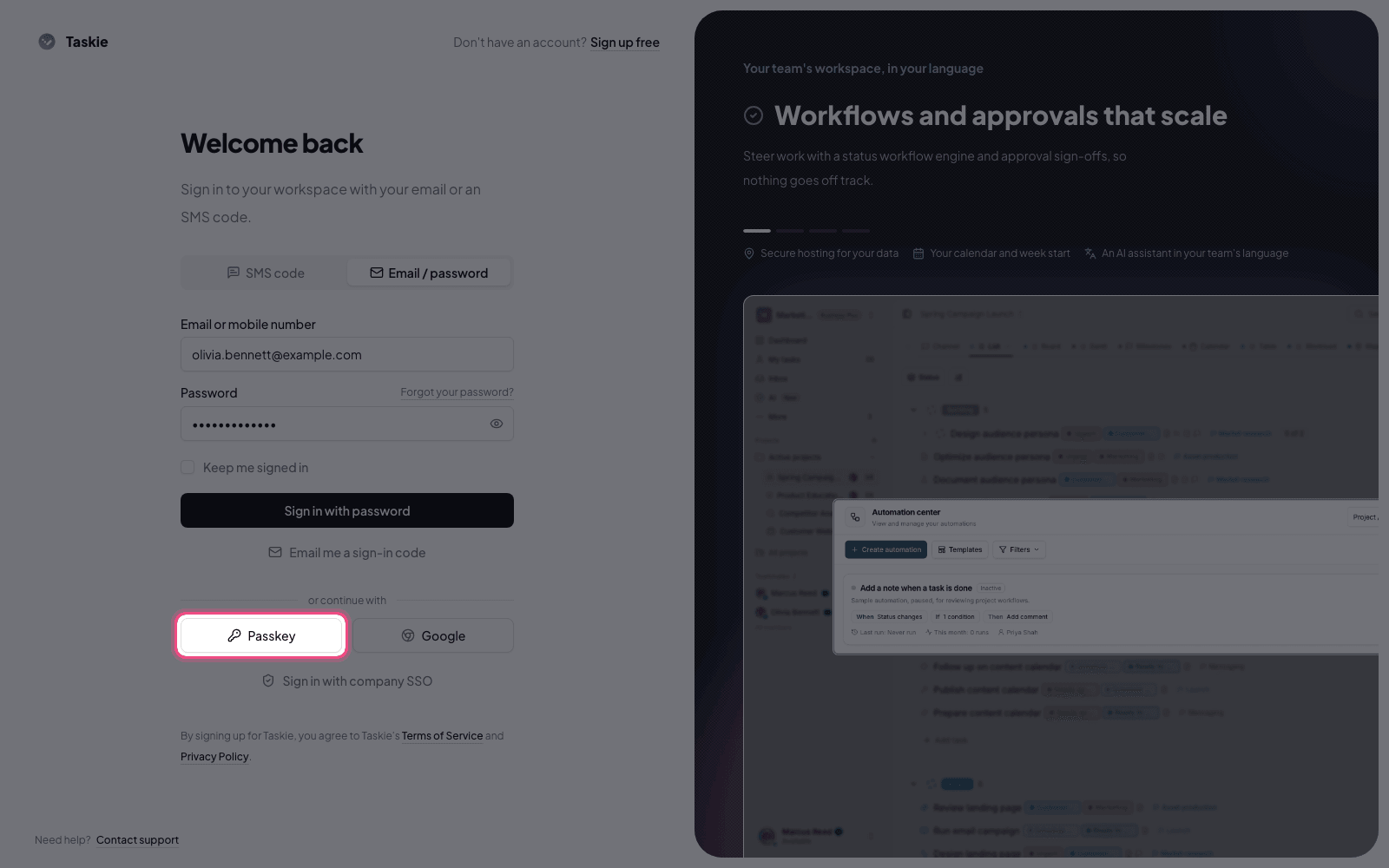
Below the sign-in form there are a few faster options. Signing in with a passkey lets you sign in without a password, just by confirming on your device. Secure sign-in with Google suits people who want to use their Google account. Company sign-in with SSO is for organizations that have turned this on for their workspace; you enter your work email, and the sign-in path for your organization is shown.
Verifying your email and recovering your password
If your account has an email address, Taskie sends you a verification email to fully activate it; just click the link inside. If needed, you can click Resend verification email on that same page to get a fresh link. If you forget your password, click Forgot your password? on the Email / password tab, enter your account email and you'll receive a reset link. The link is valid for about 60 minutes; after that you need to request a new one.
Sign-in security
Taskie protects your account with several layers. After a few failed password sign-in attempts, a security image (CAPTCHA) appears, and the number of attempts per minute is limited to prevent password guessing. For extra security, you can turn on two-factor authentication in settings. When it's on, signing in asks for a 6-digit code from your authenticator app in addition to your password, and you also get a set of emergency recovery codes. Signing in with a passkey is another secure, passwordless option on supported devices.
- Enter your mobile number in the correct format, or the verification code won't be sent.
- If you enter an SMS code incorrectly several times, that code is invalidated and you need to request a new one.
- When signing in with a password, you can use either your email or your mobile number as your identifier.
- Keep your two-factor recovery codes somewhere safe. If you don't have your phone, they're the only way to sign in.
- Company sign-in (SSO) is only available for workspaces that have set it up on the advanced plans.
Security tip: Never share your password or one-time codes with anyone. Taskie staff will never ask for your SMS verification code.
Now that you're signed in, it's time to build your team's foundation. Go to Create your first workspace, then get to know Taskie's core concepts.