
Navigating the app and keyboard shortcuts
The sidebar layout, moving between workspaces and projects, the Inbox, quick search and Taskie's most important keyboard shortcuts.
Once you know the core concepts, the next step is learning where each part lives in Taskie and how to move between them quickly. The sidebar runs along the side of the screen (on the left in left-to-right languages and on the right in right-to-left languages), and it gives you access to every important section.
On this page we walk through the menu and sidebar layout, how to switch between workspaces and projects, the Inbox, quick search and the most important keyboard shortcuts, so your day-to-day work is smoother and faster.
The sidebar and main menu
At the top of the sidebar you'll find the workspace switcher and the name of the current workspace. Below that are Taskie's main sections, and further down you'll see your projects and favorites. The most important sections are usually:
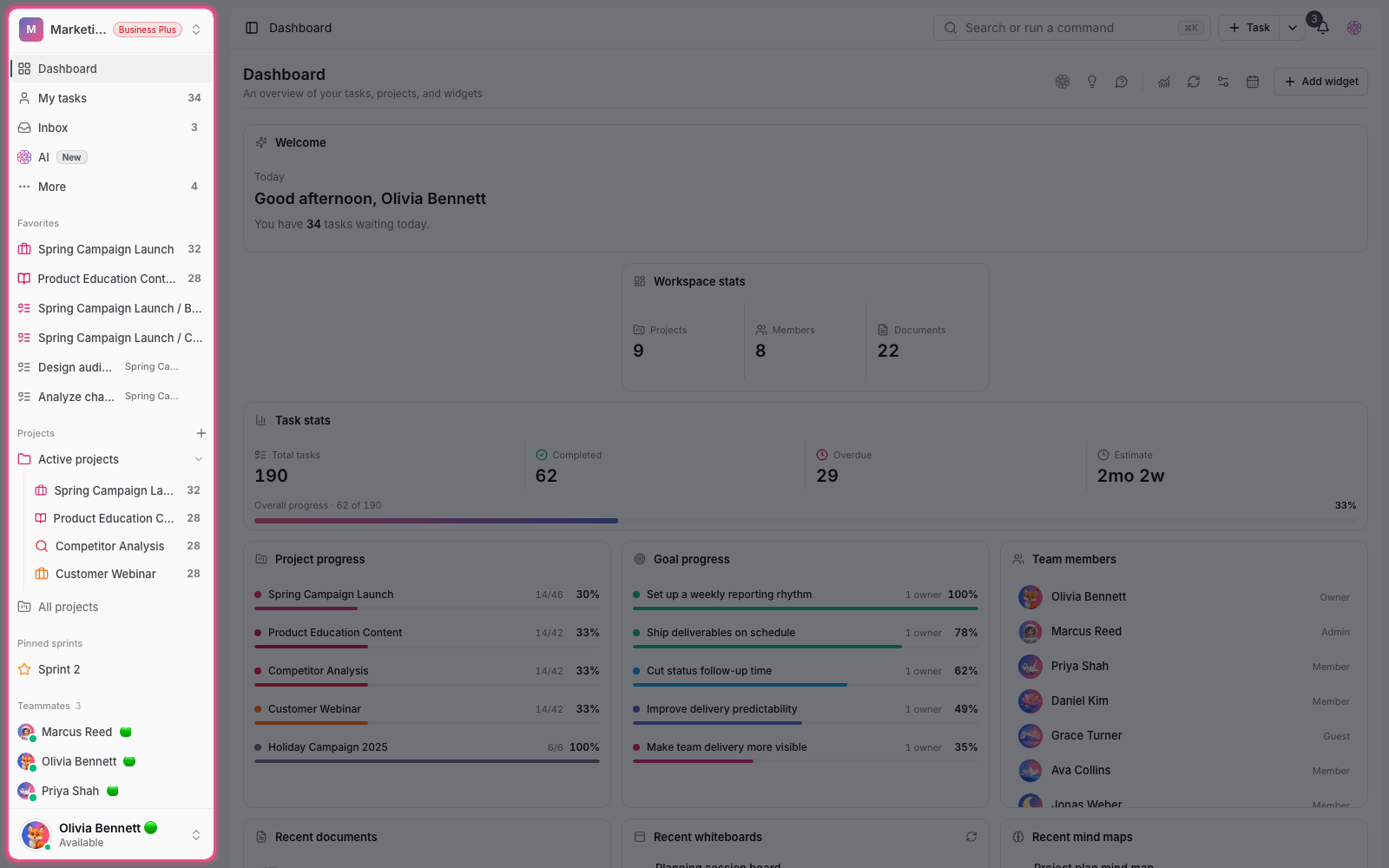
- Dashboard: an overview of your work and reports.
- My tasks: every task assigned to you, in one place.
- Inbox: an inbox for quick, personal tasks.
- Documents and Files: one place to access your team's knowledge and assets.
- Goals and, when turned on, Approvals: track goals and approval requests.
- Further down: Favorites, the list of Projects and folders, Shared projects and labels.
Switching between workspaces and projects
To go to another workspace, click the workspace switcher at the top of the sidebar and choose the workspace you want. To open a project, just click its name in the project list to open its tasks; from there you can go to the project's other sections, such as documents, files, forms or the dashboard. To create a new project, use the New project button above the project list.
The Inbox and My tasks
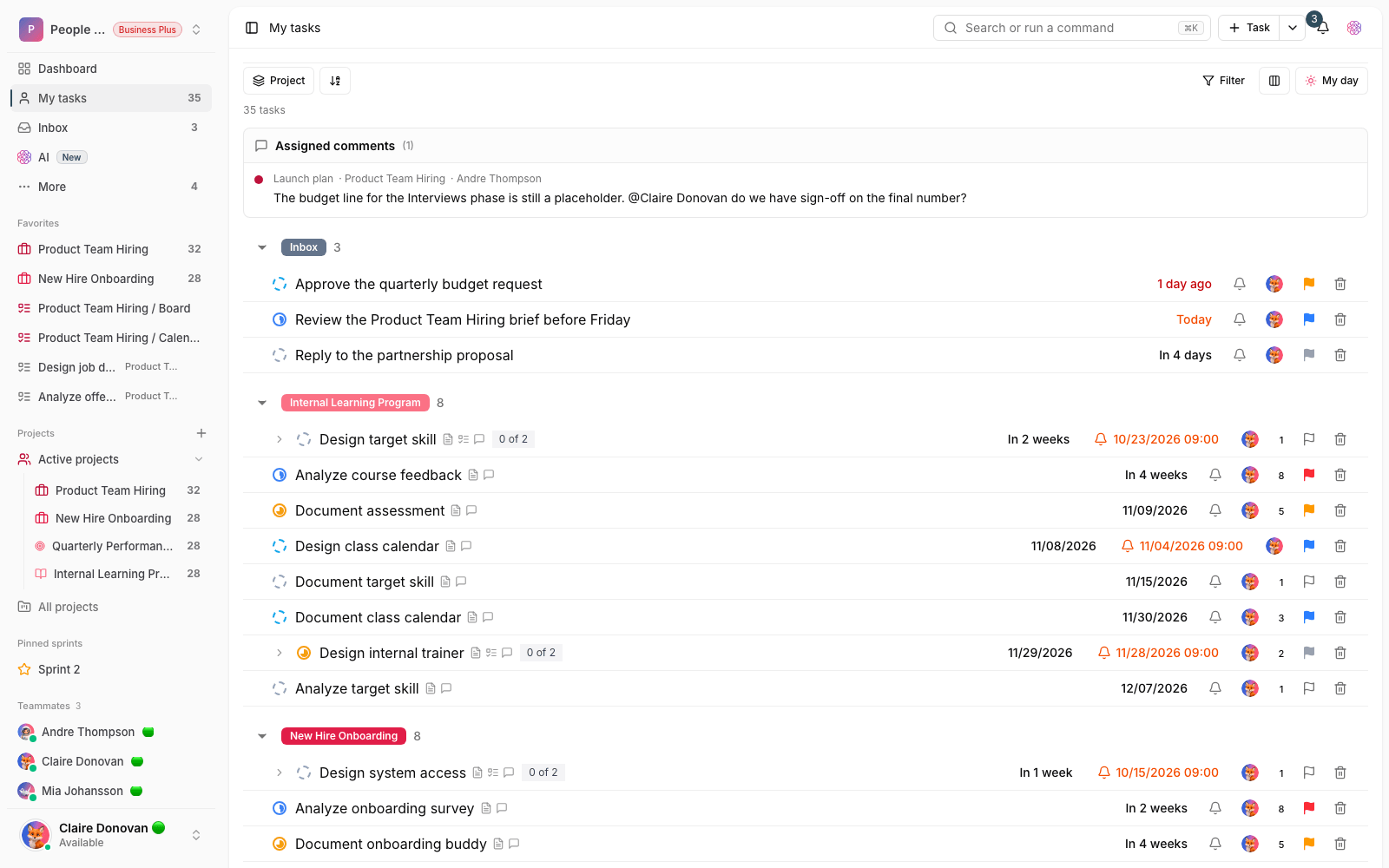
The Inbox is where you quickly capture tasks when you don't know yet which project they belong to; you can move them to the right project later. My tasks shows all the work assigned to you in one place, no matter which project it's in, so your priorities for the day are clear. Next to these sections, a number badge shows how many open tasks you have.
Quick search and the command palette
Taskie has a unified command palette that opens with Ctrl+K (⌘+K on Mac). It's both a global search and a shortcut for running actions: it searches tasks, documents, projects, labels and comments at the same time. Use the categories at the top of the window to narrow results to one type, and type "/" to see only commands.
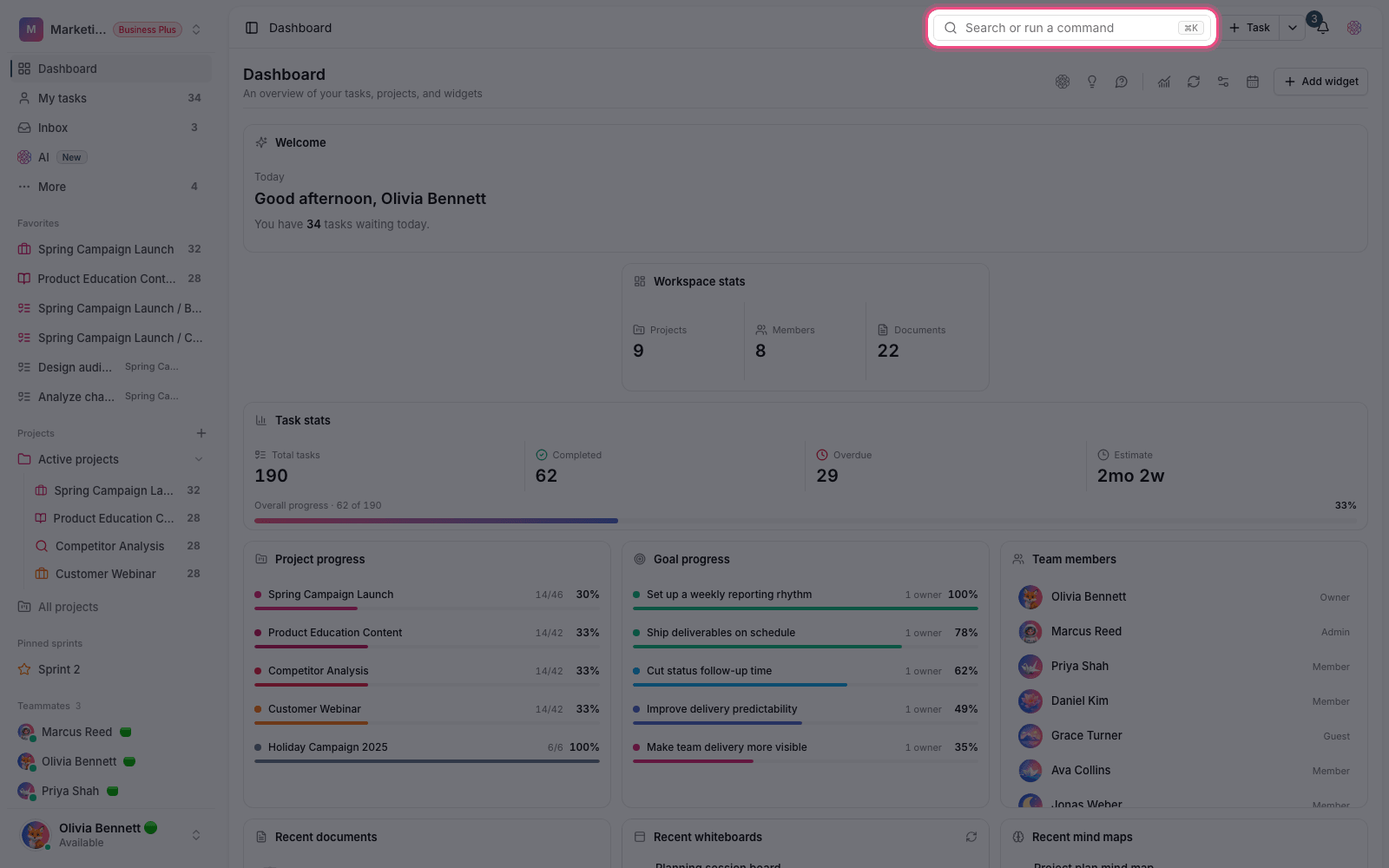
- Press Ctrl+K or ⌘+K to open the command palette.
- Type part of the name of a task, project, document, label or comment.
- Move between results with the arrow keys and between categories with Tab.
- Press Enter to open the selected item or run the command; Ctrl/⌘+Enter opens it in a new tab.
- For quick actions such as Create task or Create project, type the command name or its short alias (such as nt).
The command palette can do much more, from filtering and sorting task results to recent items and asking AI. Read the full guide in The command palette: search and run anything with Ctrl+K.
Keyboard shortcuts
To see the full list of shortcuts, just press ?. The most important global and navigation shortcuts are:
- Ctrl/⌘ + K: open the command palette and quick search.
- T: create a new task.
- H or D: go to the dashboard.
- I: go to the Inbox and My tasks.
- Ctrl/⌘ + \: show or hide the sidebar.
- Alt/⌥ + K: open the AI agent.
- ?: show the window with all shortcuts, and Esc to close a window or an open task.
Editor and task view shortcuts
When writing in a document or a task description, / opens slash commands, @ mentions a user, # references a task and [ links to a document. In a task's view, you can change the status with Shift+S, the assignee with Shift+A, labels with Shift+L and the priority with Shift+P, and press M to assign the task to yourself.
Note: Single-letter shortcuts only work when you aren't typing in a text field. If you don't need shortcuts, you can turn them off in your account settings.
If the relationship between these sections still isn't clear, take a look at Taskie's core concepts. If you're just getting your team set up, start with Create your first workspace.