
Support tickets
To ask a question or report a problem, submit a ticket and follow the support team's reply on the same page.
If you can't find the answer to your question in the help center, or you run into a problem, submit a support ticket. Unlike scattered messages, a ticket creates a trackable conversation thread whose history is kept.
Submitting a new ticket
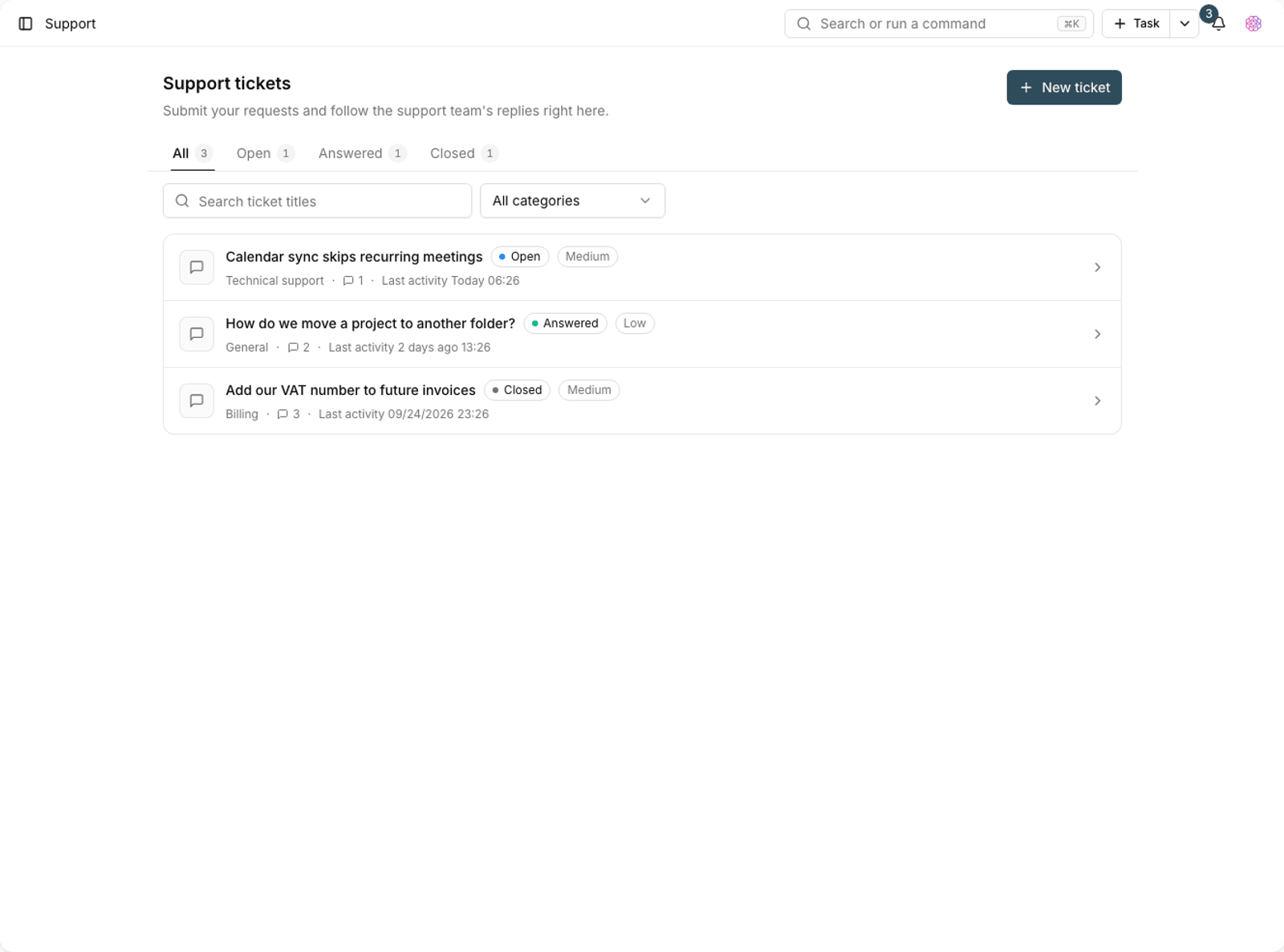
- Go to the Support tickets page and click Create a new ticket.
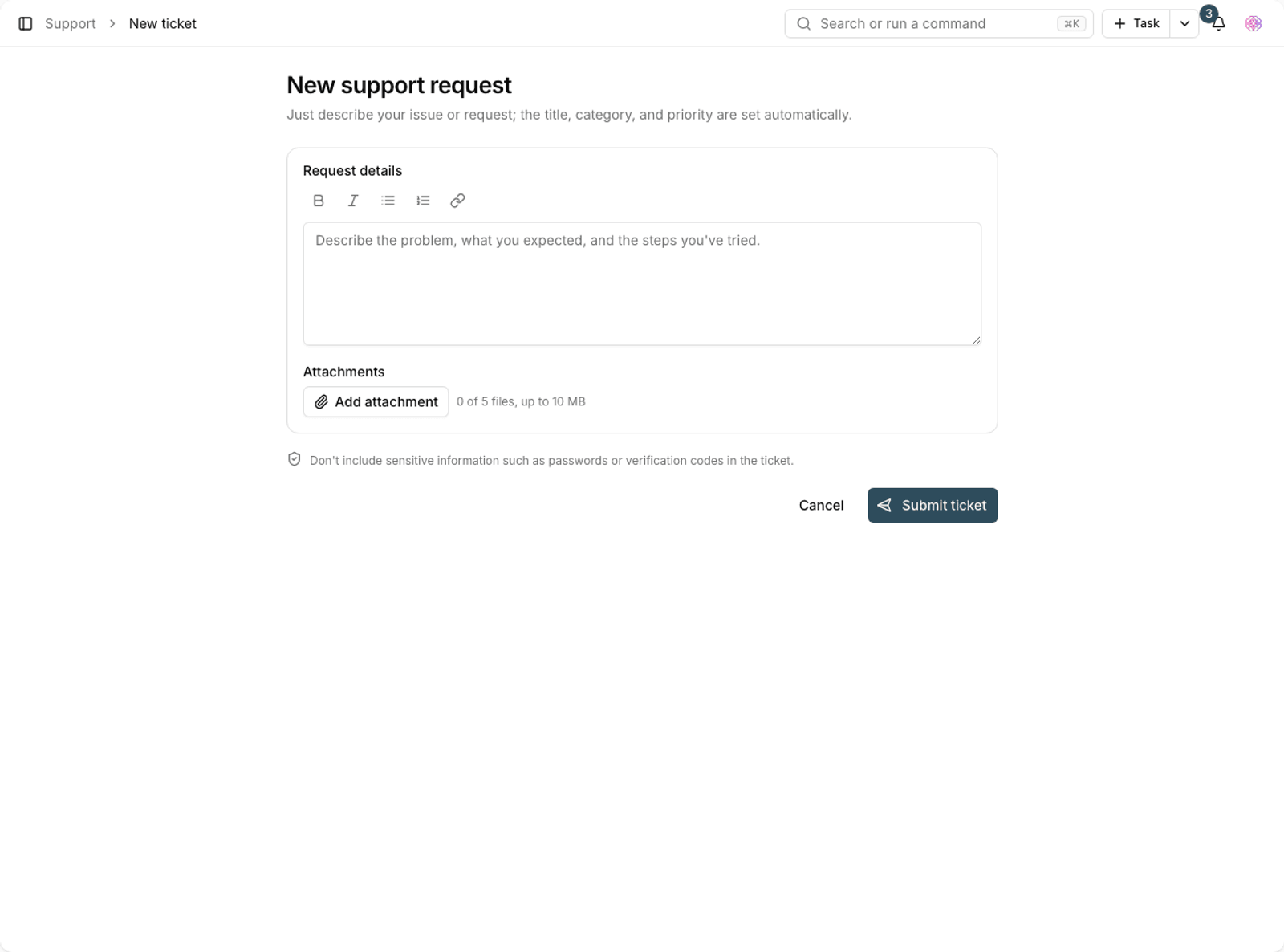
- In Request details, describe the problem, the result you expected and the steps you've taken. That one text is all you need.
- To make your text easier to read, use the toolbar above the box: bold, italic, bulleted list, numbered list and link. You can also press Ctrl+B and Ctrl+I to make selected text bold or italic.
- If needed, attach a file or screenshot, then submit the ticket.
- The ticket's title, category and priority are generated from that text a few moments later; until then, a temporary title is shown.
Security warning: Don't include sensitive information such as passwords or verification codes in a ticket. The support team will never ask for your password.
Following up on a ticket
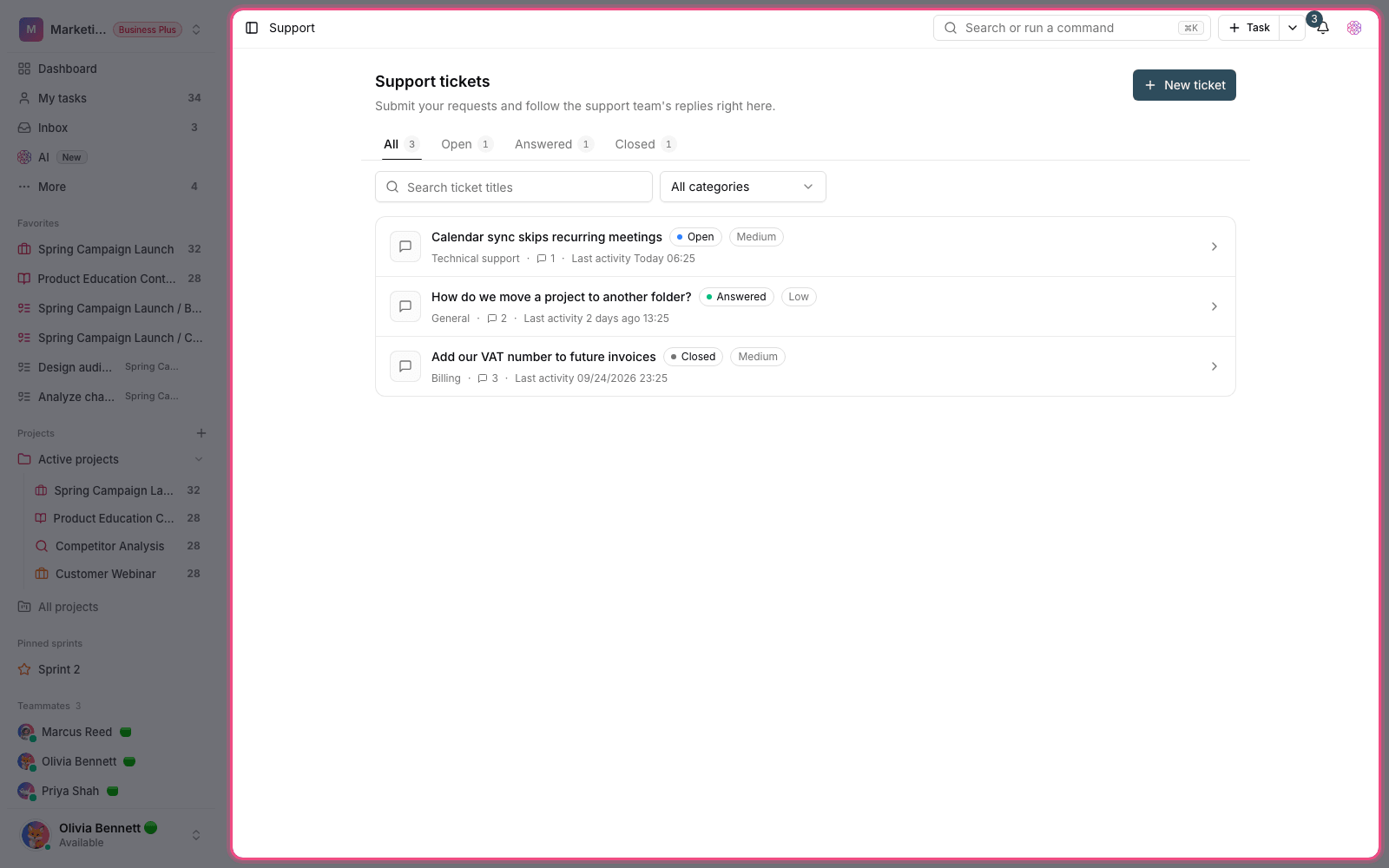
- Ticket details: shows the whole conversation, when the ticket was submitted and its last activity.
- Send reply: add more information in the same thread so the context isn't lost.
- Search tickets: search the titles of your previous tickets.
- Filter: narrow tickets by status and category.
- Closed ticket: when the issue is resolved, the ticket is closed and the closing time is recorded.
- Image attachments: attached images are shown as thumbnails and open larger on the same page with one click. Other files download as before, and both sides of the conversation can access them.
How to get a faster reply
- One issue per ticket. Don't combine several different problems in one thread.
- Write exact steps to reproduce: what you did, what you expected and what you saw.
- Attach a screenshot, and cover any sensitive information in the image before you send it.
- Mention the name of the related project or workspace.
- If an error message appeared, include its exact text.
Note: On higher plans, support replies with higher priority. Whatever your plan, detailed and complete tickets are always resolved faster.
Before you submit a ticket
Many questions are already answered here, and searching the help center is faster than waiting for a reply. If you've run into an error, a few simple checks usually solve the problem:
- Refresh the page, then sign out and sign back in once.
- Check whether the problem also happens in another browser.
- If a feature isn't available, check your workspace plan and your own role. Many cases of "it doesn't work" are really "it isn't included in this plan".
- If the problem affects only one person, check that member's permissions.
What isn't a ticket
Some requests have a better path than a support ticket, and sending them to support only delays the answer.
- Access issues within your team: your workspace admin can solve these faster.
- Suggesting a new feature: submit it as a suggestion, not a bug report.
- How-to questions: the answer is usually right here in the help center.
- Bank payment issues: if the amount was charged but the order wasn't recorded, attach the receipt so it can be followed up faster.
Before submitting a ticket, try searching this help center. Many common questions are answered in Welcome to Taskie and the other articles.