
Duplicate projects and use templates
Instead of rebuilding from scratch, copy a project in the background or start from a ready-made template to get new projects going faster.
Many projects share a similar structure: the same statuses, sections and kinds of tasks come up again and again. Instead of building that structure from scratch every time, Taskie gives you two ways to reuse earlier work: copying an existing project and starting from a ready-made template.
Both get new projects started faster and more consistently. Copying is the right choice when you want a fresh version of a real project, and a template is the right choice when you want to start from a pre-designed framework.
Copy an existing project
When you copy a project, a new project is created with the same skeleton as the source project, but without its members, activity history and comments. You can create the copy in the same workspace or in another workspace where you're allowed to create projects.
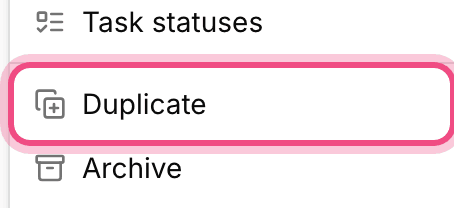
- From the project menu, open Copy project.
- In New project title, enter a name for the new version. By default, it's "Copy of" followed by the project's name.
- Choose the Destination workspace. If a workspace's plan doesn't have enough capacity, the reason is shown next to that workspace.
- Click Start copy to queue the job.
Background copying and the ready notification
Depending on its size, copying a project can take a little while, so it runs in the background and you don't need to wait. A progress bar shows how it's going, and when the copy is complete, you get a notification that the project copy is ready, which takes you straight to the new project. If something goes wrong partway through, you'll get a notification that the copy failed.
What gets copied and what doesn't
Copying carries over the project's structure and content, but some things are deliberately left out so the new project really is a clean start.
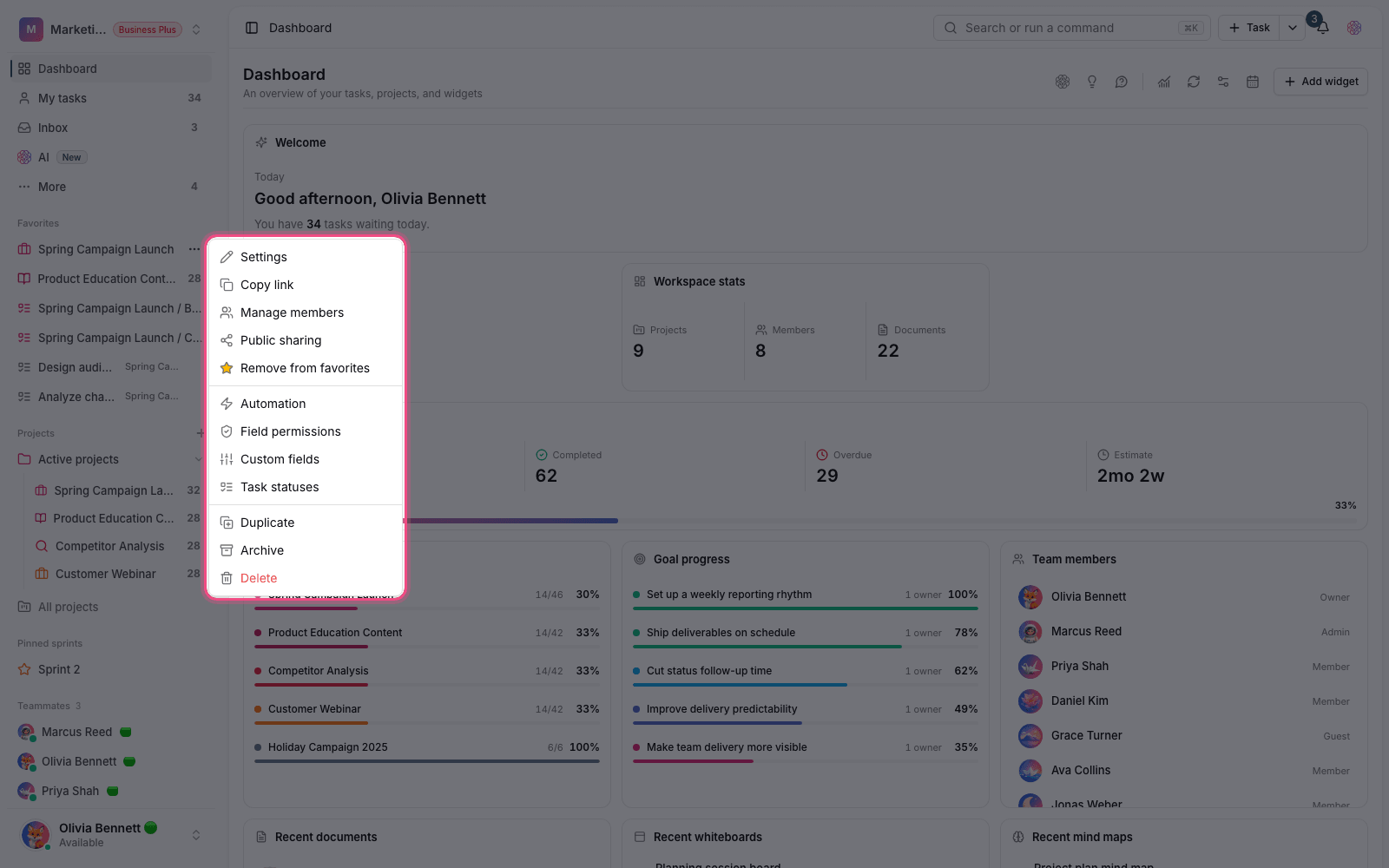
- Carried over: statuses, sections, milestones, custom fields, views, tasks with their checklists, attachments and dependencies, documents, files, whiteboards and mind maps.
- Turned off or saved as drafts: automations are copied turned off and forms are copied as drafts, so nothing runs or gets published by accident.
- Not carried over: project members, activity history and comments.
- Each task's assignee is kept only if that person is allowed to take on work in the destination workspace. Otherwise, the task is left unassigned.
Note: Copying a project requires management access to the project, and the Inbox project can't be copied.
Start from a ready-made template
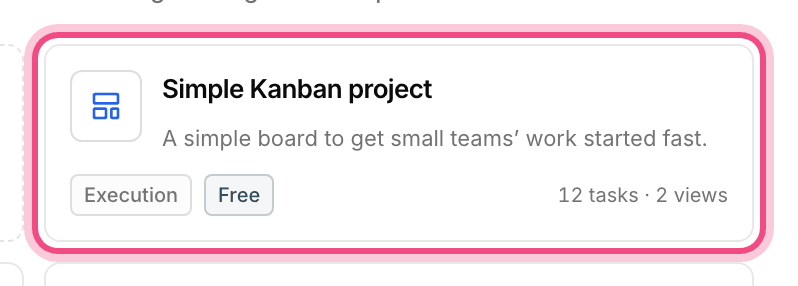
Taskie has a library of ready-made templates, each with a pre-designed structure such as statuses, sections and sample tasks. Pick a template and choose a workspace, and a complete project is built on that framework. Templates are organized by category and use case, and some are only available on higher plans.
Copy or template: which should I choose?
- If you want a version of a real project full of your own data, choose copy.
- If you want to quickly set up a clean, standard workflow, start from a ready-made template.
- To build a completely new project by hand, go back to the regular way of creating a project.
Tip: Before copying large projects, make sure the destination workspace's plan has enough capacity for the project, files and custom fields. These are checked before the copy starts.
To set up your new project's structure better, see Create and structure projects and Project statuses and workflow.