
Project activity and summary
Use the project's activity view, dashboard and weekly report together to review important changes and the real progress of work.
Reviewing a project's progress shouldn't mean asking each member one by one or guessing from chat messages. In Taskie, every important change to the project's work and content is recorded automatically, so at any moment you can see who did what, what moved forward and where work is stuck.
You have three complementary tools for reviewing status: the activity view for the timeline of changes, the dashboard for a statistical, big-picture view, and the weekly report for a roundup of the week's most important events. Below you'll see what each one does and when it's useful.
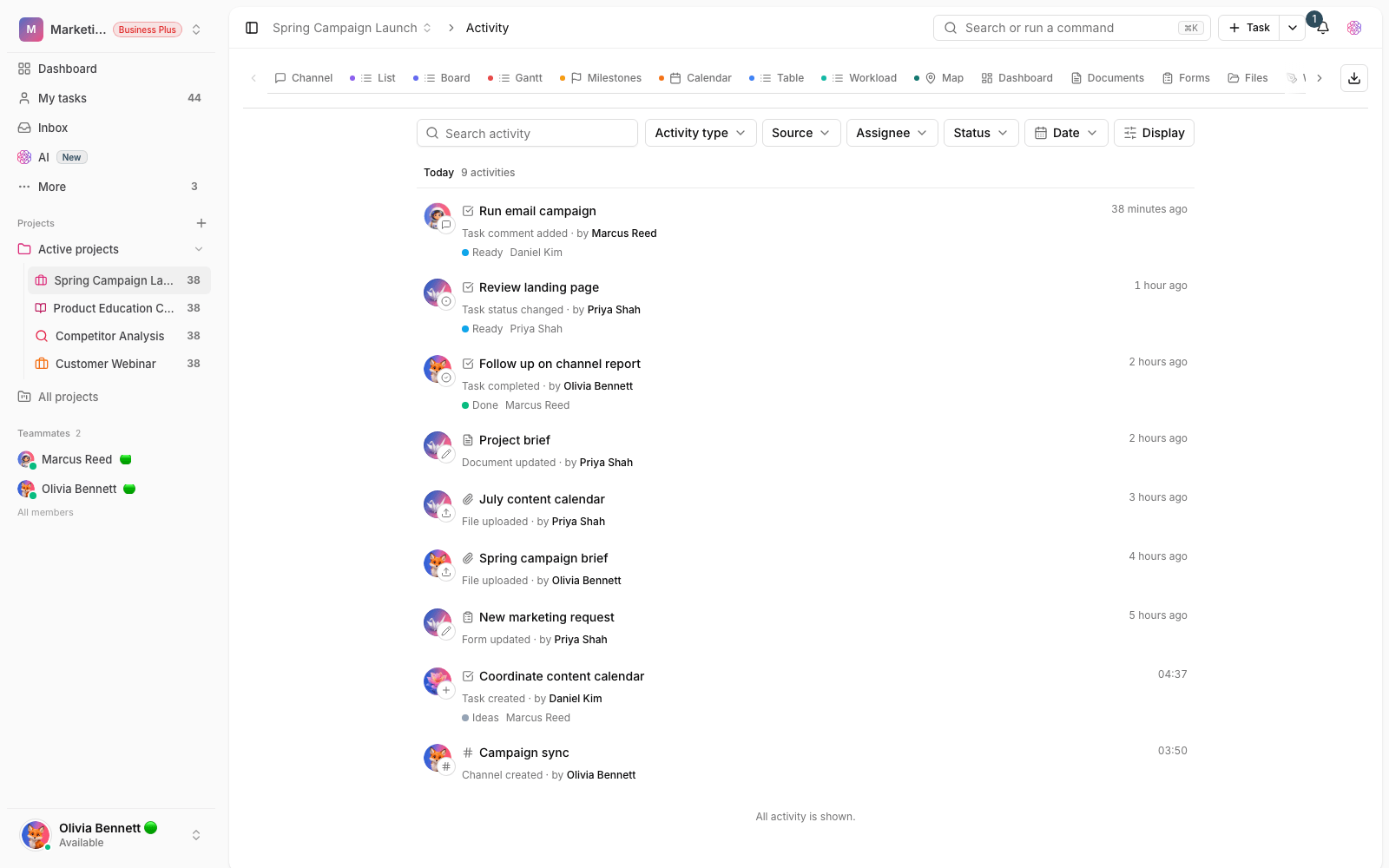
What is the activity view, and what does it record?
The activity view is a timeline that shows the project's important changes, newest first. Each row says who did what, on which item and when. For tasks, the status and assignee are shown too, and if a field changes, the old and new values appear side by side. Events are grouped by date to make reviewing easier.
- Tasks: creation, status changes, assignment, completion, comments, checklists and dependencies.
- Documents: creation, edits, moves, comments and attachments.
- Files and folders: uploads, updates and deletions.
- Channels: channel creation, announcements, pinned posts and turning posts into tasks.
- Forms, whiteboards and mind maps: creation, updates and deletions.
Turn on and open the activity view
The activity view isn't on by default, so you need to add it once.
- In the project's views bar, click Add view.
- From the single-use views section, choose Activity to add it.
- Click the Activity tab to open the full timeline of events.
- For older events, scroll down the list or click More activity.
Filter activity to find what matters
When a project gets busy, filters show only the events you care about. Click Filter activity, combine a few conditions and click Apply. To go back, use Clear.
- Search the text of events and task titles.
- A from/to Date range to limit results to a specific period.
- Activity type and Source, for example only status changes or only documents.
- Status and Assignee to follow one stage or one specific member.
- My tasks to see your own work, and Include subtasks to show subtask events, which are hidden by default.
Plan note: On the Free plan, only activity from the last day or two is shown. To review the full history and older events, you need the Pro plan or above.
The project dashboard: a big-picture view of progress
If you want a statistical picture instead of individual events, add the Dashboard view with Add view. The dashboard is made of widgets you can arrange: move them, resize them or go back to the default layout. Each widget sums up one angle of the project's status.
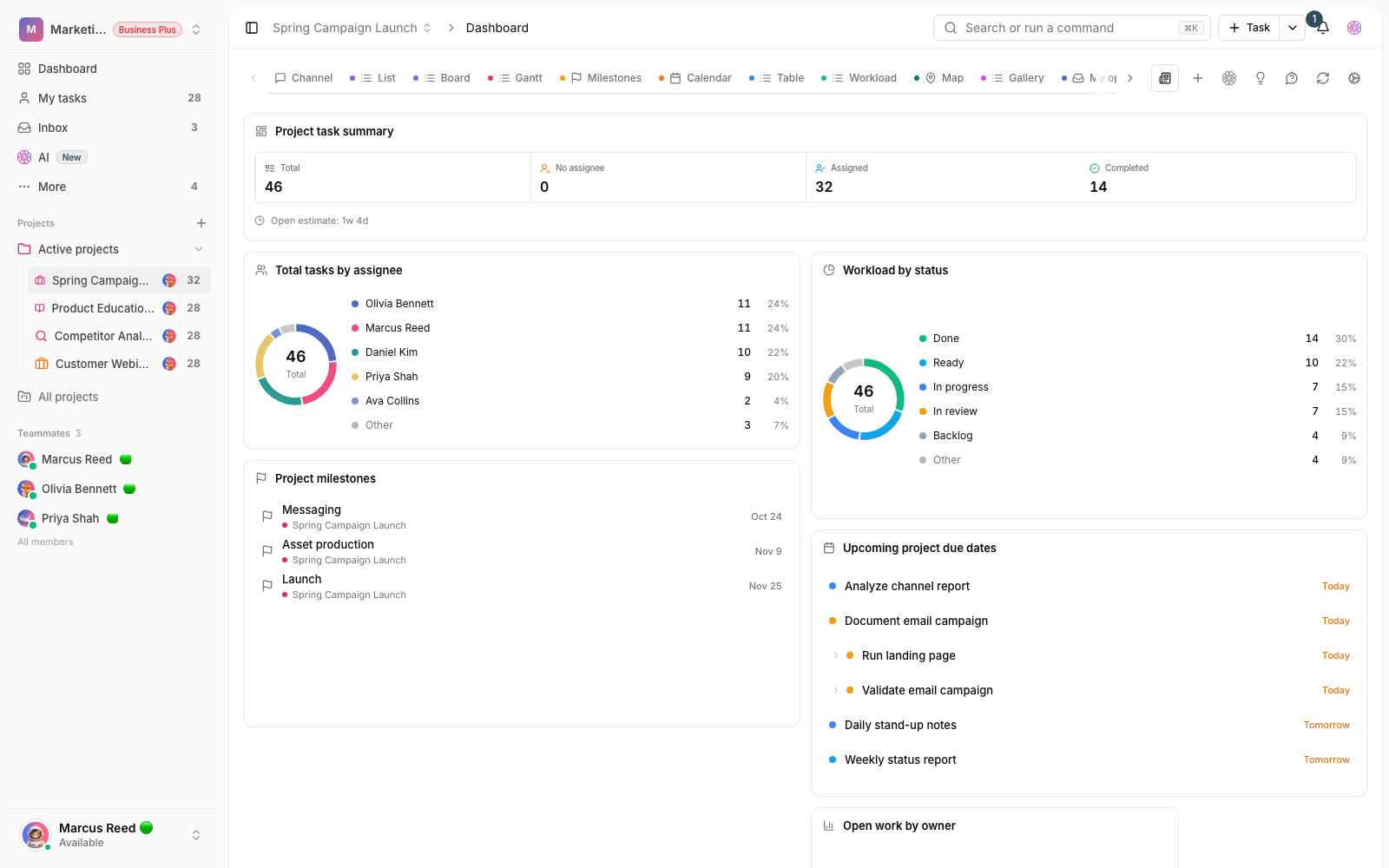
- Task summary: the number of unassigned, assigned and completed tasks.
- Workload by status and Tasks by assignee: how work is spread across stages and people.
- Upcoming deadlines and Overdue tasks: work whose due date is close or has passed.
- Milestones and time widgets: milestone progress and time logged on the project.
The weekly report: a summary of important changes
The weekly report gathers the week's most important events into one readable summary, and it's great for weekly meetings or keeping stakeholders informed. It's built based on your start of the week and time zone, and it has a few clear sections:
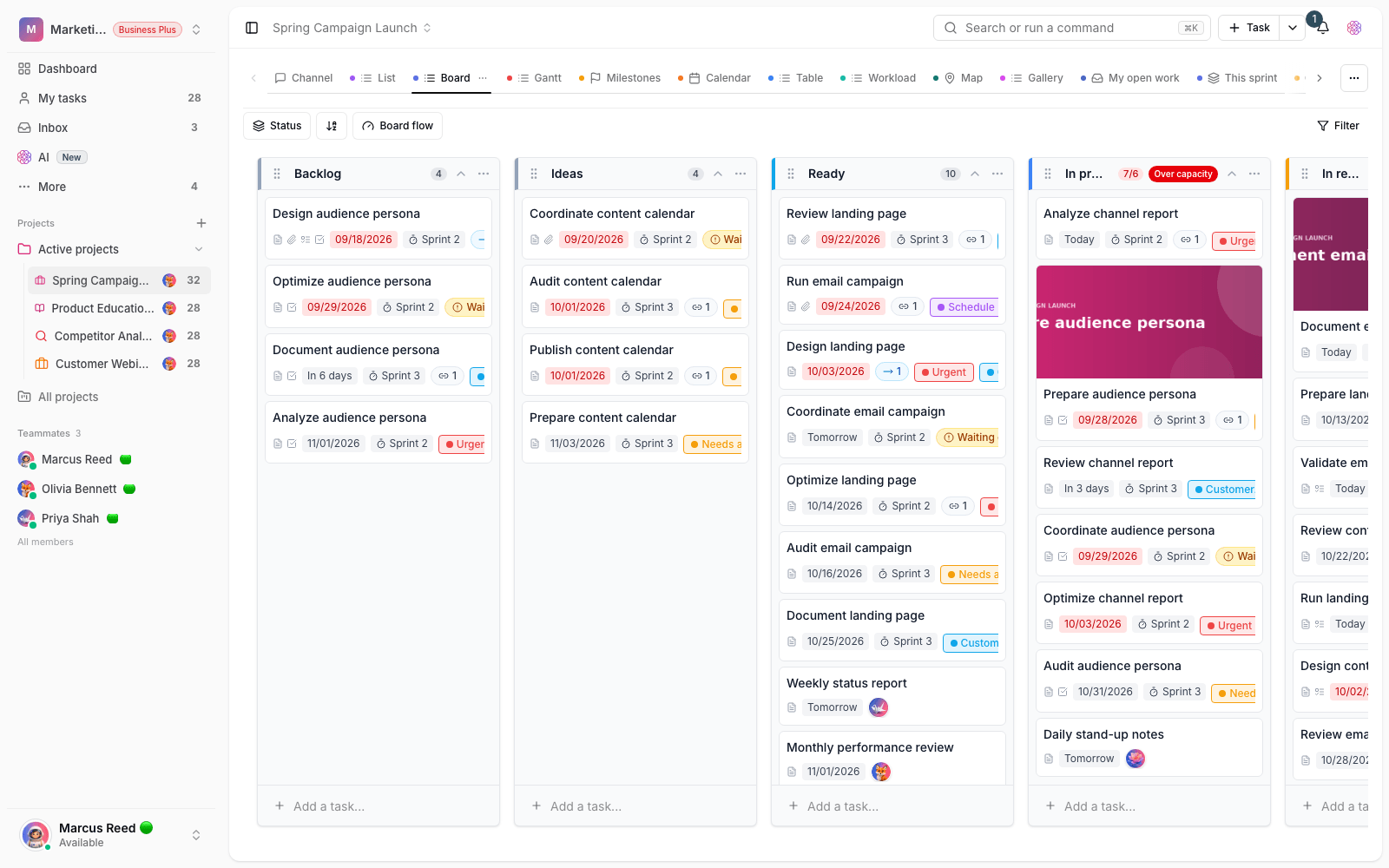
- Work Completed this week and work due in the next 7 days.
- Overdue work, work blocked by dependencies, and unassigned work.
- The most active assignees, recently commented work and a list of Suggested next steps.
The report's ready-made structure is generated without using AI credits, and you can download it or save it as a document. Adding a polished executive summary is optional, and that part uses AI credits. This report is available on the Ultimate plan and above.
A simple routine for reviewing progress
- At the start of the week, open the dashboard to see the workload, upcoming deadlines and overdue work all in one place.
- Generate the weekly report and make decisions about overdue, blocked and unassigned work.
- During the week, follow the activity view with the My tasks filter or a specific assignee.
- Before a meeting, filter activity to that week's date range to quickly review the key changes.
- Common mistake: expecting the full history on the Free plan. Upgrade your plan to see older events.
- Common mistake: forgetting the Include subtasks option. If your team uses subtasks a lot, turn it on.
- Common mistake: relying only on activity for decisions. For trends and numbers, the dashboard and weekly report are more accurate.
For these reviews to be meaningful, the project's structure and stages need to be defined properly from the start. Go to Create and structure projects, and use Statuses and workflow to make sure status changes show exactly what you need to review progress.