
Board view: Kanban, WIP limits and swimlanes
Board view arranges tasks in status columns so you can see work flow, with WIP limits, horizontal swimlanes and column management.
Board view is Taskie's Kanban board: each column is a project status and each card is a task. Instead of a long list, you see how work flows: what's queued, what's on someone's desk, and where work is stuck.
To open the board, click the Board tab in the view bar at the top of the project. Drag cards between columns and the task's status changes right away; you don't need to open the task.
Work with cards and columns
Each column has an Add task button at the bottom, so you can create a task directly in that status. The number of tasks appears next to each column title.
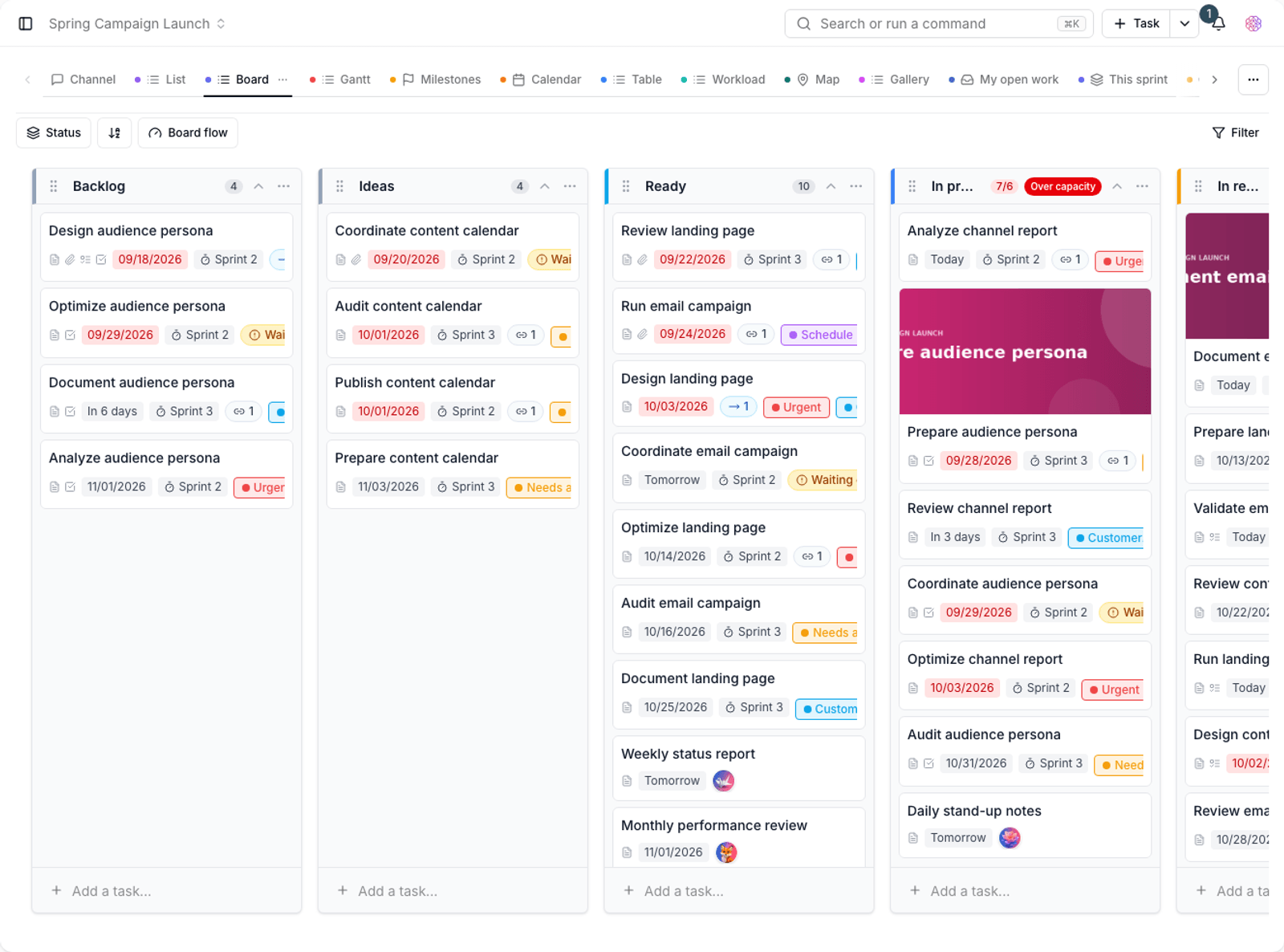
- Move a card: grab a card and drop it in the target column. Dragging also changes the order within a column.
- Quick edit: click a card to open the task details in a side panel.
- Card cover: if a task has a cover, the image appears at the top of the card.
- Collapse a column: collapse columns you rarely use to keep the board tidy. Use Expand column to bring them back.
Manage columns from the board
From the Column options menu on each column header, you can change the project's status structure without going to settings:
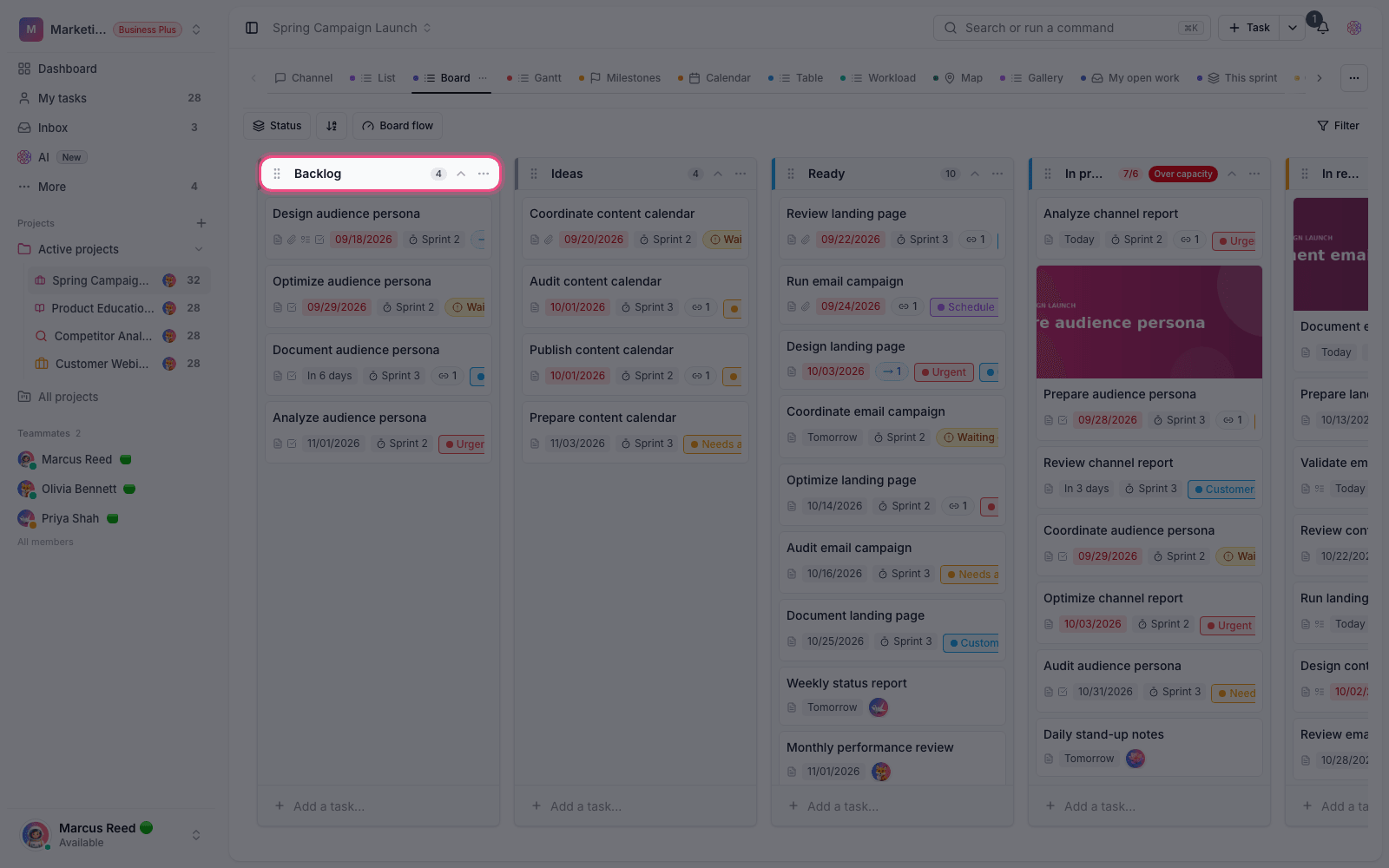
- Rename: edit the status name in place.
- Column color: change the status color to make the stages of your workflow clearer.
- Mark as closed: make the column the project's final status; tasks that reach it count as "closed". Use Unmark as closed to remove this.
- Move column: change the order of the columns.
- Delete column: if the column isn't empty, choose a Destination status before deleting it. Its tasks move there, so no work gets lost.
- Add status: add a new column at the end of the board.
Note: these changes apply to the project's statuses, not just to board view, so every other view sees them too.
Column WIP limits
A WIP (work in progress) limit caps the number of tasks in each column, so your team doesn't juggle too much unfinished work at once. You set it under View options, in Board flow settings.
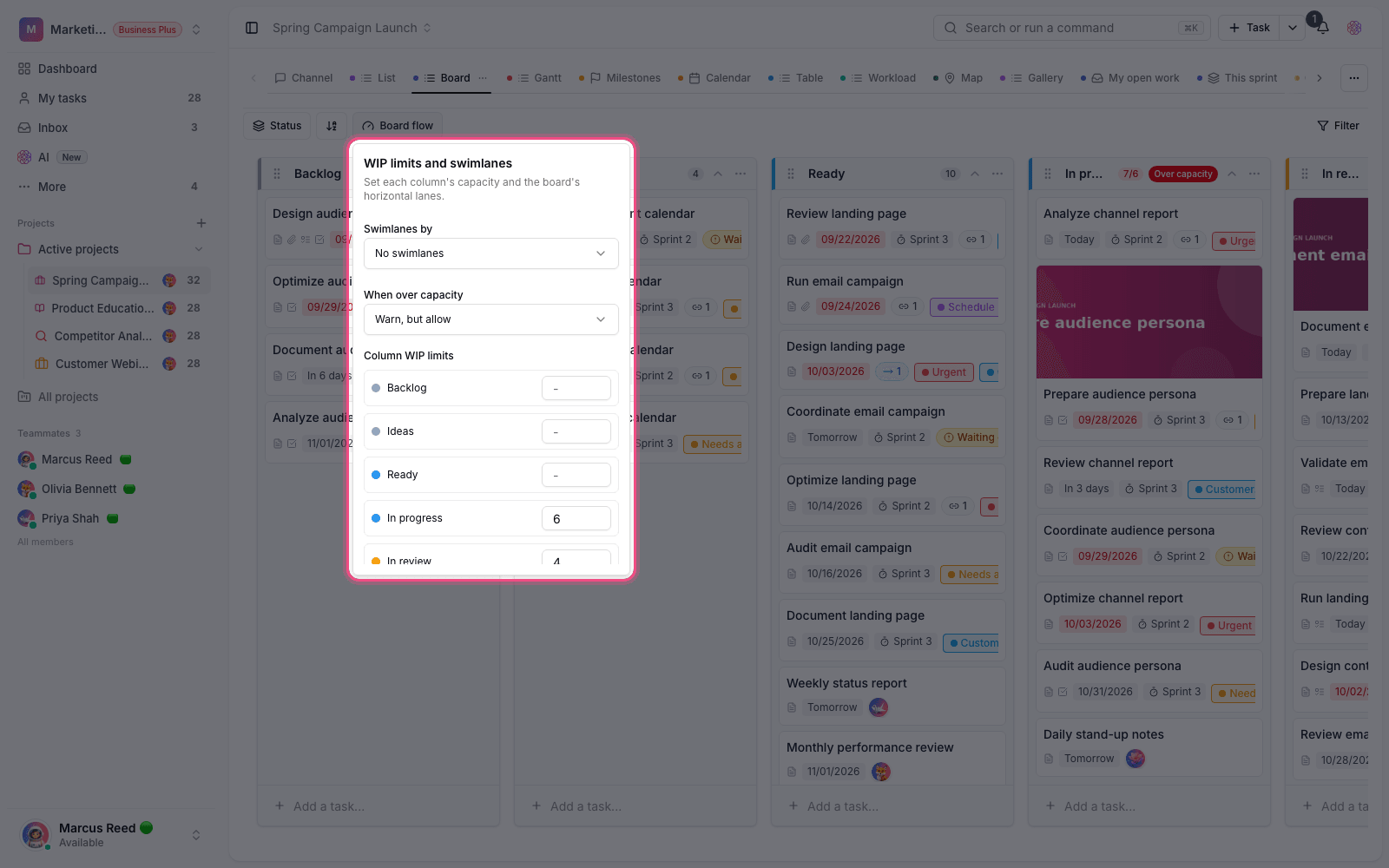
- In the bar at the top of the board, click View options, then Board flow.
- Under Column WIP limits, enter a number for each column. Columns without a number have no limit.
- Under When over capacity, choose what happens when a column is full: Warn, but allow or Block and move the card back.
- A column that goes over its limit is marked Over capacity.
Swimlanes: horizontal rows on the board
Swimlanes split the board into horizontal rows, so you see status and one other dimension at the same time. In the same Board flow settings, set Swimlanes by to assignee, priority, label, milestone, task type or section.
The result is a grid: columns are statuses and rows are, for example, assignees. This is especially useful for daily team stand-ups, because you see each person's workload at every stage in one place.
Plan required: the board itself is available on every plan, but Column WIP limits and swimlanes are available on the Pro plan and above. Until you upgrade, the basic board works without these two features.
Grouping, filters and sorting
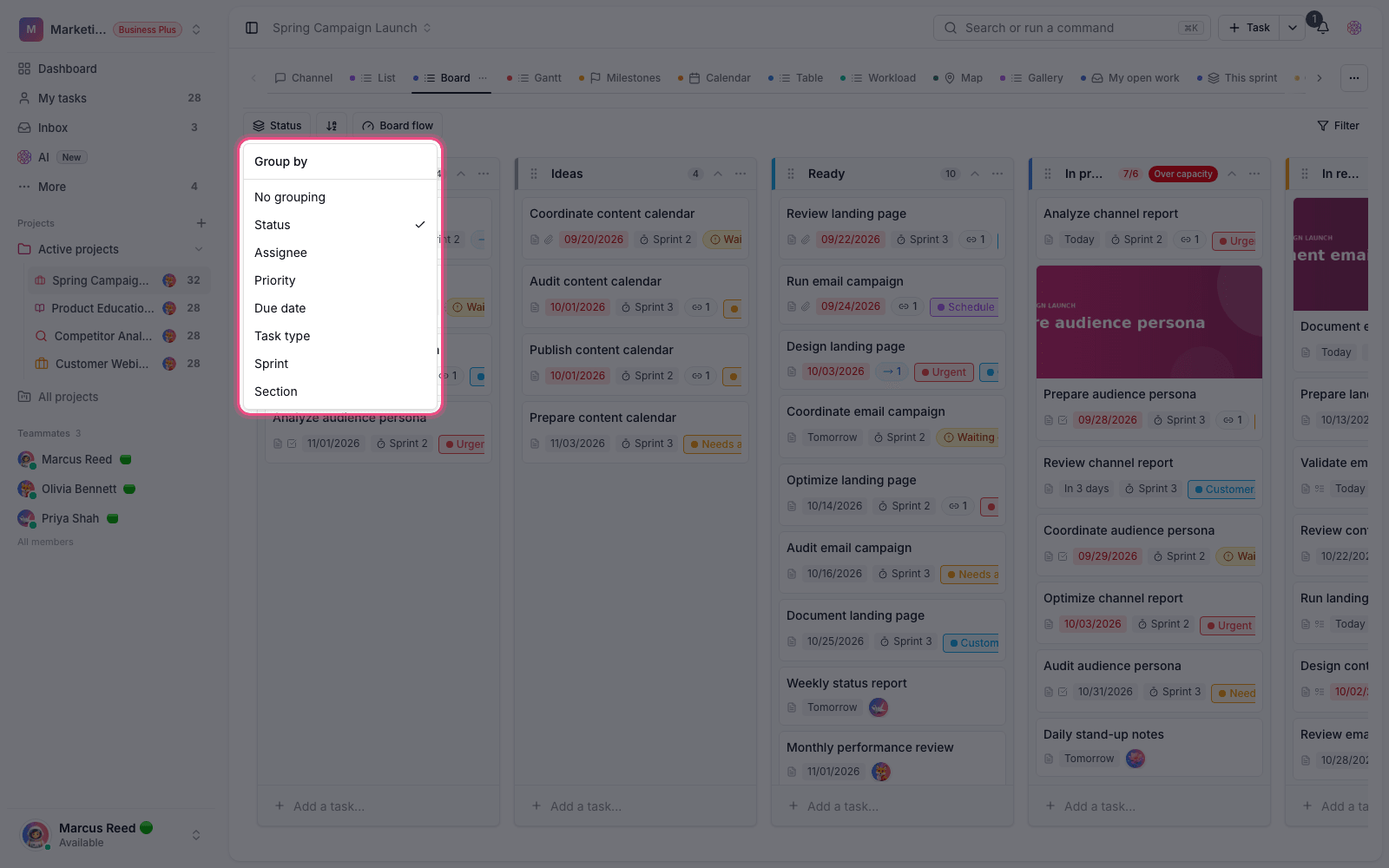
Like every other view, the board has the shared filters and sorting. Use Filter to show only some of your tasks, and Group by to arrange columns by a field other than status.
To see tasks from several projects on one board, go to the All tasks page. To organize tasks inside each column under your own headings, read Task sections.