
Project milestones
Milestones are a project's key checkpoints. Link tasks to them and track progress toward each one in the Milestones view, the Gantt and the calendar.
A project usually has a few important checkpoints: "Beta version ready", "Campaign launched", "Delivered to the client". Milestones are exactly these checkpoints. Unlike a task, a milestone isn't work that someone does; it's a marker that a set of tasks has been completed.
To see them, click the Milestones tab in the project's view bar. Each milestone is shown with its target date and the tasks linked to it.
Create and edit a milestone
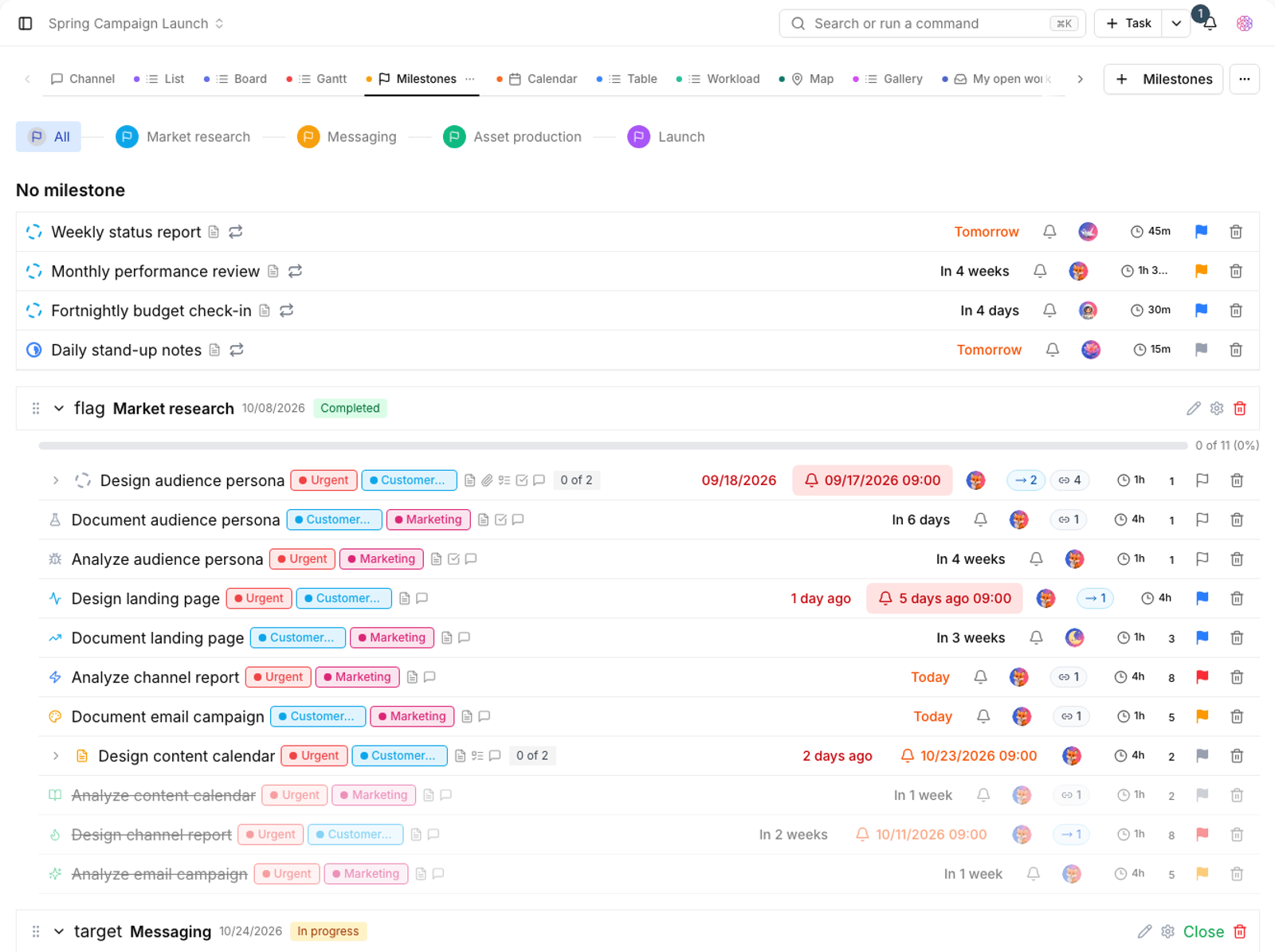
- In the Milestones view, create a new milestone.
- Set its name and target date.
- Later, use Edit name to change the title and Settings to update its details.
- To delete it, click Delete milestone and confirm. Linked tasks aren't deleted; they're simply left without a milestone.
- Drag milestones to change their order so the project's path reads in the right chronological order.
Link tasks to a milestone
Each task can belong to one milestone. In the task details, open the milestone field and choose the target milestone from the list. You can also search with Select a milestone. Tasks without a milestone stay under No milestone.
Once tasks are linked, each milestone's progress is calculated and shown as the share of closed tasks out of all linked tasks.
Milestone statuses
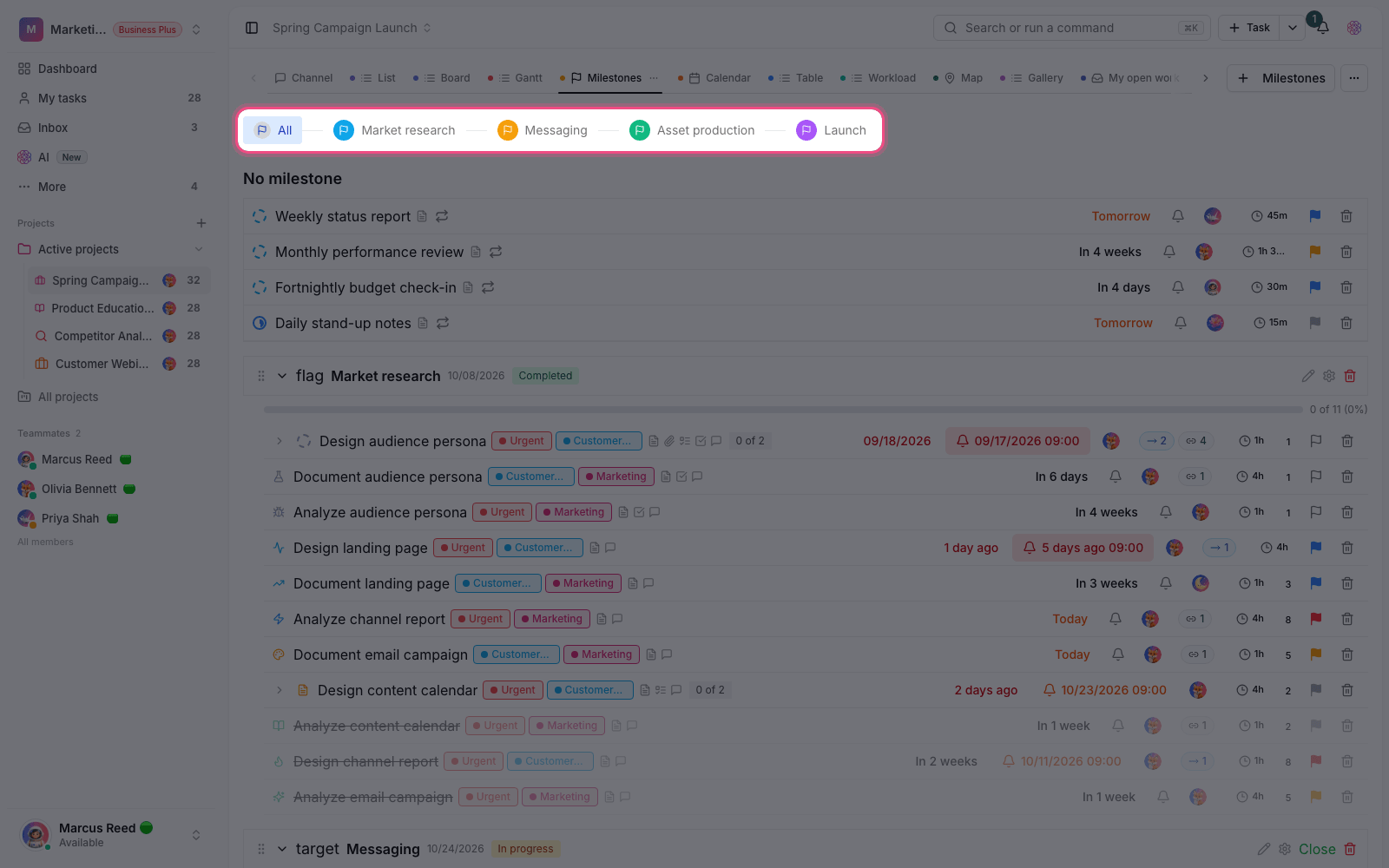
- Upcoming: the target date hasn't arrived yet.
- In progress: some of the linked tasks are done and the milestone is underway.
- Completed: all linked tasks are closed.
- Overdue: the target date has passed but there are still open tasks.
- All: shows milestones without a status filter.
Milestones in other views
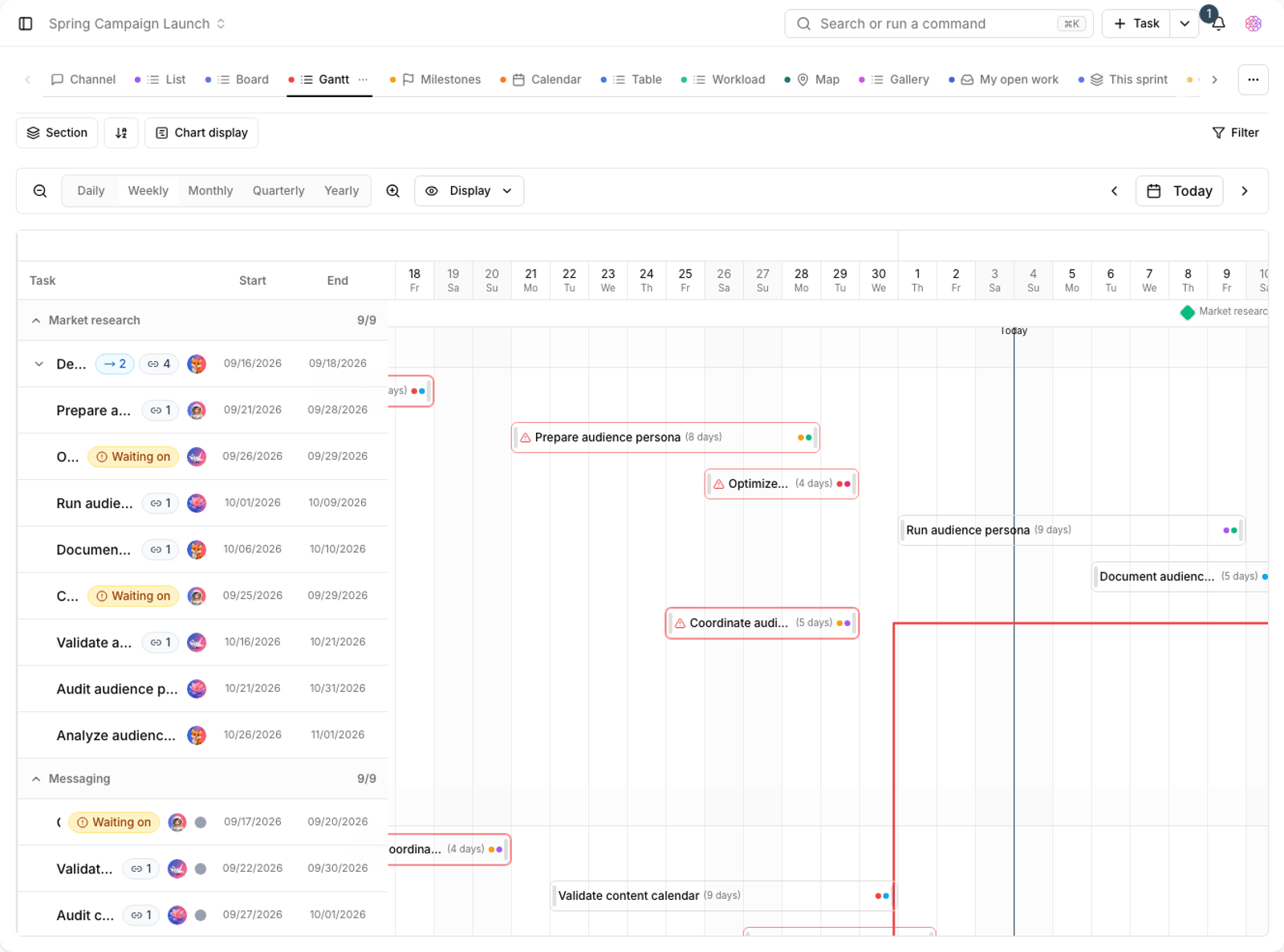
- Gantt: turn on Markers on the timeline to see milestones as markers on the chart.
- Calendar: the Milestones layer shows them next to tasks on the calendar.
- Board: you can set swimlanes by milestone so each milestone becomes a horizontal row.
- Gallery: milestone can be one of the fields shown on the card.
- Filters: you can filter by milestone in any view.
Tip: if your project checkpoints also need a time range and team capacity, use a sprint instead of a milestone. A milestone is a target date; a sprint is a working period.
Milestones and team communication
A milestone is less a planning tool than a communication tool: it tells your team and stakeholders where things stand. That's why its name should describe an outcome, not an activity.
- Good name: "Beta version in the client's hands" — a state you can recognize.
- Bad name: "Phase two tasks" — it says nothing about an outcome or a date.
- Keep the number of milestones small; five clear checkpoints are better than twenty vague ones.
- Every milestone should have a target date, or it won't mean anything in reports.
To plan in time periods, see Sprint planning. To see milestones on a timeline, see Gantt view.