
Calendar view: plan by date
Calendar view lays tasks out by day, week, month, year or as an agenda, and lets you move dates by dragging.
Calendar view is what you need when you ask, "What's due this week?" Tasks sit on the calendar, so you can see each day's workload and adjust the plan before several due dates pile up on the same day.
To open it, click the Calendar tab in the project's view bar. The calendar follows your personal calendar settings, so it uses the calendar system, date format and week start you've chosen in Preferences.
Five display modes
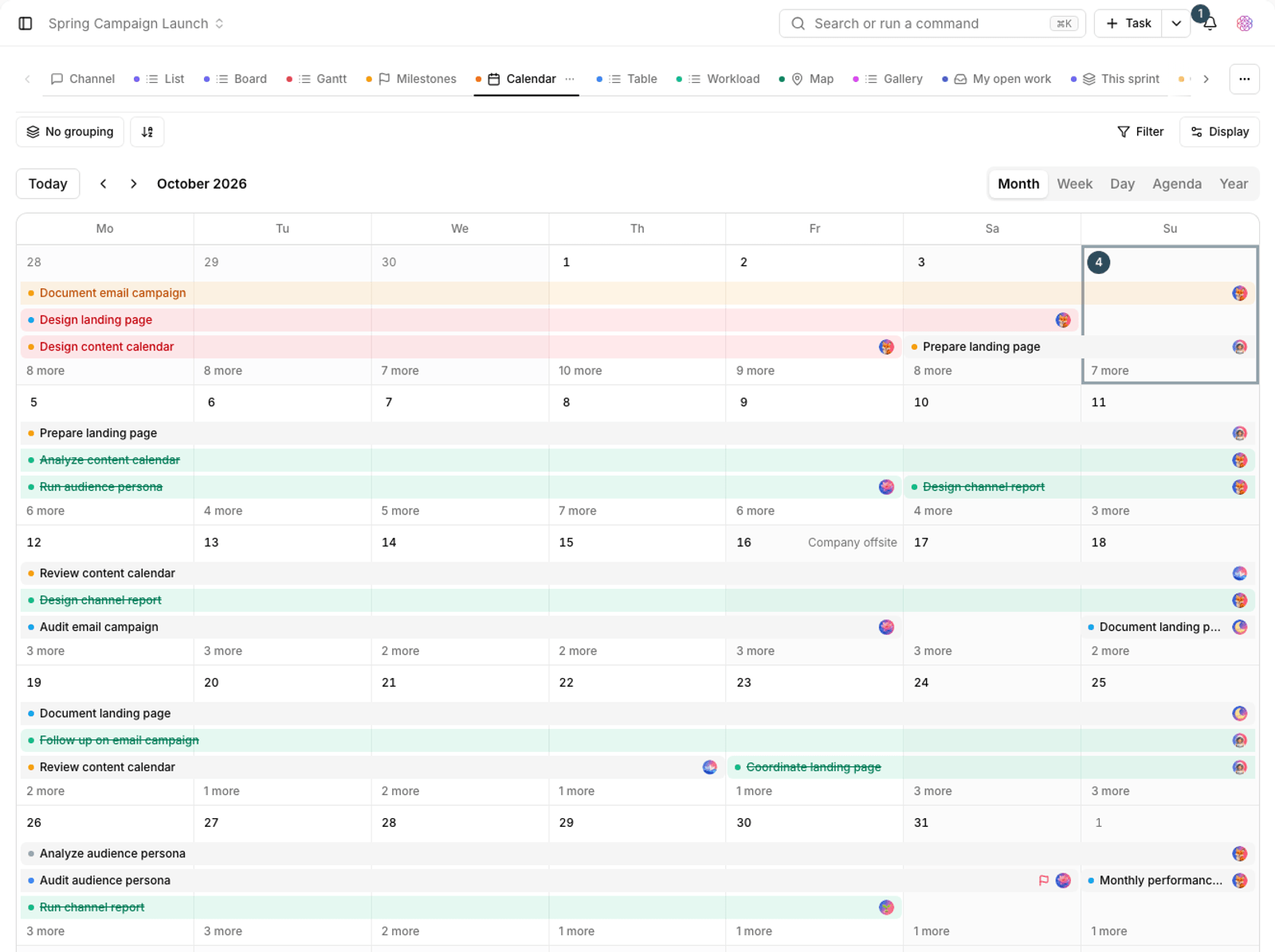
- Day: a single day with a time column, for detailed hour-by-hour planning.
- Week: seven days side by side, the most common mode for team planning.
- Month: a monthly grid for an overview of due dates.
- Year: a compact view of the whole year to see how work is spread across months.
- Agenda: an ordered list of upcoming tasks instead of a calendar grid.
Use Previous period and Next period to move between ranges, and Today to jump back to the current date.
Move and create tasks on the calendar
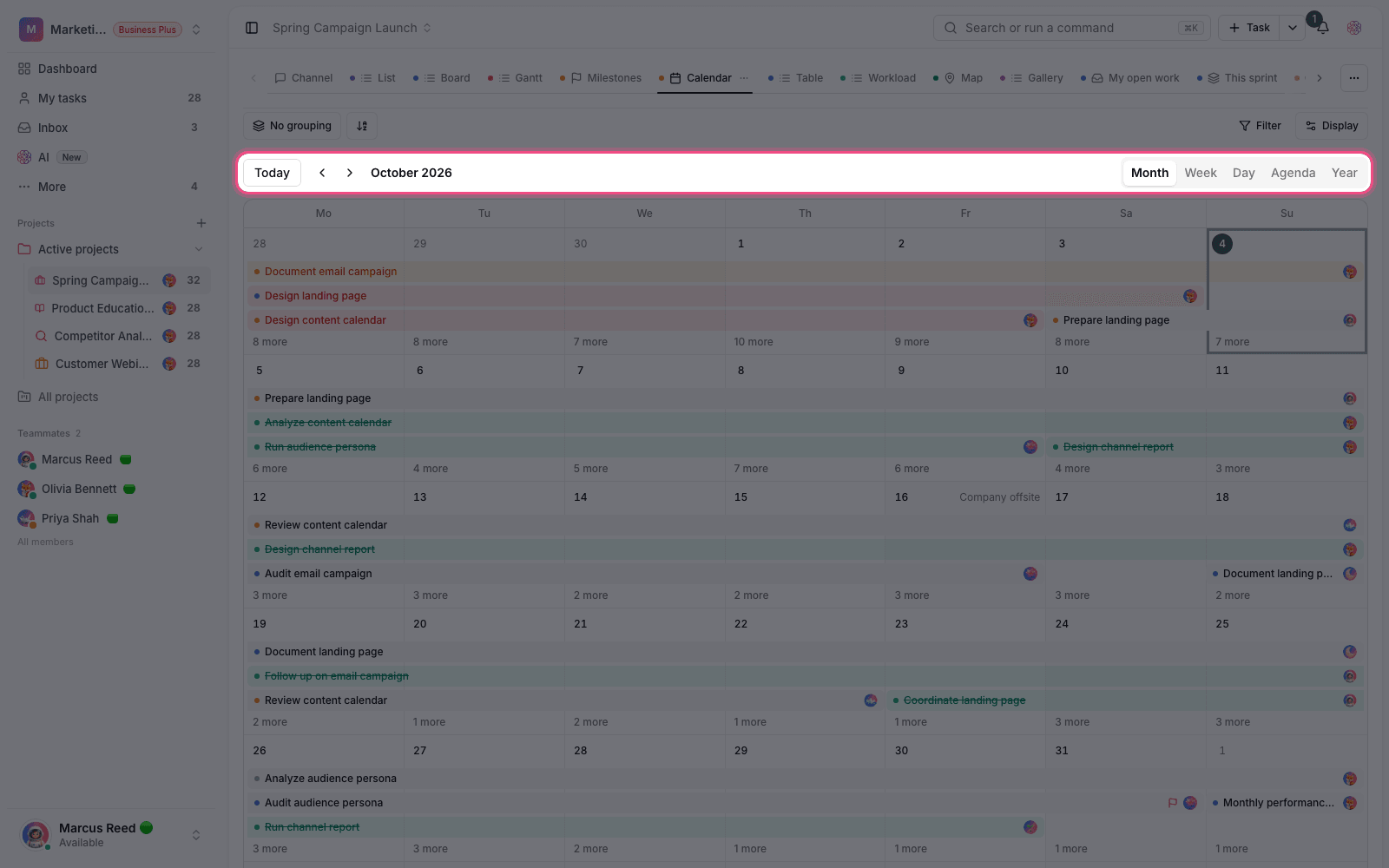
- To change a date, grab the task and drop it on the target day.
- To change the duration, drag the edge of the task in Day or Week mode to make the range shorter or longer.
- To create a task, drag across an empty day to select a range. The new task window opens with those dates filled in.
- All-day tasks appear in the bar above the columns, and tasks with a time appear inside the time column.
Tip: if the task you're moving has dependencies, Taskie asks whether to change Only this task or keep the whole dependency chain in sync.
Layers and display settings
From the calendar settings menu, you can turn on extra layers to get a fuller picture of your schedule:
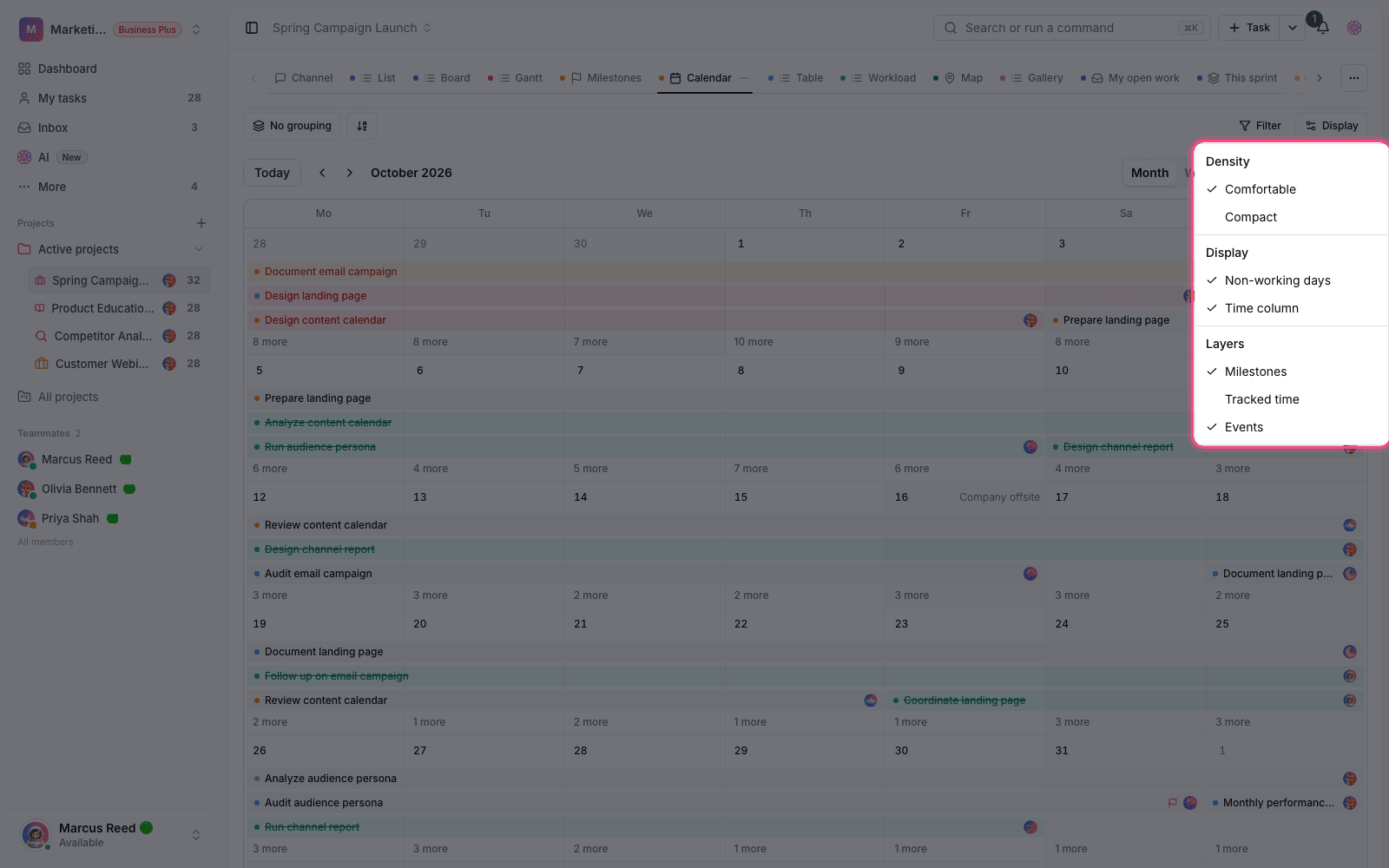
- Milestones: shows key project checkpoints next to tasks on the calendar.
- Tracked time: shows the hours logged on tasks on the days they were logged.
- Non-working days: highlights holidays and days outside the work calendar.
- Density: switches between Compact and Comfortable so you can see more on busy days.
- Time column: shows or hides the hour axis in Day and Week modes.
If a day has more tasks than fit in its cell, a "more" counter appears. Click it to open the full list for that day.
Sync with an external calendar
If you want to see the same tasks in Google Calendar or your phone's calendar, turn on Taskie's iCal feed. The feed is one-way and is designed for viewing due dates in an external tool.
Plan required: calendar view itself is available on every plan, but the iCal feed and sync are available on the Pro plan and above.
For details on connecting an external calendar, read iCal sync and Connect to Google Calendar.