
Baselines and schedule variance
A baseline is a snapshot of your project schedule. Use it to measure how far ahead or behind each task is compared with the original plan.
When a project starts, everything is on schedule. A few weeks later, dates have shifted and nobody remembers exactly what the original plan was. A baseline solves exactly this: you capture a snapshot of the project schedule and later measure the actual progress against it.
For every task that has a start or due date, a baseline keeps its dates, status and title at that moment. Whatever you change in the schedule afterwards, the captured version stays untouched.
Capture a baseline
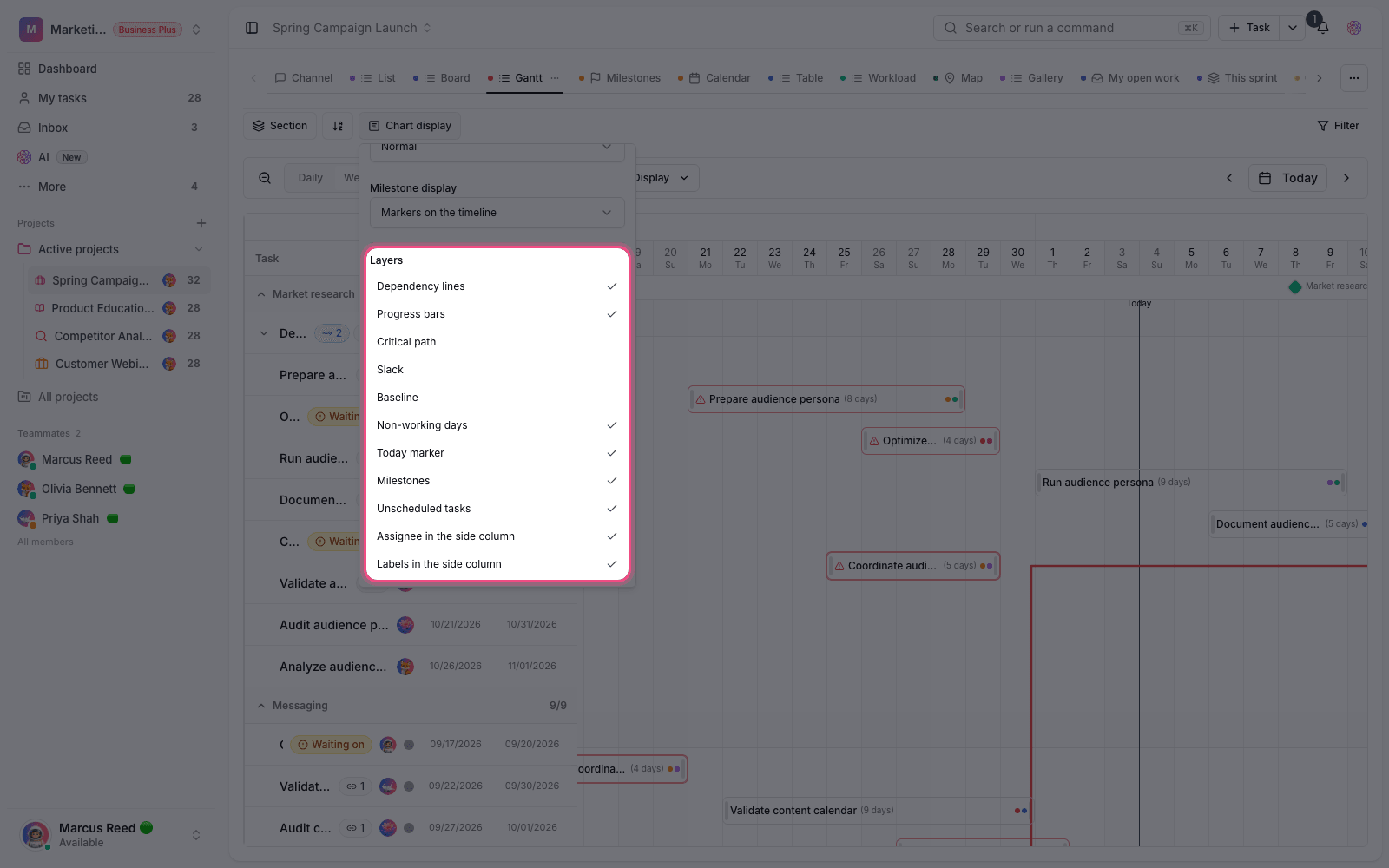
- Open the project's Gantt view.
- In View options, go to the timeline appearance section and choose Baseline.
- Capture a new baseline. If you don't enter a name, Taskie names it "Baseline" followed by the date and time it was captured.
- After capturing, you'll see the message Baseline captured, and that version becomes the active one.
The best time to capture a baseline is right after the schedule is finalized and before work starts. If the project's scope officially changes, capture a new baseline so comparisons stay meaningful.
See variance on the timeline
When a baseline is active, the Gantt shows the range captured in the baseline next to each task's current bar. The difference between the two is the schedule variance:
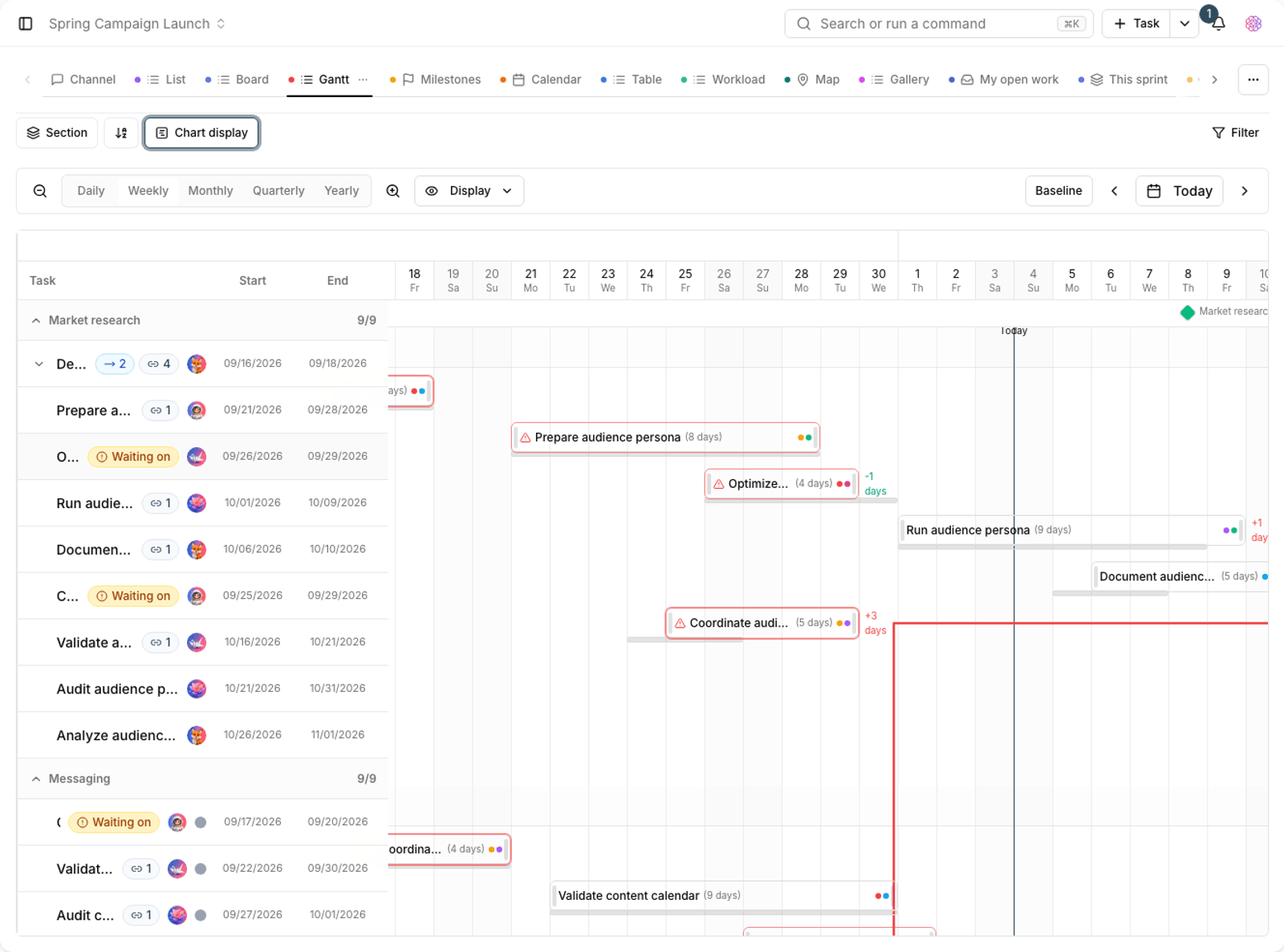
- Behind schedule: the current bar extends past the baseline range, meaning the task will finish later than planned.
- Ahead of schedule: the current bar finishes earlier than the baseline range.
- No change: the two ranges line up and the task is on track.
- New task: tasks created after the baseline was captured don't exist in the baseline, so no variance is calculated for them.
Tip: if you haven't captured anything yet, you'll see the message No baseline captured. In that case, the Gantt shows only the current schedule.
Manage baseline versions
A project can have several baselines, but only one is active at a time and used for comparison.
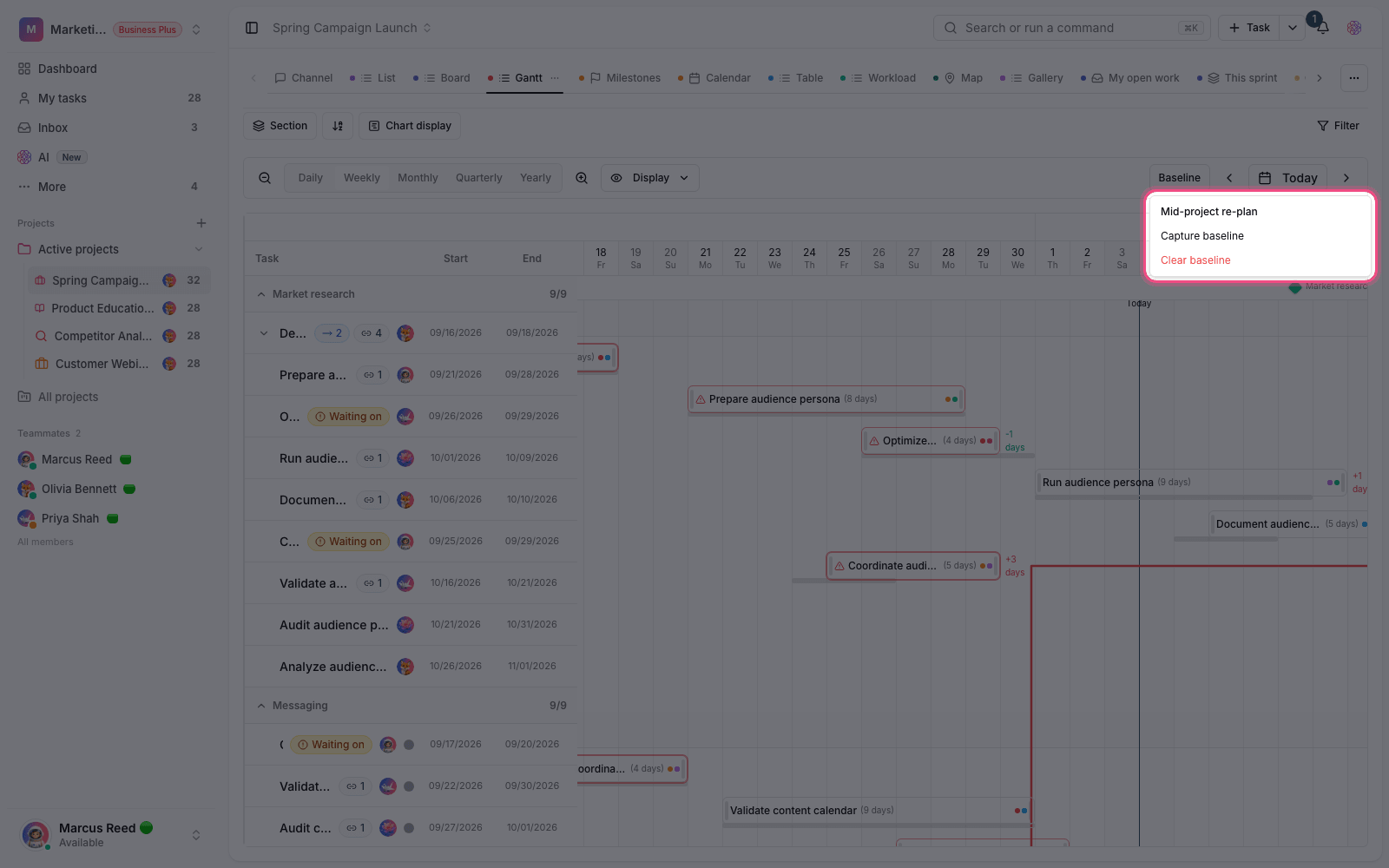
- Activate: you can reactivate any captured version to make it the basis for comparison.
- Delete: delete old versions you no longer use. The message Baseline cleared confirms it.
- Storage limit: up to 10 baselines are kept per project.
- Task limit: each version captures up to 5,000 tasks that have dates.
Plan required: capturing and comparing baselines is available on the Business plan and above. On lower plans, Gantt view works, but the baseline option appears with an upgrade message.
To work with the chart itself and dependencies, see Gantt view. To track key project checkpoints, see Project milestones.