
Gallery view and table view
Gallery view shows tasks as visual cards, and table view arranges them in rows and customizable columns.
Not all work looks the same. For visual work like design, content and creative assets, seeing the image itself is far more useful than reading a title. And for reviewing data in bulk, a table is faster than any other layout. Taskie has a view for each.
Gallery view: browse visual cards
Gallery view shows each task as a card with a large image. The image comes from the task's cover or from one of its image attachments, so you can tell what a task contains without opening it.
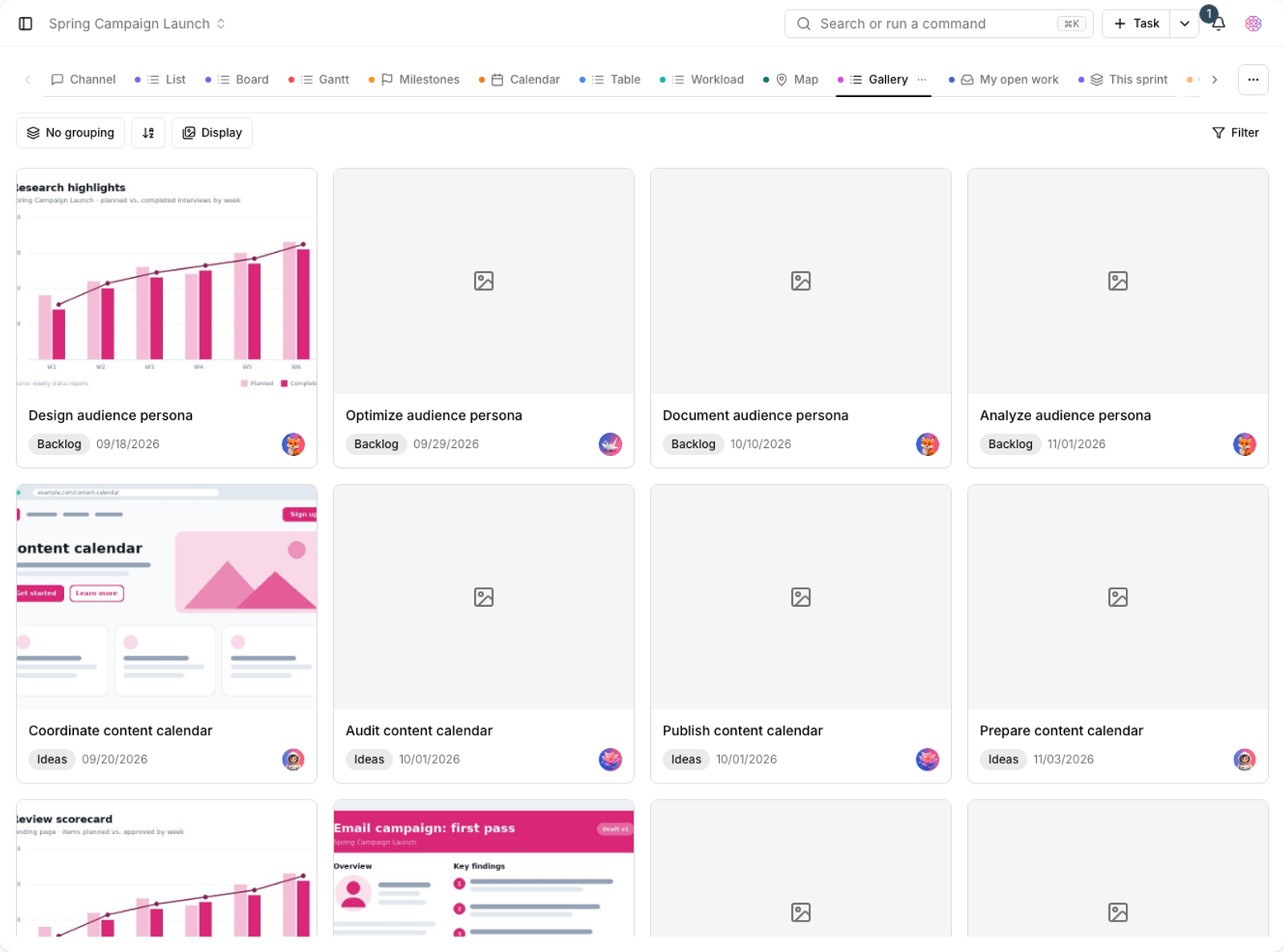
In View options, open the gallery Display settings to adjust how cards look:
- Card size: Small, Medium or Large. Larger cards mean a clearer image and fewer cards per row.
- Image source: Task cover, then attachment, Task cover only or Image attachments only.
- Image fit: Fill the frame crops the image to fill the whole card, and Show the whole image shows the entire image without cropping.
- Card fields: choose whether the assignee, due date, labels, status, priority, milestone, section or progress bar appear on the card.
For tasks without any image, the Show a placeholder for cards without an image option adds a simple frame so the gallery layout stays even. If there are many cards, Show more loads the rest of the list.
Tip: card images are built from attachment thumbnails. Right after you upload an image file, it may take a moment before the card shows its image.
Table view: rows and columns you choose
Table view shows tasks like a spreadsheet: each task is a row and each field is a column. It's the best choice for quickly reviewing dozens of tasks and editing values one after another.
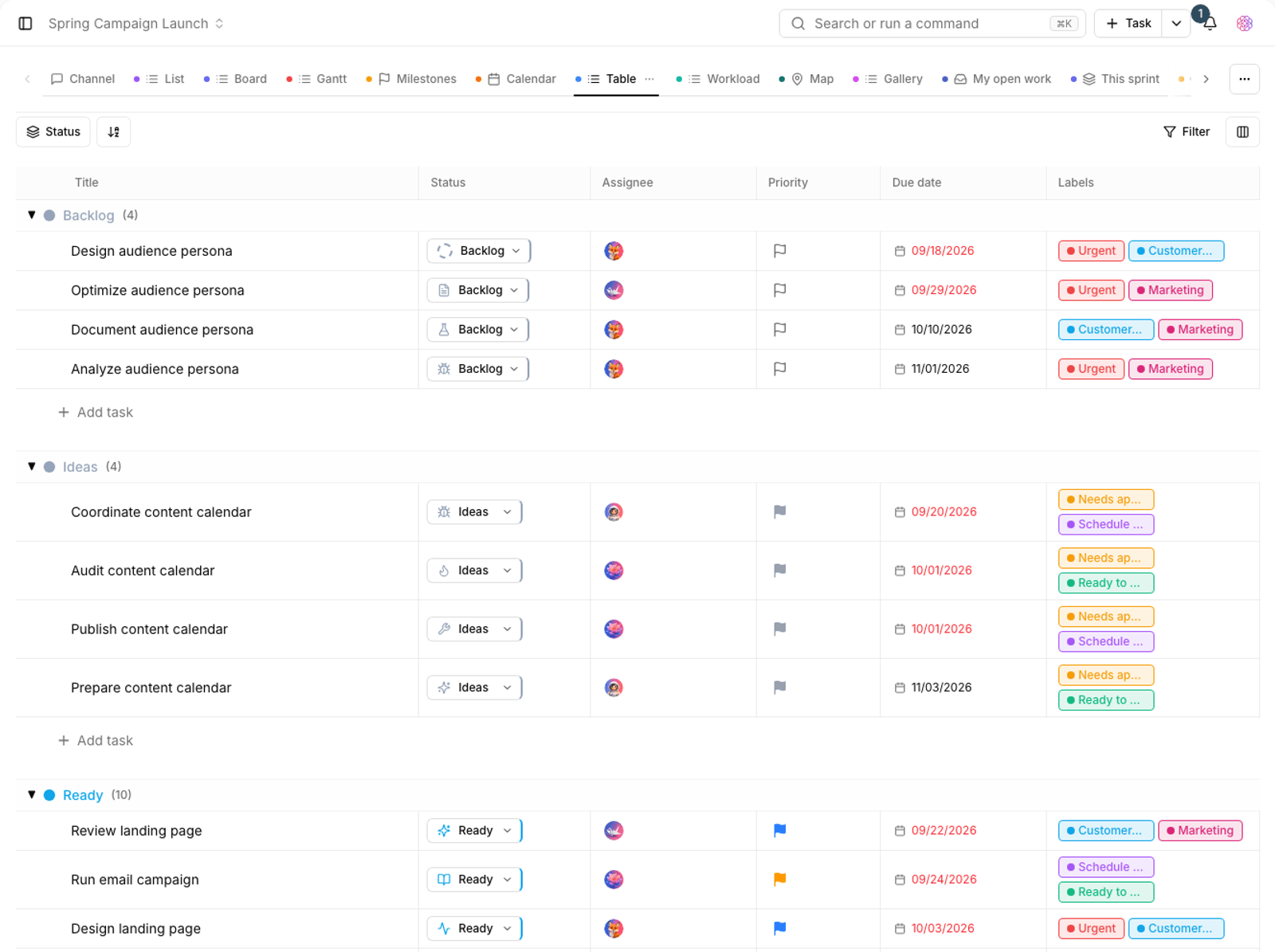
- Click the Table tab in the project's view bar.
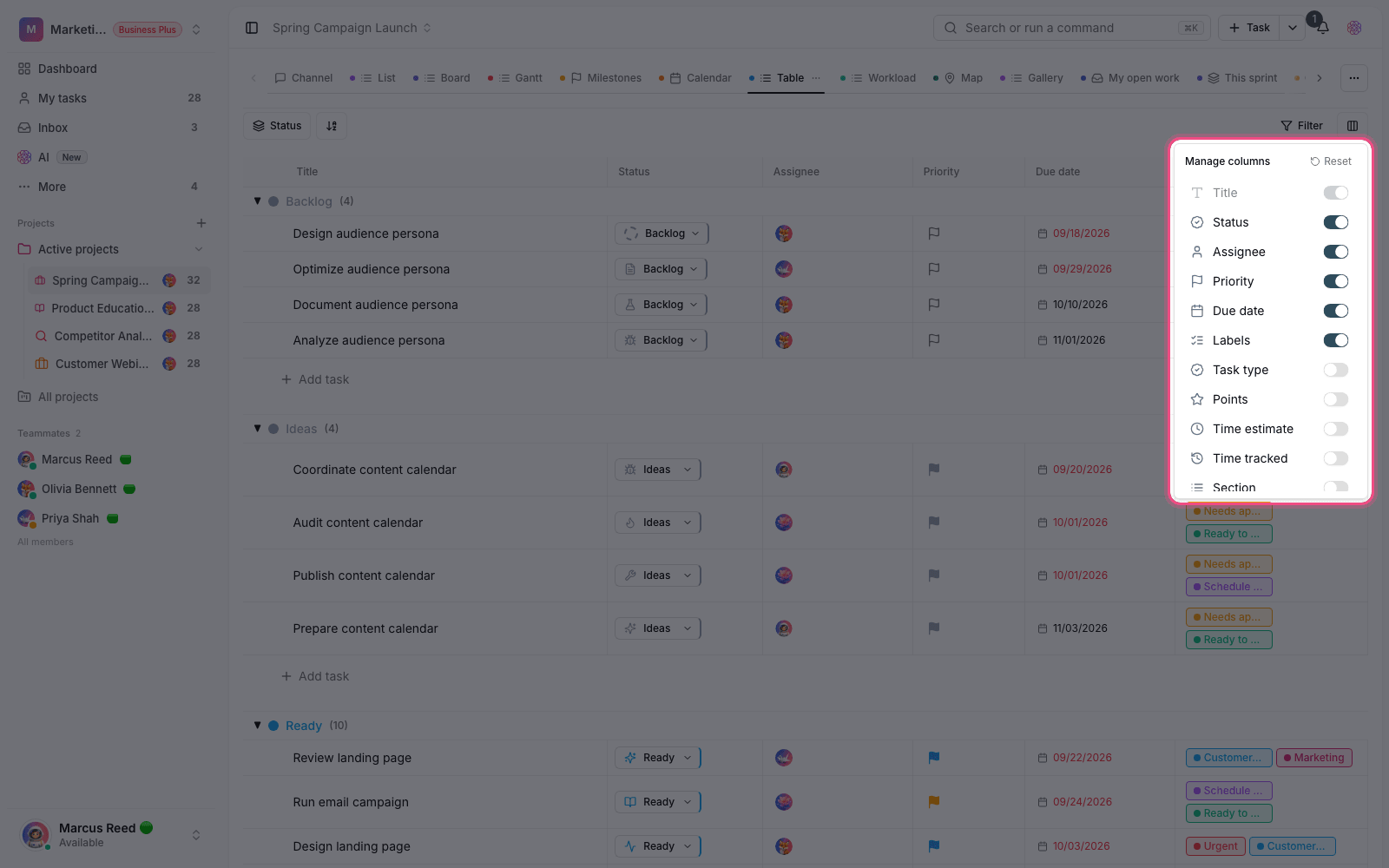
- Use the Columns button to open the list of available columns.
- Turn each column on or off with Show or Hide. The project's custom fields appear in the same list.
- Use Reset to go back to the default column layout.
You can edit values right in the table: change the status, assignee, priority, dates and custom fields without opening the task.
Which one should you use?
- Gallery: reviewing designs, visual content, campaign assets and any work whose output is something to look at.
- Table: bulk reviews, filling in custom fields and comparing data row by row.
- Both: filters, grouping, sorting and sections are shared, so you can apply the same filter in either view.
To compare these with the other layouts, read Choose the right view. To organize tasks within each view, read Task sections.