
Voice assistant and creating tasks by voice
Talk to Taskie's voice assistant and your speech is turned into text and a complete task with a title and due date.
Sometimes the fastest way to capture a task is to say it, not type it. When you're on the move, your hands are busy, or you have a lot of details in mind that would take a while to write down, the voice assistant lets you just talk and leave the rest to it. Your voice is recorded and transcribed, and AI then turns what you said into a tidy task with a title, priority, and due date.
Everything happens in the background: as soon as you stop recording, the task is created right away and you can close the window. Transcription and smart processing continue behind the scenes, and when they're ready, the task is filled in automatically.
What exactly does the voice assistant do?
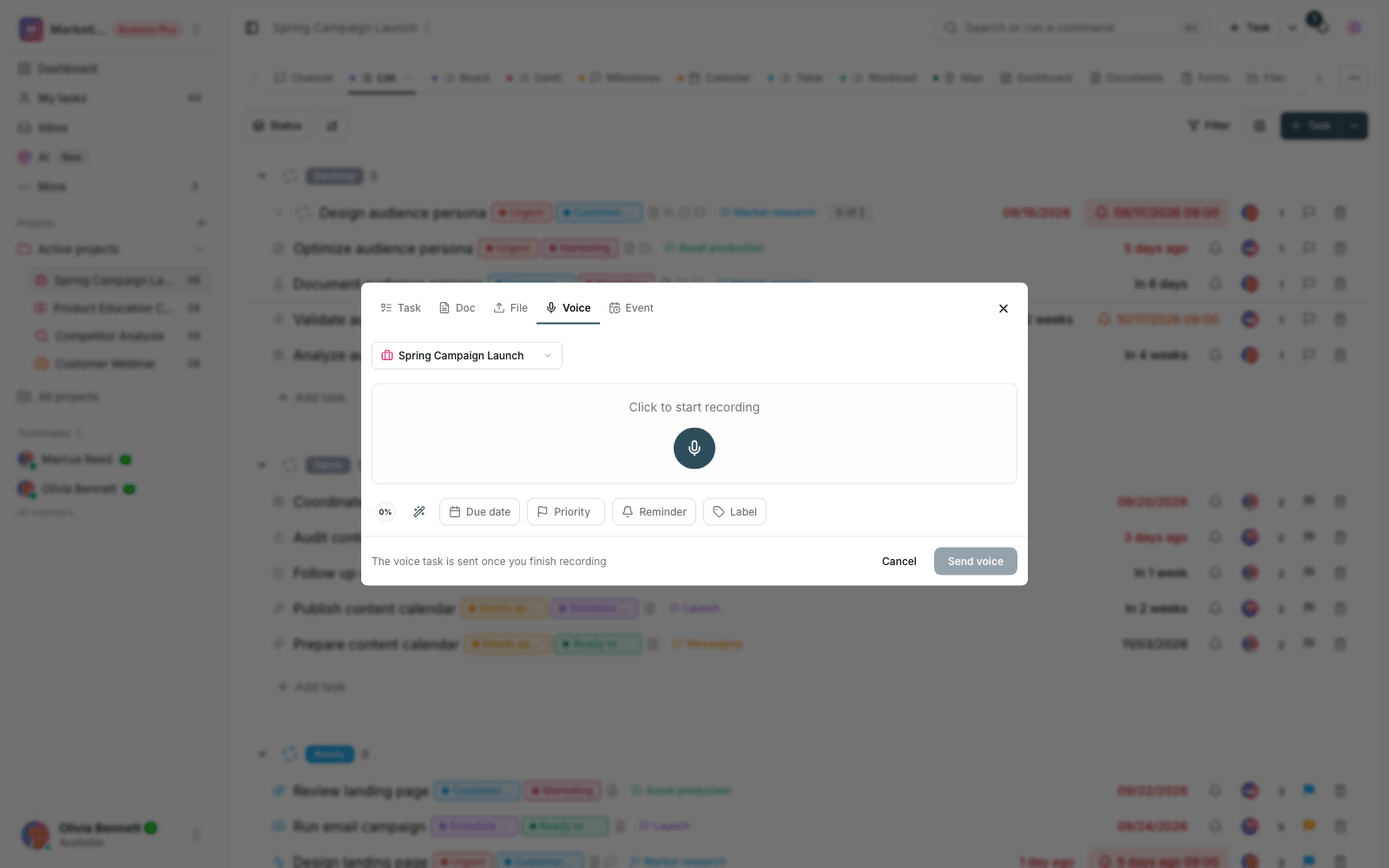
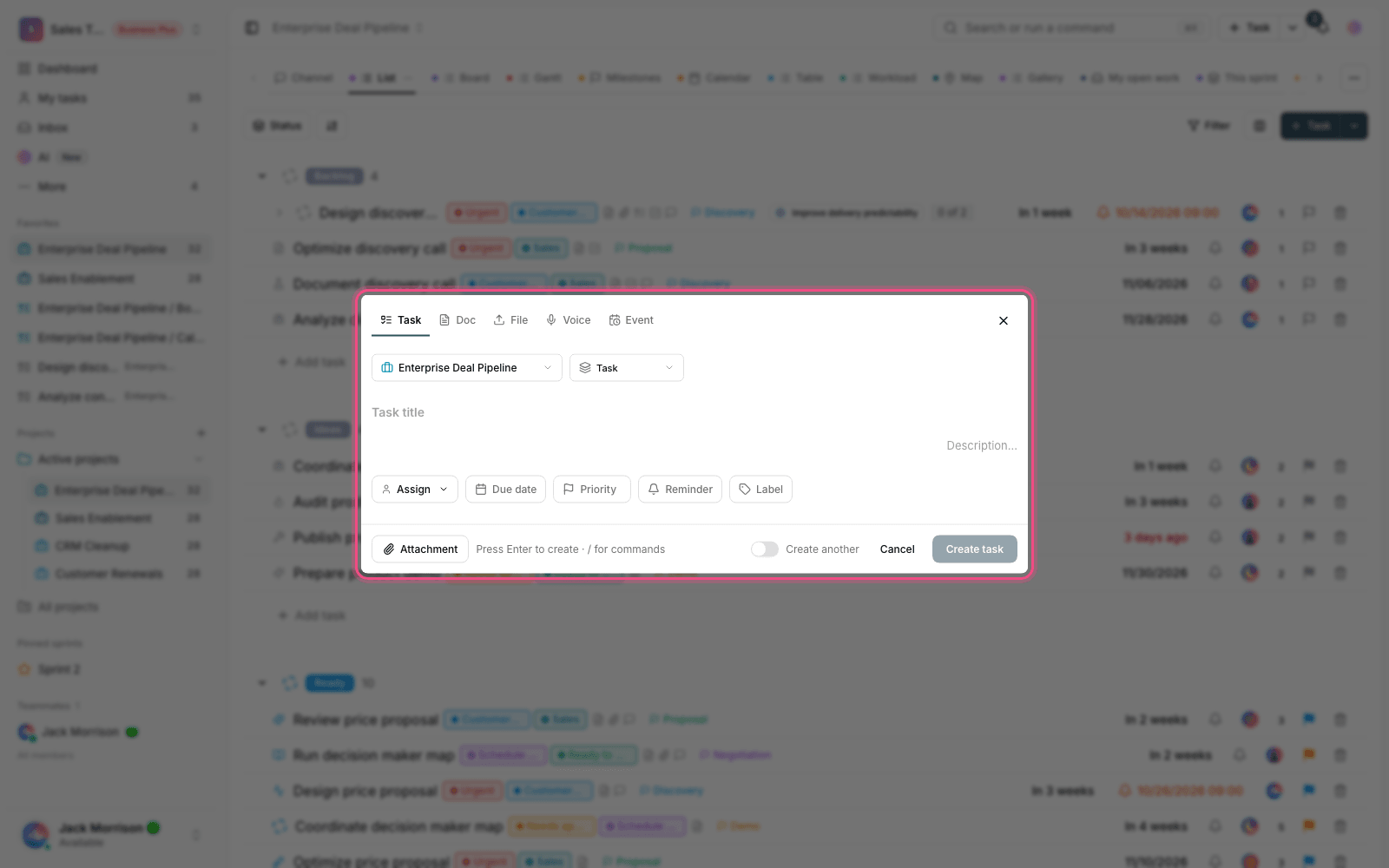
You create tasks by voice from the quick add panel, the same window you use to create tasks, documents, and files, which also has a Voice tab. It works in two stages. First, your speech is transcribed and the task title and description are filled in from that text (speech is transcribed in your Taskie interface language, so speak in the language your account uses). Then AI reads the text, detects other fields such as priority, due date, and assignee, and completes the task.
Create a task by voice, step by step
- Open the panel with the quick add button and go to the Voice tab.
- Choose the destination project. If you don't choose one, the task is created in your Inbox (your personal inbox).
- Click the microphone button to start recording. You'll see the recording time and a sound waveform as you go.
- When you've finished talking, click the stop button. You can play back the recording or use Record again to say it again.
- If you like, set the model quality, due date, priority, reminder, or labels before sending.
- Click Send voice. The task is created right away, and the window closes with the message "Voice task sent."
Until processing is complete, the task title shows "Processing audio..." and is then replaced automatically with the text of what you said.
What does AI pick up from your speech?
You don't need to follow any particular structure; just speak naturally. AI tries to extract the following from what you say:
- A tidy title: a short, readable title instead of the whole transcript.
- Priority and due date: if you say "urgent" or "by Thursday", the priority and date are set automatically.
- Reminder: if you mention a specific time, a reminder is set for that time.
- Assignee: if you name a workspace member, the task is assigned to them.
- Labels: labels that match the names of existing workspace labels are added.
- Checklist and notes: if you list several steps in a row, they can be saved as a checklist or as a comment on the task.
- Several tasks at once: if you mention several separate pieces of work in one recording, separate tasks are created.
When is voice the best choice?
- When you're working on your phone and typing is slow and tiring.
- When you're on the move or busy with something else and your hands aren't free.
- When an idea comes to you and you want to capture it quickly before you forget.
- When you have lots of details that are much faster to say than to write.
Credits, model quality, and limits
Smart voice processing uses the workspace's weekly AI credits. Transcription is free, and only the smart processing stage (detecting priority and assignee) uses credits, and only when it succeeds. Next to the send button you'll see your remaining credits and an option to choose the model quality. Auto is the right choice in most cases.
- If your weekly credits have run out, a message is shown and you'll need to wait for the weekly reset or upgrade your plan.
- The maximum audio file size is 50 MB, which is more than enough for capturing everyday work.
- If processing still fails after several attempts, the task title changes to a failed state, but your audio file is kept as an attachment so nothing is lost.
Tip: For better detection, say the assignee's name and the date clearly, for example: "Give this to Sara, high priority, by Wednesday."
If you want to create several tasks from a long note or meeting minutes instead of one task, take a look at Extract tasks from meeting notes. For more complex work and text conversations with AI, see AI assistant.