
Sprint planning
A sprint groups the work for a set time period, records the team's commitment the moment it starts, and shows progress with clear reports.
When a team has a lot of work, deciding "what should we work on right now" can sometimes be harder than doing the work itself. Sprints are Taskie's answer to this. Instead of an endless list, you put together a limited, hand-picked set of work for a set period, and the team knows what it's focused on until that period ends.
This page shows you how to turn on sprints for a project, set up a folder and its cycles, bring work from the backlog into a sprint, start the sprint with a clear commitment, and, at the end, move unfinished work with a clear decision.
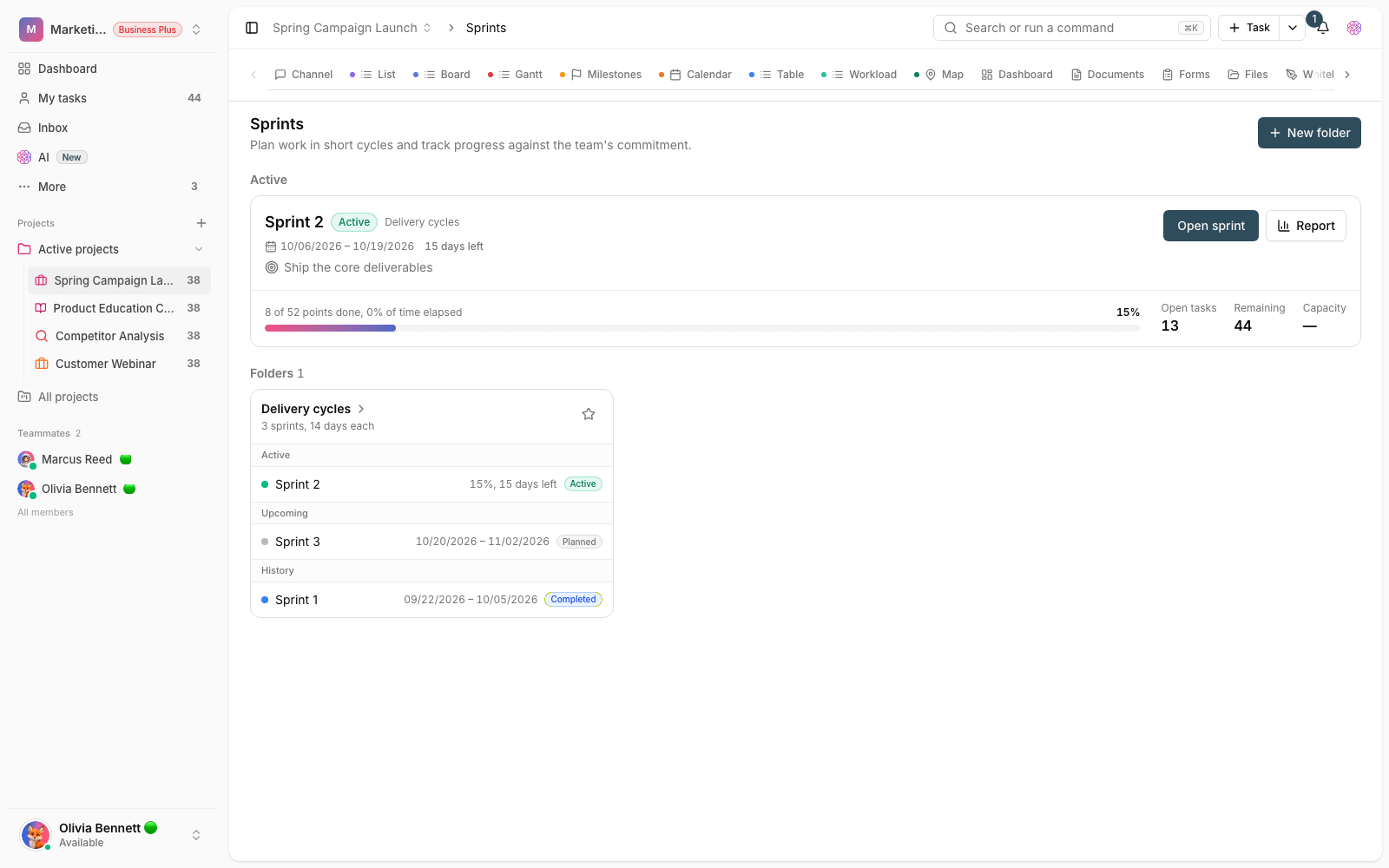
What is a sprint in Taskie?
A sprint is a short, fixed time period in which a set of work is "committed" to. Before you start, it helps to know a few basic terms so you don't lose your way.
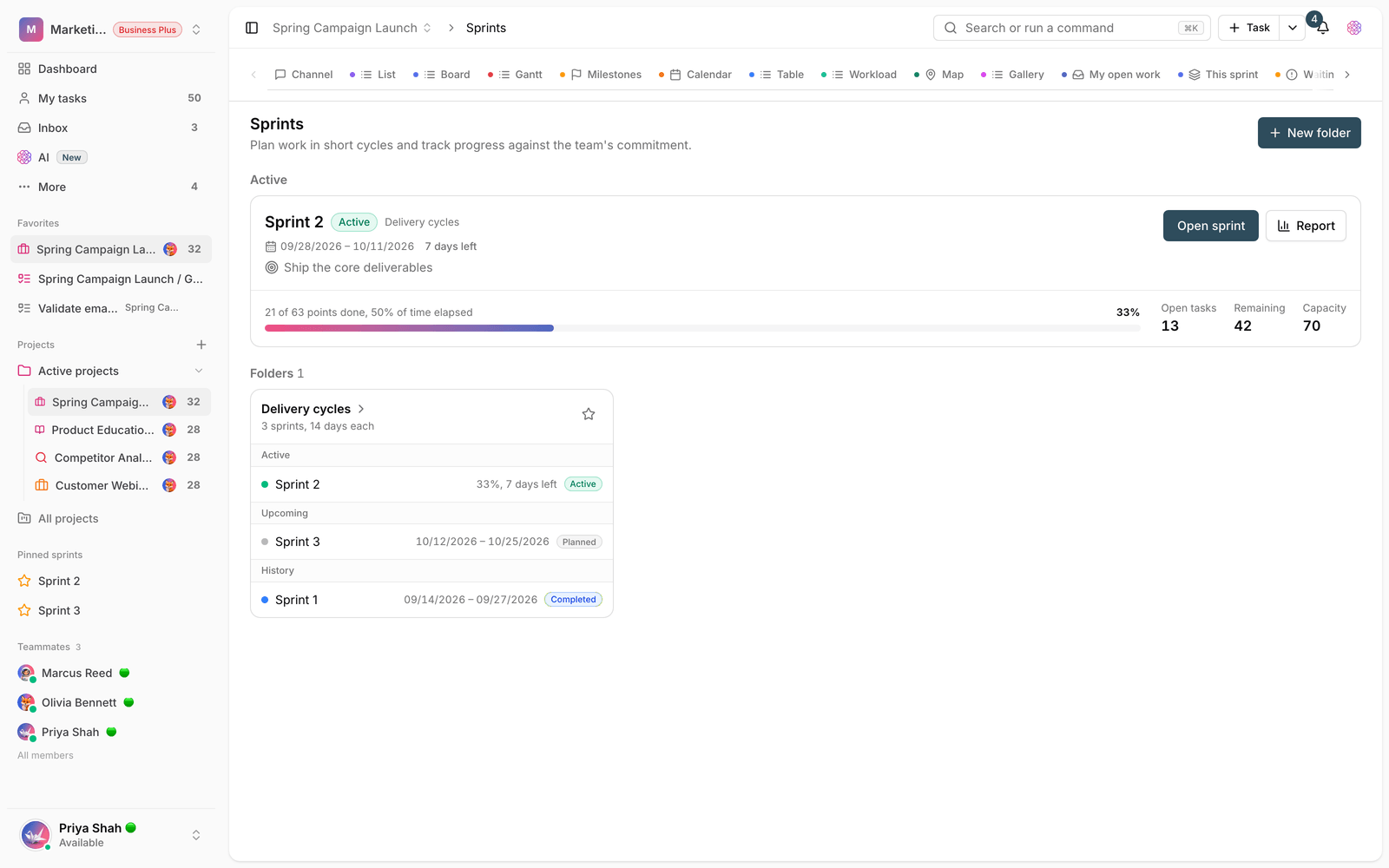
- Sprint folder: a separate container that holds the consecutive cycles of one workstream. Working days, start day and time, the name format, the point scale and automatic behaviors are all set here.
- Sprint: one cycle with a name, goal, owner and date range, with four statuses: Planned, Active, Completed and Cancelled.
- Backlog: unfinished work that isn't in any sprint yet. It's your source for filling the next sprint.
- Commitment: the list of tasks and points recorded the moment the sprint starts. Reports measure completed work against this commitment, not against the list as it changed during the cycle.
- Active sprint: each folder has only one active sprint at any moment.
Turn on sprints for a project
Sprints aren't on by default, and you need to turn them on separately for each project. Once they're on, the sprint view appears in the project tabs and the sidebar.
- Open the project, and on the Sprints page, in the sprint feature status card, click Turn on sprints.
- Click Create sprint folder and create your first sprint folder with a descriptive name. Each folder holds a separate cycle for the project.
- Set the default length of each cycle (for example 14 days), the working days of the week, and the start day and time. That way the dates of the next sprints are suggested automatically and the burndown chart stays flat on days off.
- Build the name format with placeholders such as
{n}(number),{start}and{end}(dates),{month}and{year}. A sprint created without a name gets its name from this format. - Choose the team's point scale (by default 0, 1, 2, 3, 5, 8, 13, 21) and decide whether unfinished work at the end of a sprint moves to the next sprint or returns to the backlog by default.
- Turn auto-start and auto-complete on or off for each folder. Changing folder settings only affects future sprints; a sprint that has already started keeps the settings it started with.
Note: Creating and editing sprints and folders requires the "Edit sprints" permission. Starting, completing, cancelling and setting capacity require the separate "manage sprint lifecycle" permission. Adding and removing tasks works with the regular task edit permission.
Define a sprint and add work
After creating the folder, it's time to define a real cycle and pick its work. The goal is for the amount of work to match the team's real capacity.
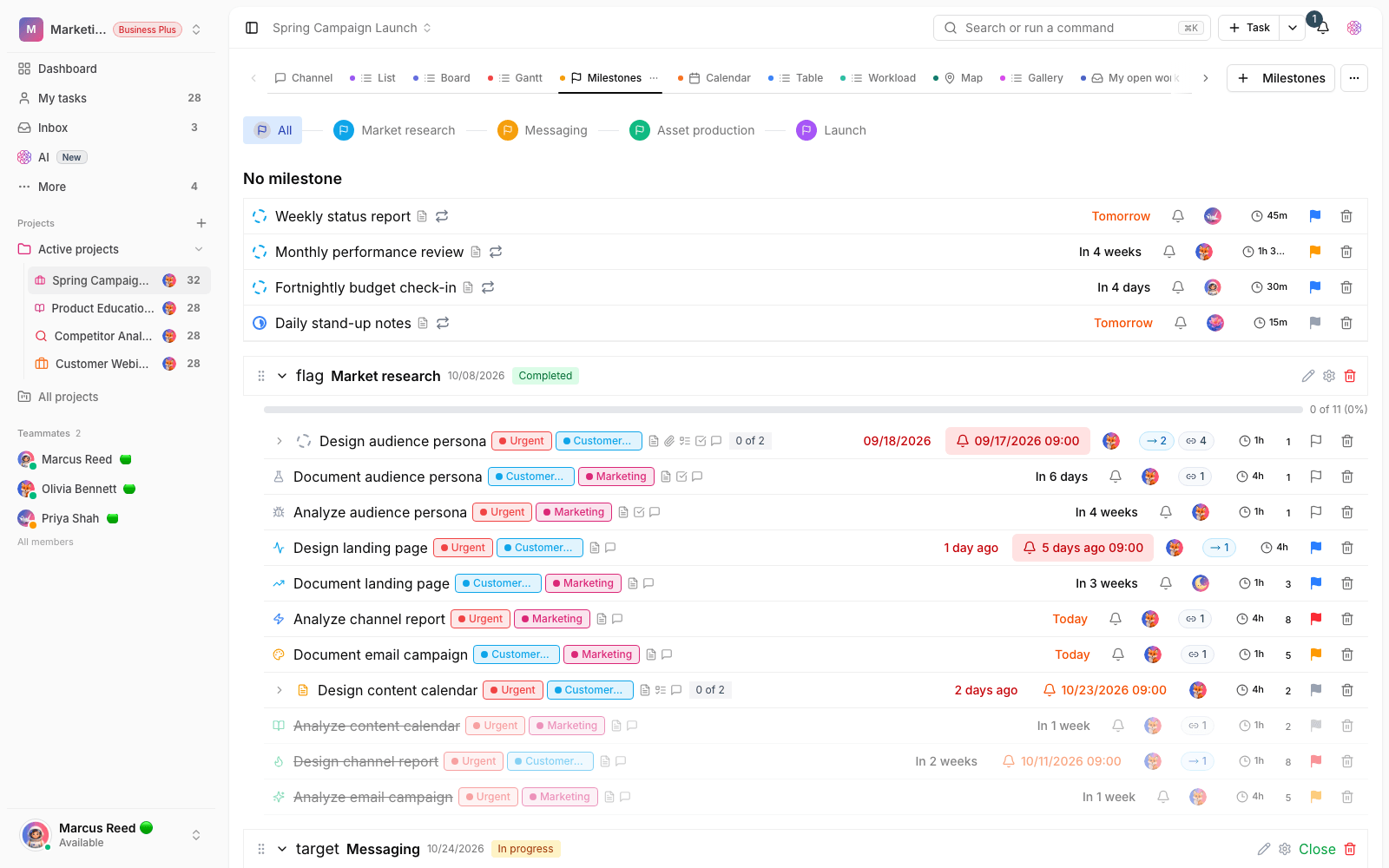
- Create a new sprint inside the folder, write its goal and owner, and confirm the date range. Leave the name blank to have it built from the folder's name format.
- On the planning page, see the backlog and the sprint side by side. Drag and drop tasks, or click the + button next to each task.
- To move tasks in bulk, select several with their checkboxes (and Shift for a range), then use Add to sprint, Move to… or Points in the selection bar.
- Work faster with the keyboard: J and K to move, X to select, M to move between the backlog and the sprint, Alt with the arrow keys to move a task up or down in the sprint's priority order, and Esc to clear the selection.
- The planning bar above the sprint shows task points next to capacity and counts tasks with no estimate or no assignee. A task with no estimate shows as "?" and isn't counted as zero.
Start a sprint
Starting a sprint is the moment the commitment is recorded. Before it starts, Taskie shows a preview so you can commit with your eyes open.
- Click Start sprint. The preview shows warnings: tasks with no estimate or no assignee, tasks waiting on other work, going over capacity, a missing goal, and another sprint that's already active.
- Tasks that were completed before the start are automatically removed from the sprint so this cycle doesn't get credit for them.
- When you confirm, the list of tasks, points, goal and settings are saved at that moment as the commitment, and the sprint's date range is locked.
- If the folder's auto-start is on, the sprint starts on its own start day and time. If it's off, the sprint owner and the project admins get a reminder that it's time to start.
Tip: A task added to the sprint after it starts gets an After commitment badge and counts as a scope change in reports. The original commitment stays untouched.
Track progress during the cycle
Once the sprint starts, Taskie gives you tools to see its live status and overall trend, so you notice early if the team is falling behind or the cycle is overloaded.
- Active sprint: you see tasks in a list and on a board, and change each task's status right there.
- Commitment delivered: the share of committed points that has been completed. If the commitment includes tasks with no estimate, this rate shows as "unknown" so it doesn't produce a misleading number.
- Burndown and burnup charts: compare the ideal trend with actual progress. The ideal line stays flat on days off, and scope changes are marked on the chart.
- Team velocity: the committed points completed in past sprints. The moving average is built only from three same-length sprints with the same point scale, and cancelled sprints or old sprints without a commitment are left out.
- Notifications: the owner and admins are notified one day before the end and when the sprint passes its end date. If auto-complete is off, an overdue sprint stays open until it's completed manually and gets an Overdue badge.
Wrap up and carry over unfinished work
The end of a sprint is an important step. This is where you decide what happens to open tasks, and the cycle's final report is recorded.
- Click Complete sprint. The wrap-up preview shows completed and unfinished tasks with their points.
- Choose a destination for each unfinished task: the next sprint, one of the planned sprints, or the backlog. You can apply one destination to all of them, or create the next sprint right there.
- If someone changes a task at the same time, the preview refreshes and your choices are kept, so you decide based on the right data.
- The final report is recorded at that moment and doesn't change after that; a completed sprint can't be reopened. A task that's finished later in another sprint gets its credit there.
- Everyone whose unfinished task was moved receives a summary notification.
Cancel a sprint
If plans change, cancel the sprint. A planned sprint is cancelled with no fuss and its tasks return to the backlog. Cancelling an active sprint requires a reason: its state at the moment of cancellation is recorded, unfinished tasks return to the backlog without any status change, and the sprint is left out of the team velocity calculation. Only planned sprints can be deleted.
Sprints in every view
- Grouping: in List, Table, Board and Gallery views, group tasks by sprint — the active sprint first, then upcoming sprints, and the backlog last. Dragging a task into an open sprint's column moves it into that sprint.
- Filter: the Sprint filter has Current sprint and Next sprint options. A saved view that uses these options updates itself each time a new sprint starts.
- Column and label: turn on the Sprint column in the table to change each task's sprint right there. In the list, you can display the sprint field.
- Sprint history: in each task's details, Sprint history shows which sprints the task has been in, when it entered and left, and where it went.
Common mistakes
- Overloading the sprint. The planning bar warns you when points go over capacity.
- Starting a sprint with unestimated tasks. The commitment delivered rate becomes unknown and the sprint doesn't count toward team velocity.
- Adding work mid-cycle instead of putting it in the next sprint. Every addition after the commitment is a scope change.
- Leaving an overdue sprint open. Until you complete it, the final report isn't recorded and unfinished tasks aren't moved.
To see where sprints fit alongside other ways of looking at work, see Choose the right view, and for an overall look at project status, go to Build a dashboard.