
Connect to Google Calendar
Connect a Google Calendar push channel to Taskie so changes to events that mention a task ID are linked to that task automatically.
The Google Calendar connection in Taskie ties calendar event changes to work you can track. Once a Google push channel is registered for your workspace, event change notifications are received, and if the event's details include a task ID, that event is linked to the task.
Scope of the current version: this version focuses on receiving push notifications securely and linking enriched events to tasks automatically. Personal OAuth connections, two-way sync, showing events in Planner/Calendar views, creating events from Taskie, incremental fetching with syncToken, link previews, AI tools and automatic management of Google Calendar channels are coming in later phases.
Before you start
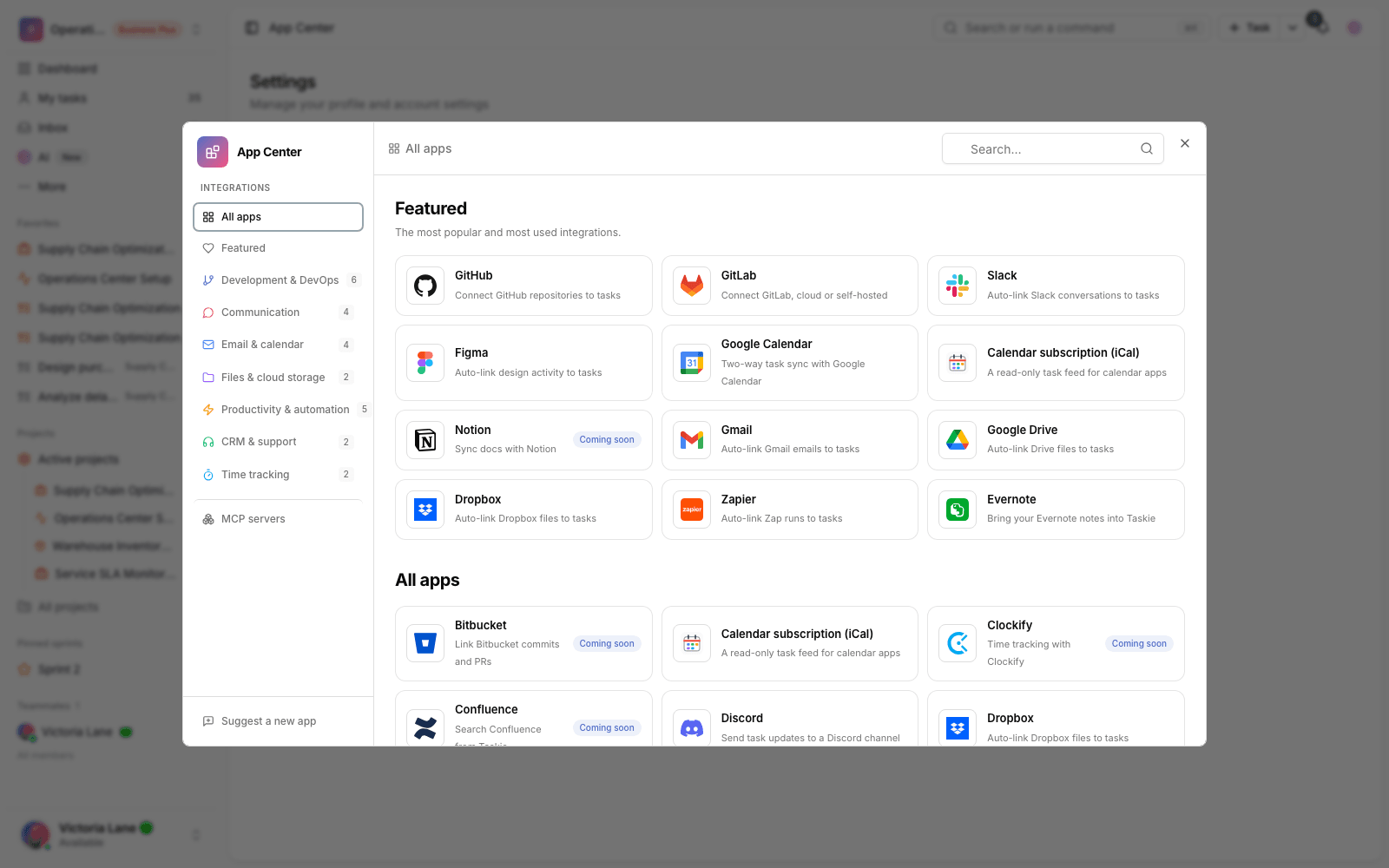
- Only a workspace owner or admin can create or disconnect the workspace Google Calendar connection.
- In the Google Calendar API, you need to create a watch channel for the events resource and enter Taskie's endpoint as the address.
- The channel ID is stored in the Channel ID field and the channel token in the Channel Token field.
- Official Google Calendar notifications usually don't include the event body. For automatic linking, a later processing step or an enriched source has to pass the event's title or description to Taskie.
- Personal connections and direct access to users' private calendars aren't available in the current version.
Create a workspace connection
- In the Google Calendar API, create an events.watch request for the calendar you want.
- Keep the channel's id value. This same value is sent in the X-Goog-Channel-ID header.
- Create a non-sensitive token for the channel. Google returns it in the X-Goog-Channel-Token header, and Taskie uses it to verify the request.
- In the Taskie App Center, open Google Calendar and choose the Workspace tab.
- Enter the Channel ID, Channel Token, optional access token and a label for the connection.
Channel Token security: Taskie compares X-Goog-Channel-Token with the connection's encrypted value. This header isn't stored in the webhook delivery record and shouldn't contain an OAuth token or other sensitive data.
Automatically link events to tasks
For automatic linking, write the task ID in the event's title or description. These forms are supported:
- TASK-12 — the ID on its own.
- #TASK-12 — with a # prefix.
- CU-TASK-12 — with a CU- prefix.
- #9fq2b1 — the task's hashed ID, only with a # or CU- prefix.
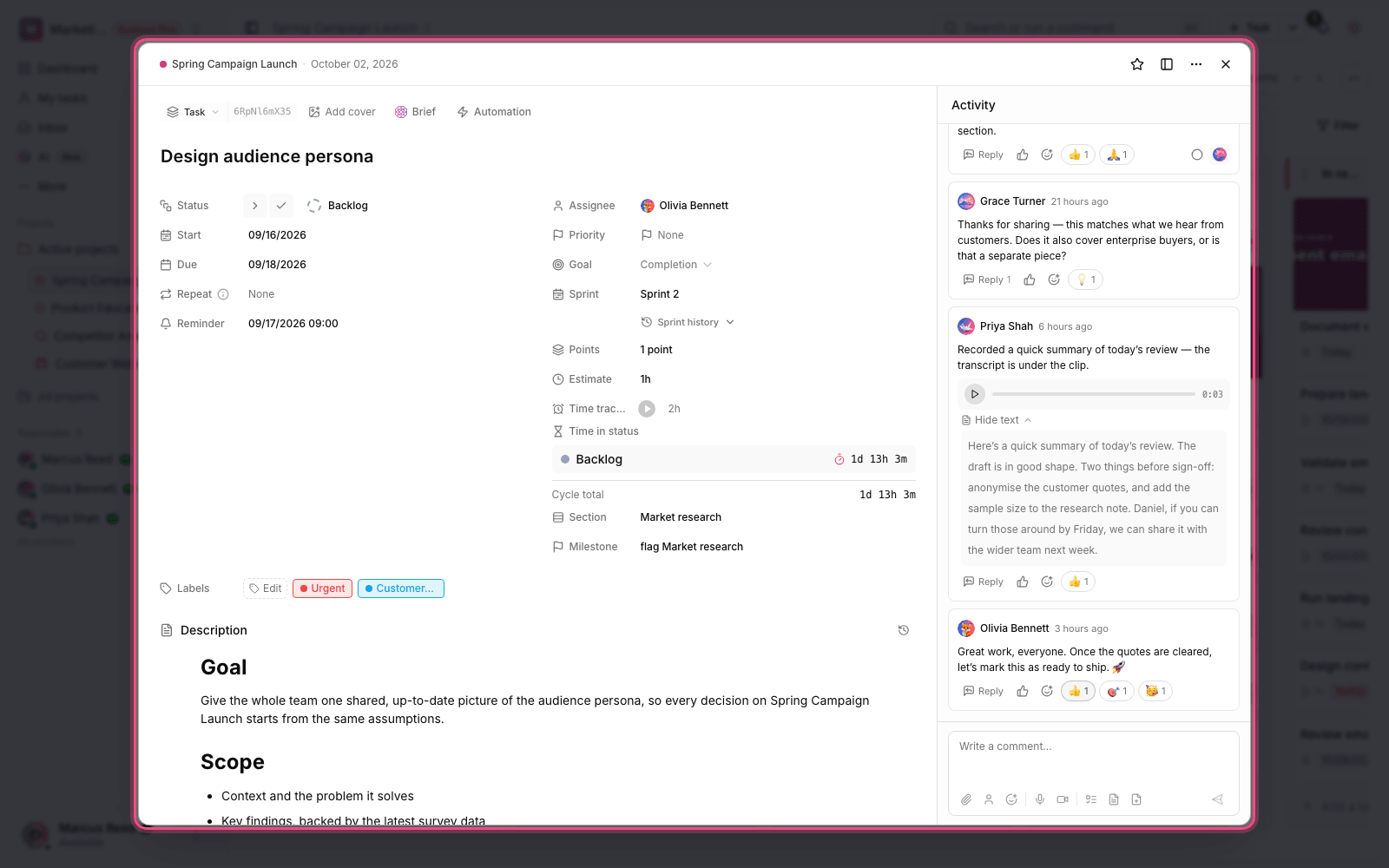
For example, the event TASK-51 planning review is linked to task TASK-51 and appears in the task's Linked items section.
Task status and status commands
In the current version, Google Calendar doesn't change task status. If you write TASK-51[Done] in an event's title or description, the event is linked to the task, but the task's status doesn't change. Automatic status changes are currently available for GitHub and GitLab events.
Manage and disconnect
The connection status and the time of the latest event appear in the Integrations tab of your workspace settings. An owner or admin can disconnect it from Taskie. To stop notifications completely, also stop the watch channel in the Google Calendar API or let it expire.
Common mistakes
- Entering a Calendar ID instead of the Channel ID. The connection value must be the watch channel's id.
- Putting an OAuth token in the Channel Token. Google also recommends that the channel token not contain sensitive data.
- Expecting full event details inside Google's official notification. A push notification usually only sends change headers.
- Expecting two-way sync or a view of a user's private calendar. These features aren't available in the current version yet.
- Expecting a status change from status brackets. Google Calendar only links; it doesn't change the status.
Next step: if you only want a read-only feed for your calendar app, see iCal calendar sync. To connect your planning conversations, review Connect to Slack.